
gfigabehmogcpkcliadhlphhpmpaflaj
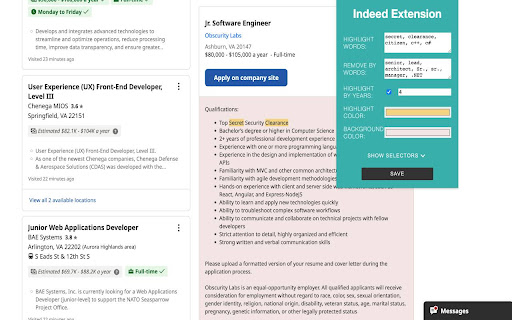
Helps to filter irrelevant jobs and description on Indeed's JobSearch page with highlight feature and changing settings Indeed Highlighter Filter is a Chrome extension designed to help you efficiently navigate through job listings by removing job descriptions by words in titles, highlighting irrelevant years of experience and words. With a user-friendly interface, Indeed Highlighter Filter allows you to customize your job search experience to your preferences and requirements, making it easier to find the perfect opportunity. Highlight Irrelevant Words: The extension identifies and highlights words in job listings that may not be relevant to your search criteria, allowing you to quickly skim through postings and focus on what matters most. Highlight Experience that is greater than your set limit. Scrolling to the first highlighted word. Remove Job Descriptions by Titles: If you're looking for specific job titles, the extension can automatically remove job descriptions that don't match your preferences, streamlining your search process. Customizable Interface: extension provides a user-friendly interface for adjusting colors, stopwords, selectors, and years. Tailor the extension to your personal preferences, ensuring a seamless and enjoyable job search experience. Make your job search more efficient and enjoyable with Indeed Highlight Filter. By filtering and highlighting content based on your preferences, this Chrome extension streamlines the process of finding your dream job. Download Smart Job Filter today and take control of your job search journey!

Twitter Reaction Counter
This extension get list of Like/Retweet on a tweet You can display the user list of Like/Retweet/Quote/Reply on a tweet into table format. Click Likes, or Retweets on a tweet, then click "Getting Engagements" button on its popup, you can get the list. You can see what number of the user list you got, on its icon. This extension get the list only you display on your browser. so if you wanna get more Like/Retweet list, scroll down the list of Like/Retweet on the tweet page. Finally, click "View Results" button on its popup, then another tab will be opened. You can see the user list, and Name, DisplayName, Follow you and Bio of the user. Please use this for Giveaway or so.

ChatGPT Search Bar & Send With Command Enter
ChatGPT Search Bar & Send With Command Enter Mandarin & English Description ChatGPT Search Bar & Send With Command Enter Mandarin & English Description ChatGPT Search Bar & Send With Command Enter Providing smooth chat title search functionality and a more user-friendly messaging experience. Version 2.1 has fixed the issue that line breaks can not be inserted on the UI. Still working on a better approach. Version 2.1 has fixed the issue of the plugin not working due to a URL change. (2024/6/29) In Version 2.0, we introduced a new "Express Search" mode, which allows you to find your desired chat titles immediately after you type it. Regardless of the date, it supports all your past conversations. Are you like us, managing your chats through their titles? Come and try it! We have also added terms of use to the settings page. To fully respect your wishes, we need your explicit consent to our terms of use in order to use the "Express Search" feature. In Version 1.2, we introduced a settings page, where you can choose to enable or disable certain features, as well as set your preferred key combinations for sending messages. In Version 1.1, we have added a chat search function. Now, you can perform chat title searches using keywords, with support for conversations up to 30 days old. Give it a try by clicking our button! If you're curious about how the search function works, feel free to refer to our screenshots. The default behavior of the Enter key has been changed. Instead of directly sending messages, it now adds a line break: - For Mac users, use `Command + Enter` to send a message - For Windows users, use `Ctrl + Enter` to send a message You can choose your preferred key combination on the settings page, or turn off this feature if you wish. The purpose of changing the Enter key's behavior is to prevent accidental message sending when editing prompts, especially given the current rate limits of GPT-4! By using our extension, enjoy a more user-friendly, error-free experience chatting with ChatGPT and take advantage of the convenient chat history search function! Our future plans include: 1. Allowing users to customize key combinations for sending messages, providing greater flexibility. (Partially completed) 2. Introducing customizable prompt templates to facilitate faster message composition. 3. Adding functionality to organize sent and received messages daily, for more efficient tracking and management of chat content. 4. Extending the search function to chat contents. 5. Scheduling batch messages to GPT-4, allowing you to handle AI-assisted tasks even while you're sleeping. Change Log: - Version 2.2.1: Fixed the issue where line break logic failed when sending messages. - Version 2.2.0: Fixed line break logic issue from interface changes. - Version 2.1.0: Fixed plugin not working due to URL change. - Version 2.0.0: Introduced "Express Search" mode and added terms of use. - Version 1.2.0: Added extension settings page. - Version 1.1.2: Improved search functionality, enhancing user experience. - Version 1.1.1: Enhanced user experience for search functionality. - Version 1.1: Added chat title search feature. - Version 1.0: Changed behavior of the Enter key.

Apiary - Web Highlighter & Annotator
Highlight and take notes directly on what you read online and instantly share them with friends and colleagues. Easily highlight and take notes on what you read online and then easily save them for later and share them with friends and colleagues in one click. Apiary is a free to try chrome extension based product that allows you to easily highlight and take notes on what you read online. After you have annotated something online it will be saved to your Apiary account where you can then organize in any way you like with our folder system. You can than easily share directly from the website where you took the notes or from your Apiary account later on with anyone you want. Just highlight and get a shareable link you can send to anyone with one click. When using Apiary on a website or email online you have two options. You can choose to just highlight some text or you can highlight and add a comment to that highlight. Allowing you to save and share you favorite parts and current thoughts while reading it with others. You can view your annotations live by clicking the chrome extension and having the Apiary sidebar appear showing all the highlights and notes you have made on that page. Or you can view them later in your Apiary account where we save all the contents of what you were reading and the highlights and notes you took. Allowing you to get the full context of whatever you were taking notes on. Annotate, save, and share what you read online instantly today. ----------------------------------------- Key Features: Web and Email Highlighting Take Notes On What You Read Online Apiary Account Access With Organization Systems Quick and Easy Shareable Notes Private Notes That Only You Can See Automatically Saving Notes ------------------------------------------- How To Use: In order to use the Apiary Chrome Extension you will need an account with Apiary. Please visit www.myapiary.io to create an account today. 1) Create An Account On Apiary (www.myapiary.io) 2) Download Chrome Extension 3) Sign Into Chrome Extension w/ Your Apiary Account 4) Select Text (Left Click & Drag) You Wish To Annotate 5) Click On Apiary Popup To Either Highlight Or Take Note On Selected Text 6) Delete An Annotation By Clicking On A Highlight And clicking Delete Icon 7) Share Your Notes For A Page By Clicking The Apiary Share Button On Bottom Left Corner Of Window 8) View A Note By Either Visiting Your Apiary Account Or By Clicking View On A Currently Annotated Web Page ------------------------------------ Pro Tips: 1) Make Sure You Are Logged Into Apiary Chrome Extension If You Are Having Issues Annotating 2) Organize Your Notes Into Folders On Apiary To Easily Find Notes Later 3) Share Your Notes With Friends By Clicking Share Button And Sending Link To Friends. --------------------------- Got Feedback? Please reach out to us at support@myapiary.io If you find bugs please let us know at https://forms.gle/rHvoLZwaXfVcbAMJ7. If you have a feature request please let us know at https://forms.gle/vguFD2Rxi2FCsSQi8. By installing the extension, you agree to Apiary's Terms of Service, Privacy Policy, and Community Guidelines (which can be found here: https://www.myapiary.io/term-services and https://www.myapiary.io/privacy-policy)

Indeed Job Filter
A Chrome extension to filter Indeed job listings. This extension supports Indeed job seekers to find their desired jobs easily. Job seekers don't want to see all jobs from all companies because some companies are consulting companies and they post same jobs here and there. This extension will help job seekers to filter jobs by company.
