
gekpeobpiilbboimdmbgfjndlmogepcj

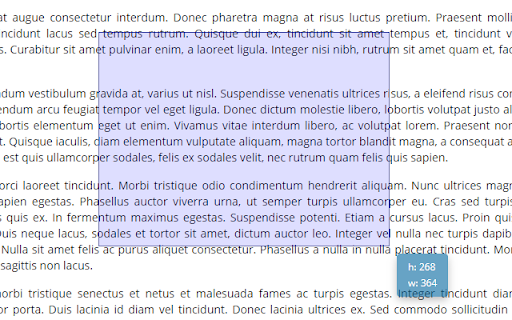
A simple ruler for measuring the size of blocks on a page You can measure the size of any element (width and height). To exit, press the ' ESC ' button or the extension button. Perhaps in the future some more useful functions will be added, but now only such functionality.

Better Ruler
A page ruler which can snaps around web elements for easier measurement. Provide convenience for front-end development and ui design **A smart web ruler with element snapping for easier frontend development and UI design.** - **Smart Snapping**: Hold `Alt` (or `Option` on Mac) while moving the cursor to automatically detect and snap to web elements. Supports snapping to **edges, 4 corners, and 4 edge midpoints**, displaying dimensions instantly. The snap preview uses a contrasting color to distinguish from measurement boxes. - **Easy Measurement**: Click and drag to create a measurement layer that snaps to element edges automatically. - **Flexible Editing**: Double-click any layer to enter edit mode: move, resize, or fine-tune. - **Esc**: Exit edit mode - **Backspace**: Delete the selected layer - **Status Indicator**: The extension icon changes based on status (colored = active, gray = inactive) for easy identification. - **Shortcuts Help**: Hover over the `?` button in the toolbar to view all available shortcuts. - **Customization**: - **Individual Colors & Opacity**: Each measurement box can have its own color and opacity; editing when selected only affects the current item - **Global Mode**: When enabled, changing color or opacity affects all existing measurement boxes simultaneously - **Single Mode**: When enabled, only one measurement box can exist at a time; new boxes automatically clear old ones - **Size Position**: Configure where dimension labels appear (center, corners, etc.) - **Dashed Background**: Choose between solid or dashed background for measurement boxes - **Reference Lines**: Automatic horizontal and vertical reference lines with X, Y coordinate labels - **Crosshair Display**: Configure mouse crosshair display mode - **Quick Controls**: - Press `f` (configurable): Toggle toolbar visibility - Press `r` (configurable): Toggle reference lines - Press `s` (configurable): Toggle snap mode (when on, snapping is always active without holding Alt; Alt temporarily disables snapping) - Press `Shift`: Toggle dimension labels - `Ctrl+Z` / `Cmd+Z`: Undo (supports draw, delete, move, resize operations) - `Ctrl+Shift+Z` / `Cmd+Shift+Z`: Redo - `Alt + z` (customizable): Global shortcut to toggle the extension - Double-press `z` (configurable): Quickly activate/deactivate within the page (after first launch) - **Copy Dimensions**: Click the dimension label on any measurement box to copy its size (e.g., `320 x 180`) to clipboard. - **Toolbar Hint**: A toast notification shows how to restore the toolbar after hiding it. - **Shadow Color**: The snap preview color is independently configurable, no longer derived from the measurement box color. - **Local File Support**: Enable "Allow access to file URLs" in `chrome://extensions` to measure local HTML files. - **Mobile Simulation**: Works in DevTools mobile simulation mode (ensure `device type` is set to `no touch`).

Liner. The Real Ruler
Simple and convenient rulers for web developers. They help to create a perfect pixel web application.

Grid Ruler
Create grids and measure their distance easily. It allows web developers to create vertical and horizontal grids, Photoshop style. It has a ruler to measure distance between your grids too. - click & drag from main vertical/horizontal ruler to create grid guides. - click on intersection of vertical ruler and horizontal ruler to go into measurement mode. - while in measurement mode, hold `Shift` key to get a straight line.

Simple Ruler Beta
Measure it! THIS EXTENSION IS FOR BETA TESTING This simple and easy to use tool allows you to measure elements on the web page. Click to start selection, click again to complete it. See the width and height of the area you selected. You can change the color of background and selection in the Options tab.
