
gejdeepcjkfbepfkcfdgiodgoglakiii
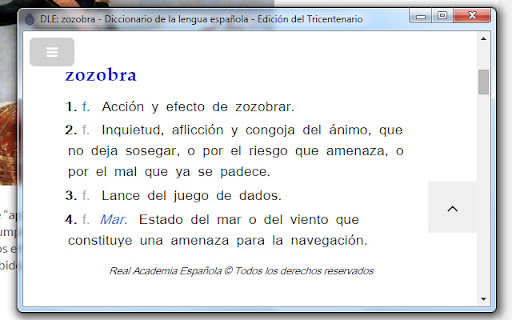
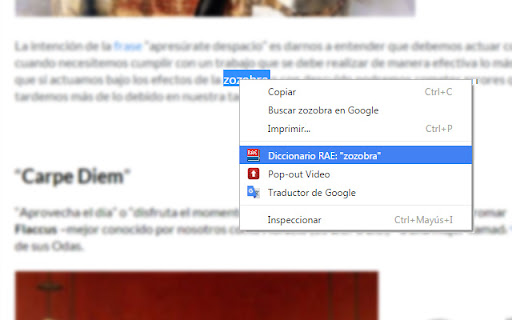
Busca definiciones en el Diccionario de la Real Academia Española. VER. 2.0 (08.2022) Actualización a manifest v3 (razón por la cual no funcionaba) - - - - - - - - - - - - - - - - - - - - - - - - - - - - - - VER. 1.8 (03.2021) Corrección de errores. - - - - - - - - - - - - - - - - - - - - - - - - - - - - - - VER. 1.5.1 2016 ACTUALIZADA A LA NUEVA VERSION DE LA RAE. Busca el significado de palabras en el Diccionario de la Real Academia Española de forma ágil y sin usar el teclado. Modo de uso: 1. Seleccionar la palabra y hacer click derecho. 2. Presionar "Diccionario RAE:" del menú contextual.

Black Menu for Google™
The easiest access to the Google universe with Gemini AI and sidebar support The easiest access to the Google universe with Gemini AI and Sidebar support. Black Menu for Google gives you quick access to your favorite Google services with a convenient drop-down menu that lets you use Search, Google+, Translate, and many others without leaving the page you’re on. Click on menu items to get a small windowed preview or click on the open in new button on the right to open them in a new tab. Customize the menu by pointing at ‘Add’ and dragging/clicking the services you want from a comprehensive list of services. To remove services, drag them to the right to remove them. Access these and more with Black Menu for Google: Search page. Quickly search the web or switch tabs to search for images, books, news, etc.—all within the mini window. Translate page. Type or paste text into the box to get a quick translation for that comment you received in a foreign language. View your translate history and save your favorite ones. Maps page. Find the next restaurant to try out by using the mini map that has search, Street View, and layers for satellite, traffic, public transport and cycling. YouTube page. Watch popular videos or those recommended to you. Do a search and filter the results to find that one video you wanted to share. Sign in to find useful shortcuts at the bottom. News page. Read top news from your locale or any country you choose. Also browse sections like World, Business, Sci/Tech and Entertainment. Use search to find news about any topic. Gmail. Get a full-featured Gmail inbox to check or send mail from. Reply to colleagues, edit labels, forward emails, or archive them—do almost everything Gmail can do right from the menu. Drive page. Browse folders or search for files in a nice familiar layout. View your documents as a list or see images in a grid view. Click the add button to upload files or make new ones. Calendar page. See your upcoming events summarized in a list. Toggle which calendars you’d like to see from the side drawer or just search for specific events. Keep page. Create lists, reminders, or paste snippets from the web. All your notes are here, including archived ones. Organize and rearrange them as you want. Apps page. Access shortcuts to common (and obscure) Google websites like Contacts, Groups, Art Project, Follow Your World and 1250+ more! Right click the Black Menu icon to send me feedback, suggestions, or to report a problem.

Weava Highlighter - PDF & Web
Best highlighting tool for Website and PDF. FREE and easy to use. Highlight & organize your research with Weava online Web & PDF highlighter. Simplify your research process. Focus on Productivity. Don't waste time on keeping track of sources, copying & pasting, or making citations. On average, our users report that the Chrome extension helps them save 3.8+ hours each week. That's a lot of hours that you instead can spend on the things that really matters to you. WITH WEAVA YOU CAN: ➤ Highlight websites and PDFs with multiple colors, and make annotations. Revisit them with a single click. ➤ Organise your highlights into folders and sub-folders. ➤ Create citations automatically for your highlights. ➤ Access your highlights anywhere. Your highlights and notes are saved in the cloud. ★ TRUSTED BY 2,000,000+ USERS: Weava is trusted by students, researchers, business professionals, and people who simply just want to do better and more efficient work. The tool adapts to your needs and research style, giving you the flexibility to review your articles & sources every time you research online. ★ WEAVA PREMIUM: If you want to supercharge your research and maximize efficiency, Weava Premium is your answer. Here are some of the things that you can do with Premium: ➤ Customize any color you want ➤ Create unlimited sub-folders to organize highlights ➤ Unlimited storage in the cloud to store your files ➤ Clip images and save them in the workspace ➤ Collaborate with your friends or team in real-time ★ FREQUENTLY ASKED QUESTIONS & CUSTOMER SUPPORT: For frequently asked questions (FAQs) and customer support, please see: https://weavatools.atlassian.net/servicedesk/customer/portals ★ IMPORTANT THINGS TO NOTE: ➤ Please note that Weava only visually renders the highlights from your current active folder. ➤ You can enable/disable the highlighter pop-up with the keyboard shortcut Alt+S (Option+S on Mac). And you can customize your keyboard shortcuts in your Google Chrome settings (chrome://extensions/shortcuts) ➤ While the tool works on most websites, please note that some websites have conflicting code that results in the Weava highlighter not functioning properly. ➤ Weava fetches and visually renders your color highlights based on the respective URL you first made the highlight on (for websites and online PDFs). Please note that, while your highlights and annotations are always saved in the sidebar and dashboard, if the website URL for some reason changes, then the visual rendering of your highlights are not visible unless you update the URL in the "Edit Source" functionality on the dashboard. ➤ You can 1) highlight local PDFs directly from your computer. 2) Online PDFs, and 3) upload PDFs directly to Weava. Uploading PDFs will ensure you the smoothest experience. ➤ You are currently unable to directly highlight on PDFs inside certain 3rd party software, such as in Google Classroom, Blackboard and Canvas. Instead you would need to first download the PDF and then use it with Weava. We hope to have better solutions towards this in the future. ★ CHROME EXTENSION PERMISSIONS EXPLAINED: Weava's requested permissions are needed for the tool to function properly. However, the exact phrases provided by Chrome for these permissions are misleading and make them sound more invasive than they actually are — and you will generally see the same exact warnings on practically all Chrome extensions. Here's a further breakdown of the required permissions to run Weava: ① "Read and change all your data on the website you visit" ➤ "Read": The Weava Chrome extension has passed all of Google’s automated and manual security checks and is safe to use. The extension reads the current URL of the page you make highlights on - and is also checking if you have existing highlights on this URL so that it can visually show these to you. That's it. ➤"Change": Weava needs to modify the website you are visiting in order to show you the Chrome extension highlighter pop-up on top of it. Weava also needs this permission to be able to change the text background color accordingly whenever you make a highlight. ② "Modify data you copy and paste." ➤ Weava needs this permission simply to create and save the highlights you are making. Without it we would just be a nice color tool but without the capabilities to save the exact content you highlighted and show this to you in the sidebar and dashboard. ③ Separately, in the Weava Chrome extension settings, you can enable "Allow access to file URLs" which gives Weava permission to read PDF local file paths so that you can highlight PDFs directly from local files on your computer. Similarly to highlights on websites, it ONLY reads the file path of the file you are highlighting on and it is only doing this in order to be able to save the highlight and to fetch and visually render these highlights on subsequent visits. By installing the extension, you agree to Weava's Terms and and Privacy Policy (https://weavatools.com/terms-and-privacy).

Reverso – Translation, dictionary
Translate and learn languages while browsing and watching movies, it’s free. Translate and learn languages while browsing and watching movies. It’s free, and registration is optional. Just select a text, let the magic happen and get accurate translations illustrated by examples of real usage. ENJOY THE ULTIMATE AI-POWERED TRANSLATION • Powerful big data algorithms and machine learning. • The most accurate and relevant results, based on millions of real-life multilingual texts. LEARN WHILE WATCHING YOUR FAVORITE MOVIES • Translate subtitles while you enjoy a movie on Netflix, Amazon Prime, YouTube, and more. • Save your favorite words and expressions to review and memorize them later. LEARN WHILE BROWSING AND READING • Discover translations and pronunciations of words and expressions in foreign languages: Spanish, French, Russian…, in the context of your article or document. • Read, write and speak with more accuracy and confidence. • Save your favorite words and expressions to review it later and memorize them. SYNCHRONIZE YOUR FAVORITES ACROSS DEVICES • Synchronize your translation history and favorites with your Reverso account. • On Reverso Context mobile app, practice the vocabulary you’ve discovered via the extension with flashcards, quizzes and games. SUMMARY OF KEY FEATURES • Instant translation of selected text when reading content on your browser • Subtitles translation on Netflix, Amazon Prime Video, YouTube, TED Talks and more. • AI-powered translation available in 26 languages and more are coming in the future! • Seamless synchronization across all Reverso products for registered users. • Advanced features include pronunciation, history, phrasebook of your favorites and more. • Suggestions: words and expressions will be suggested to you as you type. • One-click to get more details on Reverso Context. Download Reverso extension now and enjoy our AI-based translation for free!

Wikipedia Search
Search Wikipedia in every language from the address bar and context menu. Wikipedia Search is an extension that adds multiple ways to search Wikipedia, the free encyclopedia, right in your web browser. You can type "wiki" in the browser search bar, then the Space or Tab key, to start a search with live suggestions as you type. Also, selecting a word or phrase in a web page and opening the context menu will show a Wikipedia search option. You can change the default search language to any language Wikipedia supports, and the optional multi-language search feature can override it with a different choice. Search results can be opened in the desktop Wikipedia site, the mobile site, or Wikiwand. Wikipedia is a trademark of the Wikimedia Foundation. Wikipedia Search is in no way affiliated with Wikipedia or the Wikimedia Foundation.
