
gefjgcijamcglmolelmpeegnflbjalfa
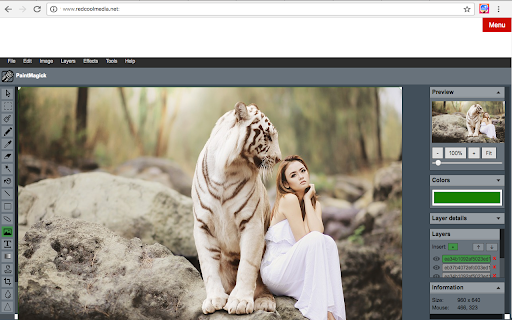

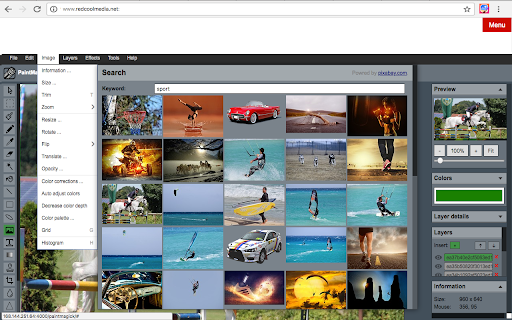
PaintMagick to create and edit photos and images online using a web browser PaintMagick is an image editor for photos and draws with advanced drawing features, effects and filters. It allows to create and edit images directly in the web browser. You can create images, paste from clipboard (ctrl+v) or upload from computer (using menu or drag & drop). Everything stays in your web browser. - Files: open images, directories, URL, drag and drop, save, print. - Edit: undo, cut, copy, paste, selection, paste from clipboard. - Image: information, EXIF, trim, zoom, resize (Hermite resample, default resize), rotate, flip, color corrections, etc - Layers: multiple layers system, differences, merge, flatten, Transparency support. - Effects: Black and White, Blur (box, Gaussian, stack, zoom), Bulge/Pinch, ... - Tools like pencil or brush. - Help: keyboard shortcuts, translations.

Screenshot Tool - Screen Capture & Editor
Innovative screenshot tool lets users screen capture and edit screenshot. Full page screen capture. Take stunning screenshots of entire websites and capture page elements. Offline. No registration. Screenshot tool - captures entire websites and user areas. Ready-made screenshots can be quickly edited (crop, paint over, add arrows, captions or text). Screen Capture tool for making a full page or partial capture with further editing, download, or text adding. Make a full webpage screen capture or just any part of it with an opportunity to edit, save and download screen capture to your PC. The app is launched from a browser that totally saves your time. Simply click the extension icon to choose from options whole page capture or a selected part. You will not see any additional windows with websites here. Why waste time if you just want a screenshot? Want to share your screen for cases like reporting technical issues, making product demos or how-to tutorials? Here are reasons to choose Screenshot and Screen Capture: ✔️ Screenshot of the full page, not just the visible area or selected area; ✔️ Screenshot on One-Click; ✔️ Storage and processing without a server; ✔️ Save PNG files or Copy it to the clipboard with One-Click; ✔️ No login or registration required; ✔️ There are no restrictions on the size or size of the file; ✔️ Edit and discard changes your screenshot; ✔️ Add graphic and text elements such as pointer, arrow, square and other shapes; Click on the extension icon (in the upper right corner of the browser) then choose one of the options capture and watch the Screenshot Tool capture each part of the page and then transfer the finished screenshot to a new tab, where you can edit the image and upload it as a file to your PC. Notes Remember to reload the page after you install extension before trying to take a screenshot of it (Chrome should initialize the extension for each page). The extension Screenshot tool is completely free and easy to manage for users. If our extension is useful to you, please give us 5 stars!

Web Paint - Page Marker & Editor
Web Paint - Page Marker & Editor enables you to make annotations and modifications on websites. This extension allows you to draw, add text, insert lines, and highlight content directly on web pages and PDFs. The tool is compatible with both mouse and touchscreen inputs, giving you the ability to create and save your edits to your device. Whether you're a student, a professional, or simply an avid web user, this extension is a valuable addition. It offers a range of advanced annotation tools, such as a pencil, highlighter, color picker, arrow, polygon, text, and emojis. Are you accustomed to highlighting important text in books or do you want to draw directly on websites in real-time from your browser? Perhaps you need to share your screen for tasks like reporting technical issues, creating product demonstrations, or crafting how-to tutorials. Here's why you should consider using our extension: - It includes all the features found in MS Paint. - You can adjust the thickness, transparency, and choose preset colors. - Capture a screenshot of the entire page. Paint Online is a lightweight and free Chrome extension designed for educational purposes, introducing anyone to the world of drawing right within their browser. Additionally, it offers the opportunity to practice the alphabet, numbers, and artwork while learning. The extension allows for full-page screen captures, saving the screenshots as PDFs or images. These instant captures are stored locally and don't generate online traffic. The screenshot tool functions offline and is incredibly user-friendly. You can easily choose between full-screen or partial area captures with a single click. Furthermore, you have the flexibility to customize the screenshots by adding text, drawing lines, arrows, and shapes. The extension provides the following features: 1.Convenient hotkeys for each tool 2. Save drawings along with screenshots 3. Save images to your PC or print them 4. Crop and save specific image areas We value your feedback! Our team is dedicated to offering you the best Chrome experience possible. If you find our extension helpful, please consider giving it a 5-star rating.

Paint Tool for Chrome
Paint tool to draw anything and anywhere in real-time, paint online. Take a screenshot of your drawing use screenshot tool. Paint Tool - draw on any website, add text, add lines, and highlight! With Web Paint, you can use your mouse or touchscreen to draw on the web or on PDF and save it to your computer. Paint, draw, and mark on any webpage or website. Whether you're a student, a professional, or just someone who loves browsing the web is a must-have extension. You'll have access to an array of advanced annotation tools, including a pencil, highlighter, color picker, arrow, polygon, text, emoji, and more. Easy to set up extension: 1. Install the Web Paint extension, and reload the page to let the extension work. 2. Click on the extension whenever you need to draw or highlight something. 3. Drawings are automatically saved. 4. Take Screenshot. 5. Reload the page to exit the draw mode from the browser. Accustomed to reading books and highlighting important texts or just wanted to draw on any website in real time in the comfort of your browser or want to share your screen for cases like reporting technical issues, making product demos or how-to tutorials? Here are reasons to choose our extension: 1. Has all the features of MS Paint. 2. Adjustable thickness, transparency, and preset color. 3. Take a screenshot of the page. Paint Online is lite weight and a free extension for Chrome that can be used for educational purposes and introduce anyone to drawing right from your browser. In addition, it can practice the alphabet, numbers, and paintings while educating. The creation of a screen capture is easy as it ever could be. Choose from the full-screen or partial area and take it in a click. Then you can fully customize screenshot like add text, drawing lines, arrows, and shapes. You can share your images on Pinterest board. It also contains the functions you need: - Hot-keys to each tool - Save drawing with a screenshot option - Save image to your PC or Print - Crop the necessary area of an image and save it Important Notice After installation/update, please reload the active tabs in your browser for the extensio to work. Rate us! We work hard to provide you with the best experience for Chrome. If you like our extension, please provide us with a 5 star rating!

Paint Tool by Painty
Paint tool to draw shapes, add text on web pages in real-time, make a screenshot, and download or share the screenshot with friends. Paint Tool is the perfect tool for anyone looking to express their creativity. Draw on any web page quickly and easily and add a new level of expression to your browsing experience. With Painty tools, you can turn any web page into your canvas. Take your creativity to the next level with our tool. This powerful paint tool allows you to draw on any web page with a variety of tools and colors. Plus, it's lightweight and easy to use, adding a new level of creativity and expression to your browsing experience. With Painty, you can quickly and easily create beautiful illustrations, take notes, and have fun. Simple, easy, and fun to use the Painty app, you can enjoy and learn drawing on this Chrome extension. Our extension has a simple and easy-to-use design. It is not confusing and easily recognizable tool icons (pencil, highlighter, arrows, paint bucket, eraser, and other tools) are used in the app which makes it easy for everyone to use. The best multitool for paint online includes: 🖍️ Pencil - draw a custom line with the selected line width and color. 🖌️ Highlighter - the easiest way to highlight text on any webpage. 🎨 Color Picker - pick a color from the web page or your drawings and use it for drawing. ➖ Line - paint a straight line with the selected line width, transparency, and color. ➡️ Arrow - paint a straight line with an arrow on the end of the selected line width, transparency, and color. 🔗 Polyline - the best way to paint an arbitrary figure. 🔳 Rectangle - draw a rectangle with the selected line width, transparency, and color. 🟡 Circle - draw a circle or an ellipse with the selected line width, transparency, and color. 🔺 Polygon - paint a polygon with the selected line width, transparency, and color. 🔤 Text - add text to the web page with the selected color and transparency. 😀 Emoji - add fun emoji to the web page. 👁️🗨️ Blur - blur sensitive or personal information on screenshots or images. 🧽 Eraser - erase part of your drawings. 🎨 Paint Bucket - fill an area with selected color and transparency. and more! But that's not all - with the Painty New Tab, you can enable additional features such as adding/removing bookmarks and storing saved screenshots. Screenshots aren’t just handy, they’re also revolutionary to getting more work done, faster, they can be extremely helpful when you need to demonstrate something that would otherwise be difficult to explain in words. A screenshot can help you get more work done. 1. Share Does your coworker want your input on a new webpage they’ve put together? Or do they need you to look over a brochure they’re having printed? Instead of writing a lengthy email with edits, take a screenshot and wow your coworker with excellent, efficient feedback. 2. Demonstrate Don’t just tell. Show. Demonstrate exactly what you’re talking about with a screenshot. By using a screenshot that shows exactly what you mean, there’s less chance that you’ll be misunderstood. And that means less confusion, less time explaining, and more time back in your day. For example, explain to a new employee how to log in. Instead of telling them, you can quickly send them a screenshot that they can reference again and again without having to repeatedly ask you. A screenshot with numbered steps is quick to make and easy to understand 3. Show If you’ve ever contacted your IT or Web Support Team to report a bug, you’ve likely been asked to provide a screenshot. That’s because not everyone’s computer is the same. Depending on your machine, the operating system it’s running, and the browser version you’re on, the way something appears for you could be completely different for others. Providing a visual example of what you’re looking at helps others see exactly what’s going on and identify what might be going wrong. Whether you're a student, a professional, or just someone who loves browsing the web, Painty is a must-have extension. You'll have access to an array of advanced annotation tools, including a pencil, highlighter, color picker, arrow, polygon, text, emoji, and more. With Painty, you can easily create informative content by drawing online arrows and shapes that focus on the most significant parts of a text or website. Plus, you can edit the content on the web page or screenshot with the blur, eraser, or paint bucket tools. In short, Painty is an all-in-one tool for anyone who wants to take their web browsing experience to the next level. Try it out today and see for yourself how easy it is to annotate and customize any webpage! We value your feedback! Our team is dedicated to offering you the best Chrome experience possible. If you find our extension helpful, please consider giving it a 5-star rating.
