
gcnigdofomcplomnpbafganhkijklfaf

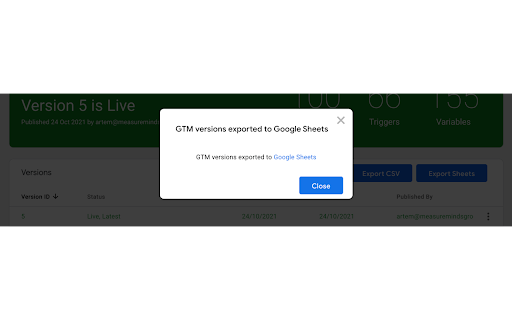
Overview Why did we create this extension? - Unfortunately Google Tag Manager doesn’t allow users to export version history data using an API. This data can include information about authors or dates that the version was created and published. But for our clients' reports, we provide version summaries which include this data and therefore decided to automate this process and share the tool with the GTM/GA community. We are planning to add more features so any feedback and suggestions are welcomed. The extension adds two buttons to the GTM versions page. Export to csv - exported all versions to .tsv file. We use tab separated format as Status or Name column can contain commas. Export to Google Sheets - create new Spreadsheet and copy all versions to this file. Before exporting you should grant permission to access Google Sheets. But the extension will have access only to create new spreadsheets and will have access to already existing documents and tables. Export logic: before exporting extension select to show all versions and if GTM container has deleted versions the tool checks select deleted versions, so result contains information about deleted versions too.

Datalayer Checker
The easiest way to debug and check the dataLayer implementations without having to use the browser console! We are happy is happy to release Datalayer Checker 3 with several new features and a revamped design! NEW VERSION AVAILABLE! 🔹 Redesigned interface and intuitive user experience 🔹 Integrated event search engine 🔹 Flexible variable visualization: table format or JSON object 🔹 Google Tag Manager container injection removed (to respect manifest v3 rules) EXCLUSIVE FEATURES: 🔹 Capture what matters! Save up to 100 dataLayers with our revolutionary "Snapshot" function 🔹 Deep analysis! Verify your dataLayers in batches by methodically inspecting your captures 🔹 Organize efficiently! Structure your workspace with intelligent filters by domain, dataLayer name, or specific search (e.g.: event_name) to automatically classify your snapshots 🔹 Stay up-to-date! Reopen all your snapshot URLs to capture new data and compare them instantly Transform your analytics experience with Datalayer Checker! Because we're passionate about analytics...

Adswerve - dataLayer Inspector+
DataLayer Tools for Digital Analysts The Adswerve dataLayer Inspector+ is a tool kit of utilities for a digital analyst. Inspect Google Analytics activity - Monitor the dataLayer in real time - See the Google Analytics hits in the console, as they happen - Evaluate common dataLayer pushes formats: events and ecommerce Insert additional resources in the page - Push a dataLayer message for setup - Add a GTM container to test it - Insert code into the page to monitor and modify How to use the dataLayer Inspector+: https://adswerve.com/resources/adswerve-data-layer-inspector-2 Update for v2024.11.1.1 Due to new restrictions on external script tags in Chrome extensions, the "Insert GTM Container" option has been removed from dataLayer Inspector+. Follow these steps to insert a GTM container into a web page with the "Inject Code" feature instead: Go to tagmanager.google.com. Under the Admin tab for your container, select "Install Google Tag Manager." As shown in the screenshot below, where it says "Paste this code as high in the of the page as possible," copy just the snippet code content. Note: Do not include , only the code between them. In the DataLayer Inspector popup, under "Add Functionality," check "Inject Code." Paste the code snippet from Tag Manager into the text box that appears. Click the button to "Save Settings & Reload." The GTM container will be inserted until the "Inject Code" box is unchecked and "Save Settings & Reload" is clicked again. Be sure to do this when you've finished testing.

GTMFixer - Google Tag Manager Enhancements
Google Tag Manager enhancements for easier tag, trigger and variable organization. GTMFixer is a Chrome extension designed to streamline and enhance your Google Tag Manager (GTM) workflow. This extension provides a suite of tools that make it easier to organize and manage your tags, triggers, and variables, ensuring a more efficient and error-free tagging process. Variable Quick Edit: Jump straight to the variable editor from any tag parameter field. When a field references a GTM variable, a quick-edit button appears — click it to open that variable instantly without hunting through the variable list. Search Boxes in Preview: Easily find and filter tags, triggers, and variables with added search boxes. This feature saves time and reduces the hassle of manually scrolling through long lists. Filter Tags, Trigger & Variable Types: Quickly filter to any tag, trigger or variable type for easier organization. QA Reminders: After publishing a new GTM version, set a QA reminder so you don't forget to check data after publishing. Tag ID Appending on GA4 Tags: Append unique IDs to your GA4 tags for better identification and management. Tag Error Highlighter in Preview: Quickly identify and address issues with your tags. The tag error highlighter visually marks tags with errors, helping you to promptly fix them and maintain a clean and functional GTM setup. Hide Built-In Variables: Simplify your workspace by hiding built-in variables that you don't use. This feature helps you focus on the variables that matter most to your specific implementation. Event Name Checker: Ensure that your event names follow a consistent naming convention. The event name checker helps you avoid discrepancies and maintain a standardized approach to event tracking. Hide Container Quality: Optionally hide the container quality score to reduce distractions and focus on the essential aspects of your GTM setup.

Omnibug
Omnibug is a browser extension to decode and display outgoing digital marketing tool requests. Omnibug is a Chrome extension built to ease developing with, debugging, and providing quality assurance to today's analytics, UX/CRO tools, and many other marketing technologies. These tags include the Google Marketing Cloud (including Google Analytics, Google Tag Manager, Doubleclick, and Google Ads), the Adobe Experience Cloud (including Adobe Analytics, Adobe Launch, Adobe Target, Web SDK), Tealium iQ, and many more! Events sent to these MarTech platforms are captured and decoded into a human-readable format, which can be filtered and/or exported. You can view all of our release notes at https://omnibug.io/help/changelog/ and a list of providers we support at https://omnibug.io/help/supported-tags/
