
flfhbnhnnbgnfdbilflnlppnipdgkdkd

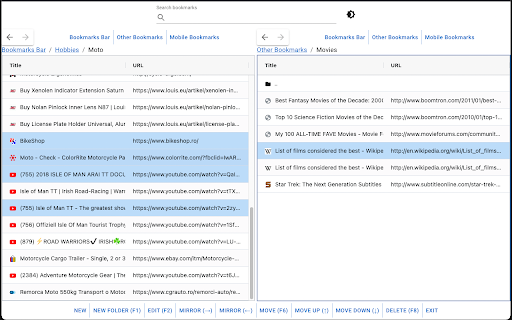
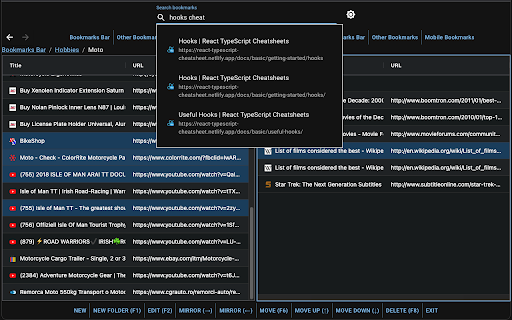

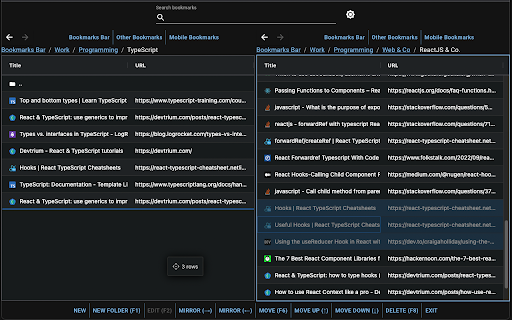
This adds a new user interface for managing and organizing your bookmarks. All the actions in this extension are backed by the standard Chrome Bookmark API. Apart from the main navigation, here are some of things you can do with this extension: - Create, edit and delete bookmarks and folders - Select multiple rows, using Ctrl/Cmd/Shift + Mouse click/Space key - Drag and drop between panels, or into folders - Search within your bookmark collection - Open multiple selected bookmarks in new tabs with mouse middle click - Navigate using your keyboard (Arrow keys, Enter, Backspace, Tab) - Switch between Light or Dark themes This extension is a Free and Open Source application. The code is available on GitHub under a BSD license: https://github.com/CezarLeahu/bookmark-commander

Bookmark Manager and Viewer
An elegant bookmark manager with fuzzy search and more The "Bookmarks Manager and Viewer" extension provides a panel view to modify your bookmarks. The panel is equipped with fuzzy search (like Google search) to help you find the matching bookmarks. You have a set of tools to edit your bookmarks on the fly. It is even possible to drag a bookmark to a new position in the tree or create a new directory and place the bookmark inside it. Features: 1. Fuzzy Search: Use to find matching items even if you are not sure what the exact title or URL of the stored bookmark is. 2. Validation Button: Delete broken bookmarks or find duplicated bookmarks recursively. 3. Edit Properties: Modify the title or address of a bookmark 4. Toolbar Color: Detect if the current page is bookmarked or not 5. Sort Bookmarks 6. Supports Live Bookmarks 7. Opening Mode: Open in a browser tab or popup view 8. Keyboard Navigation and Operation

Searchable Bookmarks Manager
Easily search through your bookmarks, straight from your browser's address bar! Easily manage your bookmarks right from Chrome's address bar! Features: - Easy to use tree view! - Fast bookmarks search and filter feature! - Color code your folders! - Open your bookmarks in a single tab group! - Open all bookmarks inside a folder with just one click! - Dark mode and many other customization features! Your bookmarks will remain completely private. This extension does not collect any usage data. This collection does not store any usage data. This extension does not communicate with any third parties. This extension does not communicate with any external source.

Bookmarks Commander
A dual-pane Norton Commander liked bookmarks manager that supports sorting, dark theme, search, and duplicate detection This is a two-panel bookmarks manager for your browser. It works similar to the famous Total Commander. You can move items between the panels or view two different directories simultaneously. Instruction: Click on the toolbar button once to open the commander in a new browser tab. By default the left panel has focus. Use arrow up and arrow down keys to navigate. Use Enter to move to a directory. To move the other panel simply press The left or right arrow key. Shortcuts: [open links]: Press Enter key to open on the same tab. Press Ctrl + Enter or Command + Enter to open in a background tab or use double-click to open on the same tab. Press Ctrl/Command while double-clicking to open in a background tab. [select multiple bookmarks]: Ctrl/Command with left-click to select more items. [copy links to the clipboard]: Ctrl + C or Command + C to copy selected links to the clipboard. [copy titles to the clipboard]: Ctrl + X or Command + X to copy selected titles to the clipboard. [directly navigate to a bookmark]: Press the first character of the title multiple times to navigate between items starting with this particular character [move one step up]: Use backspace to navigate to the parent directory [move between left and right panels]: use Tab key to toggle between panels. Use Ctrl + 1 or Command + 1 to move to the left tab. Use Ctrl + 2 or Command + 2 to move to the right tab. You can alternatively use arrow-left and right to move between panels. [move selected bookmarks and folders to the other panel]: Use Ctrl/Command + right arrow key to move selected items to the right panel when the left panel is focused. Use Ctrl/Command + left arrow key to move selected items to the left panel when the right panel is focused. [sort items]: Ctrl/Command + J for A-Z and Ctrl/Command + Shift + J for Z-A [find duplicated bookmarks]: Ctrl/Command + Shift + F; use the "duplicates" keyword on the search bar to find all duplicated bookmarks in the current directory and subdirectories. [move bookmarks between different browsers]: Ctrl/Command + Y to export selected bookmarks to the clipboard, then use Ctrl/Command + P to import them to the new machine. This way you can transfer bookmarks between two browsers. [configurations]: Use Ctrl/Command + S to access configuration panel. You can change the font size and font family of the interface or change the color scheme (theme) of the interface (dark, light, or based on your OS color scheme) or toolbar icon's color. It is also possible to use the new "VIM" mode to support VIM-compatible navigation (still in progress). Notes: 1. When an operation is not allowed, the button is disabled. 2. You can see all the shortcuts by placing your mouse over the buttons. 3. You can drag and drop bookmarks between panes 4. You can use right-click context menu to open links in new windows

Bookmanize - Advanced bookmark manager
Advanced bookmark manager provides tagging, instant sorting, and filtering among all bookmarks on a full list view. Bookmark manager with a clean user interface where all bookmarks can be easily accessed in one full list view with tagging, instant sorting, and filtering. Organize your bookmarks with custom tags and faster navigates between them. We are an independent team of developers who love what they do:) If you want to improve or expand anything - email us bookmanize@gmail.com Support us with a cup of coffee - https://www.buymeacoffee.com/bookmanize ★ All bookmarks on one screen ★ Fast access to all main functions ★ Instant searching, filtering, sorting, adding, deleting bookmarks ★ Drag n drop bookmarks and folders All the features that the default bookmarks have (add, delete, sort, drag and drop bookmarks) in a more user-friendly interface with high performance for a large number of bookmarks Note: Your data (history and bookmarks) is not saved or stored anywhere else but on your computer. Hotkeys: - ctrl+shift+f or command+shift+f — focus the search field
