
flaohdpapmmmkmfnghobgdlbiioeplhb

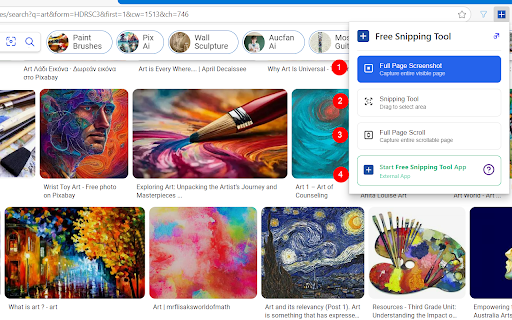
Professional snipping tool with full page, selection, and scrolling capture capabilities Free Snipping Tool - Screenshot & Screen Capture Powerful screenshot tool and screen capture extension for Chrome. Take full page screenshots, snip selected areas, capture scrolling pages, and annotate images instantly. Perfect for web developers, designers, and professionals who need quick, high-quality screen captures. ✅ Key Features: Full page screenshot - capture entire webpages including content below the fold Snipping tool - select and capture specific areas with precision Scrolling screenshot - automatically capture long pages and infinite scroll content Desktop app integration - seamlessly connect with advanced editing features No registration required - start capturing immediately after installation ✅ Perfect for: Creating tutorials and documentation Bug reporting and feedback Web design and development Research and content creation Social media and presentation materials ✅ Advanced Capabilities: Multiple capture modes (visible area, selected region, full page) Direct integration with cloud storage (Google Drive, Dropbox) Professional annotation and editing tools Instant sharing and collaboration features High-resolution image export (PNG) Join thousands of users who trust Free Snipping Tool for professional screenshot needs. Install now and experience the most comprehensive screen capture solution for Chrome!

Web Scraper - Free Web Scraping
Web data extraction tool with an easy point-and-click interface for modern web Free and easy to use web data extraction tool for everyone. With a simple point-and-click interface, the ability to extract thousands of records from a website takes only a few minutes of scraper setup. Web Scraper utilizes a modular structure that is made of selectors, which instruct the scraper on how to traverse the target site and what data to extract. Thanks to this structure, data mining from modern and dynamic websites such as Amazon, Tripadvisor, eBay, as well as from lesser-known sites is effortless. Data extraction is run on your browser and doesn’t require anything to be installed on your computer. You don't need Python, PHP, or JavaScript coding experience to start scraping. Additionally, it is possible to completely automate data extraction in Web Scraper Cloud. Once the data is scraped, download it as a CSV or XLSX file that can be further imported into Excel, Google Sheets, etc. Features Web Scraper is a simple web scraping tool that allows you to use many advanced features to get the exact information you are looking for. It offers features like: * Data scraping from multiple pages; * Multiple data extraction types (text, images, URL’s, and more); * Scraping data from dynamic pages (JavaScript + AJAX, infinite scroll); * Browsing scraped data; * Exporting scraped data from a website to Excel; It is dependent only on the web browser; therefore, no extra software needed for you to start scraping. How to begin scraping? There are only a couple of steps you will need to learn in order to master web scraping: 1. Install the extension and open the Web Scraper tab in developer tools (which has to be placed at the bottom of the screen); 2. Create a new sitemap; 3. Add data extraction selectors to the sitemap; 4. Lastly, launch the scraper and export scraped data. It’s as easy as that! What can Web Scraper be used for? * Lead generation - email, phone number, other contact detail related data mining from various websites; * E-commerce - product data extraction, product price scraping, description, URL extraction, image retrieving, etc; * Website content crawling - extract information from news portals, blogs, forums and so on; * Retail monitoring - monitor product performance, competitor or supplier stock and pricing, etc; * Brand monitoring - product review, social content crawling for sentiment analysis; * Business intelligence - gather data for key business decisions, learn from your competitors; * Big data extraction for machine learning, marketing, business strategy developments, researches; * And much more. Web scraping can be a little bit difficult at first, that's why we have created informational guides that can help you. For video tutorials, documentation, how-to’s, playground web pages and blog, visit our website: https://www.webscraper.io/ If you want to discuss web scraping, request features, ask questions or submit bugs, visit our friendly forum here: https://forum.webscraper.io/ Regarding the privacy policy of our product, see “Browser Extension Privacy Policy” at https://webscraper.io/extension-privacy-policy Thank you for choosing us!

Full Page Screenshot
Capture, annotate & design with backgrounds! All-in-one tool for full-page screenshots, edits & creative designs. Free & powerful. Full Page Screenshot: The Ultimate Full Page Screenshot & Creative Design Tool Tired of juggling multiple tools for screen capture and annotation? Full Page Screenshot is the all-in-one chrome screenshot extension designed to streamline your workflow. Whether you need to capture a full-size screenshot of a long webpage or just a quick snip, we provide a powerful, intuitive, and reliable solution. It's the perfect replacement for tools like Awesome Screenshot or GoFullPage, offering more features—including a powerful background editor—and a better user experience, completely for free. One-Click Full Page Screenshot: Seamlessly capture an entire webpage from top to bottom with a single click. Our advanced scrolling technology ensures a perfect, pixel-perfect stitch every time. Multiple Capture Modes: - Full Page: Capture the entire webpage. - Visible Part: Grab what you see in the current browser window. - Selected Area: Drag and select any portion of the screen for a precise screen capture. Powerful Image Editor & Annotation Tools: Don't just capture—communicate! Our built-in editor turns your static images into powerful visual assets. Creative Backgrounds & Design: Go beyond simple edits. Add custom backgrounds, colors, or patterns to transform your screenshot into a professional-grade graphic. Perfect for marketing, tutorials, or social media. Annotations: Add text, arrows, shapes (rectangles, circles, lines), and emojis to highlight important information. Blur & Obfuscate: Easily hide sensitive data with our pixelate or blur tool. Rich Text Editor: Control font size, color, and style for professional-looking text annotations. Layers Panel: Manage your annotations with an intuitive layers system, just like a professional design tool. Intuitive & Modern UI: Enjoy a clean, modern interface with both Light and Dark themes. An infinite canvas gives you unlimited space to work with your captures. Easy-to-use zoom and navigation controls. Easy Export & Share: Download your screenshot and annotations as a high-quality PNG or JPG file. Copy to clipboard with one click for quick sharing in emails, documents, or support tickets. 🚀 Why Choose Full Page Screenshot over other tools? While you might be familiar with Fireshot for its capture capabilities or Awesome Screenshot for its editor, Full Page Screenshot combines the best of both worlds and adds more. Unlike GoFullPage, which focuses solely on capture, we provide a complete post-capture editing suite. We are committed to being the best full page screenshot tool available. Click the extension icon in your toolbar. Choose your desired capture mode (e.g., "Full Page"). The extension will automatically perform the screen capture. Your image opens instantly in our powerful editor for annotation and export. Stop searching for the perfect chrome screenshot extension. You've found it. Install Full Page Screenshot today and elevate your screen capture workflow!

Easy Screenshot - a Web Clipper
all-in-on capturing tool for the visual part, the entire page, or a selective area with auto-scrolling and editing support You can capture screenshots from the active tab with just two clicks. It provides multiple options for capturing specific portions of the page, the visual viewport, or even the entire page if it extends beyond the screen with both vertical and horizontal scroll bars. The captured image can be saved to the default download directory, copied to the clipboard, or opened in an online paint editor. The extension currently integrates JSPaint, a web-based replica of MS Paint, which offers offline functionality, allowing you to edit your images without an internet connection. The extension adds a toolbar button to the browser's action area. Clicking on this button opens a popup window with three options: 1. Capture the Entire Screen (3 methods. Works even if the page contains fixed-position elements) 2. Capture Visual Part 3. Capture a Portion Supported formats: PNG, JPEG, Avif, and WebP These options are also accessible via the right-click context menu on any page, providing easy access to the screenshot functionality. Here are some additional notes about the extension: 1. When selecting the "Capture Entire Screen" option, and the page size exceeds the window size, the extension will automatically scroll through the entire page to capture different sections and merge them into a single image. This process may take a few seconds to complete. 2. The resolution of the captured image depends on the screen resolution. For instance, if you have a 4K display, such as a Retina display, the image resolution will be at least four times higher than a regular display. 3. To ensure compatibility across various devices, the extension saves all captured screenshots in the widely supported PNG format, which offers high-quality lossless images. 4. The extension does NOT add watermarks to the captured images. 5. If you prefer to customize the format of the filenames for downloaded images, you can visit the options page and utilize the "filename mask" option to make the desired changes.

Screenshot & Screen Capture - ILoveSnapshots
Free screenshot tool: full page capture, area select, text-to-image, 120+ themes, annotate, blur, crop & edit. No signup needed The Fastest Way to Capture, Style, and Share Beautiful Screenshots ILoveSnapshots is the only screenshot tool that combines powerful capture with 100+ design themes. Create professional looking screenshots in seconds—no design skills needed. What you can do: Take Screenshots • Capture what's visible on your screen with one click • Take a full page screenshot that automatically scrolls and captures the entire page • Capture screenshot of only a selected part of the webpages • No more piecing together multiple screenshots - we handle the scrolling for you • Use keyboard shortcuts: Ctrl+Shift+Y (Cmd+Shift+Y on Mac) for quick screenshots, Ctrl+Shift+U (Cmd+Shift+U on Mac) for full pages Capture Text with Formatting • Select any text on a webpage and save it with its original styling • Choose from different themes to make your captured text look great • Remove clutter automatically - we strip out buttons and navigation elements • Perfect for saving quotes, articles, or code snippets • Convert Boring Docs into beautiful Docs for better reading Built in Editor • Edit your screenshots right after capturing them • Add arrows, shapes, blur, highlights, and textboxes • Add custom image watermarks and position them freely • Crop and style everything in one place • No need to open separate editing software • Download or Copy your edited images when you're done Easy to Use • Click the extension icon to get started • Toggle features on and off from the popup menu • Keyboard shortcuts for faster workflow • All processing happens in your browser - nothing is sent to external servers Privacy • Your screenshots and text captures stay on your device • We don't track your browsing or collect data about which websites you visit • No bloat, no ads, no unnecessary permissions Perfect for: • Students taking notes from online articles • Developers capturing code examples • Designers saving inspiration • Anyone who needs to save and share web content Keyboard Shortcuts: • Ctrl+Shift+Y (Cmd+Shift+Y on Mac) - Quick screenshot • Ctrl+Shift+U (Cmd+Shift+U on Mac) - Full page screenshot • Alt+Shift+J - Turn on text capture mode • Alt+Shift+K - Turn on click-to-select text mode
