
fhamlklnpkhdfepaipljcngncafnlbfa

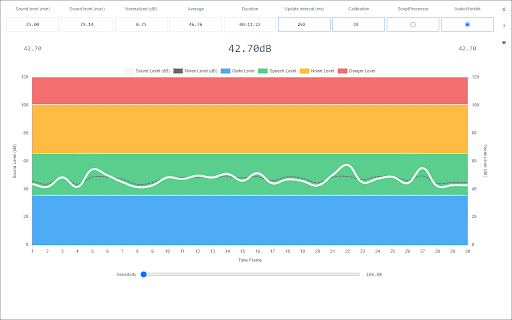
Measure the surrounding sound (dB) and noise with your computer's microphone! Sound Meter (Noise & Decibel) extension enables you to measure the surrounding sound (dB) and noise with your computer's microphone. This add-on helps you easily measure some important sound factors, such as the sound level in decibel, noise level, sound average, and normalized sound value. When you open the app for the first time, it may ask you about microphone access. Please accept the dialog box to start the add-on. Also, note that the app may take a few seconds before getting ready. So please be patient while the add-on is getting ready. Once the loader is disappeared, the add-on is ready to use. It uses the microphone in your system to capture the surrounding sound. If your computer does not have a microphone, please attach one to it before using the add-on. On the top toolbar within the interface, you see several pieces of information about the surrounding sound. You can also change the capturing sound API via the buttons at the top-right. Note: The interface for this app can be opened in a separate window, new tab, or toolbar popup (choose a context from the toolbar button's right-click menu). When you open the app for the first time, please open it in the window or tab to see the microphone permission dialog. If you see any bug or have a feature request, please fill out the bug report form on the addon's homepage (https://mybrowseraddon.com/sound-meter.html).

Decibel Limiter
Limit the maximum decibel level in a browser tab Decibel Limiter: Smart Volume Control for Chrome Protect your hearing and enjoy a consistent audio experience with Decibel Limiter. This lightweight extension automatically monitors and limits the volume of any audio or video playing in your browser tabs. 🔊 Key Features: • Real-time volume limiting based on customizable decibel thresholds • Visual audio level meter showing current volume in dBFS • Per-tab configuration allows different settings for different websites • Works with popular streaming services including Netflix • Dark mode support that adapts to your system preferences Perfect for night browsing, shared workspaces, or anyone who wants to avoid sudden loud sounds while surfing the web. Decibel Limiter processes all audio locally on your device with no data collection or external connections. 🚀 Full-screen Note for Enhanced Mode (Mic icon): By design, Chrome prevents extensions that manipulate audio from entering true full-screen mode. This ensures the blue rectangle icon stays visible in the tab bar, letting you know the extension is actively processing sound. It's an intentional security measure and cannot be disabled. You can still get a more immersive view by pressing F11 (Windows) or Ctrl + Cmd + F (Mac) to enter full-screen manually. Take control of your audio experience today!

Sound Adjustment
Sound Adjustment is a lite extension that lets you easily adjust a few sound settings from the toolbar popup. Currently, there are six options to adjust. The first one is volume, the second is balance and, the last one is amplify. All these settings are stored for the current tab only. Once you change tabs, settings are reset to defaults. The volume setting is from 0 to 100 units. The balance variable changes from (-100%) to (+100%), where -100% is the left speaker only and (+100%) is the right one. Any value between these numbers divides the sound output between speakers proportionally. The last setting is for the amplify option, which amplifies the output sound from 100% to 500%. 100 is the original level and, 500 makes the output sound five times louder than the normal settings. The last three options are related to 3D audio spatializations, where you can adjust the position of the panner or listener in 3D space. Furthermore, three buttons are at the bottom-right corner of the popup. From left to right, are the reload (to reload the active tab), support, and donation buttons. Note 1: By default, all the adjustments are non-persistent, meaning if the active tab is reloaded, the sound is reverted to the original setting. If you want to make it persistent, please press the PERSISTENT button at the top header (it asks for permission to access the current domain). Note 2: This add-on only works for HTML5 audio and video elements. Moreover, currently, the add-on does not work for media elements embedded in frames. Note 3: The toolbar popup interface supports dark mode. To switch the interface theme to dark, please press the moon icon on the bottom toolbar. If you have a feature request or found a bug to report, please fill out the bug report form on the add-on's homepage (https://mybrowseraddon.com/sound-adjustment.html).

Network Information
Useful information about your system's connection including, type, speed, and rtt. Network Information is an extension that provides information about your system's connection. It is working based on a new JavaScript API called "navigator.connection". When you open the toolbar popup UI, there is a big speed gauge at the top center which shows the "downlink" speed for your browser. This speed refers to the estimated bandwidth in megabits per second (not related to the current internet speed). Other metrics for the network information API are connection type and round trip time (rtt). There is a reload button at the top right corner of the screen which is for reloading the app UI. The next button is for resetting the app to factory settings. The third button on the right toolbar is for switching the interface theme to dark. There is also a wifi icon at the middle right section of the screen which shows the online or offline status of your browser. If you found a bug to report, or have a feature request in mind, please fill out the bug report form on the add-on's homepage (https://mybrowseraddon.com/network-information.html).

Audio Analyser Extension
Analyses the audio of the current tab and draws the audio frequencies on a canvas. This extension allows you to analyze the audio data of a tab and view a visualization of the audio frequencies and peak/rms in an extension popup window. To use this extension; simply open the tab/website you want to analyse and click the extension icon in the top right (next to your other extension icons). A new window will open where you can set the size of the window by using the 'window size' knob/option or by using your browsers default zoom feature. The extension will automatically start analyzing the audio stream data (if it got any audio stream data). You can only analyse one tab at a time, but you can always change website of that tab if you want to analyse a different website. Your extension settings/options are automatically saved every time you close the extension window. You can set a shortcut for this extension by going to chrome://extensions/shortcuts and setting a shortcut for the "activate extension" parameter for this extension. Keep in mind that the frequency data and the peak/rms data are not 100% accurate.
