
fbjmlmabammiejnfkmgjhdcnjdahblaj

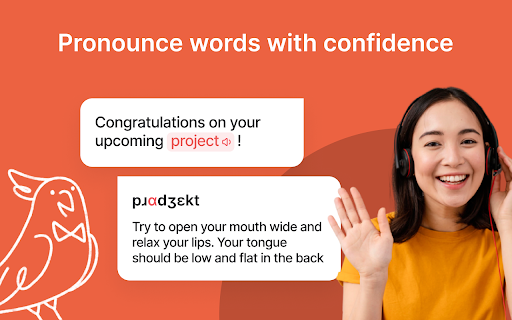
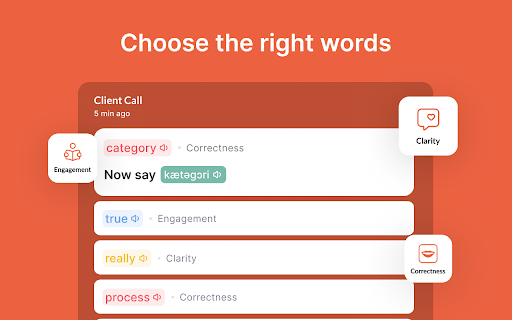
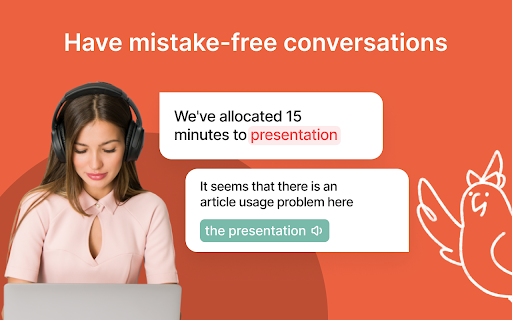

Speak confidently with instant feedback on any conversation from an AI speech coach. Get feedback on every word in all your conversations, no matter where you speak. App agnostic Pronounce speech analyser provides feedback on American and British pronunciation, filler words, fine-tuning sentence structure, and fixing grammar mistakes. Say goodbye to the stress of imperfect language skills - Pronounce AI is here to elevate your English to new heights! Pronounce AI ensures your spoken English is fluent, clear, and compelling. Use every conversation as an opportunity to speak better. 💡 🤖 Leveraging GPT's sophisticated capabilities, Pronounce AI checks pronunciation, tracks vocabulary, and corrects grammar. It's not just about speaking English but mastering professional communication. Our AI-driven system also expertly identifies and helps reduce filler words and speaking speed, enhancing speech clarity and effectiveness. 🔗 Use Pronounce AI with your favorite meeting platforms - Google Meet, Zoom, or Microsoft Teams. Level up your English skills with just a click. Beyond transcribing your words, Pronounce AI helps you monitor and improve your English fluency. Every conversation is an opportunity to learn and grow. Join a community of over 100,000 professionals across 80+ countries who trust Pronounce AI to refine their English-speaking skills. It is ideal for professionals, English tutors, English learners, freelancers, influencers, people in sales and public relationships seeking to master their verbal communication in English. 💬 Embrace the future of language learning with Pronounce AI. Whether for team collaboration or client interactions, Pronounce AI is your partner in transforming your English speaking skills, one conversation at a time. How It Works: 1. Install the Pronounce AI extension (Absolutely FREE) 2. Record your calls on Google Meet, Zoom, Cisco Webex, MS Teams and more. 3. Review feedback on enhancing your English - focusing on grammar, vocabulary, pronunciation, and more. 4. Benefit from GPT-4 technology for real-time language enhancement and learning. 📌 Main Features: • Real-time speech feedback on English speaking • American or British pronunciation, grammar, and vocabulary • Advanced sentence enhancement using GPT-4 technology • Detect and reduce filler words for clearer, more concise speech • Monitor and optimize pausing for a more effective speaking rhythm • Seamlessly record in your preferred meeting platforms • Instant feedback and assistance to bolster your language skills • Speaking partners for comprehension and fluency training • Record and review your meetings to track progress ⭐️ Experience English speaking in the all-in-one Pronounce AI Meeting Summary Chrome Extension: • FREE AI-powered speech recorder for Google Meet, Zoom, MS Teams, and other conference call tools. • Real-time pronunciation check, vocabulary expansion, and grammar correction • Non-intrusive, time-saving, efficient language enhancement experience • Save and reuse words and phrases in your custom vocabulary • Share transcripts and language learning insights easily • Share progress and improvements with the English tutor • Learn better sentences with comprehensive transcript analysis • Re-listen to your speech and compare it with AI natural voice • Record important conversations for language review • Stick to your daily speaking plan and track language improvement over time 🔥 Advantages and Features of Pronounce AI: • Real-time English enhancement of real life conversations in Google Meet, Zoom, MS Teams, and other conference call tools • Leverage the latest GPT-3.5, GPT-3.5-turbo, GPT-4, GPT-4 Turbo, ChatGPT Enterprise, and Claude models. • Customizable vocabulary for language learning and improvement • Interactive chat AI speaking partner • Comprehensive language skill enhancement beyond basic grammar • Personalize your language learning journey with tailored role-playing and solving real-life cases 🔒 Secure and Private: • Enjoy advanced language learning with complete data privacy. Our use of • • OpenAI's API ensures your data remains secure and private. • OpenAI does not use API-submitted data to train its models. • All language learning data is securely stored and remains private. • Detailed privacy policy available at https://www.getpronounce.com/privacy ➜ Need Help? Check https://www.getpronounce.com for more info. Visit our blog at https://www.getpronounce.com/blog Join the language revolution with Pronounce AI. Speak Better. Speak Confidently. ✨

Instant Dictionary by GoodWordGuide.com
Dictionary Bubble (Instant Dictionary): quickly lookup word definitions with audio pronunciation as you browse the web. With this extension, you can: 1) Double-click any word to view its instant definition in a small pop-up bubble. 2) Lookup the complete definition of words or phrases using the toolbar dictionary. 3) Perform a lookup for detailed definitions in the online dictionary. 4) One click access to Google search if the word/phrase is not found in the dictionary. 5) More advanced than Google Dictionary. 6) Works with Google Docs and Microsoft Office 365 IMPORTANT: The bubble will not work in tabs that were open prior to installation; such tabs must be refreshed. Also, note that all extensions are disabled on Chrome Web Store pages (including this page).

Longman Dictionary Bubble
English should be learned in English. This is a suitable app for those who believe that. This extension shows a bubble-type popup for the selected word's definition in Longman Dictionary. It can show a clickable icon for the popup, or clicking a word displays the bubble immediately. By default, it adopts American English pronunciation, but you can enable "Prefer British pronunciation" in the options to use British pronunciation instead. If you would like to comment, please leave any here. For your information, this extension uses Pearson Dictionary API (http://developer.pearson.com/apis/dictionaries). It was supposed to become unavailable at the end of 2017 but still available up until today (May, 2019). Recent updates (v2.3.0): - Smart word recognition: automatically finds dictionary entries for inflected words - When a word isn't found, tries the root form (e.g., "swimming" → "swim") - Works with verb forms, plural nouns, and adjective forms Previous updates (v2.2.0): - Anki integration: Save words directly to your Anki flashcards via AnkiConnect - New option to show/hide the "Add to Anki" button Previous updates (v2.1.0): - British pronunciation icon now displayed next to American - Auto-pronounce: hear the word automatically when popup shows - Option to prefer British pronunciation for auto-pronounce

Web Page Reader TTS Text To Speech
100% Free. No registration. No ads. No data sharing. Reads with no selection required. Highlights one sentence at a time. This extension reads web pages with text to speech (TTS) and highlights one sentence at a time. It doesn't require you to select any text first. It doesn't launch a new weird web page. And it's totally free with no sign in or registration required. And it's ad free. By default it reads the whole page, top to bottom. However, if you select any text, even just a word, it starts reading at your selection, but continues on from there until you stop it, or it reaches the end of the page. Now with better "sentence" identification. 👓 Cramming for exams 👓 Vision impaired 👓 Multi-tasking 👓 Adult continuing education 👓 Learning a new language 👓 Cramming for technical interviews 👓 Relaxing with a good book and a cup of tea 😀 You can go forwards and backwards, skipping to the next or previous sentence. You can pause or resume, and you can repeat the current sentence. If it's reading, you can change where it reads next simply by highlighting another word. 😀 You can control the voice (i.e., nationality, gender), pitch, speaking rate and volume from the extension's control panel. It loads all the voices which are available to Chrome. You can also disable the voice and just have it highlight sentences (to keep you on pace or use it as a teleprompter) 😀 You can change the background color and the font color of the selected text. Try using some semi-transparent colors, those are nice! 😀 If you are reading / learning software development, you can have the reader skip reading sections of code 😀 You can control the scrolling behavior. It can page down when it get to the bottom, like humans normally do, or it can keep the sentence being read in the middle of the screen (and you can adjust where the "middle" is, put it anywhere between the top or the bottom.), or you can turn auto scrolling off (so you can scroll along manually or study another part of the page). 😀 You can control the reader entirely from the keyboard. See the keyboard image for key assignments. Learn to read entire pages with just your right hand on the arrow keys. 😀 The new Vocabulary feature isn't quite here yet, but it's coming soon. You'll be able to add custom dictionaries to change the pronunciation and / or see definitions of words you're trying to learn, without leaving the page. 1. After adding this to Chrome 2. [Recommended] Click on the extension puzzle piece in the Chrome toolbar and pin the extension. Now you will see the tool in your toolbar. 3. [Optional] Click on this tool to open the control panel 4. Notice the control panel has four areas: the reader controls, the voice options, the reader options and the custom dictionaries (coming soon). 5. [Optional] Under options, set your desired voice and reader settings. Default values are already set for you. Do you boo! Note: All keyboard shortcuts only work when the web page has the mouse focus. 1. [Recommended] Select one word by double-clicking, where you want it to start reading. It will select that whole sentence for you and start reading from there. 2. Press the right arrow key to start reading. Alternatively, you can press Start from the toolbar. 3. It will just keep reading until it runs out of things to read. To skip forwards, press the right arrow key. Alternatively, you can press the Next button from the reader toolbar. 4. To go back, press the left arrow key once to pause, then again to go back. Alternatively, you can press the Previous button from the reader toolbar. 5. To repeat the current sentence, press Enter. 6. Adjust the volume with the + and - keys on your numeric keypad (see keyboard image). Changes take effect starting with the next sentence read. Alternatively, you can control the volume in the reader settings. 7. Adjust the speaking rate with the numbers 8 (faster) and 2 (slower) on your numeric keypad (see keyboard image). Changes take effect starting with the next sentence read. Alternatively, you can control the speaking rate in the reader settings. 8. Adjust the pitch (voice high or low) with the numbers 9 (higher) and 3 (lower) on your numeric keypad (see keyboard image). Changes take effect starting with the next sentence read. Alternatively, you can control the speaking pitch in the reader settings. 9. Pause by pressing the left arrow key. Alternatively, you can press the Pause button on the reader toolbar. 10. Resume by pressing the right arrow key. Alternatively, you can press the Resume button on the reader toolbar. 11. Stop by pressing Esc once to pause, then again to stop. Alternatively, you can press the Stop button on the reader toolbar. 12. You can press the Tab key over a hyperlink to set the focus on that link. Then you can stop reading, and hit Space to follow that hyperlink. 13. You can put Chrome in the background and it will keep reading if you like multi-tasking. If you go to another Chrome tab, it will pause and you can read something else. If you go back to a previous reading tab, just press the right arrow key to resume reading where you left off. The current version should be stable. But please report any issues on the support tab or by visiting our website. Try each number solution one at a time, and if that doesn't work, try the next numbered solution. 1. Make sure the web page has the focus for keyboard shortcuts to work 2. Refresh the page. Click on the page and retry. 1. Click on the web page and press Esc key twice. 2. Click the Stop button in the toolbar on the extension control panel 3. Refresh the page 4. Look for another instance of Chrome running in the background where you may have started reading and forgot you had that open 😯 Issue: Voice lag. On the google online voices, which sound the best of just about any free voices, sometimes there is "hesitancy" or "lag", and sometimes there's not. I have done my best to eliminate it, but if it seems hesitant to read: 1. Try pressing the left arrow, then the right arrow again 2. Try pressing the Esc key twice, or clicking the Stop button on the reading toolbar, and starting reading again by pressing the Right Arrow key. 3. Try refreshing the page. 4. Use a "local" voice 1. Test another website, like Wikipedia, to see if it's just that site or document. Some pdf viewers and website are doing some pretty inhospitable things in their scripting for accessibility. 1. Use Chrome. I know this doesn't work in Brave. For other browsers, I'm not sure. (People understandably have privacy concerns about Chrome, so I have ensured the app will run just fine without being logged into Chrome.) 2. Go to the reader control panel and change the voice. 3. Ensure the tab isn't muted 4. Ensure sound is enabled in Chrome settings (test with Youtube). Enable sound by default or at least make sure the site your on is allowed sound. 5. Check the volume controls on your device 1. Russian language voices are currently disabled. 🇺🇦 Sláva Ukrayíni! 2. Check the Chrome Web Store for more voices in your language and add them to Chrome. Then check the Web Page Reader control panel again. If it doesn't show up, reinstall the extension (shouldn't be necessary but fyi it's something to try) 1. ⭐⭐⭐⭐⭐ The review section could use your help 2. I don't want any money 3. I don't want a cup of coffee 4. I want you to enjoy learning and get the most out of your reading

Rememberry - Translate and Memorize with Flashcards
Translate words while browsing and turn them into spaced repetition flashcards to build foreign language vocabulary. Never forget a word again. Rememberry is the smart tool for effortless language learning. Simply translate a word or phrase while browsing and turn it into a study card with a single click. Using a scientifically-proven spaced repetition system, Rememberry adapts to your memory. You'll review words just when you need to, maximizing long-term retention while saving study time. 🌐 Instant Translation - Translate any word or phrase on websites, in PDFs, or in a dedicated popup - Supports 100+ languages - Translation results are categorized by parts of speech - See reverse translations to gain deeper context - Listen to audio pronunciations for both original and translated words - Learn words in context with real-world examples - Get detailed definitions and expand vocabulary with synonyms and antonyms - Master phonetics with transcription 🎯 Efficient Learning - Spaced repetition for optimal efficiency - Optionally, practice cards anytime with manual repetition, bypassing the schedule - Choose your study mode: Text-based, Audio-based, or Typing practice - Practice cards in a forward or reverse direction ✨ In-page Highlights - See your saved flashcards highlighted directly on the web pages you visit - Review cards in-place with mini-repetition sessions to stay focused on the page content 📱 Mobile Application - Use it on any device with a browser, or install it on your phone for a seamless, standalone app experience - Study anywhere, anytime: translate words and learn new vocabulary on the go - AI Tools: instantly generate custom decks, practice through dialogues and dynamic exercises in chat, and receive personalized tips - Works offline: your learning continues even without an internet connection - Always up to date: your progress and flashcards are instantly synchronized across all your devices 💾 Sync & Control - Organize vocabulary into custom decks - Sync your cards, decks, and progress across devices, including the mobile app - Import and export decks (JSON/CSV) for easy sharing 🔔 Smart Reminders - Push notifications help you stay consistent - A visual badge on the extension icon shows pending cards Whether you're a beginner, an advanced learner, or a professional, Rememberry adapts to your style and schedule, making vocabulary acquisition efficient and enjoyable.
