
anafkmjpnlnmmengalcgbkkplfpeckia
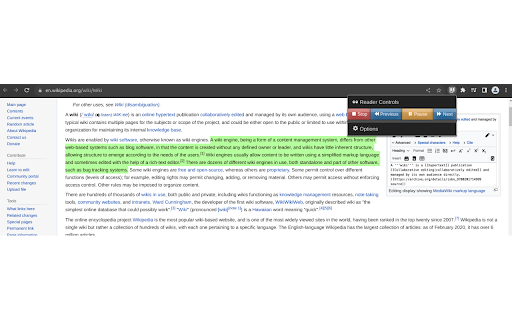
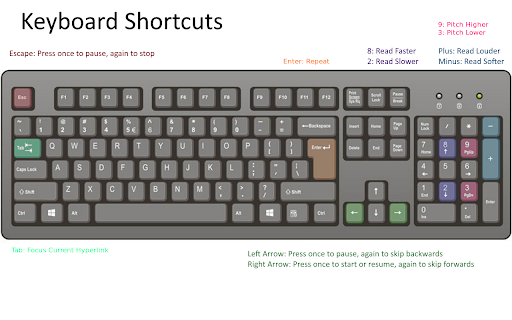

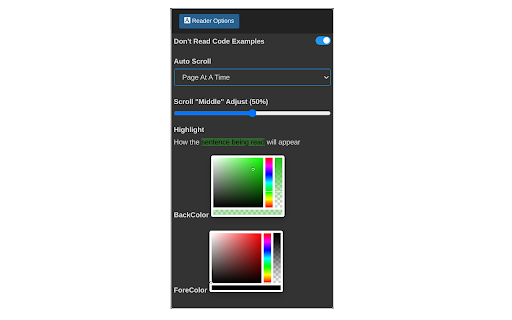
100% Free. No registration. No ads. No data sharing. Reads with no selection required. Highlights one sentence at a time. This extension reads web pages with text to speech (TTS) and highlights one sentence at a time. It doesn't require you to select any text first. It doesn't launch a new weird web page. And it's totally free with no sign in or registration required. And it's ad free. By default it reads the whole page, top to bottom. However, if you select any text, even just a word, it starts reading at your selection, but continues on from there until you stop it, or it reaches the end of the page. Now with better "sentence" identification. 👓 Cramming for exams 👓 Vision impaired 👓 Multi-tasking 👓 Adult continuing education 👓 Learning a new language 👓 Cramming for technical interviews 👓 Relaxing with a good book and a cup of tea 😀 You can go forwards and backwards, skipping to the next or previous sentence. You can pause or resume, and you can repeat the current sentence. If it's reading, you can change where it reads next simply by highlighting another word. 😀 You can control the voice (i.e., nationality, gender), pitch, speaking rate and volume from the extension's control panel. It loads all the voices which are available to Chrome. You can also disable the voice and just have it highlight sentences (to keep you on pace or use it as a teleprompter) 😀 You can change the background color and the font color of the selected text. Try using some semi-transparent colors, those are nice! 😀 If you are reading / learning software development, you can have the reader skip reading sections of code 😀 You can control the scrolling behavior. It can page down when it get to the bottom, like humans normally do, or it can keep the sentence being read in the middle of the screen (and you can adjust where the "middle" is, put it anywhere between the top or the bottom.), or you can turn auto scrolling off (so you can scroll along manually or study another part of the page). 😀 You can control the reader entirely from the keyboard. See the keyboard image for key assignments. Learn to read entire pages with just your right hand on the arrow keys. 😀 The new Vocabulary feature isn't quite here yet, but it's coming soon. You'll be able to add custom dictionaries to change the pronunciation and / or see definitions of words you're trying to learn, without leaving the page. 1. After adding this to Chrome 2. [Recommended] Click on the extension puzzle piece in the Chrome toolbar and pin the extension. Now you will see the tool in your toolbar. 3. [Optional] Click on this tool to open the control panel 4. Notice the control panel has four areas: the reader controls, the voice options, the reader options and the custom dictionaries (coming soon). 5. [Optional] Under options, set your desired voice and reader settings. Default values are already set for you. Do you boo! Note: All keyboard shortcuts only work when the web page has the mouse focus. 1. [Recommended] Select one word by double-clicking, where you want it to start reading. It will select that whole sentence for you and start reading from there. 2. Press the right arrow key to start reading. Alternatively, you can press Start from the toolbar. 3. It will just keep reading until it runs out of things to read. To skip forwards, press the right arrow key. Alternatively, you can press the Next button from the reader toolbar. 4. To go back, press the left arrow key once to pause, then again to go back. Alternatively, you can press the Previous button from the reader toolbar. 5. To repeat the current sentence, press Enter. 6. Adjust the volume with the + and - keys on your numeric keypad (see keyboard image). Changes take effect starting with the next sentence read. Alternatively, you can control the volume in the reader settings. 7. Adjust the speaking rate with the numbers 8 (faster) and 2 (slower) on your numeric keypad (see keyboard image). Changes take effect starting with the next sentence read. Alternatively, you can control the speaking rate in the reader settings. 8. Adjust the pitch (voice high or low) with the numbers 9 (higher) and 3 (lower) on your numeric keypad (see keyboard image). Changes take effect starting with the next sentence read. Alternatively, you can control the speaking pitch in the reader settings. 9. Pause by pressing the left arrow key. Alternatively, you can press the Pause button on the reader toolbar. 10. Resume by pressing the right arrow key. Alternatively, you can press the Resume button on the reader toolbar. 11. Stop by pressing Esc once to pause, then again to stop. Alternatively, you can press the Stop button on the reader toolbar. 12. You can press the Tab key over a hyperlink to set the focus on that link. Then you can stop reading, and hit Space to follow that hyperlink. 13. You can put Chrome in the background and it will keep reading if you like multi-tasking. If you go to another Chrome tab, it will pause and you can read something else. If you go back to a previous reading tab, just press the right arrow key to resume reading where you left off. The current version should be stable. But please report any issues on the support tab or by visiting our website. Try each number solution one at a time, and if that doesn't work, try the next numbered solution. 1. Make sure the web page has the focus for keyboard shortcuts to work 2. Refresh the page. Click on the page and retry. 1. Click on the web page and press Esc key twice. 2. Click the Stop button in the toolbar on the extension control panel 3. Refresh the page 4. Look for another instance of Chrome running in the background where you may have started reading and forgot you had that open 😯 Issue: Voice lag. On the google online voices, which sound the best of just about any free voices, sometimes there is "hesitancy" or "lag", and sometimes there's not. I have done my best to eliminate it, but if it seems hesitant to read: 1. Try pressing the left arrow, then the right arrow again 2. Try pressing the Esc key twice, or clicking the Stop button on the reading toolbar, and starting reading again by pressing the Right Arrow key. 3. Try refreshing the page. 4. Use a "local" voice 1. Test another website, like Wikipedia, to see if it's just that site or document. Some pdf viewers and website are doing some pretty inhospitable things in their scripting for accessibility. 1. Use Chrome. I know this doesn't work in Brave. For other browsers, I'm not sure. (People understandably have privacy concerns about Chrome, so I have ensured the app will run just fine without being logged into Chrome.) 2. Go to the reader control panel and change the voice. 3. Ensure the tab isn't muted 4. Ensure sound is enabled in Chrome settings (test with Youtube). Enable sound by default or at least make sure the site your on is allowed sound. 5. Check the volume controls on your device 1. Russian language voices are currently disabled. 🇺🇦 Sláva Ukrayíni! 2. Check the Chrome Web Store for more voices in your language and add them to Chrome. Then check the Web Page Reader control panel again. If it doesn't show up, reinstall the extension (shouldn't be necessary but fyi it's something to try) 1. ⭐⭐⭐⭐⭐ The review section could use your help 2. I don't want any money 3. I don't want a cup of coffee 4. I want you to enjoy learning and get the most out of your reading

Read aloud with auto language detection
This extension helps you read websites aloud by using Google Chrome text-to-speech engine. It can automatically detect the language of the current sentence (currently supported for English and Russian). Also, you can manually choose any language among supported by Google Chrome text-to-speech engine: English, Deutsch, Español, Español de Estados Unidos, Français, हिन्दी, Bahasa Indonesia, Italiano, 日本語, 한국의, Nederlands, Polski, Português do Brasil, Русский, 普通话(中国大陆), 粤語 (香港), 國語 (臺灣). You can conveniently control the extension using keyboard shortcuts: go to previous/next sentence, start/pause, change speed etc. When you listen, the current sentence is always highlighted (selected) on the webpage. There is also a convenient option of auto-scrolling to follow the current sentence. How to use: Quick start: select any part of a sentence on a web page where you want to start reading and press Alt+R (or click the extension icon). Extension widget will appear and will start reading. Mouse over the widget to see all the options and keyboard shortcuts. Most commonly you will use Shift to start from current selection, Esc to stop, Space to pause/resume, left and right arrows to go to previous/next sentence.

@Voice Connector
Open the current article in @Voice Aloud Reader Android app, or add it to reading list. Companion desktop Chrome extension for @Voice Aloud Reader app for Android. When you see any interesting page in your desktop Chrome browser, simply click the @Voice extension icon and you may instantly open it on your phone/tablet or Android emulator in @Voice Aloud Reader app, or add it @Voice reading list. Later read or listen to a list of saved articles as you commute, jog, walk, do household chores etc. The articles are synced through your Dropbox storage "/Apps/@Voice" folder. Synced articles which you remove in @Voice app from your reading list, are automatically deleted in Dropbox. Version 3.3.0 * More improvements to the text extraction in Reader Mode * Dropbox login reliability improvements

ReadSpeaker® TextAid for Chrome
ReadSpeaker TextAid Browser Extension The TextAid Browser Extension requires a subscription. Go to http://textaid.readspeaker.com/ and sign up for a free trial. Listening to the web is easy! Use text-to-speech for reading, writing and studying. Whether for school, work, or home, having text read out loud in a natural sounding voice while following along with highlighted text improves comprehension and allows you to consume content as you prefer. Just select, click and listen and ReadSpeaker TextAid for Chrome™ allows you to listen to web pages, Google Docs and Microsoft Word Online pages. Even listen as you write. ReadSpeaker TextAid for Chrome enables a toolbox* giving you text-to-speech capabilities such as: - Listening to web pages, Google Docs and Microsoft Word Online pages. - Listening as you follow along with the highlighted text - Reading selected sections or entire pages - Writing assistance tools - Personalized settings for highlighting, reading speed, color combinations - User friendly interface - Available in American, British and Australian English, Latvian, Dutch, Belgian Dutch, Finnish, French, German, Italian, Spanish and Swedish. * Please make sure that you are logged into your ReadSpeaker TextAid account.

Read The Web
Text-to-speech for Web Content Read The Web is free with a subscription to Kurzweil 3000. If you don’t have a subscription, sign-up for a 30-day free trial. You’ll get access to Read The Web, our web app, and much more. Click “Website” to the right and Signup Free on the top right corner. Add the Kurzweil 3000 Read The Web Chrome Extension to read aloud web content. You can now listen to articles for that research project you’re working on, comments or directions on your school learning platform, or just catch up on news, all in 30 natural text-to-speech voices that read aloud in 17 languages and dialects. • Read efficiently with audio text-to-speech and moving highlights • Reduce reading fatigue with human-quality text-to-speech voices • Improve comprehension with instant access to 3 dictionaries • Customize reading rate and presentation to suit your preferences • Highlight key facts and extract them to a mind map or bulleted list Each individual deserves tools that help them unlock their potential. Kurzweil Education offers proven, research-based, literacy solutions that address unique learning challenges and develop the literacy skills that lead to academic and personal success.
