
epbobagokhieoonfplomdklollconnkl


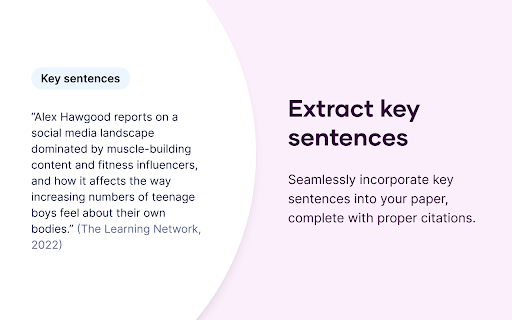


Instantly get accurate citations for any webpage in APA, MLA, Chicago, Harvard and any other style with our Citation Generator. Scribbr’s citation generator for Chrome lets you instantly generate accurate citations for any online source in APA, MLA, Chicago, Harvard and any other style. In addition, it extracts key sentences¹, complete with proper citations, and generates a comprehensive summary². With millions of users every month, students, teachers, and universities around the world trust the Scribbr Citation Generator. Ready to join them? ➤ How it works Found a fascinating article, video, or post you want to cite? With a single click, Scribbr will do the heavy lifting for you. It instantly creates a reference list entry and citation, all set for you to copy into your paper. Moreover, it extracts the key sentences from the page, complete with proper citations, allowing you to seamlessly incorporate them into your paper. Additionally, you can generate a comprehensive summary of the page in paragraph form for a quick overview. ➤ Features you’ll love • Cite webpages, journal articles, videos, and more • Choose between APA, MLA, Chicago, Harvard and any other style • Get accurate reference list entries and in-text citations • Extract key sentences from any page • Read AI generated summaries • Copy to your clipboard with a single click ➤ Why students prefer the Scribbr Citation Generator • It’s easy to use and there are no ads • Citations are correctly formatted, so you won’t get in trouble • New features are added regularly ¹ Key sentences are directly extracted from the source using AI. If you choose to quote or paraphrase the text, it's important to credit the original author by including proper citations. ² Summaries are AI-generated; please read the original content for details. If you choose to use this summary, it's important to credit the AI-generated content and the author of the work summarized by including proper citations.

Zotero Connector
Save references to Zotero from your web browser Zotero is a free, easy-to-use, open-source tool to help you collect, organize, annotate, cite, and share research. The Zotero Connector automatically senses content as you browse the web and allows you to save items to Zotero with a single click. If a PDF is available, the Connector can save it to your library to read later, and it can even save snapshots of webpages in case they change or disappear. Whether you're searching for a preprint on arXiv.org, a journal article from JSTOR, a news story from the New York Times, or a book from your university library catalog, Zotero has you covered with support for thousands of sites. Additionally, if you use a web-based proxy to access resources your institution subscribes to, the Zotero Connector can automatically redirect you through the proxy when you follow links to those sites from elsewhere on the web, making sure that you always have access to PDFs and other gated content. While the Connector can save most pages directly to your zotero.org account, for the full Zotero experience be sure to install the Zotero desktop app, which allows you to organize your references efficiently, insert citations automatically into Word, LibreOffice, and Google Docs, and much more. You can download Zotero for free from https://www.zotero.org/download We are happy to help with any issues you encounter with the Zotero Connector, but we cannot do so through the Chrome Web Store. For bug reports, questions, comments, or help, please visit https://www.zotero.org/support/getting_help

Tasks for Canvas – now supporting Blackboard, D2L Brightspace
A better to-do list sidebar for Canvas, Blackboard, and D2L Brightspace. NEW: Extension now supports Blackboard and D2L Brightspace as well! NEW: Keep your streak alive by submitting assignments before their due date! NEW: Sync your Gradescope assignments directly to Tasks for Canvas! Ever had trouble finding your weekly assignments? Wish you had a nice progress bar to motivate you to complete everything? Then this extension is for you! The Tasks browser extension for Canvas™ updates the Canvas dashboard sidebar with a convenient todo list to show all of your weekly assignments and track your progress throughout the week. The sidebar includes: - A colorful chart with various rings color coded by course. As you complete your assignments throughout the week, the rings will show your progress! - A better to-do list of all active assignments that are counted in the rings. Each task item has the name, course, type, due date, point value, and link for the assignment. - A list of recent class announcements - The option to create custom task items - The option to filter assignments by course - The option to view rings and assignments from past and future weeks - The option to view completed or incomplete assignments -The option to manually mark assignments as complete This extension also contains an options page accessible from the sidebar where you can customize various aspects of the extension. Notes - Works in Card View, List View, Recent Activity View, and on course pages! - Only courses that have active assignments will be shown - All active assignments that have no submissions and are ungraded are displayed in the to-do list (the section titled 'Unfinished'). - 0-point assignments (i.e. extra credit) are shown in the to-do list but are not counted in the rings. 1.5.0 (3/11/25) - Streak feature! - Reverted rolling view, added option for new rolling view 1.4.0 (1/7/25) - Support for Blackboard and D2L Brightspace! - 24-hour clock option - Three day view option - Configurable list length 1.3.8 (3/11/24) - New Gradescope integration: automatically sync Gradescope assignments to Tasks for Canvas! - Fixed assignment grades not being rounded 1.3.7 (2/2/24) - Fixed dates overlapping course name in list view for some users - Added tooltips for buttons 1.3.3 (1/8/24) - Add links to custom tasks - Display grades on completed tab - Instructor mode improvements - Settings changes are immediately reflected in the extension - Colors now update immediately with dashboard cards - Assignments graded zero points don't count as complete - Smoother animations 1.3.2 (10/13/23) - Fixed announcements making rings show up for classes without assignments 1.3.1 (10/12/23) - For instructors, each individual ungraded submission now adds up in rings - Fixed assignments not showing up in rings 1.3.0 (9/23/23) - Redesigned tab bar - New section for class announcements 1.2.9 (7/2/23) - Removed outdated options from options page 1.2.7 (5/1/23) - Fixed problem with classes not respecting the chosen theme color - Fixed sidebar not showing when mixed with other extensions 1.2.5 (2/11/22) - Create recurring tasks that repeat every week - Ungraded assignments now show up as a task for teachers and TAs! - Redesigned task icons - Fixed error with quizzes not showing up in task list (apologies for inconveniences this may have caused!) 1.2.4 (1/21/22) - Enhanced dark mode support - Fixed error with tasks unable to be marked complete - Fixed course name overflowing dropdown when creating a new task 1.2.3 (1/7/22) - Updated animations and chart graphic - Option to choose a custom theme color - Enabled on all Canvas sites now - Fixed sidebar stuck in the middle of the screen on large screen sizes 1.2.2 (11/29/22) - Added more schools to list - Updated branding and assets - New welcome page on download 1.2.0 (8/29/22) - Fixed previous and next week arrows not appearing - Faster load times - Sidebar now loads even when no assignments exist in the account - Create custom task items - Revert completed tasks back to unfinished - Tasks marked complete are synced across devices - Option to use a “rolling period” where only tasks due on or after the current day are shown - Confetti! 1.1.0 (9/21/21) - Better compatibility with dark mode extensions - Fixed assignments with no point value displaying as "null" - Fixed next and previous buttons being clickable before load - Assignments can now be manually marked as complete by clicking the x button - New completed items list to view finished assignments and their grading status - Chunked assignment list based on due date (today, tomorrow, etc.), option in settings to enable/disable - Option to show/hide locked assignments - Button to go to settings page from the sidebar - Redesigned settings page ui - New loading animation 1.0.7 (8/30/21) - Downgrade manifest to v2 to be compatible with older versions of Chrome, including those on many school devices. 1.0.6 (8/22/21) - Support for all .edu and some other URLs - Less intrusive loading animation when navigating between weeks - 100kb (38%) size reduction - Minor fixes/optimizations 1.0.5 (3/28/21) - Fixed quiz icon not appearing for LTI quiz assignments 1.0.4 (3/7/21) - Fixed issue that occurred when there were assignments from courses not on the dashboard 1.0.2 (2/25/21) - Selecting a course from the dropdown now highlights its ring and hides all other rings - Minor fixes 1.0.1 (2/23/21) - Support for Recent Activity View - Only courses with active assignments are now shown in the chart (old behavior is still available in options) - Minor fixes Tasks for Canvas™ is an unofficial extension that is unaffiliated with Instructure's Canvas LMS. It is not endorsed or supported officially by any party other than myself. Please use the developer contact information in the Chrome Web Store for support. This extension uses browser storage to save your chosen preferences from the extension's options page. It does not collect or share user data and only communicates with the official, secure Canvas API supported by Instructure.

Web Highlights: PDF & Web Highlighter + Notes & AI Summary
Productivity Highlighter & Annotation Tool for Websites & PDFs with AI Summary - free, easy to use, no sign-up required. Stay organized online with Web Highlights — a powerful Chrome extension to highlight text on websites, annotate PDFs, take notes, manage bookmarks, and generate AI summaries of your content. Whether you're a student, blogger, developer, researcher, or lifelong learner, Web Highlights helps you stay productive, save, organize, and revisit what matters — all in one place. Use it as your personal text highlighter for Chrome with smart note-taking, PDF annotation, tagging, full-text search, and AI-powered content summarization. Choose offline use or sync everything to the cloud via the web app. 🟢 Highlight websites and PDFs (including local files) 🎨 Multiple highlighter colors ✍️ Take notes and connect them with your highlights 🤖 AI Summary - Generate smart summaries of your highlights and websites 💬 AI Chat - Our AI understands the full context of the website, so you can chat with it and ask questions. 🔖 Save pages as bookmarks or use as a read-it-later web clipper tool 🏷️ Tag your highlights & bookmarks for easy filtering 🎥 Youtube Highlighting - Highlight & annotate Youtube video transcripts 🔄 Sync across devices and access highlights anywhere * 💻 Web app & sidebar with an overview of all your highlights, bookmarks, and notes 📖 Reader mode for focused and distraction-free article reading & annotating 🗂️ Import all your existing Chrome bookmarks 🔍 Powerful full-text search to find anything instantly 📷 Highlight images and visual elements * 𝐓 Highlight in various formats (headings, paragraphs, etc.) * 🧠 Daily recap of your highlights for better retention ⚡ Use keyboard shortcuts for ultimate productivity 📄 Export to Notion, Obsidian, Capacities, and other popular note-taking tools 📑 Copy to HTML and Markdown 📁 Export to PDF and HTML files * 📱 Bookmark on mobile with our web app * ⏰ Set email reminders for specific pages * 📚 Import Kindle highlights easily 💾 Backup and download your research * 🔗 Share your highlights * 👥 Discover content from others ✅ It just works – Highlight text in multiple colors on any website or PDF with a simple click. ✅ Persistent highlights - Your highlights stay visible even after reloading the page. ✅ Works offline – No account required for basic use. ✅ Sync across devices - Create an account to access your highlights anywhere from the web app. ✅ Unlimited AI summaries – Unlike other tools, we don’t place any limits on AI features. ✅ Reader Mode – Enjoy clean, distraction-free reading and keep a simple copy of articles. ✅ Integrate with Notion, Capacities, Obsidian, and other note-taking tools. ✅ Export your research — PDF, HTML, Markdown, or clipboard. ✅ Perfect for online deep work & and efficient research management. ✅ Help children learn - We proudly support the Save the Children charity and other great causes. You can use Web Highlights completely free without an account. Highlight, bookmark, and take notes offline anytime. Create a free account to enable cloud sync and unlock all features with a 7-day trial. Afterward, continue using the free offline version with basic features or upgrade for seamless access across all devices. Check out the current pricing here: https://web-highlights.com/pricing. ➡️ Enable/disable the highlighter popup via the settings and highlight using keyboard shortcuts or by right-clicking text. ➡️ Customize keyboard shortcuts at chrome://extensions/shortcuts ➡️ Some websites may have limited compatibility. ➡️ Local PDF support requires access to file URLs (see PDF setup guide: https://web-highlights.com/blog/how-to-highlight-pdfs-using-web-highlights). ➡️ Right-click images to save them to your sidebar of highlights & notes. ➡️ Use as a web clipper – Click the bookmark icon or right-click any website to save pages and add tags like "ReadingList" for easy reference later. ➡️ Disable extension on specific websites: Click the power icon in the sidebar to disable the highlighter on a site. You can also configure a blacklisted domain list with patterns in the settings under "Excluded" domains. ➡️ Sort highlights manually: Highlights should appear in the same order as on the page. If not, use the drag & drop or arrows in your annotation sidebar to rearrange them as needed. ➡️ Customizable Sidebar: Change the sidebar width by dragging its edge, and align it on the left or right side of the page for a personalized experience. ➡️ Switch to Advanced Highlighter Mode in settings to organize highlights with headings, paragraphs, and more in the sidebar. ➡️ Multiple Colors: Choose from predefined standard and pastel shades or click the plus icon to add your own custom color. ➡️ Note Taking: Use standard keyboard shortcuts like CMD + B for bold, CMD + U for underline, etc., in the note-taking editor for efficient formatting. ➡️ Reader Mode: Click “Open in Reader” to view any article in a clean, distraction-free layout with customizable fonts, colors, and spacing. A copy of the article is saved so you can read and highlight it with full focus — even if the original changes or disappears. ➡️ Focus highlights on website: Click on a highlight in the sidebar, and the page will scroll directly to the highlighted section for quick access. ➡️ Color Mode: Switch between dark and light mode by clicking the sun/moon icon in the sidebar. ➡️ Your data is always private unless you choose to share it. ➡️ You may be exposed to affiliate links on sites you visit while using this extension, and you may be encouraged to click on them, but you are never required to do so. 🔐 YOUR PRIVACY MATTERS We believe your data belongs to you. ✔️ Your highlights, notes, and bookmarks are private by default ✔️ Nothing is ever sold or used to profile you ✔️ Secure sync and export, only accessible with your account We never use your data for advertising, lending, or unrelated purposes. By installing the extension or signing up with an account, you agree to Web Highlights Terms of Service and Privacy Policy which you can find here: https://web-highlights.com/legal/terms-of-service ❤️ This is a one-person project I’m building with love and late nights. I hope you enjoy using this tool as much as I do. Feel free to share your feedback with me:

Google Scholar PDF Reader
Supercharge your paper reading: follow references, skim outline, jump to figures, cite and save. When you install Scholar Reader, PDFs on all sites will have a new look in Chrome. To make this happen, Chrome will ask for permissions to read and change data on all sites. Scholar Reader makes no changes other than the presentation of PDFs. • Preview references as you read. Click the in-text citation to see a summary and find the PDF. • Read faster with the AI outline. Get a quick overview and click on interesting bullets to jump within the paper. • Highlight and comment on PDFs. Highlights are saved to your Scholar library. • Make it right for your eyes with light, dark, and night modes. • Copy and paste common citation formats without leaving the paper. • Save articles to your Scholar Library to read or cite later. • Click in-text figure mentions to see the figure and the back button to keep reading. By installing this extension, you agree to the Google Terms of Service and Privacy Policy at https://www.google.com/intl/en/policies/.
