
enemhjebakgjpeomlnkdofkbmlimbnbf
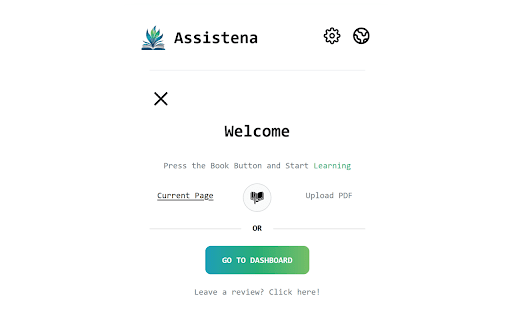


Helps you compile flashcards, summarizations, and quizzes from your study material. The Assistena chrome extension was designed to streamline the process of creating study material by leveraging AI to generate flashcards, summarizations and quizzes. Furthermore, it comes with an inbuilt word functionality, which defines words based on their context in the sentence. You should use it if you want to get better results, smarter and faster. Works in both Swedish and English!

Apiary - Web Highlighter & Annotator
Highlight and take notes directly on what you read online and instantly share them with friends and colleagues. Easily highlight and take notes on what you read online and then easily save them for later and share them with friends and colleagues in one click. Apiary is a free to try chrome extension based product that allows you to easily highlight and take notes on what you read online. After you have annotated something online it will be saved to your Apiary account where you can then organize in any way you like with our folder system. You can than easily share directly from the website where you took the notes or from your Apiary account later on with anyone you want. Just highlight and get a shareable link you can send to anyone with one click. When using Apiary on a website or email online you have two options. You can choose to just highlight some text or you can highlight and add a comment to that highlight. Allowing you to save and share you favorite parts and current thoughts while reading it with others. You can view your annotations live by clicking the chrome extension and having the Apiary sidebar appear showing all the highlights and notes you have made on that page. Or you can view them later in your Apiary account where we save all the contents of what you were reading and the highlights and notes you took. Allowing you to get the full context of whatever you were taking notes on. Annotate, save, and share what you read online instantly today. ----------------------------------------- Key Features: Web and Email Highlighting Take Notes On What You Read Online Apiary Account Access With Organization Systems Quick and Easy Shareable Notes Private Notes That Only You Can See Automatically Saving Notes ------------------------------------------- How To Use: In order to use the Apiary Chrome Extension you will need an account with Apiary. Please visit www.myapiary.io to create an account today. 1) Create An Account On Apiary (www.myapiary.io) 2) Download Chrome Extension 3) Sign Into Chrome Extension w/ Your Apiary Account 4) Select Text (Left Click & Drag) You Wish To Annotate 5) Click On Apiary Popup To Either Highlight Or Take Note On Selected Text 6) Delete An Annotation By Clicking On A Highlight And clicking Delete Icon 7) Share Your Notes For A Page By Clicking The Apiary Share Button On Bottom Left Corner Of Window 8) View A Note By Either Visiting Your Apiary Account Or By Clicking View On A Currently Annotated Web Page ------------------------------------ Pro Tips: 1) Make Sure You Are Logged Into Apiary Chrome Extension If You Are Having Issues Annotating 2) Organize Your Notes Into Folders On Apiary To Easily Find Notes Later 3) Share Your Notes With Friends By Clicking Share Button And Sending Link To Friends. --------------------------- Got Feedback? Please reach out to us at support@myapiary.io If you find bugs please let us know at https://forms.gle/rHvoLZwaXfVcbAMJ7. If you have a feature request please let us know at https://forms.gle/vguFD2Rxi2FCsSQi8. By installing the extension, you agree to Apiary's Terms of Service, Privacy Policy, and Community Guidelines (which can be found here: https://www.myapiary.io/term-services and https://www.myapiary.io/privacy-policy)

Basecamp: Sprint, Task Management
Sync daily tasks or work between Basecamp & Moon HRM. Use filters & enhanced features for seamless collaboration. From organizing tasks and tracking sprint progress to viewing work through smart cards and flexible filters, every element is built to simplify how your teams plan, execute, and stay aligned. View ongoing, completed, and on-hold tasks, manage workflows, and stay on top of your project deadlines. Get instant access to pinned projects, real-time activity tracking, and quick updates. Always know what’s happening and what truly needs your attention. It makes sure no information remains scattered. Project managers and team leaders can track the progress of the Basecamp sprints and todos using our extension. They can check and take necessary steps to meet the project timeline. Here’s why you should choose our extension for your Basecamp project management and time tracking over other traditional software. Centralized dashboard: Get a complete overview of your workspace from a unified dashboard. Direct access to key project details and everything that matters. Hey section: Never miss a beat with “Hey section,” which provides updates from across the team. For uninterrupted visibility, you can also enable it as a sidebar on your left, so that nothing slips through the cracks. Latest activity: Keep a close eye on recent activities across different projects. See updates, changes, and contributions, helping you stay aware of how work is progressing in real time. Sprint progress and status: Observe how your sprint is advancing with a clear view of task status and upcoming stages. Understand the current status at a glance and assure everything is progressing as planned. Task filters: Smart filters to refine your task view and concentrate on what matters most. Sort tasks based on whatever criteria you want and quickly access relevant work without distractions. Project list: Zoom into all your projects in an organized list that makes navigation pretty much easier. Switch between projects and keep track of ongoing and completed work without confusion. Smart card view: Users can visualize tasks in a structured card layout that highlights details at a glance. Such a format makes it very easy to oversee and act on tasks with better clarity. Work Summary: Review a comprehensive summary of work done across tasks and projects by different team members. Take a closer look at whether efforts are being utilized in the right way. Connect with Moon HRM: Directly link an advanced HRM software, Moon HRM, with Basecamp in order to align project activities with employee management. Organize tasks, teams, and monitor performance without any extra effort. Download Basecamp: Sprint, Task Manager Extension & follow these steps. 1. Open Basecamp and log in to your Basecamp account 2. In the top right corner of the screen, click on the sign-up button 3. Choose Moon HRM while signing up 4. Complete the sign-up process by filling in the required details. 5. Start adding projects and managing workflow with time log reports Why integrate with Moon HRM? Basecamp: Sprint, Task Manager integration using Moon HRM is best for managing the workflow of your team members. It helps track each sprint’s card or to-do status management and the time to complete the assigned tasks. Once integrated with Moon HRM, it automatically syncs the time log for each employee as per the tasks completed or the time dedicated to each task. Using Moon HRM integration, the project manager can closely monitor each sprint’s progress, thereby checking the performance and status of each employee’s tasks.

Michael's Upgrade for TrakED
Upgraded features for TrakED in the THS. (This extension is not an official product of the THS or Intersystems TrakCare software.) Upgraded features for Trak ED in the LGH. Features: - Re-enable spell check in the triage page - Use the enter key when logging in - Handover sheet for ED Main Floor and EMU - ED Main Floor filters and persistent sort - Triage Summary print out - Filter and count results of an enquiry - Count patients currently breaching length of stay targets -- This extension is not an official product of the LGH or InterSystems Trak software.

WhoFundsWho
Instantly shows you who funds the experts, politicians, think tanks and other institutions you are reading about. WhoFundsWho is a browser extension that instantly shows you who funds the experts, politicians, think tanks and other organizations that you are reading about. We rely on experts and institutions to make sense of the world. But these experts and institutions have their own biases and interests. These are typically not disclosed to the reader even though they may have an influence on what the organization or person believes or says. While you usually could find such information if you did some research, who wants to have to do that research for every person or organization they are reading about? WhoFundsWho did this research for you and makes it instantly available to you exactly when it is most relevant to you. WhoFundsWho highlights on any webpage the names of organizations and people for who it has funding information in its database. Simply click on or hover over the highlighted name to open a popup that displays that information for you. And it is not just financial information that WhoFundsWho can provide you with. It can also tell you: - what other organizations a person has worked for - how an organization is related to other organizations - who their parent or child organizations are - who they partner with - what networks they are a member of and more. How to Use In the user menu there are several options you can choose from: - on / off - Use this to turn the extension on or off. The default is 'on'. - click / hover - By default the popup will open when you hover over a highlighted name but you can also choose 'click' which opens the popup when you click on the highlighted name. The potential issue with the 'click' option is that sometimes the names that the extension finds and highlights on the webpage were already hyperlinked on the original page. And the hyperlink applied by the extension may then override the original hyperlink so that the original link is no longer accessible. This conflict is avoided by choosing 'hover' to open the popup which leaves the webpage's original click action intact. - quick / full - The 'quick' option loads the popup with only the most important information, in text format, while the default 'full' shows all available information, and it uses both text and images. - first / all - When the default 'all' is selected, all instances of each matching name found on the webpage will be highlighted whereas 'first' will highlight + hyperlink only the first two instances. The reason for this option is that if the name of an organization or person is frequently mentioned on a webpage then it may become distracting or visually unappealing if each instance of that name is highlighted + hyperlinked. Note that on twitter.com the option to highlight only the first 2 instances is not available and all instances will be highlighted. - include people - The database contains records for both organizations and people. The extension will always highlight the names of matching organizations but by checking or unchecking 'include people' you can choose whether you also want it to find matching people. - category checkboxes - You can choose one or more of up to 11 different categories of organizations & people. If for example you are only interested in information about think tanks, then check that option. If you want the extension to alert you whenever the organizations or people you are reading about are funded by the Bill & Melinda Gates Foundation or have some affiliation with the - all websites / select - By default the extension runs on all webpages but you can also specify the websites that you want the extension to run, or not run, on. Click the 'select' link to open the input form where you can specify the specific URLs. Then check the 'select' radio button, and choose whether the extension should or should not run on the websites you specified. - highlight & text - Select the highlight and text color the extension uses. Or select 'none' to to select a text color without any highlighting applied to it. Privacy WhoFundsWho performs all privacy sensitive operations locally, on the user's local machine. Upon installation the extension downloads from two Google Sheets two lists of keywords (one for organization names and one for people names) together with the (encrypted) URLs of the Airtable records they are associated with. It uses these to locally build a Bloom filter data structure which in turn it uses to perform keyword searches of the text of webpages the user visits. This works as follows: After a webpage's text content has fully loaded, the content script captures all visible text and sends it to a local service worker that performs a Bloom filter keyword search on it and returns an array with the keywords it found. The content script then highlights and hyperlinks these keywords on the webpage. Up to this point all these processes are automatic and take place only on the user's local machine. No data about the websites the user visits or the text on those websites is ever transmitted to servers in this process. It is only when the user clicks on or hovers over a highlighted name to open a popup with funding data for that organization or person, that a record retrieval request is sent to a server. The request sent to the server consists only of the (encrypted) url and two backup urls where the Airtable records associated with the name are located. The only information sent to the server is a request to see a specific record of an organization or person. No user data (e.g. IP address) is collected or logged. For all this to work, WhoFundsWho requires three permissions: Host Permission By default WhoFundsWho runs on all webpages and it runs automatically, without requiring the user to manually start the keyword search of a webpage's text. The user can change these settings in the user menu by choosing the 'off' rather than 'on' setting and then manually re-activating the search on each webpage it wants the extension to run on. The user can also specify a list of websites that the extension should or should not run on. But the default is that the extension runs automatically and on all websites. For this to work, the extension requires the '' host permission, a powerful permission that could potentially be misused. That is why all privacy sensitive actions are only performed locally, as explained above. Storage Because the extension downloads the keywords data from the two Google Sheets in order to locally build the database that it uses for the keyword searches, it needs storage permission. This permission is also needed to store the selections the user makes in the user menu so that these selections can persist between different sessions. Unlimited Storage Because the number of keywords in the database that it needs to store locally is very large (75,000+) the extension requires more than 5MB storage space, which means it requires the Unlimited Storage permission. For an FAQ & troubleshooting, as well as more information about the project, visit www.whofundswho.com
