
ekdpkppgmlalfkphpibadldikjimijon


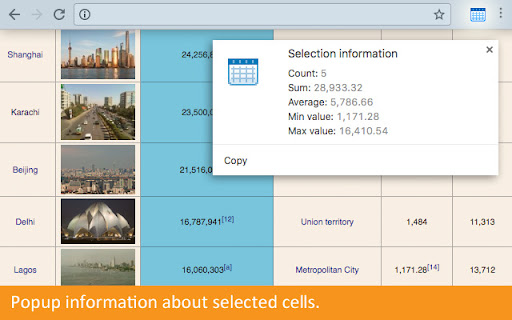
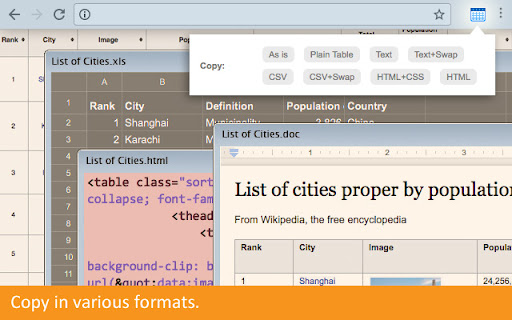
Select table cells, rows and columns with your mouse or from a context menu. Copy as rich text, HTML, tab-delimited and CSV. - Hold Alt and click to select cells, Alt + Ctrl to select a column... - or use hotkeys and menus to select and copy. - Copy as rich text (for Word), as tab or comma-delimited text (for Excel), as HTML (for your website). - Popup information about selected cells (Sum, Average etc) - Everything configurable.

Web Table Extractor
Effortlessly extract table data from websites and export it to Excel files. Transform the way you handle online data with the Web Table Extractor, the ultimate tool for efficiently extracting and managing table data from any website. This powerful extension allows you to quickly select, download, and manipulate table data straight from your browser, making it indispensable for professionals and students alike who deal with vast amounts of web-based information. Easy Extraction: Instantly extract tables from any webpage with just a click. Whether it’s a simple HTML table or a complex data grid, Web Table Extractor handles it seamlessly. Versatile Export Options: Export the captured data directly into Excel format (.xlsx), ensuring compatibility and ease of use with spreadsheet applications. Customizable Viewing: Toggle view options allow you to either display all rows or focus on specific segments of the data for clarity and ease of analysis. Clipboard Support: Copy the data directly to your clipboard, making it simple to paste into other applications or documents. Real-time Feedback: Instantly know if a page contains extractable table data with our dynamic content script that communicates directly with the popup interface. Streamlined Interface: A user-friendly popup interface equipped with clear, actionable buttons and minimalistic design ensures a smooth user experience. Lightweight and Fast: Built to be both lightweight and efficient, ensuring that your browsing speed remains fast and unaffected. Whether you're a data analyst needing to transfer data to a spreadsheet, a student gathering information for a research project, or just someone who regularly works with online tables, Web Table Extractor is designed to enhance your productivity and save you time. Embrace the simplicity of extracting and managing web table data with Web Table Extractor – your tool for smarter data handling!

Table Copy
Copy the tables in the web page with one click, or export them to csv/excel files - When we want to copy a table from a webpage, do we just Ctrl+C / Ctrl+V? The result might be a jumbled mess of text without any cells. - When we have a 100-page table, how do we copy them all? Do we have to manually copy each page one by one? 1. Click the plugin icon, and it will automatically detect which tables are on the page and list them one by one. You can choose to copy them or export them to your local computer. This time, it supports formats such as TXT, CSV, EXCEL, and Markdown. 2. In the table preview, you can also choose to copy only a column instead of the entire table. You can temporarily delete some columns and copy the remaining ones. 3. For tables with pagination, you can use the page-turning mode. Bind a page-turning button, set how many pages to turn, and the tool will automatically turn the pages one by one for you. 👑 Premium Version This tool offers basic functions for free. Upgrade to the premium version for a fee to unlock more features.

CopyTables
Copy web-based HTML and DIV Tables to clipboard with ease, supporting dynamic tables and sanitized output Easily copy any HTML table from the webpage to your clipboard and paste it directly into Microsoft Excel, CSV files, Google Sheets, or Office 365—no formatting errors, no hassle! - One-click copying of HTML tables. - Seamless pasting into Excel, Google Sheets, and other spreadsheet apps. - Retains table structure, formatting, and data accuracy. - Perfect for exporting data from websites to CSV or other formats. Ideal for students, data analysts, and anyone who works with tables on the web. Save time by quickly transferring data from the web to your favorite spreadsheet tool! 1.Install and enable the extension. 2. This will add a Copy Table options in your right click menu. 3. Click in or near the table, Use Copy Table from your right click menu to add the table data to the clipboard. 4.Go to your favorite sheets app (Google Sheets, Excel) and paste.

Tabulazer - Table Filter and Sorter
Filter, sort, page and style any existing HTML table using the Tabulator JS library. Do you work with websites featuring lots of HTML tables? Need to quickly filter, sort, page, copy or export data without touching the website code? Tabulazer turns any standard HTML table into a powerful interactive table (powered by Tabulator). You can “tabulaze” tables to get: ➤ Real-time column sorting (ascending/descending) ➤ Column filters (per-column filtering) ➤ Quick filter (global search across all columns, optional) ➤ Paging + rows-per-page selector (10 / 25 / 50 / 100 / 250 / 500) ➤ Resizable columns (mouse-driven) ➤ Column chooser (show/hide columns, optional) ➤ Remember layout per page (persist filters/sorting/columns for the same URL, optional) ➤ Visual modes: compact mode, zebra rows, font size scaling ➤ Export & copy tools (from the context menu): Copy Table to Clipboard: CSV / XLSX / XML Download Table as: CSV / XLSX / XML Export scope: (current view) or (all rows) Highly recommended if you deal with big tables and need to quickly extract relevant data. NEW UI (SIDE PANEL) Tabulazer now uses a modern Side Panel interface (instead of the old popup), so you can keep controls visible while browsing. From the Side Panel you can: ➤ Pick table (overlay picker) ➤ Toggle the last table ➤ Activate all / Deactivate all ➤ See a list of detected tables and toggle each one ➤ Select an active table (scroll + highlight) ➤ Manage settings (filters/sorting/paging/visuals) CONFIGURATION SETTINGS Open the Side Panel to access settings, including: ➤ Force table width to 100% ➤ Enable sorting ➤ Enable column filters ➤ Enable paging + choose rows per page ➤ Enable quick filter ➤ Enable column chooser ➤ Remember layout for this page (on/off) ➤ Compact mode / Zebra rows / Font size USAGE INFO Right-click anywhere on a page and use the Tabulazer context menu: ➤ Pick Table (overlay picker) ➤ Toggle Table (toggles the table you right-clicked; if used outside a table it falls back to Pick Table) The transformation is done using Tabulator (https://tabulator.info/), a great table management JS library by Oli Folkerd. ➤ Tabulazer official page: https://www.ryadel.com/en/tabulazer-chrome-extension-filter-sort-html-table-tables/ ➤ Fork me on GitHub: https://github.com/Darkseal/tabulazer
