
ejhgmicchekbcipcccpednobcinboggd
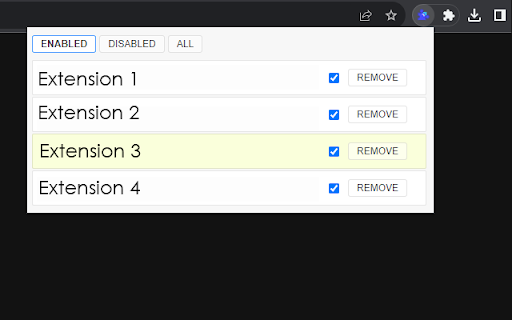
Chrome extension manager chrome://extensions/, main extension name, extension list, delete extension, edit Chrome extension manager chrome://extensions/, main extension name, extension list, delete extension, edit Here's how to access and use the Chrome extension manager: Open Google Chrome: Launch the Google Chrome web browser on your computer. Click on the three vertical dots in the top-right corner of the Chrome window to open the menu. Hover your mouse over "Chrome Extension Manager logos" in the menu that appears. View and Manage Extensions: In the "Extensions" tab, you will see a list of all the extensions you have installed. You can enable or disable an extension by toggling the switch next to its name. Disabling an extension temporarily turns it off without uninstalling it. To remove an extension, click the "Remove" button under the extension you want to uninstall.

Extension Manager Panel
Efficiently manage and control your browser extensions from the sidebar, enhancing your browsing experience. 1. Quick Access: Manage extensions directly from the browser sidebar. 2. Boost Performance: Easily disable unused extensions to improve browser speed. 3. Enhanced Productivity: Switch between extensions effortlessly. 4. User-Friendly Interface: Choose between icon and list views for intuitive management. 5. Search Function: Find extensions quickly with built-in search. 6. Developer Tools: Identify and manage development extensions easily.

Extension Manager
One-click enable/disable all extensions, Support backup and restore, Support custom sorting, Support extension notes One-Click Extension Manager: Streamline Your Chrome Experience Effortlessly manage all your Chrome extensions with our powerful, user-friendly tool: 1. Instant Control: Enable/disable extensions with a single click 2. Bulk Management: Efficiently organize multiple extensions at once 3. Smart Sorting: Automatically arrange extensions based on usage 4. One-Click Uninstall: Remove unwanted extensions instantly 5. Essential Extension Locking: Secure your most important plugins 6. Quick Settings Access: Open extension configuration pages effortlessly 7. Temporary Disable All: Boost browser performance with one click 8. Easy State Restoration: Quickly revert to previous extension settings 9. 100% Free: No hidden costs or premium features 10. Clean Interface: Enjoy a clutter-free, intuitive user experience 11. Simple Operation: User-friendly design for all skill levels 12. Offline Data Security: Your information stays local and protected Optimize your browsing experience today with our all-in-one Chrome extension management solution!

Extension Manager
Manage your Chrome extensions comfortably by enabling and disabling them with ease. # Extension Manager A Chrome extension that lets you quickly enable and disable your installed extensions from a single popup window, using keyboard shortcuts and customizable key mappings. - **Keyboard‑driven extension toggle** - Open the popup with a global shortcut (default: `Alt+M`) and toggle extensions using letter keys. - Supports single‑letter and two‑letter keys (`a` … `z`, `aa`, `ab`, … `zz`). - **Key Mapping tab** - View all installed extensions with their icons and current keys. - Edit keys directly (1–2 letters `a–z`). - When assigning a key that is already in use, shows a confirmation dialog and safely reassigns the key. - Independent search bar to quickly find an extension by name. - **View Options tab** - Choose how many cards to show per row (2/3/4 columns). - Configure maximum popup height; the popup grows up to that height and then scrolls vertically. - All view options are persisted between sessions. - **Search and filtering** - Toggle Keys tab: search installed extensions by name. - Key Mapping tab: separate search for the mapping list. - `Ctrl+F` / `Cmd+F` focuses the appropriate search box depending on the active tab. - **Persistent settings** - Key mappings, view options, active tab, and theme (light/dark) are stored and restored automatically. - Reset button to clear all key mappings and re‑generate them in alphabetical order. - Search extensions by name using the search field. - Each card shows: - Assigned key - Icon and name - Enable/Disable button - Press the assigned key to toggle the extension: - 1‑letter keys toggle immediately. - 2‑letter keys: - First key press starts a short key sequence window. - Press the second letter within the timeout to trigger the 2‑letter key. - If no second key is pressed and there is a single‑letter mapping with no longer sequence, that 1‑letter key is triggered. - Use the search field to filter the mapping list by extension name. - Edit keys inline: - Focus the input, type a new key (`a–z`, length 1–2), press Enter or blur. - Conflicts show a confirmation dialog before reassigning. - Use **Reset all keys** to clear all mappings and regenerate keys alphabetically. - **Columns per row**: choose 2, 3, or 4. - **Max popup height**: choose 480px or 600px. - Changes are applied immediately and saved. Assignments are stable: once a mapping is saved for an extension ID, it is reused on the next load. In the **Key Mapping** tab: - Each extension shows: - Icon and name - Current key label (`Key: a`, `Key: aa`, or `Key: -`) - Editable key input (1–2 letters) - Valid keys: - Only `a–z`, length 1–2. - Invalid input (numbers, symbols, 3+ letters) is rejected with an inline error: - `Key must be 1–2 letters (a–z).` When you type a key that is already used: 1. The extension looks up other extensions using the same key. 2. A confirmation dialog appears, for example: ```txt Key 'a' is already used by other extensions. Replace the key there and assign it to this extension? ``` 3. If you confirm: - The key is removed from the conflicting extension. - The key is assigned to the current extension. - A small inline info message shows: - `Key reassigned from other extension.` 4. If you cancel: - No mappings are changed. - The input reverts to the previous key. - **Open popup**: `Alt+M` (configured via `manifest.json` → `commands`). - **Search** - `Ctrl+F` / `Cmd+F`: - On **Toggle Keys**: focuses the main search field. - On **Key Mapping**: focuses the mapping search field. - **Toggle extensions**: - Press the mapped key while the **Toggle Keys** tab is active and focus is not in a text field. - `manifest.json` – Extension metadata, permissions, keyboard command. - `popup.html` – Popup layout and tab structure. - `popup.css` – Styling and responsive grids for each tab. - `popup.js` – All popup logic: - Loading extensions via `chrome.management` - Rendering Toggle / Mapping / View tabs - Key mapping management and conflict handling - View options and theme persistence - Keyboard shortcut handling (key sequences, Ctrl+F / Cmd+F) This extension uses the following permissions: - `management` – Required to read the list of installed extensions and enable/disable them. - `commands` – Required to bind the global shortcut for opening the popup. - `storage` – Required to persist user settings (key mappings, view options, theme, last active tab). The extension does **not** access or modify web page content; it only manages browser extensions through the official Chrome APIs.

Ext Manager Pro: Your Extensions Control Hub
Revolutionize extensions control with Extensions Manager Pro! Swiftly manage, enable/disable addons. Transform your browsing now! 🚀 Tired of losing precious time navigating tedious menus to manage your web browser extensions? Say hello to Ext Manager Pro, your ultimate extensions control hub! 🎯 With Ext Manager Pro, effortlessly enable or disable any installed extensions in just a few clicks. Our user-friendly interface allows you to toggle extension status with ease, whether it's to temporarily disable unneeded addons or quickly enable/disable a specific one without diving into browser settings. Plus, search for extensions by name! 🕒 No more wasted time hunting for menus or settings pages. Everything's accessible through the Ext Manager Pro interface, displaying all your installed extensions at a glance. Easily track active and inactive extensions and stay organized! 🌟 Transform your browsing experience with Ext Manager Pro! Save time, frustration, and gain complete control over your extensions. Ideal for heavy extension users seeking a swift and efficient management tool. Upgrade now and unlock the true potential of your web browser! 📨 Support Email: support@oziku.tech ✉️ Translations are done via a translator; for incorrect translations, please contact us. ✉️ For bugs or feature requests, don't hesitate to email us.
