
eiglgndkjiabiepkliiemoabepkkhacb

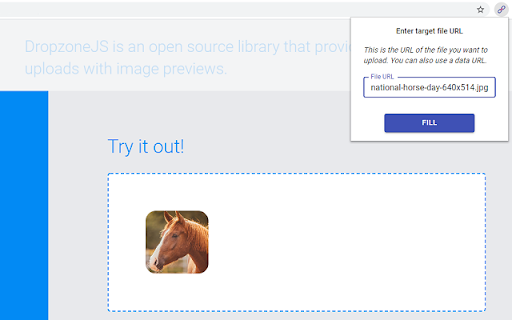
Upload images & files directly from a URL or the clipboard (ctrl+v), without needing to have them on your computer! This extension will let you "fill" a file input directly from a remote URL. Normally, if you want to upload an image (or other file) from a URL, you first have to download it to your computer, then upload it, and then delete it from your computer. With this extension, all you have to do is enter the URL of the file, and the extension will automatically upload it into the page for you. The extension can now also upload an image directly from your clipboard. Just paste the image in the extension's popup using ctrl+v, and the image will be loaded into the page. You can use this extension to post an image on Facebook or Twitter, upload files to your Cloud storage or anywhere else you upload files. This is not a good tool for uploading large files. It first reads the entire file into your computer's RAM, and then uploads it into the page. Especially video files will just be too large for it to handle. This is meant more so for images and small files. Chrome hides extensions by default after you install them. If the extension icon "disappeared", go to extensions menu by clicking on the puzzle icon in your extensions toolbar, and then pin this extension to the toolbar. You can also use this extension with the Ctrl + Shift + U key combination, even when it's not in the 'pinned' state.

AITable Url to Image Converter
An extension designed to extract images from URLs and upload them to AITable. This is a browser extension that extracts images from URLs and uploads them to AITable or APITable. ● Features ✨ You can extract images from URL addresses and save them to the "Attachment" field. ✨ Supports processing multiple URLs separated by commas (in a single cell), enabling multiple attachments to be saved in the same cell. ● Configuration Before using the extension, follow these steps to set your API access credentials and host information: 1. Open the extension's options page. If you can't find the options page, right-click the extension icon and click button "Options". 2. In the options page, enter your AITable API Token and API Host information. If you don't have an API Token yet, you can register and obtain one on the https://aitable.ai/ 3. Save the settings and return to the extension's pop-up page. ● Usage 1. Visit https://aitable.ai/ and open the datasheet to be processed. 2. Click the icon of this extension to bring up the operation interface. Select which field to read the URL information from and specify which attachment field to save the image data collected from the URL. > Tip 1: URLs must be stored in fields of the following three types: "Single Line Text", "Long Text", and "URL". Other field types will be filtered out and will not appear in the drop-down selection box. > Tip 2: You must first open the aitable.ai datasheet link and then start the browser extension. Otherwise, the extension will be unable to get the field list of the datasheet. 3. After confirming that everything is correct, click the "convert" button, and the extension will begin extracting images and saving to "attachments" field in the background (extension service worker). > Tip: Since this is done in the background, you can close the extension popup window and even the currently active AITable webpage after starting the process. The image extraction and attachment conversion will continue to function normally (but you cannot close the browser...). ● FAQ Q: Can other file formats be extracted and saved to AITable? A: Yes. As long as the URL points to a file that can be directly downloaded by the browser, whether it's a PDF or an mp4, it can be converted using this extension. Q: Some URLs fail to be converted successfully. How can I check the logs or debug? A: Right-click on the extension pop-up window and select "Inspect" from the menu to view the log messages through the console. Or open the console of the service worker to view the background running logs. Q: What's the relationship between AITable and APITable? A: APITable is the community edition of AITable. Extension "Url to Image Converter" works for both of them.

imageupload.app Uploader
Help you select images from web pages, upload them to imageupload.app and keep them in your history. Effortless Image Upload and Management – Powered by ImageUpload.app Take control of your image management with the ultimate Chrome Extension for ImageUpload.app! Perfectly designed for creators, professionals, and anyone needing quick image sharing, this extension makes uploading and organizing images seamless. Key Features: ✨ Detect Images Instantly: While browsing, the extension automatically detects all valid images (100x100px or larger) on the current page. No more right-clicking or saving images one by one! 📤 Upload with a Click: View thumbnails of detected images, select up to 10 images at once, and upload them to ImageUpload.app with a single click. 🔗 Get Shareable URLs Instantly: After uploading, the extension generates a URL for each image and provides easy copy buttons for sharing. Copy individual links or all URLs at once! 📂 Organize Your Images: • Track your last 100 uploads in the History tab • Mark important images as favorites to prevent automatic deletion • Quick copy and delete functions for efficient management • Visual progress bar showing storage usage 💾 Storage Management: • Automatic cleanup of older, non-favorite uploads when reaching the 100-upload limit • Favorites are protected from automatic deletion • Warning notifications when approaching storage limits 🔄 Streamlined Workflow: • Three organized tabs: Upload, History, and Favorites • Batch selection and upload • One-click copying of image URLs • Clear visual indicators for selected and favorite items How It Works: 1. Install the extension from the Chrome Web Store 2. Browse any webpage – the extension detects valid images automatically 3. Select images (up to 10 at once) and upload them to ImageUpload.app 4. Copy the generated URLs individually or all at once 5. Organize important uploads using the Favorites feature Why Choose This Extension? Simplify your workflow and focus on creativity without worrying about file management. This extension is a handy side tool to supercharge your experience with ImageUpload.app, offering unparalleled convenience and functionality. Make sharing and organizing your images as simple as clicking a button. Download now and experience the convenience of ImageUpload.app Chrome Extension! Privacy & Permissions: • Requires minimal permissions: only activeTab and storage • No unnecessary permissions or data collection • Works seamlessly with imageupload.app

Image Upload
★★ Save images seamlessly to your Immich albums with just one click! Image Upload is a free Chrome extension that lets you effortlessly upload any image you find on the web directly to your Immich albums. ★ Right-click on any image and select "Save to Immich" from the context menu. ★ Your images are automatically uploaded to your chosen Immich album. ★ Immich availability monitoring: Get notified if Immich is unavailable. ★ Multilingual support: English, Spanish, French, German, Russian, and more! ★ Completely free: No hidden fees or premium plans. ★ Install the Image Upload extension. ★ Enter your Immich address and album name in the extension settings. ★ Start saving images with just a right-click! ★★ Please note, the Image Upload extension is not a part of the Immich service, and their developers can't help with the extension issues. Visit Immich site to learn more about the service: https://immich.app/.

SpreadSimple Image Uploader
Makes an uploading process easy. Image URL will be copied to your clipboard. This extension is created to help SpreadSimple users to upload their images and store links in Google spreadsheet. Currently it supports UploadCare and Cloudinary as an upload provider.
