
ehkonmfjpkoanmhgangojnalpgopcnhd
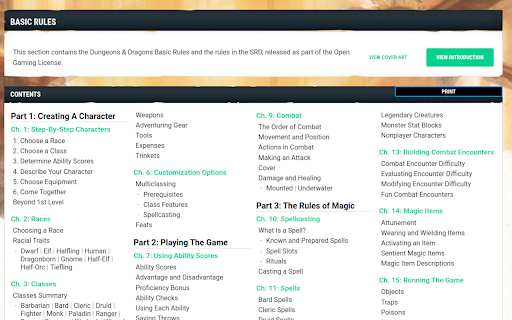
Print your books on D&DBeyond Print your sourcebooks and adventures on D&D-Beyond. It enhances the normal printing process in the following ways: - only one PDF per book - better formatting - links from table of content to single chapters and vice versa for easy navigation Just click on the Print-Button in the Table of Content of the book you want to print. If a book does not print, ensure you really own the book. If you own the book, just leave a question via the chrome webstore and I will look into it. Credits where credits is due: I've created the plugin in my freetime after reading the idea on reddit from the user ctzaran and seeing his tampermonkey script.

Beyond The Forge
Integrate D&D Beyond with The Forge's Bazaar. This extension allows you to integrate D&D Beyond's marketplace, its source adventures with The Forge's Bazaar. This would allow Forge users to import adventures and rule books into their Foundry games hosted on The Forge. Check out the Forge for more details : https://forge-vtt.com/bazaar

DDB – Encounter Builder: Owned Only Filter
Adds an 'Owned only' checkbox to hide monsters you don't own in D&D Beyond encounters. Adds an Owned Only toggle to D&D Beyond’s Encounter Builder monster list. Hides monsters you don’t own (the ones that show “Visit Marketplace”). Works with search, filters, and Load More—the list re-checks automatically. Optionally remembers your choice so the Builder opens the way you like. Open Encounter Builder on D&D Beyond. Click Owned Only to hide unowned monsters. Use search/filters or Load More as normal—the list will re-filter. Toggle it off anytime to show everything again. Site access: dndbeyond.com to place the toggle and hide rows with no access. Storage: saves your on/off preference locally. No accounts, no analytics, no data leaves your browser. SUPPORT THE PROJECT If this keeps your Builder tidy, a small thank-you helps me ship more tools: https://buymeacoffee.com/ghostelder

D&D Beyond DM-Screen
Customizable DM Screen for D&D Beyond Campaigns ~~~DM SCREEN~~~ https://dmscreen.silas.link/gmscreen Decide for yourself which information of the players should be displayed! Open the screen by going to the campaign-screen and press the "DM Screen"-Button. If a character is open under DNDBeyond, the extension's settings can be opened. Here you can customize the DM Screen. If you have any questions, visit the website or contact me via the form on the website You can add links to the screen in order to open them fast! The extension supports dark and light mode. A Defense Roll is an alternative way to shape the monster attacks. The goal is to let the player roll outside of his turn and get him more involved. Here, the player rolls to see if he can escape the monster's attack. It also often improves roleplay because by having the player make the roll, you no longer describes how the monster attacks, but rather how the player dodges. The player is the focus of the narrative. If you have any questions, visit the website or contact me via the form on the website.

R20Exporter
Export a Roll20 Campaign with all its assets to a ZIP file. R20Exporter allows you to export a Roll 20 campaign and all of its assets into a ZIP file for backup/archiving purposes. To export your campaign go to the settings tab in the Roll20 page (the gear icon on the far right of the sidebar) and at the top you should see a button "Export Campaign to ZIP". Simply click on it, then wait until the ZIP file is generated and downloaded. While generating the ZIP file, do make sure you have the campaign tab focused in chrome (separate it in its own window if needed), otherwise the download speed of the zip will drop to very very slow transfer speeds since the javascript that generates the zip on the fly will be running as a low priority background process. The dialog that opens will show you the various steps the script is undertaking and you can click the Log button to see a more detailed log of what is happening. That dialog window will also prevent you from messing around with the campaign. It is best to let the script do its thing unhindered and to not open another campaign in another window. Once the export process is complete, that window will close on its own and the ZIP file will be downloaded automatically. To report any issues, please go to the GitHub issue tracker : https://github.com/kakaroto/R20Exporter/issues
