
ehkomhhcinhikfddnmklbloahaakploh
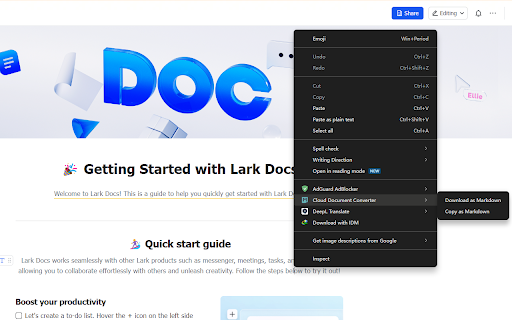

Usage Guide: - Simply right-click to display the context menu, and then click on the menu item corresponding to the feature - Or just click on the extension's action icon and then click on the corresponding option in the popup Help and Feedback: https://github.com/whale4113/cloud-document-converter

SmartCopy All-in-One Copy Tool
One-click to bypass webpage copy restrictions, Smart copy of website tab. with auto-copy of selected text and super copy features. SmartCopy is a powerful Chrome extension designed to enhance your browsing experience. It can help you crack the webpage prohibition of copying, prohibiting right-clicking, prohibiting selection, prohibiting pasting with one click, intelligently copying the website tab title and URL, and providing automatic copying of selected text and super copy functions. In addition, it also includes a complete clipboard history system, allowing you to view and reuse previously copied content at any time. Copy current tab: copy the currently browsed tab information with one click Copy all tabs: Copy all tab information of the current window at once Multiple Format Support: Supports multiple copy formats, including: - Title - URL - Title only - URL only - Markdown format - HTML link - [Title] URL - CSV format - JSON format - HTML Table - Automatically copy selected text: Once enabled, just select the text on the web page to automatically copy it to the clipboard - Minimum character limit: You can set the minimum number of characters for automatic copying to avoid accidental copying - Copy format selection: support copying in plain text or Markdown format to meet the needs of different scenarios - History management: save all the content you copied so that you can view and reuse it at any time - One-click repeat copy: click on the item in the history to copy it again - Clear history: Clear all history records with one click Super Copy can automatically break the restrictions of copying, right-clicking, selecting, pasting, etc. on web pages, allowing you to freely copy content on most restricted pages. 1.4.1 Switches and default behavior - Global default off: After the extension is installed, the super copy function is turned off by default. - One-click switch: You can turn on/off this function at any time by clicking the "Enable super copy function" switch. - Floating button display control: Users can customize whether to display the floating button of the super copy on the page in the advanced settings - Hidden by default: The floating button is set to not be displayed by default to avoid interfering with normal browsing - Global effect: This setting is effective for all websites. Once set, it will be applied globally - Drag to adjust: When the floating button is displayed, you can drag the button to adjust its position - Global Memory: After switching the super copy switch, the extension will automatically remember your global settings and will remain effective after refreshing the page or restarting the browser. - Site Personalization: Supports turning on or off super copy for specific websites, which takes priority over global settings. - Alt+1: Copy the current tab - Alt+2: Copy all tabs - Alt+3: Toggle automatic copy function - Alt+4: Open clipboard history - Automatic language detection: automatically switch the interface language according to the browser language - Multi-language interface: supports simplified Chinese, traditional Chinese and English interface - Manual switch: You can manually select your preferred interface language in the settings - Full internationalization: all interface elements, prompts and notifications support multi-language display 1. Click the extension icon to open the pop-up window 2. Select your preferred format in the "Default copy format" drop-down menu 3. Click the "Copy Current Tab" or "Copy All Tabs" button 4. The content will be automatically copied to the clipboard and a success notification will be displayed 2.2 Using the automatic copy function 1. In the extension pop-up window, toggle the "Automatically copy selected text" switch 2. Select your preferred copy format: - Plain text: Copies the original text content without retaining formatting - Markdown: Convert the selected content to Markdown format, retaining basic formatting and links 3. When you select text on a web page, the text is automatically copied to the clipboard in the selected format 4. A notification will appear to confirm that the text has been copied SmartCopy now provides an enhanced automatic copy function for selected text, allowing you to copy content more intelligently and flexibly when browsing the web: - Multiple format support: You can choose to copy content in plain text or Markdown format - Intelligent format retention: In Markdown mode, the basic format of the original text will be retained as much as possible 1. Enable the function: Enable "Automatically copy selected text" in the extension pop-up window 2. Select the format: In Advanced Settings - Automatic Copy Settings - Select Text Copy Format - Select "Plain Text" or "Markdown" in the drop-down menu 3. Copy content: Select any text on the web page and the system will automatically copy it to the clipboard in the selected format 4. View the results: Paste into any editor to view the copied content - Preserve the basic structure and format of the web page - Automatically convert HTML to Markdown format - Automatically process common web page formats, such as titles, lists, quotes, code blocks, links, images, unordered lists, ordered lists, separators, tables, etc. - Content creation: retain formatting and links when collecting materials from web pages to improve work efficiency - Information organization: Organize web page content into Markdown notes to keep the structure clear - Document writing: quickly extract content from web pages into Markdown documents to reduce formatting work 1. Click the "Clipboard History" button in the extension popup 2. On the History page, you can: - View all copied content - Click the Copy button below the item to copy the content again - Click the Delete button to remove a single item - Click the "Clear History" button to delete all history records 1. Click the "Super Copy" button in the extension popup 2. Use the switch button to enable or disable Super Copy. 3. If you want to display a floating button, you can turn on the "Display floating button on the page" option in "Super Copy Settings". 4. If you need to set it up separately for a specific website, just switch the Super Copy under that website. 5. The settings will be automatically memorized without manual saving. - Alt+1: Copy the current tab (using default format) - Alt+2: Copy all tabs (using default format) - Alt+3: Enable/disable automatic copy function - Alt+4: Open the clipboard history page Click the "Advanced settings" link at the bottom of the extension popup to access more settings options: - Minimum number of characters: Set the minimum number of characters for the automatic copy function - History limit: Set the maximum number of clipboard history records to save - Floating button display: Controls whether to display the super copy floating button on the page - Added three new interface languages: English, Simplified Chinese, and Traditional Chinese - Support automatic detection of browser language and switching interface - Support manual selection of preferred language in settings - All interface elements, prompts and notifications support multi-language display - Enhance the stability and compatibility of HTML to Markdown - Improved handling of complex HTML structures - Fixed the issue that HTML to Markdown conversion failed on some websites - Optimize the quality of Markdown format output - Improved the display logic of successful copy notification - Fixed the issue where variables in the prompt message were not replaced correctly when "Copy all tabs" was selected - Optimize the internationalization of notification messages - Improved Super Copy compatibility on more restricted sites - Optimize the dragging experience of the super copy floating button - Improved memory of site specific settings - Added floating button display switch: Added "Super Copy Settings" section in Advanced Settings, where users can customize whether to display the floating button - Default hidden design: The floating button is set to be hidden by default to avoid interfering with the normal browsing experience - Global validity mechanism: This setting is valid for all websites, and it is applied globally once it is set - Multi-language support: fully supports simplified Chinese, traditional Chinese and English interface - Real-time effect: setting changes take effect immediately, without restarting the extension or refreshing the page Q: Why is the text not copied automatically after I select it? A: Please confirm the following points: - Auto-copy is enabled (check the switch status in the extension popup) - The selected text exceeds the minimum character limit (the default is 5 characters) - You are not selecting text in an editable area (such as an input box) A: In the extension pop-up window, after enabling the "Automatically copy selected text" function, you can select "Markdown" format in the drop-down menu in Advanced Settings - Automatic Copy Settings - Selected Text Copy Format, and then the selected content will be automatically copied to the clipboard in Markdown format. A: Markdown format copy will preserve the following formatting as much as possible: Q: Why doesn't the HTML to Markdown function work on some websites? A: The HTML to Markdown function depends on the HTML structure of the webpage. In the latest version, we have greatly improved the compatibility, but you may still encounter problems on some special websites. If you find that the conversion effect is not ideal on a certain website, you can try the following methods: 1. Make sure you are using the latest version of the SmartCopy extension 2. Try to select a smaller range of text to copy 3. For complex web page structures, you may need to select and copy them in sections 4. If the problem persists, please report it to us through the feedback channel and we will continue to optimize this feature. Q: How to completely clear the clipboard history? A: On the Clipboard History page, click the "Clear History" button, then click "OK" in the confirmation dialog box. This will permanently delete all history. A: No. Clipboard history is only saved on the current device and will not be synced to your other devices. Q: How to control the display of the super copy floating button? A: You can control the display of the floating button by following the steps below: 1. Click the extension icon to open the pop-up window 2. Click the "Advanced Settings" link at the bottom 3. In the "Super Copy Settings" section, find the "Show floating button on page" switch 4. After turning on this switch, all web pages will display the super copy floating button 5. After turning off this switch, the floating buttons of all web pages will be hidden 6. The settings will be automatically saved and take effect immediately Note: The floating button is hidden by default to avoid interfering with your normal browsing experience. SmartCopy respects your privacy: - All data is stored only on your local device - No data is sent to external servers - No personal information or browsing history is collected - Request only necessary permissions to achieve its functionality 6. Feedback and Support If you have any questions, suggestions or feedback, please leave a message. Thank you for using SmartCopy!

社媒助手 - 小红书、抖音、哔哩哔哩、快手、TikTok数据采集工具
小红书、抖音、哔哩哔哩、快手、TikTok等社媒平台数据采集及运营辅助工具,支持一键下载无水印视频/图片、同步至飞书、一键复制、达人/作品/评论数据采集、批量导出数据、自定义文件名/字段等... 社媒助手是一款专为小红书(www.xiaohongshu.com)、抖音(www.douyin.com)、快手(www.kuaishou.com)、TikTok(www.tiktok.com)等社媒平台用户打造的高效数据收集工具。它能够快速收集各平台的作品、评论等数据,以及相关视频、图片等媒体文件! 目前支持的平台有:抖音、小红书、快手、TikTok。其它平台敬请期待! 通用功能⭐️ ✅ 批量采集数据:支持根据链接或关键词采集笔记/视频、评论、博主/达人信息等内容 ✅ 导出 Excel 文件:所有采集数据可一键导出为 .xlsx 文件 ✅ 下载媒体文件:支持图片、视频、图集等文件的批量无水印下载 ✅ 多账号管理:支持存储多个平台账号 Cookie,自由切换账号 ✅ 历史记录管理:每次采集记录自动保存,可重采、续采或再次导出 ✅ 文件命名自定义:导出的媒体素材文件可自定义命名规则 ✅ 复制达人/作品信息:一键复制当前浏览的达人/作品数据 ✅ API & RPA 采集模式:可选择通过 API 接口或模拟用户行为进行采集 ✅ 飞书多维表格同步:支持将采集数据同步到用户自己的飞书多维表格 ✅ 任务闹钟:在特定时间提醒运行指定任务 ✅ 自定义字段:自定义需要导出的Excel字段 小红书✨ ✅ 评论数据导出:一键导出当前笔记的所有评论数据,方便您进行进一步的分析和管理,也可根据笔记链接进行批量导出操作 ✅ 笔记原图/无水印视频下载:一键下载当前笔记的无水印视频、图片列表,包括live图 ✅ 批量导出笔记数据:根据笔记链接一次性导出多篇笔记的基本信息及笔记原图、无水印视频等内容,也可根据博主链接进行批量导出 ✅ 笔记信息复制:一键复制当前笔记的ID、标题、内容、互动数据等 ✅ 博主信息复制:一键复制当前博主的ID、小红书号、个人简介等信息 ✅ 博主信息导出:根据博主链接批量导出博主信息 ✅ 搜索导出:根据关键词导出相关笔记/博主数据 ✅ 联系博主:可在博主详情页直接扫码与博主取得联系 抖音✨ ✅ 评论数据导出:一键导出视频的所有评论数据,方便您进行进一步的分析和管理,也可根据视频链接进行批量导出操作 ✅ 图集/无水印视频下载:一键下载当前视频/图集的无水印内容 ✅ 合集导出:一键导出当前合集中的所有视频数据 ✅ 批量导出视频数据:根据视频或达人链接一次性导出多条视频的基本信息及图集、视频等媒体内容,也可根据达人链接进行批量导出 ✅ 视频信息复制:一键复制当前视频的ID、描述等基本信息 ✅ 达人信息复制:一键复制当前达人的UID、抖音号、个人简介等基本信息 ✅ 搜索导出:根据关键词导出相关视频/用户数据 ✅ 链接转换:批量将App的视频/达人短链转换成PC端长链,或反向将PC端视频/达人长链转换成App端短链 快手✨ ✅ 视频下载:在视频详情页可一键下载当前视频文件,或根据视频链接、达人链接等方式进行批量下载 ✅ 评论数据导出:在视频详情页可一键导出视频的评论数据,或根据视频链接进行批量导出 ✅ 视频数据导出:在达人详情页可一键导出当前达人的视频数据,或根据视频链接、达人链接等方式进行批量导出 ✅ 视频信息复制:在视频详情页可一键复制当前视频的ID、描述等基本信息 ✅ 达人信息复制:在达人详情页可一键复制当前达人的ID、个人简介等基本信息 ✅ 搜索导出:根据关键词导出相关视频/用户数据 TikTok✨ ✅ 视频下载:在视频详情页可一键下载当前视频文件,或根据视频链接、达人链接等方式进行批量下载 ✅ 评论数据导出:在视频详情页可一键导出视频的评论数据,或根据视频链接进行批量导出 ✅ 视频数据导出:在达人详情页可一键导出当前达人的视频数据,或根据视频链接、达人链接等方式进行批量导出 ✅ 视频信息复制:在视频详情页可一键复制当前视频的ID、描述等基本信息 ✅ 达人信息复制:在达人详情页可一键复制当前达人的ID、个人简介等基本信息

Feishu Clip
Use Clip to save favorite webpages to Feishu Docs with one click Say goodbye to manual copy and paste: Use Clip to save your favorite webpages to Feishu Docs with one click. No more unwanted advertisements: Feishu Clips can identify and block advertisements on webpages so you can surf in a clean cyber ocean.

AITDK SEO Extension - Traffic/Keywords/Whois/SEO analyzer
Your all-in-one SEO extension, providing free website traffic, keyword density, Whois, and SEO analysis features AITDK SEO Extension - Your All-In-One SEO Extension. Free traffic & keywords & whois & website SEO analyzer. AI TDK SEO Extension is a versatile browser extension designed to provide comprehensive website analysis. With its powerful features, AITDK SEO Extension offers the ability to track website traffic, perform Whois lookups, keywords density check, and conduct SEO analysis. By utilizing this extension, users can gain valuable insights into the performance and visibility of their websites. The traffic tracking feature allows users to monitor visitor activity and engagement, while the Whois lookup functionality enables the retrieval of domain registration details. Additionally, the SEO analysis tool helps users optimize their websites for search engines by providing valuable metrics and recommendations. AI TDK SEO Extension is a valuable tool for website owners and administrators seeking to enhance their online presence and improve their website's performance.
