
ednlokepbjfieampgfdabeglnceoheni
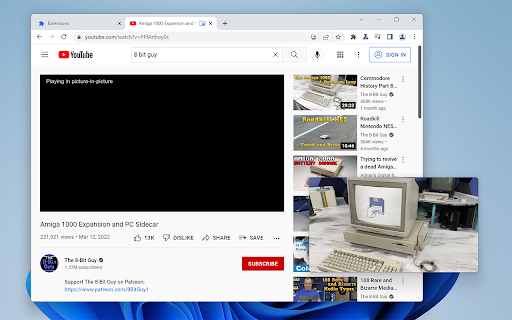

Switch videos to Picture-in-Picture mode with a keyboard shortcut or toolbar button. Picture-in-Picture Shortcut adds a keyboard shortcut and toolbar button for switching video players to the Picture-in-Picture mode in web browsers. The default keyboard shortcut is Ctrl+Period (Command+Period on Mac), but it can be changed from the browser settings. The Picture-in-Picture Shortcut extension button in the browser's toolbar can be used to toggle PiP mode. Google Chrome and other Chromium browsers have a built-in Picture-in-Picture button in the default media controls, but it isn't always available and requires multiple mouse clicks. Picture-in-Picture Shortcut also overrides sites that don't normally allow Picture-in-Picture mode, and attempts to add a play/pause button to the PiP popup. However, this may not always work for sites and players not originally built for PiP mode. This extension is open-source under the GPLv3 license, the code is available on GitHub: https://github.com/corbindavenport/pip-shortcut

Picture in Picture - Floating player
Picture-in-Picture mode allows you to watch a video in a floating window with playback video and volume controls. This extension brings a PiP view to all websites with an HTML video element. Press the extension icon to open the active player in the picture in picture mode. This extension automatically tries to use the active player. Now stream movies, series or sports on any tab. Install Picture in Picture chrome extension to enable the floating video. We support this feature on every streaming site. For YouTube, the extension also offers an in-player button next to the settings button to open the YouTube video in the picture-in-picture mode. You can use this extension to watch YouTube videos in a floating window that is on top of all other windows so tabs can be switched and still the player is visible. The floating window has play and pause buttons, and you can exit from the picture-in-picture mode anytime. How Extension works: 1. Find the video and run it. 2. Click the extension icon to reduce the video player on YouTube and other sites. 3. Select the “Floating Picture in Picture” and you're done. A floating video allows the viewer to scroll through your webpage and keep your video in view the whole time. Video Playback Controls Enjoy full control over your video playback with intuitive controls directly within the floating player: - Volume control; - Stop and play video; - Video speed control; - Switch to next video. Just click on the Floating Player and Video Control icon to display the video player on YouTube, Netflix or any other websites on the Web. This window will play the video on all pages of the browser on which there is a video resource. Pic-in-pic mode supports all video formats and works with popular video hubs like Youtube and many others We hope you find our tool useful! We are waiting for your feedback and ratings!

Floating Video with Playback Controls
Picture-in-Picture mode allows you to watch a video in a floating window with playback video controls. Picture in Picture supports the video player on various platforms and sites. This mode allows you to watch videos in a floating window so you can keep track of what you are watching while interacting with other sites or applications. Open the YouTube video on the mini-player in floating image-in-picture (PiP) mode. This window will play videos on all pages of the browser. - Find the video and run it. - Select the “Floating Picture in Picture” (PiP) mode, and you're done. There is one thing worth noting: while you can freely browse other sites while playing a video in a pop-up window, you should keep the original tab open. Floating picture-in-picture is a powerful tool for watching videos on a mini-video player for all sites. The Picture in Picture floating panel is a lightweight addon that gives you access to videos on the entire site with one click. A floating panel for all is an extension that is developed and maintained independently. A floating panel for everyone simply makes it easier to access PiP videos for all video sites.

Force Picture-in-Picture Extension
A fork of Google's PiP extension that forces PiP by removing the disablePictureInPicture attribute. Also no longer has any analytics.

Translate Photo — Instant Image Translator
Use Translate photo instantly in your browser — translate images, screenshots and photos on any webpage in one click Translate photo directly on any webpage: translate images, screenshots and photos without switching tabs. Fast AI-powered text recognition and smart language detection for immediate image translation. 🚀 Quick Start Tips 1. Add to Chrome and pin the extension. 2. Open a page with an image, screenshot, poster or diagram. 3. Click the icon or draw a selection to translate photo text. 4. Receive the translation in a popup, copy it or share as needed. Unlock seamless understanding with Translate Photo — Instant Image Translator. This tool lets you translate photo content directly in your browser, removing the need to type text manually or jump between apps. Whether you read a foreign comic, analyze a chart, or browse international news, the photo translator makes image text accessible in seconds. 🌟 Why Choose Translate Photo? 1️⃣ Instant in-browser translation: select an area and see translated text without leaving the page. 2️⃣ AI-powered text recognition for higher accuracy on complex scripts and layouts. 3️⃣ Supports many languages: translate photo to english and dozens of other pairs. 4️⃣ Works with screenshots, banners, protected PDFs and mixed-content pages. 🛠️ Key features • Area selection and cropping for precise translation. • Contextual popup showing original text and the translation side-by-side. • Lock the translation to reserve it on the page. • Copy and share translated text in one tap. • Hotkey / keyboard shortcut for instant translation screenshot actions. 🌎 Real-world use cases ➤ Travel: translate menus, signs and maps while browsing foreign websites. ➤ Shopping: product photos translation and descriptions of international stores. ➤ Study: translate textbook screenshots and notes for language learners. ➤ Work: translate receipts, invoices and locked pdfs quickly. ⚙️ How it works 1. Select the image region to extract text. 2. AI-powered recognition reads the text and detects the source language. 3. The extension translates the extracted text extraction and displays it inline. 4. Analyze results or adjust language preferences. 📖 Technical & privacy notes - Lightweight and fast processing for instant image translation. - Smart detection focuses on text blocks and reduces false positives. - Formatting-aware extraction preserves basic layout for readability. - Minimal permissions only. - Recognized text is processed securely and temporary data is cleared after translation. A full privacy policy is linked in the store. 📱 Supported platforms & formats • Works in Chrome and other Chromium-based browsers that support extensions. • Supported formats: jpg, png, webp and pdf pages with embedded images. • Use translate photo to english or other target languages with auto-detect or manual selection. Advanced settings & tips 1️⃣ Choose a preferred translation language and popup settings in settings to compare results. 2️⃣ Enable auto-detect for seamless translations. 3️⃣ Pin the extension and use the hotkey for faster access. 4️⃣ Select only the area with text for mixed content to improve recognition accuracy. Compare with other tools ➤ Unlike many web upload services and mobile apps, Translate Photo works directly on the page for faster context-aware results. ➤ This in-page workflow avoids extra upload steps and keeps you focused on the content. Roadmap & support • Regular updates improving recognition accuracy and layout handling. • Planned: optional offline recognition mode and additional language packs. • Send feedback or bug reports and join beta testing for early features. Translate Photo brings fast, in-page image translation to your daily browsing. Translate images, translate screenshots and translate photos without leaving the page — install Translate Photo and make image text readable instantly. ❓ Frequently Asked Questions Q: Does this work like google translate on photo? A: It provides a similar user experience: the extension performs image text extraction and translates the result in-browser. If you searched for google translate photo workflows, this tool offers an in-page alternative. Whenever it is japanese to english photo translator or spanish photo translator, it will provide picture translate to you. Q: How do I translate photo to english? A: Activate the extension, select the image area and the tool will translate the extracted text automatically. Q: Is my data stored permanently? A: No. Recognized text is processed securely and temporary data is cleared after translation. See the privacy policy for full details.
