
edekdaabfonaodpbggccaamfhggjggki

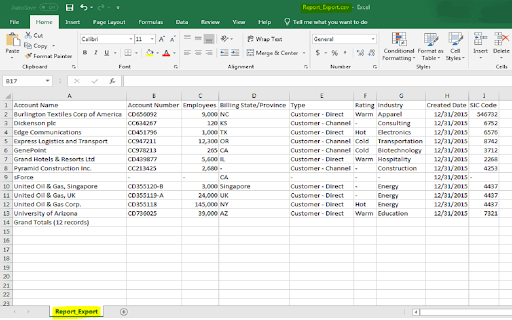
Table Data Export plugin gives you the ability to easily export HTML tables to the CSV. It needs a little information though to start with, it needs table's id/class value which needs to be exported to CSV. It comes with below features: i) User can either select ALL Columns or a column range for export ii) There is a provision for file name where User can give the name of the file to be exported iii) It just needs either HTML table's id or class value to be exported

Mr. Table (by TYO lab)
Export table(s) in the web pages into downloadable CSV, JSON file(s) In short, Mr. Table is a tool that can help extract data from table(s) (e.g. *) of the web pages, and the extracted data can be saved into either "csv" or "json" format. We often have needs to collect data from the Internet for our work or our study, however, data presented in the web pages are often not in the format that we want. For example, most data in the web pages are presented using HTML tag '' or ' ', but we want data can be processed by our programs or our tools (e.g. Excel). With "Mr. Table", data can be converted from what you can see from the web pages to the format that we can actually use. Data often is presented using HTML table and related tags in the following ways: - for the table - for the table column names - for the table header row - for the table header cell - for the actual data - for a data row - for a data cell For those data you can simply using the default settings with preset table selector, column selector, cell selector, etc. Data also often is presented using CSS, and data is grouped in tags and styled with CSS classes, for Example: # ID Name Age ... 1 John Doe 23 ... 1 John Smith 37 ... ... Unfortunately, for such tables you can only extract them by specify the selectors manually.

Copy Tables
Copying tables. 웹 페이지에 있는 table에서 특정 테이블 행이나 열, 특정 테이블 전체를 간편하게 선택해서 클립보드로 복사할 수 있는 프로그램입니다. 테이블 위에 마우스를 놓고 아래와 같은 단축키와 마우스 클릭을 사용합니다. 1번키 + 마우스 왼쪽 클릭: 테이블에 있는 특정 열을 클립보드로 복사. 2번키 + 마우스 왼쪽 클릭: 테이블에 있는 특정 행을 클립보드로 복사. 3번키 + 마우스 왼쪽 클릭: 테이블에 있는 전체 내용을 클립보드로 복사. 4번키 + 마우스 왼쪽 클릭: 테이블에 있는 전체 내용을 블록으로 선택만. 클립보드로 복사는 사용자가 직접 선택. 프로그램 단축키는 환경설정에서 켜고 끄거나 다른 키로 바꿀 수 있습니다.

Table Capture
Copies HTML tables to the clipboard or exports them to Microsoft Excel, CSV, Google Sheets, Office 365, etc. Table Capture gives you the ability to easily capture HTML tables for use in a spreadsheet, whether using Microsoft Excel, Office 365, Open Office, Google Sheets, etc. Features: • Copy tables to the clipboard with the proper row & column separators • Export to Google Sheets • Batch export tables to the clipboard, Excel & Google Sheets • Capture tables (or any repeating items on a website) • Exports of up to 250 rows Table Capture Pro features (requires annual subscription): • Download tables directly as an Excel spreadsheet or as a CSV file • Capture multi-page tables and tables that load as you scroll • Copy tables to the clipboard as Markdown • Screenshot tables (save as PNG images) • Export tables to Office 365 • Create "Recipes" for handling tables on specific websites • Export tables from PDF files (locally and from the web) Table Capture Cloud features (requires subscription): • Real-time sync to Google Sheets • Magic Columns: AI-based column parsing • Table Talk: Ask ChatGPT free-form questions about your data! • Ollama Integration: Use a local LLM for your advanced data processing needs Support & Testing: support@georgemike.com • Please test the extension on the tables provided here: https://www.georgemike.com/tables/test/

Tabulazer - Table Filter and Sorter
Filter, sort, page and style any existing HTML table using the Tabulator JS library. Do you work with websites featuring lots of HTML tables? Need to quickly filter, sort, page, copy or export data without touching the website code? Tabulazer turns any standard HTML table into a powerful interactive table (powered by Tabulator). You can “tabulaze” tables to get: ➤ Real-time column sorting (ascending/descending) ➤ Column filters (per-column filtering) ➤ Quick filter (global search across all columns, optional) ➤ Paging + rows-per-page selector (10 / 25 / 50 / 100 / 250 / 500) ➤ Resizable columns (mouse-driven) ➤ Column chooser (show/hide columns, optional) ➤ Remember layout per page (persist filters/sorting/columns for the same URL, optional) ➤ Visual modes: compact mode, zebra rows, font size scaling ➤ Export & copy tools (from the context menu): Copy Table to Clipboard: CSV / XLSX / XML Download Table as: CSV / XLSX / XML Export scope: (current view) or (all rows) Highly recommended if you deal with big tables and need to quickly extract relevant data. NEW UI (SIDE PANEL) Tabulazer now uses a modern Side Panel interface (instead of the old popup), so you can keep controls visible while browsing. From the Side Panel you can: ➤ Pick table (overlay picker) ➤ Toggle the last table ➤ Activate all / Deactivate all ➤ See a list of detected tables and toggle each one ➤ Select an active table (scroll + highlight) ➤ Manage settings (filters/sorting/paging/visuals) CONFIGURATION SETTINGS Open the Side Panel to access settings, including: ➤ Force table width to 100% ➤ Enable sorting ➤ Enable column filters ➤ Enable paging + choose rows per page ➤ Enable quick filter ➤ Enable column chooser ➤ Remember layout for this page (on/off) ➤ Compact mode / Zebra rows / Font size USAGE INFO Right-click anywhere on a page and use the Tabulazer context menu: ➤ Pick Table (overlay picker) ➤ Toggle Table (toggles the table you right-clicked; if used outside a table it falls back to Pick Table) The transformation is done using Tabulator (https://tabulator.info/), a great table management JS library by Oli Folkerd. ➤ Tabulazer official page: https://www.ryadel.com/en/tabulazer-chrome-extension-filter-sort-html-table-tables/ ➤ Fork me on GitHub: https://github.com/Darkseal/tabulazer
