
ecabifbgmdmgdllomnfinbmaellmclnh
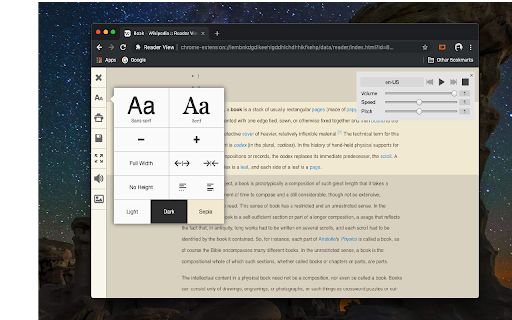


Removes clutter like buttons, backgrounds, adjusts text size, contrast, and layout for better readability Reader View extension brings Mozilla's open-source Readability implantation to Chromium. Using this extension you can strip clutters from webpages and read them on "Reader View" mode. The extension allows you to toggle between normal view and reader view by pressing the page-action button. Note that reader view mode works best for web pages that have a lot of content. There are some tools in the left side panel that can help you personalize your Reader View. You can change color, background-color, font-size, font-family and width of the reader view. Features: -> Remove distraction -> Read in fullscreen mode -> Remove advertisements -> Save in HTML format -> Print document -> Read content using a powerful Text to Speech (TTS) engine -> Edit HTML content (live editor) -> Email document (with title, body, and reference to the original document) -> Correctly display mathematical formulas (MathJax equations are Supported) -> Highlight selected text -> Move to the next and previous pages -> Keyboard shortcuts for almost all actions -> Resize images on the design-mode -> Display DOI (Digital Object Identifier) details -> Display publish date -> Add persistent sticky notes -> Bionic Reading -> Adjust number of columns *** 0.6.x releases *** The extension is now running on manifest v3! Make sure you have the latest version of your browser to use this extension (The minimum acceptable Chrome version is 104). There are a few changes to make it compatible, so please report bugs if you see broken features. For more info please visit: https://github.com/rNeomy/reader-view/ Change Log: 0.1.3: Calling a reader view by restoring it from history will trigger history.back 0.1.4: A more visible icon. Fixes a reader bug. 0.1.5: It is now possible to toggle the reader view using keyboard shortcut (define one from Chrome's settings page) 0.2.1: Document parsing is improved. Switched to the latest Readibility.js library. Ctrl + S now saves the document same as pressing the "Save" button. Reader View now supports both rtl and ltr languages 0.2.2: It is now possible to select some content and ask the reader view to convert only the selected part. This is useful if the automatic selection tool is not detecting the content correctly. 0.2.4: Speech engine is added. You can now ask the extension to read the article for you. Estimated reading time is displayed below the article title

Unclutter — Modern Reader Mode
Read, bookmark, and highlight articles with style. Unclutter is a new kind of reader mode that keeps the visual style of articles intact. Plus it automatically saves articles for you. Instantly in your browser. ➤ Focus: Remove remove everything that's not text from a page. ➤ Customise: Change the text size or enable dark mode everywhere. ➤ Save for later: Manage your reading queue directly in your browser. ➤ Highlight: Select any text to save it. Then search across it later. This project is Open-Source! Follow the development, suggest features, or contribute at github.com/lindylearn/unclutter

Reader Mode - Natural Reader and dark mode
Distraction-free chrome reader view extension and dark mode for Chrome. ✅ Remove ads, popups, and sidebars ✅ Read long articles without distractions ✅ Works on news, blogs, and research sites ✅ Dark mode Advanced features: 📖 Reader Mode – clean, distraction-free layout for any article 💻 Offline Reader View – access saved articles without internet 🔊 Read Aloud (TTS) – listen to articles with natural-sounding voices 🌙 Dark Mode – comfortable reading day and night 📚 Read Later – save articles and read them anytime 🗂️ Export Articles – save cleaned content to Markdown, TXT, or PDF 🎨 Reader Layout Settings – customize font, size, and width Listen to articles with natural-sounding voices. Read aloud supports multiple languages for text to speech: 🇺🇸 English | 🇬🇧 English | 🇩🇪 Deutsch | 🇪🇸 Español | 🇫🇷 Français | 🇮🇳 हिंदी | 🇮🇩 Bahasa | 🇮🇹 Italiano | 🇯🇵 日本語 | 🇰🇷 한국어 | 🇳🇱 Nederlands | 🇵🇱 Polski | 🇧🇷 Português | 🇷🇺 Русский | 🇨🇳 中文 Why to use Chrome Reader View: - Print clean, formatted articles. - Ads-free reading. - Our ML model ensures only the main content is displayed, removing clutter. Unlike other “reader modes,” Reader View uses smart content detection to show only the article—no menus, footers, or ads. It’s fast, lightweight, and works great offline too. 🎹 Use hotkeys to open read view: Windows: “Shift + Alt + S” MacOS: “Shift + Command + S” And “Esc” to close Reader. Natural Reader Chrome extension offers both light and dark mode color schemes designed for eye comfort. It not only adjusts colors but also changes background and font colors to the best combinations. Dark reader chrome extension reduces strain on your eyes, making reading more comfortable, even on the most ad-heavy websites. It also removes all irrelevant content to enhance your reading experience. 💡 Chrome reader mode is perfect for: – Students researching online. – Professionals staying up-to-date in their field. – News enthusiasts who want a cleaner reading experience. – Anyone who loves to read but hates online distractions. 🔒 Privacy Focused: We respect your privacy. Reader View works locally in your browser and doesn't collect any personal data. 🆕 Regular Updates: We're constantly improving! Expect new features and optimizations regularly based on user feedback. 📥 How to get reader view in Chrome: Click "Add to Chrome" to add Reader View extension to Chrome. 📥 How to turn on reader mode in Chrome: Open any webpage. Click the Reader view icon. Enjoy distraction-free reading! Reader View - your personal reading assistant! 🚀📚

EasyReader
EasyReader can customize and improve the readability of long web articles Usage: 1. Click extension button. 2. Select content on the page to read. 3. Enjoy. Features: ★ Table of contents for headings are provided to the left. ★ Color, size, fonts and more are fully customizable. ★ Print, will print selected content only. ★ Code highlighting for code segments without other style. Tips: ☞ Drag right edge of content to change width. ☞ Background can be customized using images, not only colors. Example for background color use: url("http://antonj.se/resources/css/images/paper-texture-warm.gif") ☞ Hovering lables in option page will give you the actual CSS property that is used. Updates: 1.63 - Maintenance update to upgrade to chrome manifest version 3, since that was required. Keyboard shortcut moved from options to standard extension shortcuts 1.62 - Removed tabs permissions, since it was not needed 1.61 - Minor bug fixes (no scrolling in original page) 1.60 - Minor bug fixes 1.50 – Keyboard shortcut to activate/deactivate EasyReader (set in extension options) 1.46-7 – Bugfix: Print width always 100 % 1.45 – Printing with EasyReader activated will only print selected content. 1.44 – Bugfix: Flash content temporary hidden, when ER is activated. Since Chrome7 Flash would otherwise always be above ER content. 1.43 – Bugfix: Google Dictionary (by Google) extension popup will be on top of EasyReader content. 1.40 – Syntax highlight for code segments of articles, using http://code.google.com/p/google-code-prettify/

Reader View
Open any page in reader view mode; light, dark or sepia and clutter free. Reader View extension enables you to open any website in a simple and clutter-free environment. Simply click on the toolbar button to open the reader view UI. The current page will be reloaded in a plain format. Once the reader view interface is open, you can see a toolbar in the top left corner. Click on the second button from the top to open the settings view. There are three themes available for the reader view. The default theme is the - Light - color. But you can choose, Dark or Sepia options as well. Moreover, font size, line height, and page width can also be adjusted in the settings popup. The reader view is a format with minimal distractions. No, buttons, toolbars, background images, ads, or banners are allowed in reader view. It is much easier on your eyes and reduces eye strain if you spend a long time surfing the web. Please note that all changes are auto-saved to the memory in the add-on. Note 1: There are a few options available to open the reader view interface. Please right-click the toolbar button to see all the choices. By default, the reader view opens in the same-tab. Please note that, if you opt for the popup or sidebar view, the first time you access the reader view for a particular page, you will need to press the toolbar button twice to open the interface. Note 2: The reader view extension uses the Readability open-source library to render the page in a simple format. You can get more info about this library here: https://github.com/mozilla/readability To report bugs, please fill out the bug report form on the addon's homepage: https://mybrowseraddon.com/reader-view.html
