
eagliigffiaiaadpfoioiiajengombbo
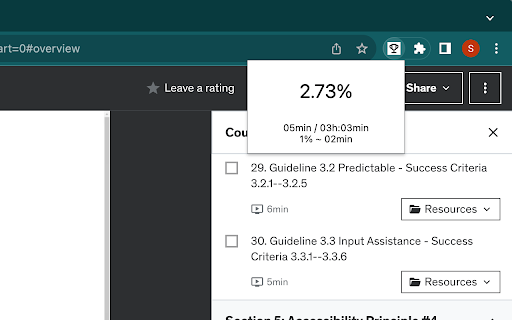
If you like to see exactly how much you have progressed in your Udemy courses, this extension is for you. As bonus, see course total time, total time completed and how long it takes to progress 1%

Schedule Udemy Course Sections
Simple utility to schedule Udemy course sections on Google Calendar. Adds a "Schedule on Google Calendar" button to each section of a Udemy course.

Udemy Watcher
Udemy Watcher: Enhance Your Udemy Learning Udemy Watcher is a lightweight browser extension designed to streamline your Udemy learning experience. It simplifies course management, boosts productivity, and improves efficiency. - One-Click Video Management: Instantly mark videos as watched or unwatched. - Picture-in-Picture Mode: Watch lectures in a floating window while multitasking. - Course Progress Tracking: Monitor completed/total minutes with a visual progress bar. - Export Udemy Notes as PDF: Save your Udemy notes as a PDF file for easy access and reference. - Display Course Creation Date: Adds the original "Created At" date to course pages for better relevance assessment. - Keyboard Shortcuts: Control features with quick commands (e.g., mark watched or toggle PiP). - Enhanced UI: Sleek popup for easy navigation. - Multilingual Support: Available in 8 languages, including English, Spanish, and Japanese. - Seamless Integration: Works flawlessly with Udemy’s interface. - Optimized Performance: Reduces distractions for focused learning. Transform your learning journey with Udemy Watcher save time, stay organized, and complete courses faster.

Udemy Show Real Date
Shows the real creation date of the course instead of the date of the last update which is missleading. Shows the real creation date of any course instead of the last updated date. This helps course shoppers to decide whether or not the course is the right fit to their needs.

Udemy Reset
An extension used to reset the progress of a course on the Udemy website. Instructions for usage: 1. Navigate to a course on Udemy that you already have some progress on. 2. Ensure that the Course Content panel is open (it's okay if you're on the mobile or desktop view). 3. Click on the Reset Progress button on the extension popup. 4. You'll see a slight animation (it's user feedback to let you know it's working!), and the panels will expand and then close, leaving your progress at 0. 5. Enjoy the fresh start! Looking to contribute and/or check out the source?
