
doagleaopbffngpffnmnajoiablpakfj
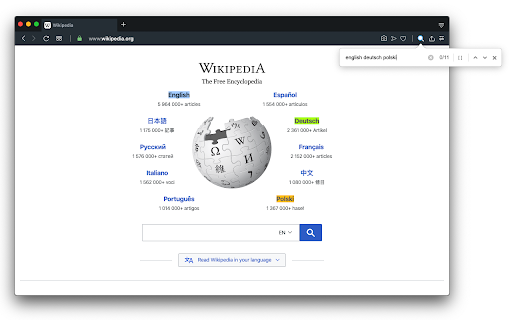
Highlight multiple words separated by comma, space or arbitrary separator with persistent history This extension is meant to highlight multiple terms on large documents as fast as possible. This version uses native highlighting which guarantees the highliest possible searching performance without altering the DOM tree. Features: 1. Does not manipulate DOM tree 2. Fast response on large document trees 3. Fast response on multiple queries 3. Supports regular expression highlighting 4. Supports a few different word separator 5. Supports keyboard navigation (Enter to search for the next match and Shift + Enter to search the previous match) 6. Works completely offline Privacy: This extension works completely offline. There is no server-side interaction whatsoever. Query History: This extension automatically saves your search queries per domain (After pressing Enter or Shift + Enter). It offers the previous queries when the popup appears on the same domain. To alter the storage method, visit the options page. Keyboard Shortcuts: This extension supports keyword-only usage: -> Open chrome://extensions/shortcuts in a browser tab -> Find the extension and assign a keyboard shortcut 1. You can open the search panel by configuring a shortcut for it. 2. You can also automatically search for the last search query without opening the search interface 3. There is a keyboard shortcut to hide search results as well in this interface. -- When the interface is open: 1. Press the Enter key to find the next match 2. Press the Shift + Enter keys to find the previous match 3. Press the Esc key to close the search panel 4. Press the Shift + Esc keys to close the search panel and keep the highlights Introduction: This extension can be used to dynamically mark search terms with optional custom regular expressions support and offers you built-in options like diacritics support or separate word search. The interface is similar to the default browser's find interface. You can press the Enter key to select the next occurrence, or press the Shift + Enter combination for backward matching. This extension works offline and has no server-side interaction whatsoever to protect user privacy. Also, it only gets activated once the user opens the popup. There is no resource usage when the extension is not being used. To enhance the searching capability of the extension, sub-queries are only being applied to the page once.

Multiple Search and Highlight (Dev Edition)
Highlight multiple words separated by comma, space or arbitrary separator with persistent history This extension is meant to highlight multiple terms on large documents as fast as possible. This version uses native highlighting which guarantees the highliest possible searching performance without altering the DOM tree. Features: 1. Does not manipulate DOM tree 2. Fast response on large document trees 3. Fast response on multiple queries 3. Supports regular expression highlighting 4. Supports a few different word separator 5. Supports keyboard navigation (Enter to search for the next match and Shift + Enter to search the previous match) 6. Works completely offline Privacy: This extension works completely offline. There is no server-side interaction whatsoever. Query History: This extension automatically saves your search queries per domain (After pressing Enter or Shift + Enter). It offers the previous queries when the popup appears on the same domain. To alter the storage method, visit the options page. Keyboard Shortcuts: This extension supports keyword-only usage: -> Open chrome://extensions/shortcuts in a browser tab -> Find the extension and assign a keyboard shortcut 1. You can open the search panel by configuring a shortcut for it. 2. You can also automatically search for the last search query without opening the search interface 3. There is a keyboard shortcut to hide search results as well in this interface. -- When the interface is open: 1. Press the Enter key to find the next match 2. Press the Shift + Enter keys to find the previous match 3. Press the Esc key to close the search panel 4. Press the Shift + Esc keys to close the search panel and keep the highlights Introduction: This extension can be used to dynamically mark search terms with optional custom regular expressions support and offers you built-in options like diacritics support or separate word search. The interface is similar to the default browser's find interface. You can press the Enter key to select the next occurrence, or press the Shift + Enter combination for backward matching. This extension works offline and has no server-side interaction whatsoever to protect user privacy. Also, it only gets activated once the user opens the popup. There is no resource usage when the extension is not being used. To enhance the searching capability of the extension, sub-queries are only being applied to the page once.

Highlight multiple keywords in a web page
Highlight multiple words in a web page to see immediately if the page contains any relevant information When you look for some information in many posts, articles, or announcements, it is handy to highlight relevant keywords in the web page contents. Now that it is trendy for the search engines to return inexact and irrelevant results, highlighting meaningful expressions saves time. A sample use case - searching for job offers in LinkedIn. >95% of search results do not contain the words used for the search. With this extension you do not need to read each post, you see immediately if it contains any keywords. Or imagine you search with Google. You want to highlight your keywords in the search results and the pages that open when you click the links. Or you need to black out some strings, such as you personal details, before taking screenshots. The extension is maximally simple to use. Enter once the keywords in the option page, and then click the extension icon whenever you look though the contents that are supposed to contain those text strings. To access the options, right click the extension's icon and then click options in the menu. By default the effect of the click on the extension's icon is lost on any navigation or refresh. You can choose in the options to reactivate highlighting automatically when navigation is from a page where highlighting was on. Note, highlights appear when a page is completely loaded. The extension is free and open source.

MultiHighlight
Advanced text highlighting with real-time style updates for any webpage. Transform your online reading experience with the most powerful highlighting extension available. MultiHighlight helps you instantly identify what matters most on any webpage with precision and style. ⚡ Real-Time Style Updates: See highlighting changes instantly as you adjust colors, opacity, and text styles 🛡️ Smart Highlight Prevention: Intelligent system prevents overlapping highlights for clean, precise results 🚀 Enhanced Performance: Lightning-fast processing even on text-heavy pages with thousands of matches 🌓 Improved Theme Support: Seamless dark mode integration that respects your system preferences - Precision Highlighting: Mark multiple words or phrases simultaneously with perfect accuracy Complete Style - Customization: Choose from unlimited colors, opacity levels, and text styles (bold, italic, underline) for each highlight set - Visual Feedback: Watch your changes apply in real-time as you adjust any setting - Highlight Management: Create, save, and reuse multiple highlight configurations for different research topics - Global Application: Apply your highlights across all open tabs with a single click - Dynamic Content Support: Highlights automatically apply to new content as pages load or update - Animation Effects: Optional pulsing effect makes important terms even easier to spot - Case Sensitivity Control: Choose whether capitalization matters in your searches - Import/Export Settings: Easily backup your highlight sets or transfer them between devices - Zero Performance Impact: Engineered for efficiency with no noticeable slowdown, even on complex pages 👥 Perfect For 📚 Students: Quickly identify key terms and concepts in research materials 🔬 Researchers: Track specific terminology across multiple sources 📰 Journalists: Monitor names, places, and key phrases in news articles 💻 Developers: Spot specific variables or functions in documentation 🗣️ Language Learners: Highlight unfamiliar words to build vocabulary 👀 Everyone: Focus on what matters most to you on any webpage MultiHighlight respects your privacy completely. We don't collect any data, track your browsing, or require permissions beyond what's needed for highlighting. Your highlights remain entirely on your device. Make your online reading smarter, more efficient, and visually intuitive today!

Mark My Search
Mark My Search is a complete word finder for anything you search online. Powerful highlighting and advanced features combine with a friendly, intuitive interface to provide effortless text finding without the compromise. Vibrant highlight colors look great on any page, complemented by scroll markers for locating matches and a keyword edit bar which stays until you're done. Shortcuts are available for every action while varied options let you personalise to your taste. Search for anything, on any search engine - DuckDuckGo, Google, Bing, even Reddit - and Mark My Search will pick out the words you're looking for, in that page and through any links you follow. Highlighting happens without having to press a button! Activate on any page using Alt+M or the context menu. Mark My Search is Free and Open Source on GitHub(1). See the Roadmap(2) for planned improvements! Main Features: • Enter keywords to find in the page • Create and automate keyword lists in the popup • Search query highlighting on any search engine • Compact toolbar to view and edit the query • Popup and settings menu for configuration • Rapid scrolling to matches • Keyword scrollbar markers • Completely operable by mouse or keyboard • Specific websites can be filtered To turn off visibility for automatic highlighting, simply open the options page at chrome://extensions > Mark My Search [Details] > [Extension options] and disable both visibility settings. The highlights will be hidden, while the toolbar and scroll markers remain visible, ready to be shown at a moment's notice. This does not apply to manually activated highlighting. To turn off automatic highlighting completely, click the extension's icon to open the popup, and disable "Detect search engines". You may wish to press the top-right puzzle piece (Extensions) and 'pin' the Mark My Search icon, so that you can easily click it to open the popup.
