
dlfbgdklfofchbhpeimkpepfldhkpojn

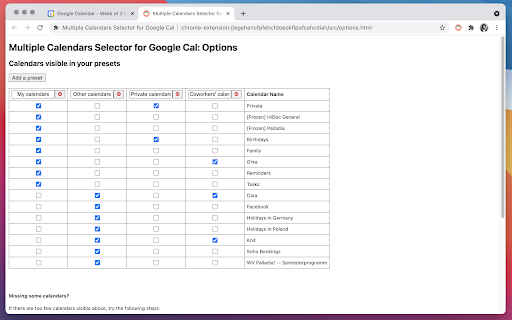
Allows you to quickly display just the group of calendars that you want (on Google Calendar). With this Google Calendar extension for Chrome, you'll be able to define presets of multiple calendars that can be displayed or hidden with one click. This way, you will be able to easily jump back and forth between different calendar sets. Useful for viewing an entire team's availability, or previewing several conference rooms' load all at once. Hint: Consider combining this with the Event Merge for Google Calendar extension for cleaner visuals: https://chrome.google.com/webstore/detail/event-merge-for-google-ca/idehaflielbgpaokehlhidbjlehlfcep Issues and Limitations Feel free to reach out to us in case you encounter any issues. Current known limitations are: - Only one Google account per browser profile is supported. If you need to use several Google accounts, you can use several Chrome profiles for this: https://support.google.com/chrome/answer/2364824?hl=en&co=GENIE.Platform%3DDesktop - Very large (ca. 50+) numbers of calendars cause issues, especially on slower machines Disclaimer No representations are made about the suitability of this software for any purpose. It is provided “as is” without express or implied warranty. Privacy Policy When you use this extension, your presets (including the names of your calendars) are stored in your browser’s local storage. They synchronise across your signed-in devices using Google Chrome’s cloud-based mechanism — in case you have enabled it. Your presets are not shared with anyone else and no further private data is uploaded to any servers. Only anonymous usage data (such as the event of opening the extension) is collected, using Google Analytics. You can opt out of this at any time by going to the extension’s options and unselecting the respective checkbox.

Event Merge for Google Calendar™
Chrome extension that visually merges the same event on multiple Google Calendars into one event. When using Google Calendar™ you may have one event on multiple calendars. For instance on your work and personal calendar, on your work calendar and your team's shared calendar, or on many co-work's calendars. These can clutter up your calendar and make it hard to read. This extension merges all those separate events into one event, and gives it strips with all the individual calendars' colors.

Meeting Dolphin Google Calendar Tags
The best Google Calendar companion. Enables you to add tags to events, drive insights, search & filter and much more. Meeting Dolphin helps you maximise your Google Calendar experience and optimize it for work purposes. Use it to tag calendar events, organise your week, set Active Hours, and Remove timestamps, ... all in one extension. Learn more @ https://meetingdolphin.com/extension Our blog @ https://meetingdolphin.com/blog FEATURES 🏷️ Tagging for Google Calendar Drag and drop tags to categorize an event. This makes it easy to visualize your week. 📊 Time Analytics See your weekly or monthly time allocation by tag as you shift views. Export your tag data to CSV on the web app. 🔍 Search & Filter Search and filter either by Tags or by Text using the search bar. The matches are highlighted directly in your current calendar view. Set Work/Active Hours You never need to scroll up and down because Meeting Dolphin fixes your view to only your work/active hours. Hide timestamps: Clean up your events by removing the time stamps. At Meeting Dolphin, we believe that great software shouldn't come at a cost to privacy. Our extension securely stores your tags in the cloud so you can keep them backed up and accessible from anywhere you need them. Your data belongs to you, and we store it to provide value to you. Our extension uses read-only permissions for your calendar events. We do not store this data; its purpose is to programmatically link your tags to events. If you ever have questions about Meeting Dolphin's security practices or your data, reach out to us at security@meetingdolphin.com. Feel free to contact support at support@meetingdolphin.com and we'll reply as soon as possible.

Cal Merge for Google Calendar™
Chrome extension that visually merges the same event on multiple Google Calendars into one event. Visually merge the same event on multiple Google Calendars™ into one event. Do you view at the same time: - You work and personal calendar - Your team's shared calendar - A private calendar with loads of "Busy" blocks - Or some strange combination of events? These likely clutter up your calendar and if long titled are hard to read. This extension merges all those separate events into one event, and colours it with a user selected gradient style.

Google Calendar Grouping
## Please Give Us a High Rating!! ## This is an extension for Google Calendar. When you have multiple calendars, you can instantly switch between them by creating groups. 【How to Use】 1. Select "Google Calendar Grouping" from the extension list in the top-right corner of your browser. 2. Create your groups within the pop-up window. 【Notes】 ・Due to how Google Calendar renders elements, only calendars currently visible on the screen are processed initially. Off-screen calendars will be selected once they are rendered (e.g., by scrolling). ・This extension is developed by an individual developer free of charge. Positive ratings and an increasing user base are highly motivating, as they show that people find the extension useful. Please provide your feedback! 【Contributions】 If you have suggestions for improvements or are interested in contributing directly to development, please contact support! Your help is welcome. Specifically, I currently lack the resources/time to implement the following: ・Allowing group editing directly on the Google Calendar interface instead of only through the pop-up. 【Tips】 Due to limitations within Google Calendar itself, the extension has some intentional restrictions. By design, when a group selection is active, if you attempt to select a calendar outside that group, the selection of the outside calendar will be automatically cancelled to maintain the group view. To work around this behavior, please deselect the current group first. By doing so, the strict enforcement of showing only group calendars is removed; the calendars previously selected by the group will remain checked, and you will then be free to manually select any other individual calendars alongside them.
