
dijfjeccinojfdipnehkkkomadocgllg
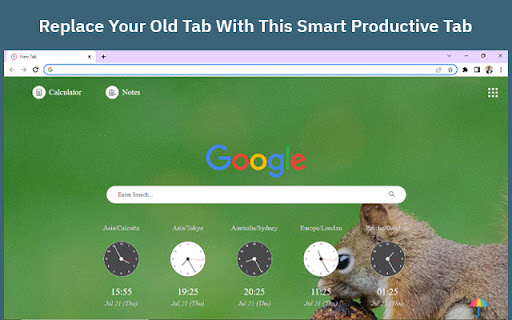
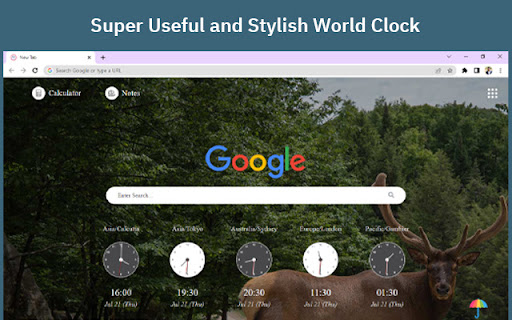

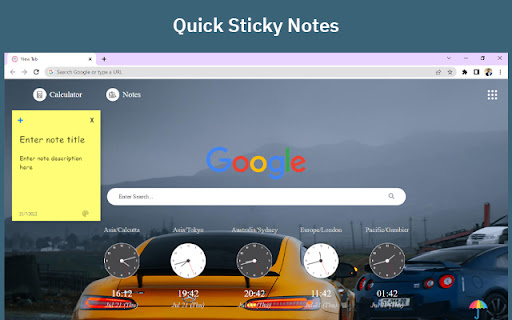

Add a smart world clock on your browser home screen exactly the way you want it. Smart World Clock With All Time Zones Replace Your Old New Tab with the Super Productive Tab Clock - Displays time and date of multiple cities and time zones - Click on the existing clock and Edit time zones as per your needs - Shows 5 Countries Digital & Analog Clock - 12/24 clocks Sticky notes Sticky notes with title and date Create unlimited sticky notes with color changing option Sticky notes data will be stored even if you exit and reopen in new tab or chrome browser Sticky notes can be resize and can be dragged to any desired place on the page Calculator - A clear display format and easy to read. - An intuitive and attractive design that facilitates calculations every day. - You can use the backspace key to correct a simple mistake. Background Color - No more boring white background! - Customize and change the background with inbuit pictures. Google Search -we are also giving you an easy way to search your desired information, images, video, and more through your favorite google search

World Clock
World Clock is an add-on that lets you render world clocks in your browser toolbar popup. Simply add as many clocks as you want from the drop-down menu in the popup. Please note that currently, 34 items are available to choose from. Before adding any item, you can set the daylight-saving value as well (i.e. -1, 0, and +1). Items in the toolbar popup are draggable, so you can drag them to your desired position; all changes are auto-saved to the memory. By default, 9 items are added to the toolbar popup, but you can remove them at any time by clicking on the cross-sign next to each item (remove button at the top-right corner). Moreover, to switch the interface theme to dark, please press the moon icon in the top-right toolbar. If you have a feature request or found a bug to report, please fill out the bug report form on the add-on's homepage (https://mybrowseraddon.com/world-clock.html).

World Clock
World clock widget that follow you where ever you browse World clock Widget Add a customized world clock widget for your convenience. You can easily choose which regions would you like to be displayed in the widget. By clicking "Add to chrome", I accept and agree to installing Customize Your New Tab extension. This extension changes your search provider on the New Tab to Microsoft Bing.

World Clock Time
You may now add multiple World Clock Times to the toolbar popup! The "World Clock Time" add-on allows you to create a browser tool bar pop-up that displays world clocks. Simply choose as many clocks as you wish from the drop-down menu in the pop-up. Please keep in mind that at this time, there are a maximum of 34 options to select from. You can also set the daylight-saving value before adding any item (i.e. -1, 0, and +1). The toolbar popup may be dragged around; all changes will be automatically saved to memory. By default, 9 items are added to the toolbar popup; however, they can be removed at any moment by clicking on the cross sign next to each one (remove button at the top-right corner).

World Clock Tab
Easily access a fun World Clock right from your new tab The extension will update your search settings and will change your new tab search provider to Microsoft Bing. Get instant access to a cool world clock , plus web search, free on your Chrome New Tab. By Clicking "add to Chrome", I accept and agree to installing World Clock Tab extension and setting Chrome New Tab search provider to Microsoft Bing as described by the services in terms of use https://www.worldclocktab.net/terms.html and privacy policy https://www.worldclocktab.net/policy.html Uninstall Instructions: https://worldclocktab.net/uninstall.html EULA/Terms of Use - https://www.worldclocktab.net/terms.html Policy - https://www.worldclocktab.net/policy.html Contact Us: http://www.worldclocktab.net/terms.html#terms-contact To remove us from Google Chrome: 1) Click on the three horizontal lines icon in the upper right-hand corner of your Chrome browser. 2) Go to "Settings". 3) In the menu that appears click on "Extensions". 4) From the list of installed Extensions, find the name of the toolbar extension you wish to uninstall. 5) Click on the trash can icon to the right of "Enable" (for the one you wish to uninstall). 6) Close your browser completely and reopen it. Our extension should be removed from your Chrome browser.
