
ddemkjlllpgejdmfgipekedligkfchcj
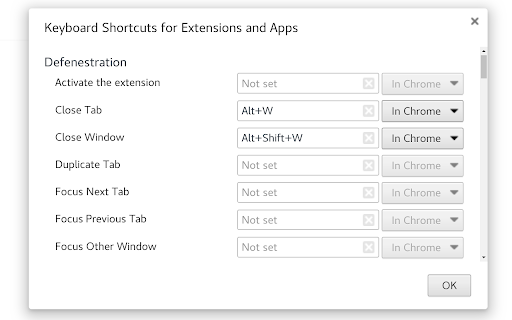
Define custom keyboard shortcuts for window and tab operations Defenestration lets you define custom keyboard shortcuts for common window and tab operations. This uses Chrome's built-in support for shortcuts, meaning they work everywhere, robustly. Similar extensions inject keyboard handler code directly into every web page you open, which is unreliable and doesn't work in blank tabs or non-HTML files. As a Linux user, I made this plugin so I could use Alt bindings rather than Windows-like Ctrl bindings. But you can use it for whatever you want. Assign keyboard shortcuts by clicking "Keyboard Shortcuts" at the very bottom of the "Extensions" page found under "More Tools". Or just click the Defenestration icon. Here's the full list of operations you can bind: * Close Window * Duplicate Tab * Focus Next Tab * Focus Previous Tab * Focus Other Window * Mute/Unmute Tab * Unmute Tab * Mute All Audible Tabs * New Tab * Open Downloads * Open Extensions * Open History * Open Settings * Pin Tab * Reload * Reload Bypassing Cache * Reopen Closed Tab * Move Tab Left * Move Tab Right * Move Tab To New Window * Move Tab To Other Window * Full Screen * New Window * New Incognito Window * Zoom In * Zoom Out * Reset Zoom

Kill Clone Tabs
Find and close duplicate tabs. Sort, group, and manage tabs. Highlight text on pages. Copy tab URLs. Boost your productivity! 🎯 KILL CLONE TABS - The Ultimate Tab Manager Stop tab chaos! Kill Clone Tabs helps you find and eliminate duplicate tabs, organize your browser, and boost productivity with powerful management tools. 🔪 DUPLICATE KILLER • Instantly find and close duplicate tabs across ALL windows • Smart detection with customizable URL matching rules • Choose which duplicate to keep: oldest, newest, or active tab • Visual indicator shows when duplicates exist • Optional auto-kill mode for zero tolerance 📊 TAB ORGANIZATION • Sort tabs alphabetically by URL • Group tabs by domain (cluster related sites together) • Native Chrome tab groups with smart naming • One-click undo for any action 🔍 SMART SEARCH • Real-time search through all tab titles and URLs • Click to instantly switch to any tab • Find tabs faster than ever ✨ TEXT HIGHLIGHTING • Select text on any page to highlight all matches • Customizable highlight color • Case-sensitive and whole-word options • Match counter shows total occurrences 🔒 PRIVACY MODE • Hide Evidence feature for sensitive browsing • Closes matching tabs AND clears browser history • PIN-protected domain list • Works across all windows including incognito 1. Click the Kill Clone Tabs icon in your toolbar 2. Use Search to find any tab instantly 3. Click 🔍 to find duplicates 4. Click 🔪 to kill duplicates 5. Use Organize buttons to sort or group 6. Access Settings for customization • Ctrl+Click (⌘+Click on Mac) to select multiple tabs, then Copy Selected • Paste URLs directly into popup with Ctrl+V (⌘+V on Mac) • Red toolbar icon = duplicates detected • Enable "Allow in Incognito" in extension settings for full coverage • Undo available immediately after any action ✓ 100% Local - Everything runs in your browser ✓ No Data Collection - Zero personal data transmitted ✓ No Analytics - No tracking whatsoever ✓ No Accounts - No sign-up required Perfect for: • Researchers with dozens of open tabs • Developers managing multiple projects • Students organizing study materials • Anyone who opens too many tabs! Found a bug or have a feature request? Leave a review or contact the developer! Made with ❤️ for tab hoarders everywhere.

Keyboard Shortcuts for Websites
Define keyboard shortcuts for actions of websites you use frequently With Keyboard Shortcuts for Websites, you can define custom keyboard shortcuts for certain actions of websites you use frequently. You can also export your custom shortcuts and share them with your friends or your teammates. Version 1.7 - Name changed from "In-site Shortkeys" to "Keyboard Shortcuts for Websites" - Script shortcuts functionality removed - Prevent on input focus option added for individual shortcuts too. Notice: - It works only on websites. - Shortcuts would trigger just when the focus is on the site itself. - You need to trigger shortcuts on which page you define otherwise it will not find the target elements of its steps. - You can't override some browser-reserved keyboard shortcuts. - Because of new policies, it's impossible to inject Javascript codes and run it on a website, so I decided to remove the functionality of adding shortcuts for executing scripts that was available on the previous version. - The name of the extension changed from "In-site Shortcuts" to "Keyboard Shortcuts for Websites" since v1.7 Because of the special event handling in some sites, This extension may not work properly, but we will continue to improve features and fix bugs. For keyboard lovers and mouse haters 😄

Bookmark Manager per Domain and Page
A Bookmark Manager to list all bookmarks for the domain or page of the current URL as hyperlinks. This Bookmark Manager is special, it displays only bookmarks belonging to the current domain. ie. https://gist.github.com or https://docs.github.com/en will be displayed if you have it as a bookmark and navigate to https://www.github.com Open any URLs from Domains that you have saved within *.domain.com* We will show you only the ones from that domain. The extension does not work across domains from the same brand, such as pinterest.de or pinterest.at, etc. we might add this functionality in a near future update if there is demand. So if you are looking for that best next app to open pages in a new tab, while simply organizing your url in this awesome quick software, with our bookmark manager you will not need more bookmarking apps on your sidebar, forget all the other addons. Save webpages that you find popular, then navigate there with speed, have a look at your bookmarklet and use our free extension to view your custom starred urls, search through them with ease. Updates / Change log: 22.06.2024 / V 1.0.7 - Responsive pop-up added, Extension Icons added, fixed folder view, deleting and editing the URL 25.05.2024 / V 1.0.6 - Updated Manifest to v3 19.07.2021 / V 1.0.5 - Removed "Storage" permission, not needed. 22.12.2020 / V 1.0.4 - Added FOLDER view buttons 14.12.2020 / V 1.0.3 - We added DELETE and EDIT buttons

Open New Tab Here
A shortcut to open a new tab next to the current one By default, Chrome will only open a new tab at the very end of the row of tabs, which isn’t always what you want. This is a quick shortcut to open a new tab to the right of the one you’re currently viewing. You can either use the button to the right of the address bar, or a configurable keyboard shortcut. *Important Note:* If the provided keyboard shortcuts don't work for you, you can change them by going to chrome://extensions/shortcuts The default keyboard shortcut is: • For Windows & Linux: Alt + T • For macOS: Ctrl + T There is also a shortcut to open the new tab in the background instead of switching to it straight away: • For Windows & Linux: Alt + Shift + T • For macOS: Ctrl + Shift + T The code is open source at https://github.com/gilmoreorless/chrome-new-tab-here
