
dabdpcafiblbndpoadckibiaojbdnpjg
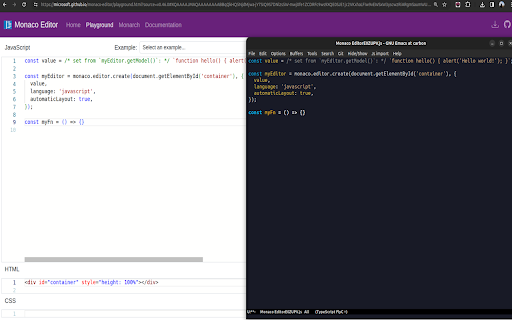

Use Emacs to edit textareas and online editors Chrome Emacs enables seamless integration between Chrome's online text editors or textareas and Emacs, allowing you to edit online content directly in Emacs. Quick Installation and Setup: 1. Install Chrome Emacs Extension: Add Chrome Emacs from the Chrome Web Store to your Chrome browser. 2. Configure Emacs: Install the corresponding Emacs package. You can find a recommended fork or the original Atomic Chrome package for installation instructions and setup details at: https://github.com/KarimAziev/chrome-emacs 3. Run the Server in Emacs: Make sure Emacs is running and execute the atomic-chrome-start-server function. - Ensure Emacs is running with the server started. Navigate in Chrome to any editable text area or online text editor. - Activate the Chrome Emacs extension by clicking its icon or using a pre-configured keyboard shortcut to open the content in an Emacs buffer. - Edit as needed in Emacs; changes will synchronize back to Chrome in real time. Keyboard Shortcuts Configuration: - Configure keyboard shortcuts for activating Chrome Emacs by going to chrome://extensions/shortcuts in your Chrome browser. This lets you quickly access editing functions. For detailed information, including full installation and setup instructions, visit our GitHub page - https://github.com/KarimAziev/chrome-emacs. Version 1.2.0 - Improved Overleaf integration. In split view, double-clicking a location in the PDF now updates the location in Emacs as well. Also, switching to another file now updates Emacs with the new content. Version 1.1.0 - Added support for plain input editing. This feature is disabled by default, but can be enabled in the options. The only exception is context menus: manually opening the context menu on an input field starts an editing session. Version 1.0.3 - Fixed an issue with editors that use the latest Monaco (e.g., Coderpad), which prevented detection of the element to edit. Version 1.0.2 - Fixed an issue that caused marked text to reset in Emacs when used in Overleaf and other CodeMirror 6 editors. Version 1.0.1 - Reverted Version 1.0.0 to Version 0.9.1. The fix will be included in Version 1.0.2. Version 1.0.0 - Added support for collaborative editing in Overleaf and other editors based on CodeMirror 6. Previously, only changes from Emacs were visible to other collaborators, it now works both ways-remote edits are now reflected in Emacs as well. The cursor positions of other collaborators are no longer reset after changes made by Emacs. Version 0.9.1 - Fixed simulated clicks for iframe environments. Previously, when using editors like TinyMCE embedded in iframes, simulated clicks would fail to locate elements outside the iframe, resulting in an "element not found" error. This update adjusts the search context to properly locate and click the intended button elements even when the editor is isolated within an iframe. Version 0.9.0 - Added support for executing clicks on the elements defined by the user (for example, to click "Send" in Slack after editing). The list of allowed sites and elements' CSS selectors is described in the atomic-chrome documentation (https://github.com/KarimAziev/atomic-chrome?tab=readme-ov-file#simulated-clicks-via-custom-rules). Version 0.8.0 - Added support for Slack and other Quill-based editors. - Now, changes you make in content-editable elements include the full inner HTML markup. This means that when you edit text, any formatting you applied—such as bold, italic, or structured line breaks—is preserved exactly as displayed. Previously, only the plain text might have been captured, sometimes resulting in lost or altered formatting. With this update, you can expect a more consistent and faithful editing experience that mirrors what you see on screen. Version 0.7.0 - Added a context menu for editable elements. - Added basic support for TinyMCE and other iframe-based editors. Version 0.6.0 - Added support for CKEditor 4 and CKEditor 5. Introduced bidirectional editing functionality, though scroll synchronization remains unsupported. - Improved keyboard input for editable elements: Hint key presses now work reliably, thanks to a temporary textarea mask that prevents interference from active editors like rich text tools. Version 0.4.0 - Added an options page, which allows users to configure which letters to use for hints and exit keybindings. - Pinned icons are now highlighted according to the tab. Version 0.3.1 - Fixed an issue on some sites, such as replit.com, where editing failed due to weird ID attribute values in DOM elements. Although IDs that start with a digit are valid in HTML, they require special escaping in CSS selectors. Version 0.3.0 - The main feature is the experimental support for vscode.dev, codesandbox.io, and other sites that do not globally expose the Monaco API. - Improved textarea editing. Previously, e.g., on GitHub, after editing, the submit button would remain disabled. Now, it correctly recognizes changes. - Hints now also highlight and make editable areas clickable, further improving the recognition of editable areas. - Added support for coderpad.io. Version 0.2.2 - Manually configure file extensions for the Python and Latex languages in CodeMirror. Version 0.2.1 - Added selection handling in the Ace editor. - Fixed the Monaco editor issue with tab switching on some sites (e.g., StackBlitz). Version 0.2.0 New features: - Cursor and selection synchronization. - Support for auto-placing the Emacs frame. Changes: - Changed the default shortcut for activating the extension to "Ctrl+Period" (on Mac, "Command+Period"). - Changed the default shortcut for activating hints to "Ctrl+Shift+Period" (on Mac, "Command+Shift+Period"). Fixes: - Fixed detection of the Monaco editor on some sites. - Fixed mode detection in CodeMirror.

Web Text Expander: Text Shortcuts & Snippets
Work smarter and type faster with text shortcuts! Use text expander to turn text snippets into words or sentences anywhere online Elevate Your Productivity with Web Text Expander: Text Shortcuts & Snippets! Are you tired of repetitive typing while browsing the web? Our Web Text Expander Chrome extension is here to make your daily tasks smoother and more efficient. This extension is your ultimate companion for quick access to text snippets and effortless text expansion. A text expander is a powerful and efficient extension that simplifies typing tasks. It allows you to create shortcuts or abbreviations for frequently used words, phrases, or whole paragraphs. When you type these shortcuts, the text expansion tool automatically changes them into the full content, saving you time. Whether you're responding to emails, filling out forms, or working on various web-based tasks, our free text expander Chrome extension streamlines your workflow, making your digital life more efficient and productive. 1. Install our text expander in Chrome. 2. Create your shortcut and enter the corresponding expanded message in the dashboard 3. When you need to use the snippet, just type your shortcut, and the message will expand automatically. 4. Open the extension to quickly add, edit, and delete text shortcuts. - Text snippets - Instant shortcut expansion - Filtering by tags - Current date placeholders - Caret position control - Quick add - Quick search - Insertion of the current date/time - Designed for Chrome browser - Gmail snippets integration - User-friendly - Private and secure 💡 Unleash the Power of Text Snippets Seamlessly create, manage, and utilize text shortcuts. Say goodbye to typing out the same phrases or addresses repeatedly. With shortcuts, your frequently used phrases are at your fingertips. This feature alone can save you hours! Works like magic: automatically detects your pre-defined snippet, instantly inserting your message. No delays. No additional actions. Whether you're composing emails, filling out forms, or updating social media, Web Text Expander is ready to assist. It seamlessly integrates into your Chrome browser, providing a consistent and user-friendly experience across most websites. Efficiently organize and manage your text snippets with our filtering by tags feature. Assign tags to your snippets for easy categorization, allowing you to quickly find the right snippet when you need it. Whether you have hundreds of snippets or just a few, tags make it simple to keep everything organized and accessible. 💡 Insertion of the Current Date/Time Save time on routine tasks with the ability to insert the current date and time into your snippets automatically. Perfect for time-stamping emails, forms, or logs, this feature ensures that you always have up-to-date information without manually typing it out. Just create a snippet with the date/time placeholder, and let the extension do the rest. 💡 Control of the caret position after expansion Position the caret precisely where you need it once a snippet is expanded. Using a special placeholder within your snippet, the extension will automatically place the cursor at the designated spot, allowing you to start typing right where it matters. This feature eliminates the need to reposition your cursor manually, enabling faster and more efficient workflows. Easily locate the shortcuts and expanded texts you need with the intuitive quick search box. Simply type a keyword, and the extension will instantly surface matching snippets, ensuring you find the right one in seconds. Insert the snippet seamlessly with a single button press. Quickly fill in custom details using Placeholders before expanding. This feature lets you tailor your text with names, numbers, or notes in the moment, so your messages stay personal without slowing you down. Add a shortcut instantly from any webpage with just a right-click. This feature lets you create text expander shortcuts on the fly, so you never lose your flow. Integrate your Gmail snippets into our Chrome extension. Speed up your email communication and enhance your productivity while using Gmail. No need to spend hours learning complex software. You'll be up and running in just a few clicks, saving precious time. 💡 Privacy and Security We take your privacy seriously. Your data is stored securely and never shared with third parties. 🖍 Use Cases: Unlock the Potential of Text Shortcuts Web Text Expander isn't just a convenient tool; it's a game-changer for various scenarios in your digital life. Here are some real-world examples of how you can leverage this Chrome extension for maximum efficiency: In professional life, quick and accurate email responses are crucial. You can set shortcuts for frequently used email templates, signatures, or responses. No more copying and pasting – just a few keystrokes, and your message is ready. 📌 Managing Prompts for LLMs If you often work with AI tools like ChatGPT or Gemini, text shortcuts can make prompt management much easier. You can save your best-performing prompts, style guides, or structured queries as shortcuts. Instead of rewriting the same context every time you start a new chat, just type a few characters and your full prompt appears instantly. This keeps your workflow consistent across different AI platforms and saves time. 📌 Online Forms and Surveys Filling out online forms and surveys can be tedious, especially when they ask for the same information repeatedly. Use shortcuts to input your name, address, or other details. 📌 Code and Programming Web developers and programmers can streamline their workflow using shortcuts for frequently used code snippets. This minimizes the chances of errors and accelerates the coding process. Whether you're a social media professional or an avid user, craft consistent and engaging messages across various platforms (LinkedIn, Facebook, WhatsApp Web, and others) with snippets for hashtags, replies, or product promotions. Students and researchers can create text shortcuts for complex terminology or commonly used phrases. It's a valuable aid for maintaining consistency in academic writing. Customer support agents can improve response times and accuracy by creating shortcuts for canned responses to frequently asked questions. Provide top-notch service without the repetitive typing. 📌 Blogging and Content Creation Bloggers and content creators can maintain a consistent writing style and save time using shortcuts for standard introductions, conclusions, or product recommendations. Streamline your note-taking during meetings using shortcuts for common phrases like "action items," "follow-ups," or meeting agendas. 🚀 Unlock Your Potential with Web Text Expander No matter your digital activities, you should work smarter, not harder. These use cases are just the beginning. With a bit of creativity and customization, you can adapt Web Text Expander to your specific needs, making it an invaluable tool in your daily online life. Say goodbye to unnecessary typing and hello to a more streamlined and productive browsing experience. If you’re looking for an efficient free text expander to make your life easier, install Web Text Expander today and start saving time with every keystroke! Do you have questions, suggestions, or feature requests? Feel free to send a message to info@webtextexpander.com anytime. Let us know what you think! Thank you.

Lexend for Chrome™
Make reading online easier and more enjoyable by formatting pages with the Lexend font. With the Official Lexend Font Chrome Extension, you can transform how you view websites and dive into the world of Lexend fonts. 🖋️ Features Say goodbye to boring fonts and enjoy the versatility of Lexend! This extension makes it easy to change the font on any website to your favorite Lexend style. Choose from these fantastic fonts: 🤝 Built & Maintained by the Helperbird Team The Lexend Font Chrome Extension is lovingly crafted and continuously maintained by the passionate team at Helperbird. We ensure a seamless and delightful user experience for everyone. Looking for more than just font magic? Check out Helperbird for all things accessibility, reading, and writing! Use code "lexend" at checkout for an exclusive 25% discount. 🌐 Website Curious about Lexend's intriguing history? Visit Lexend.com for a fascinating look into this exceptional font. 🆕 Version 2024.6.9 Completely rebuilt using the side panel for a more intuitive experience. Much lighter and quicker, improving performance. Enhanced accessibility features for a better user experience. 🆕 Version 3.0.0 Support for icons to add a personal touch. Streamlined code for better performance. Only essential permissions requested. 🔄 Version 2.0.1 Stunning new UI and layout for an enhanced browsing experience. Upgraded to MV3 manifest, leveraging the latest Chrome features. Efficient, clutter-free code. Privacy-focused permissions review and adjustments. For any questions or assistance, feel free to contact Robert at robert@lexend.com. Unleash your creativity and explore the beauty of Lexend fonts with our official Chrome extension. Get ready for a captivating browsing experience. Install now and elevate your web journey! 🚀

Emoji Keyboard for Google Chrome™
Emoji keyboard helps you create and copy Emojis to any website. Emoji Keyboard for Google Chrome ™ is a free extension that lets you input emojis on the web browser of your computer Emoji Keyboard for Google Chrome ™ - This Emoji Keyboard extension lets you input emojis right in a web browser. It also comes with an extensive search functionality that helps easily get emoji by keywords. Click on the extension icon to invoke an emoji keyboard. Please hover on emojis to see their meanings. And just click on an emoji to copy it to the clipboard & insert it to an input element. Disclaimer: Please note this extension is NOT made by Google and is made by an independent development team. All copyrights belong to their respective owners. Google does not endorse or sponsor this Chrome extension. Emoji Keyboard for Google Chrome ™ is not owned by, it is not licensed by and is not a subsidiary of Google Inc.

AEM Chrome Extension - SourcedCode
AEM Chrome Extension for AEM Content Authors, Developers, and CMS Admins for the AEM platform, all versions of AEM + AEMaaaCS. As an Adobe Experience Manager (AEM) content author, developer, or administrator, transitioning between pages, the Touch UI Editor, Classic UI Editor, Page Properties, and CRX/DE Lite can become repetitive. This involves manually copying the URL and making subsequent changes to reach the desired destination. Over time, navigating through AEM using this manual approach consumes a significant amount of unnecessary time. The AEM Chrome Extension streamlines this process, saving you time by providing easy navigation within AEM—from the Touch UI Editor, Classic UI Editor, Page Properties, and CRX/DE Lite—with a single click on a button or hotkey! This tool allows you to efficiently navigate through the AEM console, ultimately saving you considerable time in the long run. Main Features: + Dynamic Quick Links From any page under /content/* you can swiftly and quickly navigate to Touch UI Editor, Classic UI Editor, Page Properties, Disabled Mode, Debug Clientlibs Mode, and CRX/DE Lite. On any other page, you can quickly navigate to CRXDE Lite directly to the targeted page or node. + Dynamic Quick Links (Hotkey) Ability to quickly navigate through Dynamic Quick Links: - "e" - switches currentContext to editor.html for Touch UI. - "w" - switches currentContext to editor for Classic AEM. - "c" - switches currentContext to CRX/DE console. - "p" - switches currentContext to pageProperties editor page. - "d" - switches currentContext to disabled mode for XF and Sites Content. - "s" - switches currentContext to Sites or XF folder. - "a" - switches currentContext to DAM folder (but you must be inside of a DAM asset). + Bookmark's Quick Links This tool also has many useful bookmarks. The bookmarks will allow navigating through AEM's core features quickly. Bookmark links are relative paths from the current origin. Make sure to set the Author Url Origin if you have a designated author environment. Other Features: + Open New Tab Enabling this option will ensure that all quick links that are clicked will open a new tab within the browser. + Hide Hints Enabling this option will hide the hinted text in the Chrome extension, giving you a much cleaner layout while using the AEM Chrome Extension tool. Release V 0.0.15 =============================== + Author Environment Label Identifier - the ability to see Production, Staging, Development label based on the current context of the user + Bug fixing Release V 0.0.14.8 =============================== + New Features ++ Dispatcher to Author URL - the ability to switch from author editor url to dispatcher URL. For example, author.prod -> dispatcher URL ++ Author Switcher - the ability to switch from author url to author url. For example. Switch from author.prod -> author.stage to author.dev; maintaining the same context ++ Dispatcher URL Switcher - the ability to switch from registered dispatcher url to Production, Staging, and/or Development Url ++ Supporting more website structures Release V 0.0.7 =============================== + Hotkeys are now visible by default (without the need of clicking on the "show hints". + Bug Fixes. + Performance Fixes. Release V 0.0.6 =============================== + Hotkeys Supported (in show hints). + New quick links, just quick reference OOTB features from AEM. + Indicator when the "origin" has been set. + Bug Fixes. + Performance Fixes. Release V 0.0.4 =============================== + Updated Name of the extension name from "AEM Quick Links" to "AEM Chrome Extension - SourcedCode". + Added Version Indicator. + Bug Fixes. + Performance Fixes. Release V 0.0.3 =============================== + DAM navigation support - in CRXDE /content/dam assets with file extension, can open properties page. - in CRXDE /content/dam assets with file extension, can navigate to DAM parent folder. - in CRXDE /content/dam folder can navigate to DAM parent folder. - in AEM console, from properties page, can navigate to CRXDE console. - in AEM console, from properties page, can navigate to DAM parent folder. + (CTRL + Click) or (CMD + Click) (open new tab support) + Bug Fixes + Performance Fixes *This tool mainly supports Sites and DAM, but will work for most other parts for the AEM console.
