
cpnomhnclohkhnikegipapofcjihldck

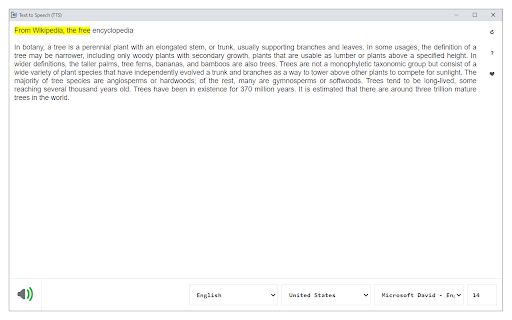
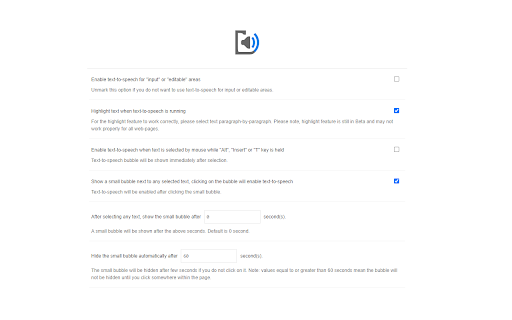
A text to speech tool with natural sounding voices. Text to Speech (TTS) is a text-to-speech extension with natural-sounding voices by using two different TTS engines. The 1st engine is the HTML5 native web speech API for speech synthesis. It is active in all modern browsers by default (more info: https://webaudio.github.io/web-speech-api/). The 2nd API is the Kokoro AI engine, which uses a new artificial intelligence method to synthesize text (more info: https://huggingface.co/onnx-community/Kokoro-82M-v1.0-ONNX). Please note that when you choose Kokoro AI, the app needs to download training data (~300MB) for the AI engine. So please be patient while the app is loading. You can use this extension in a standalone interface or within web pages. If you press the toolbar button, the first interface opens up where you can enter the desired text for TTS. On the other hand, within a webpage, once you select a text, a placeholder speaker icon appears. Once you click the speaker icon, the text-to-speech starts. For the highlight feature to work correctly, please select text paragraph by paragraph. Please note that the highlight feature is still in Beta and may not work properly on all websites. There are also a few options related to the in-page text-to-speech, which can be adjusted from the extension settings page. Note 1: For TTS in webpages, the app only uses the Web Speech API. Kokoro AI engine is only available within the standalone interface. Note 2: Kokoro AI engine, once loaded, can work fully offline. Moreover, you can save the output TTS audio as a .wav file to your machine. When text-to-speech is completed, please press the audio icon on the right toolbar. To report Bugs, please visit the addon's homepage (https://mybrowseraddon.com/text-to-speech.html) and fill out the bug report form.

Read Aloud - Text to Speech AI Voice Generator
Text to speech (TTS) reads any text aloud using human-like, context-aware AI voices, with 30+ natural voice options. Text to speech lets you listen to docs, articles, PDFs, email, and other formats — anything you read. Convert text to audio so you can listen to your document for proofreading, for reasons of dyslexia or other learning disabilities. Features: ➤ Have 30+ lifelike spoken voices ➤ Supports 60 languages ➤ Supports webpages, Google Docs, PDF, Emails and images or text to audio The TTS model supports the following languages: Afrikaans, Arabic, Armenian, Azerbaijani, Belarusian, Bosnian, Bulgarian, Catalan, Chinese, Croatian, Czech, Danish, Dutch, English, Estonian, Finnish, French, Galician, German, Greek, Hebrew, Hindi, Hungarian, Icelandic, Indonesian, Italian, Japanese, Kannada, Kazakh, Korean, Latvian, Lithuanian, Macedonian, Malay, Marathi, Maori, Nepali, Norwegian, Persian, Polish, Portuguese, Romanian, Russian, Serbian, Slovak, Slovenian, Spanish, Swahili, Swedish, Tagalog, Tamil, Thai, Turkish, Ukrainian, Urdu, Vietnamese, and Welsh. You can generate spoken audio in these languages by providing the input text in the language of your choice.

Speechy
Wrapper for Paid High Quality Text-to-Speech (TTS) APIs like Google's Wavenet TTS. Wrapper for Paid High Quality Text-to-Speech (TTS) APIs like Google's Wavenet and OpenAI TTS. To use this extension, you need your API key.

Web Page Reader TTS Text To Speech
100% Free. No registration. No ads. No data sharing. Reads with no selection required. Highlights one sentence at a time. This extension reads web pages with text to speech (TTS) and highlights one sentence at a time. It doesn't require you to select any text first. It doesn't launch a new weird web page. And it's totally free with no sign in or registration required. And it's ad free. By default it reads the whole page, top to bottom. However, if you select any text, even just a word, it starts reading at your selection, but continues on from there until you stop it, or it reaches the end of the page. Now with better "sentence" identification. 👓 Cramming for exams 👓 Vision impaired 👓 Multi-tasking 👓 Adult continuing education 👓 Learning a new language 👓 Cramming for technical interviews 👓 Relaxing with a good book and a cup of tea 😀 You can go forwards and backwards, skipping to the next or previous sentence. You can pause or resume, and you can repeat the current sentence. If it's reading, you can change where it reads next simply by highlighting another word. 😀 You can control the voice (i.e., nationality, gender), pitch, speaking rate and volume from the extension's control panel. It loads all the voices which are available to Chrome. You can also disable the voice and just have it highlight sentences (to keep you on pace or use it as a teleprompter) 😀 You can change the background color and the font color of the selected text. Try using some semi-transparent colors, those are nice! 😀 If you are reading / learning software development, you can have the reader skip reading sections of code 😀 You can control the scrolling behavior. It can page down when it get to the bottom, like humans normally do, or it can keep the sentence being read in the middle of the screen (and you can adjust where the "middle" is, put it anywhere between the top or the bottom.), or you can turn auto scrolling off (so you can scroll along manually or study another part of the page). 😀 You can control the reader entirely from the keyboard. See the keyboard image for key assignments. Learn to read entire pages with just your right hand on the arrow keys. 😀 The new Vocabulary feature isn't quite here yet, but it's coming soon. You'll be able to add custom dictionaries to change the pronunciation and / or see definitions of words you're trying to learn, without leaving the page. 1. After adding this to Chrome 2. [Recommended] Click on the extension puzzle piece in the Chrome toolbar and pin the extension. Now you will see the tool in your toolbar. 3. [Optional] Click on this tool to open the control panel 4. Notice the control panel has four areas: the reader controls, the voice options, the reader options and the custom dictionaries (coming soon). 5. [Optional] Under options, set your desired voice and reader settings. Default values are already set for you. Do you boo! Note: All keyboard shortcuts only work when the web page has the mouse focus. 1. [Recommended] Select one word by double-clicking, where you want it to start reading. It will select that whole sentence for you and start reading from there. 2. Press the right arrow key to start reading. Alternatively, you can press Start from the toolbar. 3. It will just keep reading until it runs out of things to read. To skip forwards, press the right arrow key. Alternatively, you can press the Next button from the reader toolbar. 4. To go back, press the left arrow key once to pause, then again to go back. Alternatively, you can press the Previous button from the reader toolbar. 5. To repeat the current sentence, press Enter. 6. Adjust the volume with the + and - keys on your numeric keypad (see keyboard image). Changes take effect starting with the next sentence read. Alternatively, you can control the volume in the reader settings. 7. Adjust the speaking rate with the numbers 8 (faster) and 2 (slower) on your numeric keypad (see keyboard image). Changes take effect starting with the next sentence read. Alternatively, you can control the speaking rate in the reader settings. 8. Adjust the pitch (voice high or low) with the numbers 9 (higher) and 3 (lower) on your numeric keypad (see keyboard image). Changes take effect starting with the next sentence read. Alternatively, you can control the speaking pitch in the reader settings. 9. Pause by pressing the left arrow key. Alternatively, you can press the Pause button on the reader toolbar. 10. Resume by pressing the right arrow key. Alternatively, you can press the Resume button on the reader toolbar. 11. Stop by pressing Esc once to pause, then again to stop. Alternatively, you can press the Stop button on the reader toolbar. 12. You can press the Tab key over a hyperlink to set the focus on that link. Then you can stop reading, and hit Space to follow that hyperlink. 13. You can put Chrome in the background and it will keep reading if you like multi-tasking. If you go to another Chrome tab, it will pause and you can read something else. If you go back to a previous reading tab, just press the right arrow key to resume reading where you left off. The current version should be stable. But please report any issues on the support tab or by visiting our website. Try each number solution one at a time, and if that doesn't work, try the next numbered solution. 1. Make sure the web page has the focus for keyboard shortcuts to work 2. Refresh the page. Click on the page and retry. 1. Click on the web page and press Esc key twice. 2. Click the Stop button in the toolbar on the extension control panel 3. Refresh the page 4. Look for another instance of Chrome running in the background where you may have started reading and forgot you had that open 😯 Issue: Voice lag. On the google online voices, which sound the best of just about any free voices, sometimes there is "hesitancy" or "lag", and sometimes there's not. I have done my best to eliminate it, but if it seems hesitant to read: 1. Try pressing the left arrow, then the right arrow again 2. Try pressing the Esc key twice, or clicking the Stop button on the reading toolbar, and starting reading again by pressing the Right Arrow key. 3. Try refreshing the page. 4. Use a "local" voice 1. Test another website, like Wikipedia, to see if it's just that site or document. Some pdf viewers and website are doing some pretty inhospitable things in their scripting for accessibility. 1. Use Chrome. I know this doesn't work in Brave. For other browsers, I'm not sure. (People understandably have privacy concerns about Chrome, so I have ensured the app will run just fine without being logged into Chrome.) 2. Go to the reader control panel and change the voice. 3. Ensure the tab isn't muted 4. Ensure sound is enabled in Chrome settings (test with Youtube). Enable sound by default or at least make sure the site your on is allowed sound. 5. Check the volume controls on your device 1. Russian language voices are currently disabled. 🇺🇦 Sláva Ukrayíni! 2. Check the Chrome Web Store for more voices in your language and add them to Chrome. Then check the Web Page Reader control panel again. If it doesn't show up, reinstall the extension (shouldn't be necessary but fyi it's something to try) 1. ⭐⭐⭐⭐⭐ The review section could use your help 2. I don't want any money 3. I don't want a cup of coffee 4. I want you to enjoy learning and get the most out of your reading

Text to Speech TTS AI | Readvox
Read aloud Web articles, Google Docs, Kindle, PDF with natural, lifelike voices. Beautiful text to speech AI TTS. Turn Your Browser into a Personal Narrator with Readvox. Feel like you're drowning in a sea of text? Imagine transforming that torrent into a soothing stream of speech that flows with you, from your morning coffee to your evening unwind. Readvox is here to liberate you from the screen, turning any text into engaging spoken words right from your Chrome browser. Why read when you can listen and learn, enhancing productivity and comprehension along the way? ⏺ Why Choose Readvox? In today’s digital age, efficiency is key. Readvox enhances your ability to multitask, allowing you to absorb website content through high-quality audio as you go about your day. It’s the perfect companion for anyone looking to optimize their online interactions without the strain of constant reading. ➤ Natural, Humanlike Voices: Experience the web spoken aloud by some of the most natural sounding voices available in text to speech technology today. Our advanced voices bring articles, blogs, and web pages to life in a variety of languages. ➤ Seamless Integration: Readvox integrates directly into your Chrome experience with minimal fuss. Activate Readvox on any web page with just a click, turning text into speech instantly. ➤ Personalized Listening: Tailor your listening experience with adjustable speeds and tones. Speed through content when you’re on a tight schedule, or slow things down when you want to fully absorb complex material. ➤ Ease of Use for Everyone: Whether you have visual impairments, learning disabilities like dyslexia, or simply prefer auditory learning, Readvox makes the internet more accessible and enjoyable. ⏺ How Readvox Transforms Your Browsing Experience: ➤ Instant Audio Conversion: With a simple click, Readvox activates on your current web page, instantly converting text to engaging audio. It’s perfect for those who prefer listening over reading. ➤ Selective Listening Made Easy: Focus on what's important to you. Highlight text and Readvox will narrate only your selected sections, ideal for absorbing key information. ⏺ Empower Your Web Experience Join countless users who have already transformed their reading habits with Readvox. This tool isn’t just about listening—it’s about enhancing your understanding and enjoyment of the web. Readvox is an invaluable asset for students, professionals, and casual browsers alike. Students: Whether cramming for exams or managing heavy reading lists, Readvox turns your browser into a study buddy. Listen to lecture notes, research materials, and educational content effortlessly as you take notes or even rest your eyes. Business Professionals: Time is money, and with Readvox, you can listen to industry reports, important documents, and daily news briefs while multitasking. Turn your commute or gym time into a productive session to stay ahead in your field. Kindle Book Lovers: Dive into your favorite novels or non-fiction without ever picking up a physical book. Readvox can read aloud directly from your Kindle library, allowing you to enjoy books while you cook, or relax. Blog Post Readers: Keep up with your favorite blogs without being glued to your screen. Whether it’s tech, fashion, or lifestyle, Readvox delivers the latest posts to your ears, letting you stay informed and entertained hands-free. People, working with Google Docs: For those who work extensively with Google Docs, Readvox is a game-changer. Listen to your draft documents or review shared files audibly, making editing and collaborating more efficient and less strenuous. People with Visual Impairments or Reading Disabilities: Readvox is committed to making the web accessible for everyone. Our text-to-speech technology supports those with visual impairments or dyslexia, making web content more accessible and enjoyable. Podcast Enthusiasts: If you love podcasts, you'll appreciate how Readvox transforms articles and web pages into a podcast-like experience. Keep up with your interests and industry news by listening on-the-go, just as you would with your favorite podcast. ⏺ Enhance Your Digital Life with Readvox Every web user deserves a customizable, accessible, and enjoyable browsing experience. With Readvox, you're not just installing a tool; you're upgrading how you interact with the digital world. Don’t just read—listen, learn, and accomplish more with Readvox.
