
cpgehceoalhakjceioddjajneophlfko
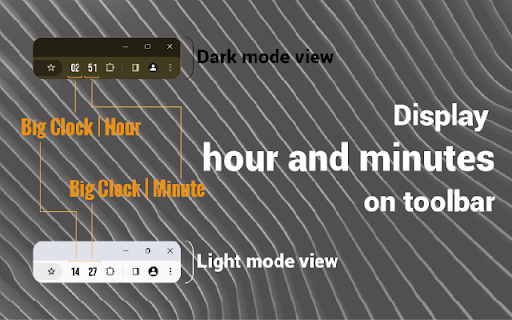


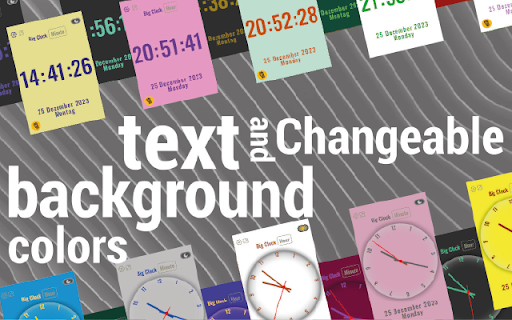

It is a add-on that displays the current hour and minute in the toolbar as a large readable add-on icon. Big Clock - Display Hours and Minutes in the Browser Toolbar. Big Clock is an add-on that provides legible and customizable hour and minute display in the browser toolbar. Available as two separate add-ons, Big Clock | Hour and Big Clock | Minute, this application shows the user the current hour and minute instantly through the toolbar icons. Dark and Light Mode Support: You can use it in dark or light mode depending on your browser theme. Colored Icons: The icons are black or white depending on the selected theme color, the toolbar display is always stylish and harmonious. Clock Display Format: You can set 24h or 12h clock display according to your preference. Multi-Language Support: The plugin offers multi-language support for use in different languages. Customizable Design: Customize the text and background color, and add a unique style to your browser with the option of analog or digital clock view. Popup Page: Keep track of time in more detail with the display of hours, minutes, seconds and current date on the popup page. Customizable Date Display: Set the date display format according to your preference. Visual Options: Decorate the popup background or clock background with customizable images. Import images from hard disk or URL. Clock View in Separate Window: Option to open a separate window to see the clock view in a larger window. Synchronized Use: Use Big Clock Hour and Big Clock Minute plugins together and settings are synchronized automatically. Plain and Simple Operation: It offers a simple and straightforward usage experience with its user-friendly interface. Keep track of time in style in your browser's toolbar with Big Clock. Especially if you use it to hide the taskbar of your operating system, this is for you. Install now for a professional and customizable clock experience!

Minimalist clock
Display the time and temperature in a beautiful frosted glass effect. 🕛 Display a clock in your browser allowing you to keep track of time even while in fullscreen. ☁️ Keep track of your location's weather.

Just a Clock - the Minutes
A simple digital clock for the toolbar. This is JUST THE MINUTES. Pair with the hours for an awesome readable clock in your toolbar! Just a clock, in your Chrome toolbar; Nice and big and simple. There are 2 extensions, one for the Hours and one for the Minutes. I built this because I usually have a full screen app/game/video going on my main monitor and can't see the clock. My browser is usually on my 2nd monitor and now I can always see the time at a glance! This is JUST THE MINUTES and meant to be paired with the "Just a Clock - The Hours" extension in your toolbar and positioned to its RIGHT. Remember to also install the HOURS: https://chrome.google.com/webstore/detail/agglgohcegmeeaccikjfmehncfomccpg -- Now with High Res images! -- White numbers for dark themes are available in Options If you like it please let me know in the comments. If you have any suggestions or requests please also let me know.

HoverClock
Hover Clock is a beautiful, customizable digital clock for any web page. Hover Clock is a beautiful, customizable digital clock for any web page. • Clocks settings can be customized for every web page. • Change size and position by simply dragging the clock anywhere on your screen. • Open the settings menu to browse millions of background images. • Control which sites the clock appears on. • Each site you visit can have a custom clock size, color, and background. • Settings are automatically saved for each web page. • Minimize the clock into a mini "time capsule". • Clocks can be opened into new browser window for use anywhere on your computer desktop. • Clock can be opened into a new browser tab. • Clock can be instantly docked to preset locations (top left, top right, etc). • Once installed, the clock will automatically appear on every webpage. You can drag the clock by clicking and holding the mouse on it, and resize it by dragging the lower right corner. • Click the minimize button in the upper left corner to enable a tiny "time capsule" version of the clock. • Click the "New Window" button (+) in the upper right to pop open the current clock into it's own browser window that you place anywhere on your computer. • Click the "Full Screen" button in the upper right corner to fill the current web page, or as a new window for a true full screen experience. • To customize the clock's appearance and manage blocked domains, click on the settings icon in the bottom left corner of the clock. This will open settings where you can change the font size, background color and opacity, and load random background images. You can also toggle the display of date, time zone, and seconds. Click the Save button to remember your settings. • If you want to hide the clock for a specific domain, simply open the settings and click the block button. This will add the domain to a blocked list which you can also manage in settings (from any other site that isn't blocked). • To minimize the clock into a small "time capsule", simply press the corner arrow in the upper left of the clock. • Click the dock icon to select from preset locations on the screen: top left, top center, top right, bottom left, bottom center, bottom right, and screen center. • Click the New Tab button to open full-page the clock in a new browser tab. The HoverClock Extension only saves your settings locally on your browser using Chrome's sync storage. No data is collected or shared externally. Open clock in a new tab Docking buttons for sides and corners of screen Update action icons Multiple frontend and backend optimizations Millions of background images via Unsplash API Image Links and Attributions Image loading indicator spinner Auto-saving indicator spinner Random Image Themes Separate Opacity Settings for Image and Color All settings auto-save Free resize (aspect ratio not constrained) Multiple frontend and backend optimizations Button to pop out into it's own window 'Minimized' state is saved across sessions Full screen button Clock will always remain on-screen when moving/resizing Some web sites use CSP (Content Security Policy) settings that prevent the random background images from loading. On these sites, you will only be able to change the background color and opacity.

Badge Clock: simple toolbar clock
Keep an eye on the time, even with taskbar hidden, with this animated digital clock in your browser toolbar. 👀 What's new: this update is docs only. Like Badge Clock? Also check out our newest clock, Icon Clock. It uses the icon, instead of the badge, to display time. See it at https://chromewebstore.google.com/detail/icon-clock-tidiest-toolba/jemimfaflibimklmebhllpmhmbihpjma 👀 What is Badge Clock? A badge is the element in a chrome extension which adds a number overlay onto the extension's icon in the toolbar. Badges are typically used to show unread email count, etc. Here, the badge is really the only functional element of the extension, providing a digital clock. 👀 Why would you need it? If you use Chrome on Mac in full screen, or use Windows Taskbar or Mac dock in auto-hide mode, you might not be able to see the OS clock. Badge Clock keeps simple digital time in your direct line of sight, in any mode in which taskbar is still visible. And uses very few resources to do it! 👀 How do you use it? 1. After installation, pin the extension. 2. Drag it to where you like it in the toolbar. 3. Click on the extension's icon to set your preferences. 4. Toggle Animated Eyes off if you find them distracting. 5. Toggle Colon off if you see clipping on Mac. 6. Toggle 24-hour time on if you don't like AM/PM style. 👀 Is this extension safe? This extension does not ask for unnecessary permissions. It doesn't track you. It doesn't save any information about you. You can right click on the extension icon in your toolbar, to see exactly what information it can read from your browser. You can read our detailed terms of use and privacy policy here: https://garagerocket.com/terms/privacy-extensions/ 👀 Why are the edges of the numbers cut off on Mac? Chrome for Mac has a font weight and padding bug that prevents 4.5 chars display. If the clipping bothers you, try turning off 24-hr time, and perhaps turning off the colon, too. 👀 What is the use license for this extension? Copyright 2024 Garage Rocket, all rights reserved. Use and enjoy, but please don't copy or redistribute. 👀 How can I get more info about the extension? FAQ, privacy policy, terms of use, the ability to donate to support development: https://garagerocket.com/extensions/badgeclock 👀 What if I find a bug or have a feature request? We are grateful for ideas and suggestions! If you run into any issues, please leave a bug report in lieu of a negative review. We use Chrome Web Store's built-in support portal, which is at the bottom of this store listing, in a section called Support. Or paste this link: https://chromewebstore.google.com/detail/bjpipplkhaijhapdnecfbemhfbihhaia/support 👀 What's on the roadmap? --Add a couple of different animated icons, for people that don't like the glancing eyes. --Add the option to remove icon entirely in use, and just have a badge. --Add badge and text coloring options. 👀 What's changed in this release? 0.0.7: Corrected FAQ and privacy notifications on Chrome Web Store to reflect that this extension does no tracking of any kind, ever! 0.0.6: added no-colon option to work around text clipping on Mac. 0.0.5: fixed a bug where, occasionally on laptop resume from sleep or other long periods of inactivity, clock is stopped/stuck. 0.0.3: updated in-store documentation and screenshots, adding license in readme. 0.0.2: initial public release.
