
cooeblelamnaioffbochepdnmminogdg
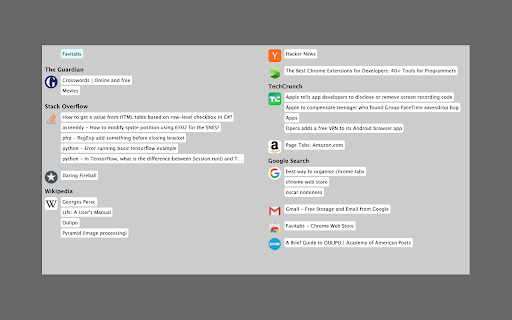
Organise tabs by favicon, navigate them with mouse or keyboard Are you fed up with having so many tabs and never being able to find the right one? Do end up with many duplicate tabs as a result? Favitabs shows all your tabs at a glance, organised by favicon and title. It works both as a replacement for the new tab page and as a pop-up which you can set to whatever key combination you like. It also lets you quickly search for tabs by title and navigate them using the keyboard. Favitabs does not request unnecessary permissions and does not have access to page content. It does not spy on you and send information to any server. It does not include any ads.

Utime
Converts UNIX timestamps to human-readable dates and vice versa. Convert Unix Epoch timestamps to human readable dates (and dates to timestamps) quickly and easily with Utime. Report issues and submit suggestions on github (pull requests are also welcome!): FEATURES ---------------------------------------- * Quickly convert timestamps and dates as you type * Date values can be entered in almost any format (Examples: "January 1st, 2012", "1/1/12 12:00am", "Jan 1 2012 00:00:00", "Jan 1 2012 ", and "1-1-2012" will all be converted successfully) * Relative dates, such as "now", "today", "tomorrow" (and more) are recognized and converted into the appropriate timestamp (Thanks to the excellent DateJS library) * Add additional "input groups" in the pop-up window to convert and view multiple timestamp/date pairs at once * Keyboard shortcuts for quick interaction (view available shortcuts in the extension pop-up's Help page) * Convert timestamps/dates from Chrome's omnibox (address bar) by typing "ut" then pressing tab. * Convert timestamps/dates directly from a webpage via right-click * Conversions performed from the omnibox or right-click menu will be displayed in a chrome desktop notification with a button to copy the result to the clipboard AVAILABLE OPTIONS (Accessible from the extension's pop-up window) ---------------------------------------- * Input mode (determines which input boxes timestamps and dates are entered into, defaults to "Auto-detect") * Timestamp unit (seconds or milliseconds, defaults to seconds) * Timezone (defaults to the computer's local timezone) * Input date order (Used for parsing short format dates (i.e. "5.10.2012", "5-10-2012", "5/10/2012", ect.) as either month/day/year (western format) or day/month/year (european format)) * Date output format (defaults to MMMM dS, yyyy, aka "January 1st, 2014") * Time output format (defaults to h:mm tt, aka "12:00 AM") PRO TIPS! ---------------------------------------- * Press enter on an empty input field to display the current timestamp/date. * Use relative dates such as "now", "today", "tomorrow" or "last friday" * Add additional input groups to convert and view multiple timestamps and dates at once * Right click a selected timestamp or date in a webpage and select "Convert with Utime" * In Chrome's address bar, type "ut" then press tab and enter a date or timestamp to convert it v4.0.0 (March 25, 2025) (**10** years later! 🤯 🎉) * Migrate extension to Manifest V3 v3.0.1 (July 30, 2014) * Fix for issue introduced by the latest version of Chrome that was causing the popup height to be incorrect upon opening v3.0.0 (March 14, 2014) * IMPORTANT NOTE: Users who updated from v2.0.6 will need to re-apply any custom settings, as the options have been reset (sorry!) * Complete overhaul of the popup user interface * New "input groups" feature that allows converting and viewing multiple values at once * Added keyboard shortcuts for navigating and interacting with the pop up interface * Added help page to pop up containing the shortcuts list and various tips * Invoking utime from the omnibox or context menu will now display the conversion result in a desktop notification, with an option to copy the value to your clipboard * New icon v2.0.6 * The input textbox's placeholder text will now change based on the input type that is selected v2.0.5 * Added a little padding to the extension's pop-up container as the ui controls were too close to the edges of the pop-up on OS X. v2.0.4 * Added another option to the Timezone select, "Local time (computer's timezone)", which will use whatever the computer's timezone is set to when performing conv. This option is selected by default when installing the extension. (Note: I added this due to the fact that manually setting your GMT offset has the pesky side effect of forcing you to change the offset whenever the selected timezone enters or leaves daylight savings time, or else the extension's output would be incorrect.) v2.0.3 * Added "Input Date Order" option * Fixed a bug causing the omnibox and context menu features not to respect changes made in the Options during the same browser session * Height of the extension pop-up now properly adjusts to fit the contents when changing tabs. v2.0.2 * Re-added and tweaked extensions's omnibox functionality from v1.x. Type "ut" in Chrome's Omnibox (location bar) and press Tab to start interacting with Utime. From here, you can enter a date or timestamp and then press Enter to get the converted value in a prompt dialog. * Updated the error text displayed when a value cannot be converted * Removed some unnecessary javascript assets from the extension's pop-up v2.0.1 * Added back the feature from v1.x where pressing Enter while the input box is empty (and either "Auto-detect" or "Date" is selected) will output the the timestamp for the current date and time (aka "now") * Added additional date output format options, "d.m.yyyy" and "m.d.yyyy", as well as two digit year variants for all the available shorthand date formats. v2.0 * Complete revamp of the extension, focused on increasing the ease of use, and allowing the user to better customize it to their needs through the additional options (base timezone, timestamp unit, ect.). v1.2.2 * Updated extension permissions (Removed several permissions that were unintentionally left in from a dev version, but are not needed). v1.2 * Added an Options page for the extension (accessible via either right clicking the extension icon and selecting "Options" or clicking the "gear" icon in the Utime pop-open window. * In Options you can now set an Hour offset (positive or negative) which will be applied to all conversion results. * Updated the Omnibox interface to the extension. Conversions done from the omnibox are now processed on-the-fly as you type and displayed directly in the suggestions dropdown box. Once you are finished typing a timestamp or date into the box, just hit the down arrow to select your desired conversion result. * Added Shortcut: Typing "ut [Tab] now" in the omnibox will now give you the current timestamp. v1.1.1 * Updated extension icon v1.1 * Textboxes in the pop-open dialog now allow keyboard shortcut commands (cut, copy, paste, ect.) * State of the pop-open window is now saved when closed and re-opened * Clicking "Convert" for either the timestamp field or human date fields in the pop-open dialog when the fields are empty will now use the current date.

Time Zone Meeting Planner
Schedule global events with Time Zone Meeting Planner, your world clock meeting planner, and an international time zone converter. Introducing the Time Zone Meeting Planner chrome extension, the ultimate solution for anyone needing to schedule and manage international events seamlessly. This powerful tool integrates a comprehensive world clock meeting planner and a versatile time zone converter, making it an essential asset for professionals who coordinate with teams worldwide. Features Overview: 1. Time Zone Meeting Planner: view intervals in multiple cities worldwide to easily schedule events. 2. Time Zone Converter: convert between different time zones instantly to find the perfect event interval (for example: 9am pst to singapore time) 3. Global scheduler: organize international events without the hassle of calculating hour differences. Why Choose Time Zone Meeting Planner? – Simplicity and Efficiency: Streamlined interface that’s easy to navigate. – Accuracy: Provides up-to-date data for reliable scheduling. – Customization: Set your preferred world clock for quick access. Comprehensive Planning Tools: 𑇐 Plan events with the international planner feature, which covers all clock bands from UTC to Pacific. 𑇐 Use the eastern and central time zone converter to manage events across the U.S. 𑇐 Convert intervals using specific tools like the CET and pacific standard time zone converter. How does the time zone meeting planner? work: 🏙 Add the cities where participants are based to the list. ⏩ Adjust the event period to accommodate all attendees' working hours. 📤 Schedule the event in the calendar and send invitations to all participants with time zone overlap. Additional Features: ▸ World time and date zone planner integration for scheduling on a global scale. ▸ International event planner capabilities, ideal for large conferences. ▸ Time zone calculator to help you manage international calls. Who Can Benefit? 1️⃣ Executives: Utilize the time zone meeting planner to arrange high-level calls. 2️⃣ Project Managers: Effortlessly coordinate teams across different continents. 3️⃣ Freelancers: Connect with clients around the world at convenient timeframes. Use Cases: 1. Web conferences across 10+ different time zones: simplifies scheduling common times, ensuring global participation. 2. Virtual family reunions: Coordinates across time zones for shared celebrations. 3. Global sales pitches: Helps sales teams schedule intl client meetings, avoiding clock zone errors. 4. International educational events: Allows institutions to plan lectures for maximum global attendance. 5. Virtual team building: Schedules events within remote teams' working hours to boost engagement. 6. Multi-national medical consultations: Facilitates expert healthcare discussions across different timezones. 7. Global product launches and press releases: PR teams schedule announcements for optimal media coverage. 8. International legal consultations: Manages client sessions and negotiations, respecting legal timelines. Key Benefits: ⏳ Efficiency Boost: Quick setup and easy-to-understand interface. ↘️ Minimize Errors: Avoid confusion with global clock comparison. 📈 Enhance Productivity: Streamline planning to maximize operational efficiency. ❓ Frequently Asked Questions: 📌 How does it work? 💡 Time Zone Meeting Planner is a Chrome extension designed to simplify the scheduling of global events. By integrating a world clock converter, it allows you to view and compare clock across different clock regions, making it easier to find suitable worldmeeting intervals for participants worldwide. 📌 How do I install? 💡 To install the extension, navigate to the Chrome Web Store and select "Add to Chrome". It will automatically be added to your browser, and you can begin planning your intl events right away. 📌 Can this extension manage events across the world? 💡 Yes, world clock meeting planner can manage and schedule events globally. 📌 Is my privacy protected when using this extension? 💡 Absolutely! Timezone meeting planner operates entirely within your browser. It respects your privacy by not collecting or storing any personal data. 📌 Are there any limitations on the number of events I can schedule? 💡 There are no limits on the number of events you can schedule with world clock meeting planner. It's designed to support both frequent and occasional international meeting planning, accommodating your specific needs without restrictions. Streamline scheduling with the Time Zone Meeting Planner Chrome extension. Perfect for global teams, it synchronizes events worldwide, offering a world clock planner right at your fingertips. Elevate your planning effortlessly. 🌍

Quick Tabs
A keyboard centric most recently used (MRU) ordered page list plugin with seek and switch functionality inspired by IntelliJ IDEA [![Version][version-badge]][qt-store] [![Rating][rating-badge]][qt-store] [![Users][users-badge]][qt-store] # INTRODUCTION Quick Tabs is a tab management browser extension for the Google Chrome web browser based on the "Recent Files" quick selector built into the excellent IntelliJ IDEA by Jetbrains. Quick Tabs allows you to move quickly between recently used tabs without requiring the use of your mouse, locate and switch to tabs as you need them with minimal keystrokes even when you have large numbers of open tabs. Visit the [Quick Tabs](https://chrome.google.com/extensions/detail/jnjfeinjfmenlddahdjdmgpbokiacbbb) google extensions page to install and try it out ... # FEATURES * Lists all the open tabs in Chrome across all of your open windows * Tabs are listed in most recently used (MRU) order and excludes the current tab (since you're switching tabs) * Fuzzy search your bookmarks: * Bookmarks are automatically searched when only a few tabs match your search string * Add a space at the start or end of your search string to search bookmarks along with tabs * Start your search with `/b` or add **two spaces** at the start or end of your search string to search only bookmarks * delete bookmarks directly from the search results by clicking the 'x' * Fuzzy search your browser history: * Start your search with `/h` or add **three spaces** at the start or end of your search string to search browser history * Find noisy tabs by searching for `` - search bookmarks * `/h ` - search browser history * `/w ` - search the tabs in the current window only * `/p ` - search pinned tabs only * `/g ` - search tabs that belong to the same tab group as the current tab (or no tab group if it's not in a group) ### Search Types You can now change the search type for a single search, this can help if you have a specific search string in engine combo in mind. * `/fuzzy ` - use the fuzzy search engine for this query only * `/fuse ` - use the fuse search engine for this query only * `/regex ` - use the regex search engine for this query only * `/subs ` - use the subs search engine for this query only ### Tab Management Tab management commands all accept RegExp search queries. * `/close ` - search for and close tabs * `/merge ` - merge tabs into the current window * `/split ` - split tabs and move them into a new window * `/reload ` - reload all the tabs in the search result * `/mute ` - mute the tabs in the search result * `/unmute ` - unmute the tabs in the search result * `/group ` - create new tab groups or move tabs into groups using the search results # PERMISSIONS Quick Tabs requires the following: * **Read and change your browsing history**: _read only_ access is required to record your open tabs and search browser history. * **Read and change your bookmarks**: _read/write_ access is required to search, display and remove (by clicking the 'x' in the results list) bookmarks. # SCREENSHOTS #### Quick Tabs ready for action.  #### Tab and bookmark search.  #### History search.  Search your browser history by starting your search with '/h ' or adding 3 spaces to the end of your search query. #### Decide what to show.  #### Custom CSS styling.  In this case https://userstyles.org/styles/99938/better-styling-for-chrome-extension-quick-tabs by @Bunnyslippers. See the [./3rdParty/css](./3rdParty/css) directory. # SOURCE The source code for this extension is available on [github](http://github.com/babyman/quick-tabs-chrome-extension), please feel free to inspect it before you install this extension, especially as I am asking permission to interact with your computer and its private data. You can also install it manually if you want to be certain that the source code on github is directly what you install. Note, this will NOT automatically update the extension when bugs are fixed and features are added. In your terminal, `cd` to the folder you want to clone it to, and run `git clone https://github.com/babyman/quick-tabs-chrome-extension`. Then in Google Chrome, click `Window - Extensions`, click the checkbox called "Developer Mode", and click the "Load unpacked extension" button. Navigate to the cloned project, and select the "quick-tabs" folder. You now have the plugin loaded as a developer. Again, this will NOT automatically update the extension when bugs are fixed and features are added. # FEEDBACK AND BUGS Please report all your valuable feedback, feature requests and bug reports on the github [issues page](http://github.com/babyman/quick-tabs-chrome-extension/issues) for this extension. # AND FINALLY If you find Quick Tabs useful and want to buy me a coffee, I really like coffee :D ... [](https://ko-fi.com/V7V71963F) # RELEASE NOTES 2024.11.26 - merged PR #377 to resolve Quick-Tabs no longer works for "installed" pages, thank you @Wizek (and @rb-109). PR #379 add middle click to close tab, thanks @va9iff. 2024.11.24 - merged PR #383, fix history rendering issue introduced in the manifest 3 migration, thank you again @hababr! 2024.11.19 - close #382, ctrl+e conflicts with Chrome shortcut keys 2024.11.9 - merged PR #381, upgrade to use manifest version 3, a HUGE thank you to @hababr for making this happen! 2021.6.29 - merged PR #349, support deleting bookmarks from the results list, thanks @shihshen. PR #351, assign a window specific class to result list items, thanks @kjelly. 2021.6.16 - merged PR #344, added support to order tabs by URL, thanks @armstrongli. PR #347 added new native chrome css, thanks @piyush1104. 2021.3.21 - merged PR #341, Tab order update delay of 0 ms is not respected, thanks @legate. Fix an issue loading saved shortcut keys and set the badge background color to red when debug == true, fix a 10-year-old Yellow Argon Web Store keyword violation because Quick Tabs has nothing to do with `search` or `tab`  2021.1.31 - merged PR #333, option to enter custom debounce delay value, thanks @goran-zdjelar, add duplicate tab keyboard shortcut, add 2 new group commands `/g` to search current tabs group only and `/group` to create groups and move tabs into groups 2020.9.8 - merged pull request #330, fix for issue that some undefined elements, thanks @jaekyeom (refs #326). 2020.6.30 - upgrade jQuery (fixes #318) 2020.6.3 - fix bug #315 adding spaces to search bookmarks and histories no longer working 2020.5.31 - merge pull request #314 to fix undefined tabs, thanks @NicoWeio (refs #251, #310, #275, #313). Added back the space prefix to search bookmarks and history, fixes #311, support searching pinned tabs only `/p `, fixes #290 2020.3.10 - combined the code that handles the `no tabs match` keyboard and empty tab list triggers to behave more consistently, fixes #302 2020.1.26 - bug fix, "Can't switch to "discarded" tabs" fixes #300 2020.1.25 - merge pull request #211, "add option to order tabs in window order" thanks @gregsadetsky and request #301, "Fix command key combination issue in popup" thanks @powpowshen also switch search type used by commands from substr to regexp, see #299. 2020.1.18 - bug fix, "when no tabs match" stopped working, fixes #298 2020.1.13 - call .stopPropagation() in click event handlers, refs #295, add debouncing to improve the responsiveness of the UI when entering queries, refs #297 2020.1.8 - refined tab moving options, see 'Only move tabs when switched via the extension popup', fixes #296 2020.1.5 - add support to keep window tabs in MRU order with the 'Move tab to leftmost position on switch' option see #174 2019.12.29 - **Quick Tabs turns 10!**, added new commands '/close', '/merge', '/mute', '/unmute', '/split' and '/reload', '/w' to search tabs in the current window only, also allow specifying the search engine as part of the query (/fuzzy, /fuse, /regex, /subs). Merged code for option to hide pinned tabs, thanks @hbj. 2019.12.2 - fix #277 and #291 for real this time! 2019.11.30 - Updated the bookmark and history searches to use '/b ' and '/h ' as query prefixes, still use ' ' and ' ' as query postfixes. Fixed a bug with the pg up/down list scrolling. Fixed issue that prevented prev-tab key working in popup windows (issue #277). 2019.11.27 - fix tab focus issue #273, thanks @fwextensions for the pointer 2019.11.23 - merged pull request to allow configuration of the "tab order update delay", see ticket #90 (thanks @AlexeyKabelitskiy) 2019.4.22 - merged pull requests to ensure https:// is used for default google search (thanks #ericlaw1979), apply {{urlStyle}} to recently closed tabs (thanks @boika), improve tab switching (thanks @MartinLichtblau) 2019.2.27 - merged pull request that fixes #229 #245 #246 (and perhaps #232), also changes that improve switching tabs behaviour, thanks @MartinLichtblau. Added 'theRealPadster.css' large icon theme, thanks @theRealPadster. 2019.1.30 - merged pull request to prevent tabs opened in the background jumping to the head of the recently used list (#219, thanks @MartinLichtblau) 2019.1.20 - merged pull request to fix result highlighting issues that included curly braces (#242, thanks @DoctorGester) 2019.1.10 - merged pull request to improve fuzzy search results (#241, thanks @MartinLichtblau) 2018.11.26 - fixed invalid css (#200, thanks @boika), added license file (#212), updated shortcut config documentation (thanks @Kevin-Prichard) and added support to retain the popup search string (thanks @MeetM) 2017.10.8 - fixed scrolling issue (fixes #195) 2017.10.7 - merge title tooltip fix, thanks @Rohaq. Also merged in jQuery update and some code cleanup, thanks @toanju. Changed the scrolling code to use noobscroll.js 2017.5.10 - fix issue where current tab is displayed on initial popup rendering (fixes #170) 2017.5.3.1 - bookmark search bug fix 2017.5.3 - substring bug fix 2017.5.2 - change the search implementation to allow users to select between fuzzy, fuze, regex or substring tab searching (fixes #167, #97) 2017.4.25 - possible workaround for existing Chrome bug (refs #91, #168), thanks @TimNZ 2016.9.20 - switched the tab search library to fuse.js (thanks to @rajington), fix window focus problem when using keyboard only (#101, #145 thanks @pearj) 2016.7.16 - change default extension key to ctrl+q on Linux since ctrl+e does not work, thanks @zweicoder (fixed #138), open a website address from the search box in the popup (#108), it takes a second to reorder tabs in a list after switching between tabs (fixed #103) 2016.3.20 - fix data: favicon handling bug (#124) 2016.3.15.1 - fix URL encoding bug 2016.3.15 - switch template engine to mustache.js to simplify render code (remove iframe/sandbox and speed up overall popup render), fix option key save bug (#119), add option to prevent auto searching bookmarks (#115). 2016.3.12 - fix issue where popup window height would increase on window redraw css fixes, thanks @easyfuckingpeasy. Typo fix, thanks @elimisteve 2016.3.10 - fixes 2015.10.13 - removed default key mappings for next/previous to prevent unexpected chrome behaviours (#99) 2015.10.9 - update the next/prev popup window shortcut keys to use the same mappings as the command keys 2015.10.7 - work around Window list positioned oddly (#91), thanks @todoakaio. Added media indicator favicon, search for "

Secure Shell
Terminal emulator and SSH and SFTP client. Secure Shell is an xterm-compatible terminal emulator and stand-alone ssh client for Chrome. It uses Native-Client to connect directly to ssh servers without the need for external proxies. A SFTP command line client is included. On ChromeOS, you can create SFTP mounts and access them from the Files app! It has been well tested for a couple of years. Please read the FAQ, available here: https://hterm.org/x/ssh/faq. You can also exchange feedback in the chromium-hterm mailing list, available here: https://hterm.org/x/ssh/contact. The changelog is available here: https://hterm.org/x/ssh/changelog
