
cjdenbocfdbjohomdaojaokiffjbnaca
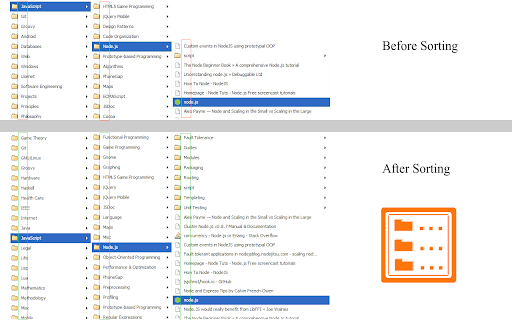
Bookmarks Organizer helps in keeping the bookmarks sorted. It monitors for newly added or moved bookmarks and auto arranges them in ascending order by title. There is a reorder button to manually order the whole bookmark, which can be used initially after installation or import. Only bookmarks in the Bookmarks Bar are sorted. If you want to have a custom order, those bookmarks can be placed inside the Other Bookmarks. Limitations: There are max write limits set by the browser so that the sync servers are not abused. So only a certain number of move operations can be performed per session in a given interval of time.

Bookmark Pro
If you're a power user of Chrome's basic bookmarks, then you're probably not very satisfied with the experience of saving bookmarks in Chrome. This extension replaces Chrome's default Save Bookmark popup with a new popup experience that has modern, search-empowered features and a clean design. (Note: This extension does not work when using Google's newer Bookmark Manager extension.) + Start typing to smart-search for a folder instead of digging through a menu for it. + Choose from 3 recently-saved-to folders without searching for a folder at all. + Create and save to a new folder without needing to open a new popup. + Update the location or delete the bookmark if you've already saved the page. + Elegantly designed using Google's new Material Design language. + Highlighted a favorite quote? It'll automatically be prepended to the bookmark title. How does it work? Keyboard shortcuts? + Bookmark the same way you always have, whether through the Bookmarks menu, star icon, or keyboard shortcut (Mac: Cmd + D, Others: Ctrl+D) + Tab to jump between inputs, ESC to escape, and Enter to Save, just as you'd expect. Original extension design & development by Jeff Vlahos

Starmarks Bookmark Manager
Unleash the power of your bookmarks! Effortlessly filter, sort, and organize your favorite websites with Starmarks. • Smart collections for advanced categorization • 5-star ratings and visit tracking for all your most-loved bookmarks • Drag select and edit multiple bookmarks at once • Full backup support with data export and download • Dark mode theme option for a sleek browsing experience Transform your bookmarking experience and never lose track of an important website again!

Finder Bookmarks
This extension will replace Chrome's default bookmarks manager. It's very useful if you have lots of bookmarks. Similar to Mac Finder in columns view, you can manage and navigate bookmarks by mouse or keyboard shortcuts, for example: • Navigate all bookmarks using mouse or arrow keys. • Open a bookmark by double click or enter key. • Open all bookmarks in a folder by context menu. • Drag and Drop a bookmark to a new location. • Create, edit or delete bookmark or folder by context menu. • Select multi bookmarks to move, delete or open. • Copy/cut/paste bookmarks(except folders) by shortcuts. • Sort bookmarks by name. • Support many keyboard shortcuts. How to use: • Click this extension's icon • Click menu item at Chrome -> Bookmarks -> Bookmark Manager • Use Chrome keyboard shortcuts, Windows/Linux is Ctrl + Shift + o, Mac is ⌘ + Option + b This extension is a part of another extension "Re-newtab" that contains this bookmarks manager in Chrome newtab.

online / offline Bookmark Manager
I am a software developer and this is a project that I created as part of my profile. I update this from time to time - as I learn new skills. I also fix reported bugs. This extension does not upload any data online - neither does it fetch / download anything. Feature summary: - 1. USE SHORTCUT - Ctrl+Shift+F - it is default for this extension (set shortcut in chrome if it not working). To open a link in new tab, hold Ctrl key while clicking on the link. 2. This is just an editor - it doesn't mess up your data or store it anywhere - nothing is uploaded online. Turn on sync in your browser if you want to see your mobile bookmarks here. 3. You can change theme using icons on top left - you can also CREATE a new one from there. You can only edit the themes you yourself create. 4. Hover on icons for tips. 5. Interface is easy to understand and support drag/drop. You can go into edit mode (by clicking pencil icon on top right) - then you can select multiple things and then drag drop them at the same time. 6. You can drop folders on left panel / menu - then you can open them in full view as shown in screenshots. Then you can also move things into those folders using drag / drop or you can set a home folder. 7. Use right click options - you can rename, hide names to show only icons on bookmark bar. 8. No undo yet - you can undo anything by going to chrome's bookmark manager and then using Ctrl + Z. Will maybe add undo sometime in late 2024. 9. Please report bugs and share any feedback. Some detailed explanations: - The extension is mostly useful if you have a lot of bookmarks. I appreciate feedback (especially positive ones) - I do get to things eventually. Please report bugs - via comments/emails. BASIC IDEA: To view and manage bookmarks on full screen. It shows and edits in chrome bookmarks - move / rename / delete etc in a full tab view like a website. HOW I USE THIS: I personally use it to view my mobile and other bookmarks occasionally and to hide some of their names so that they show as simply icons on the bookmarks bar(use right click). Also I have pined a few folder onto side - then I just DRAG and DROP bookmarks onto the pinned one - to quickly move things. Also when searching for some projects, I tend to create its separate folder. Pin it to side and set it as home. Whenever if I have to check links later, just press shortcut and all the links show up on screen in full page. SYNC DATA across devices: It does not interfere with chrome's built-in data synch-up process. So you can bookmark something on phone and after google syncs your data it will show up in the extension. GROUP: To show folders together and bookmarks sorted alphabetically (by url). It has a button on top right. DUPLICATES: Button on top-left side to check if you have any. RIGHT CLICK: things such as rename, delete, hide name in bookmark bar, show in parent folder (can be useful when clicking something you found through search). DRAG/DROP: You can use it to move bookmarks/folders to another folder. Or pin a folder to side bar (maybe set it as home later - right click). ROW-WISE / COLUMN-WISE: Button in top right. Its used to switch the direction in which the bookmarks are arranged. Whether the rows are filled first or are the columns filled first. Tips: 1. Use Ctrl + F (chrome's feature) to find bookmarks from time to time. 2. Use Right click menus. They have features like show in folder (in search). 3. Edit Mode : Button in top right. It just allows you to select and apply simple operations - move, delete - to multiple bookmarks/folders at once.
