
ceoifmkmbigkoodehbhfeegbngoomiae

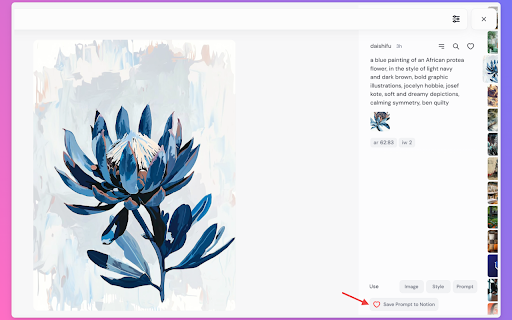
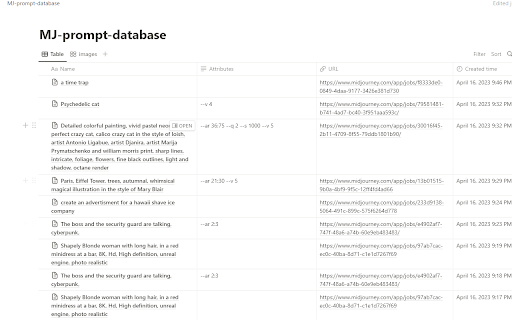
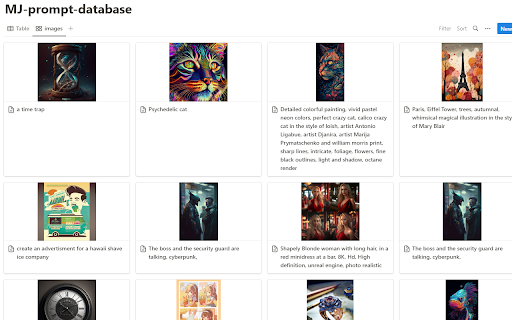

Midjourney Prompt Hunter is a powerful Google Chrome extension designed for Midjourney users. It allows you to effortlessly save, backup, export, and sync prompts, images, attributes, and author information from Midjourney directly into your Notion database with just one click. Whether you're saving your own creations, collecting inspiring prompts from others, or looking to backup and migrate your entire Midjourney history, this extension helps you efficiently manage, organize, and preserve your creative resources. With batch editing, tagging, grouping, and comprehensive backup features in Notion, your creative inspiration and valuable prompts are always within reach and safely stored! 1. 💡 One-click save of Midjourney prompts, images, attributes, and author information to Notion 2. 📋 Batch edit and manage creative resources in Notion 3. 📌 Collect and save useful prompts generated by others for reference 4. 🔄 Cross-platform sync to access and manage your creative content anytime, anywhere 5. ⏰ Automate tasks to save time and boost creativity 6. 📤 Batch export all historical Midjourney prompts to Notion with one click 7. 💾 Complete backup solution for your Midjourney prompt history 8. 🔄 Seamless synchronization between Midjourney and Notion - Creators saving and managing their own Midjourney prompts and creations - Collecting and organizing excellent prompts generated by others to enhance creative inspiration - Batch processing and categorizing creative resources in Notion to increase work efficiency - Backing up and preserving your entire Midjourney prompt history - Migrating and transferring prompts between different platforms - Creating a searchable archive of your Midjourney journey - Building a personal prompt library for future reference - Sharing and collaborating on prompts with team members 1. Install the Midjourney Prompt Hunter extension. 2. Connect your Notion account and set up the save database. 3. Browse the Midjourney website and click the extension button to save content with one click. 4. Use the batch export feature to backup your entire prompt history. 5. View, edit, and manage your creative resources in Notion. Midjourney Prompt Hunter is a powerful and easy-to-use extension that is suitable for all users of Midjourney. Whether you're a professional artist, AI enthusiast, or creative professional, this tool helps you save, backup, and organize your Midjourney prompts efficiently. With features like batch export, cross-platform sync, and comprehensive backup, you can ensure your valuable prompts are always safe and accessible. If you want to manage, backup, and view Midjourney prompts and images more efficiently, why not install this extension and experience the convenience it brings to you? easily to save ai prompt , your best midjourney prompt, and with notion, you can make the midjourney image gallery fast way, and share to your friend. If you want to back up all your Midjourney prompts history, export all Midjourney prompts, download all Midjourney prompts, or organize all Midjourney prompts in Notion, you have to try this extension now. Support: If you have any questions or suggestions, please contact us at: Email: chatgpt2notion@gmail.com 2025-11-17: fix the bug for midjourney video type prompt fetch . 2025-10-01: fix the bug for batch export to notion. 2025-06-18: Added the feature of automatically judging whether the Midjourney account is logged in. If not logged in, a prompt will be given to log in and open the Midjourney address https://www.midjourney.com/imagine. 2024-12-27: Fixed issues and optimized the save button. 20241227: Add support for save discord channel image to notion. 20240813: Fixed issues: resolved the problem of saving images from the [midjourney.com](http://midjourney.com) official website; fixed issues with retrieving properties and version fields. 20240626: Fixed the issue of being unable to get image information caused by layout adjustments in discord.com. 20240526: Fixed the issue where the save button was not displaying due to updates on the https://www.midjourney.com/jobs page . 20240329: Fixed the issue where the save button was not displaying due to updates on the https://discord.com/channels page. 20240307-2: Fixed the issue of being unable to retrieve saved image information caused by layout adjustments in midjourney . 20240307: Added support for layout modifications in midjourney job page, enabling content saving on the create page in midjourney . 20240227: Fixed the issue of being unable to retrieve saved information caused by layout adjustments in MJ. 20240220:Fix the issue of not being able to retrieve saved information caused by layout adjustments in MJ. 20231221:add support https://www.midjourney.com/explore page save button. 20231214:fix add new field bug. 20231209:Added a new field called "Version" to filter prompts based on your preferred version. Upgrade today to unlock prompts specifically tailored to your selected version. 20231127: Fix the issue of not being able to retrieve saved information caused by layout adjustments in MJ. 20231108: Fix save image url bug. 20231101: Fix the issue of not being able to retrieve saved information caused by layout adjustments in MJ.

AutoSail for Midjourney - Auto Send Prompts & Batch Download
Midjourney tool. Auto send prompts, batch download, auto queue & upscale, --repeat in Relax Mode (Not affiliated with Midjourney) AutoSail: The ultimate batch workflow accelerator for AI creators! Set sail on your creative journey~ AutoSail is an independent, high-performance productivity extension designed to supercharge your creative workflow on Midjourney. With advanced automation, let Midjourney work for you 24/7. 1. Batch Send + Auto Queue: Send multiple prompts at once with professional task queue management. No more repetitive manual work. 2. Auto Upscale + Auto Download: Automatically upscale and save all generated images/videos with their corresponding prompt data locally. No more clicking one by one. 3. Relax Mode Repeat: Break free from --repeat fast mode limitations. Auto-repeat in Relax Mode — send before bed, wake up to your creations. Save time and money. 4. Prompt Engineering Tools: Built-in prompt templates, variables, and batch prefix/suffix support. 5. Multiple Generation Modes: Text-to-image, image-to-image, image-to-video, and more. 1. Independent Project: AutoSail is an independent third-party project. It is not developed, authorized, maintained by, or affiliated with Midjourney Inc. 2. Trademark Notice: Midjourney is a trademark of Midjourney Inc. All trademarks mentioned herein are used solely to describe compatibility.

AI Image Prompter - for Midjourney and more
An easier AI image prompting tool for Midjourney and more Visual prompting for Midjourney and more. Generate prompt by clicking without memerizing. 1 Features: 1) Generate prompt by clicking Generate prompt by sample image clicking without memorizing. Fasten your prompt engineering efficiently. 2) Categorized prompts for AI drawing Categorized preset prompts including Subject, Style and Parameter. Much easier to select. 3) Lots of preset prompts 100+ preset most commonly used prompts for AI drawing. More will be added. 2. Quick Guide Final prompt = Input + Select + Copy 1)Installing Image Prompter extension Now Edge add-on is available from Mirosoft Edge store 2). Open Midjourney Open Midjourney workspace. official website: https://www.midjourney.com on dicord - https://discord.com on slack - https://app.slack.com 3). Open Image prompter ( see picture above ) Image Prompter will be shown automatically by clicking the show handle on the up-right corner of this page. 4). Input Core Prompt Think about what to draw first, then input it in the Core Prompt area, e.g. "a cat in the garden". 5). Select prompt by clicking Subject, Style, Parameter sample picture. The final prompt will be added by your selection. Click the "..." button on the right of each feature line to show more features. 6). Copy final prompt Click the copy button of Final Prompt, then paste it into Midjourney workspace to generate your image. 3. Concepts Feature The text prompt controlling how the image is generated. It's divided into three basic categories: Subject , Style , Parameter. 1) Subject It defines what to draw, i.e. the content of the image. First, you need think about your idea. The core subject prompt is up to you to input. Such as a boy, a spaceship, a cat running away. While as for the other supplement subject prompt , Image Prompter has provided many preset options to select, such as as for figure, portrait , profile, , headshot, selfie, full body shot ... ( see the picture above ) as for design , flat design , product design, logo , architecture ... ( see the picture above ) 2)Style It controls how to draw the image. Such as photography, cartoon, painting form , painting style etc. For example: - Painting form : oil painting , watercolor, - realistic or impressionistic Style is the key element of AI Imaging when you work on Prompt Engineering. Image Prompter provides a large amount of preset style options for you. See Style List for details. 3)Parameter It controls how to draw by the render engine, such as - Midjourney version - aspect ratio: 2:3, 3:2, 16:9, 9:16 ... - quality - chaos - stylish - seed There are 7 style categories with 50 commonly used styles in version 1.0. More styles will be updated continuously. 1) Photo (6+): real, photography, cimematic, retro ... 2) New image style (8+): fantasy, science fiction, cyperpunk ... 3) Cartoon (8+): 2d cartoon, commic, disney, anime ... 4) Illustration (6+): children illustration, digital illustration ... 5) Painting form (9+): oil painting, watercolor, coloring page ... 6) Painting style (6+): realistic, impressionism, classic,pop art, ... 7) Artist (6+): Van Gogh, Michelangelo, Peaky Blinders ... 5. Parameter Parameter is used to control the render engine how to work. The main paramters include : - 1) engine version - 2) aspect ratio - 3) chaos - 4) quality - 5) seed 6. Future Version Plan - More styles for your selection. - More parameters for your selection. 7. Feadback and requirement Website - https://www.luupine.com/ Feedback on Twitter - https://twitter.com/raykkncc - Bug or suggestion - More style prompt requirement

Discord Midjourney Export
Download images and prompts from the midjourney discord channel in bulk This is a very convenient plugin to batch download images and prompts from the midjourney channel in discord. After installing the plugin you can easily download your favorite images and prompts in just 3 steps as follows: 1, Go to any midjourney channel 2, Click on the blank space of your favorite content 3, Download Wait for a while, it will generate a zip package containing pictures and prompts, which greatly saves time!

Save ChatGPT to Notion
Save ChatGPT conversations to Notion with one click. Bulk Export ChatGPT conversations ✨ Save, export, sync, and back up your ChatGPT conversations to Notion with ease! This extension helps you organize, archive, and preserve your AI interactions (including ChatGPT Group Chats) directly in your Notion workspace for long‑term reference and team collaboration. 🚀 Key Features (Export • Sync • Backup): • One‑click export: Instantly export/save any ChatGPT conversation to your Notion database • Auto Sync (NEW): Schedule automatic sync of your latest conversations to Notion — set intervals from 1 to 24 hours, keep the options page open, and let it run hands-free • ChatGPT Group Chats export: Export full history from https://chatgpt.com/gg/ into Notion (keeps authors and message order) • Selective export: Save only what you need - 1:1 chats: select one or multiple Q&A turns (prompt + reply) and export only those parts (auto‑tagged as "Part") - Group chats: select specific messages and export them as a single Notion page (auto‑tagged as "Group Chat" + "Selection") • Batch sync & backup: Sync multiple chats in bulk to build a durable backup/archive in Notion • Long chat splitting: Export very long conversations into multiple Notion sub-pages to keep Notion fast and stable • Batch sync Group Chats: Sync the latest 5 group chats (default) or sync all group chats (capped) • Copy to clipboard: Copy any group chat message as raw Markdown text with one click • Smart formatting: Preserves structure (Markdown, code blocks, images, lists) for readable Notion pages • Flexible options: Skip, overwrite, or duplicate existing pages to control versioning • Project sync: Export/sync entire ChatGPT projects into Notion with one flow • Team & personal: Works with personal and team ChatGPT accounts • Download from Notion: Once exported, use Notion's native Export to download Markdown/PDF for offline use • Clean UI: Modern interface with floating actions and inline controls • Deep Researcher support: Export ChatGPT Deep Researcher document content to Notion with full formatting preservation • TextDocs tools integration: Export TextDocs tool documents as sub-pages in Notion for organized documentation structure 🎯 Perfect for (Why to use it): • Researchers collecting AI insights • Students organizing study materials • Professionals documenting work discussions • Teams collaborating on AI projects • Teams using ChatGPT Group Chats for brainstorming and decisions • Anyone wanting to build a searchable knowledge base • Anyone who needs a reliable backup/archive of ChatGPT content in Notion 📝 How to use (Step‑by‑step): 1) Connect your Notion account (Notion OAuth) 2) Select a Notion database (the target for export/sync/backup) 3) Choose preferences (skip/overwrite/duplicate), then: • Export a full chat (including Group Chats) with one click, or • Select specific turns/messages and export only what you need • Enable Auto Sync to automatically sync your latest 28 conversations at scheduled intervals 4) Open in Notion to organize, tag, and download via Notion's native export (Markdown/PDF) 🔎 What you get in Notion: • Title: Uses the current page title • URL: Source link for context and de‑duplication • ChatTime: Conversation time (fallback to current time) • Tags: "Part" for partial exports; "Group Chat" / "Selection" for group chat exports 💡 Get started today and transform your ChatGPT conversations into an organized, searchable knowledge base in Notion — export, sync, and back up your AI knowledge with confidence. 2026-05-05 • Added intelligent rate limit protection for batch export — automatic random delay (1-2 seconds) between conversation fetches to prevent ChatGPT API 429 errors • Added immediate stop mechanism on rate limit detection — sync operations stop gracefully when rate limited, preserving already-synced conversations • Improved error handling — clear error messages guide users on how to resume sync after rate limits 2026-04-24 • Added real-time progress indicator for main export flow — see exactly what's happening during export • Added export settings panel in preview page — view and adjust formatting options without leaving the preview • Improved timestamp format for better searchability in Notion (now uses YYYY-MM-DD format) 2026-04-17 • Added a custom export preview page and selective export; optimized export formats. • Fixed the issue where exporting overly long conversations failed, preventing the 429 rate limit error from being triggered by the Notion API. 2026-03-25 • Fixed the skip behavior during batch export: when the "Skip" option is enabled, content that has already been exported will no longer be exported again. 2026-03-23 • Fixed the selective export issue for single conversation records • NEW — Support exporting very long conversations into multiple Notion sub-pages 2026-03-15: • Fixed and updated the personalized compatibility issues mentioned by users 2026-02-22: • New feature: support for filling in tags during export (only when exporting individually). 2026-02-07: • Fixed the "Invalid URL for link" error again, with a thorough fix. 2026-02-02: Fixed minor issues reported by users. 2026-01-27 • Fixed "Invalid URL for link" error: Resolved an issue where empty or invalid URLs in conversation content caused save failures. The extension now properly handles and removes invalid links while preserving text content, significantly improving save reliability. 2026-01-16 • NEW — Auto Sync: Schedule automatic sync of your latest 28 conversations to Notion at intervals from 1 to 24 hours. Keep the options page open and let it sync hands-free. Uses your current sync settings (skip/overwrite/duplicate). 2025-12-15 • NEW — ChatGPT Group Chats export: Export full group chat history from /gg/ pages to Notion • NEW — Group chat selective export: Select specific group chat messages and save them as a single Notion page • NEW — Group chats batch sync: Sync latest 5 (default) or sync all group chats (capped) • NEW — Copy message: Add a Copy button to each group chat message toolbar to copy raw Markdown text to clipboard 2025-01-08 • Added Deep Researcher support: Now supports exporting ChatGPT Deep Researcher document content to Notion with full formatting preservation • Added TextDocs tools integration: Export TextDocs tool documents as sub-pages in Notion for organized documentation structure 2025-09-27 • Fixed an issue where some content was not fully saved in certain cases 2025-09-17: Fixed API error during synchronization to Notion: Resolved the issue of synchronization failure caused by a validation_error from the Notion API. The problem was due to body.children[0].toggle.children[2].table.children.length exceeding the maximum limit of 100, leading to the error. Added a generic handling method: The system now intelligently handles similar errors, preventing interruptions during the synchronization process and improving system stability and compatibility. 2025-09-10:Fixed bug, head_2 title too long bug. 2025-09-03:NEW — Segment save on conversation detail: pick one or multiple Q&A turns and export just those parts to Notion (auto‑tagged as "Part"). 2025-08-29: Fixed the issue where Notion is empty after some users sync their data. 2025-08-29: Fix the issue of chat messages sorting. 2025-08-28: Fixed the issue with saving Projects. ChatGPT plus accounts now also support Projects, so they can be saved as well. 2025-08-26: Fix the issue when saving. 2025-07-14: 🛠 Fix bug. 2025-06-04: 🛠 Fix some data import failure issues, add successful records, and directly skip the configuration function. 2025-05-27:🛠 Fix the table problem in Markdown:"Content creation Failed. Fix the following: Number of cells in table row must match the table width of the parent table"
