
cehdjppppegalmaffcdffkkpmoflfhkc
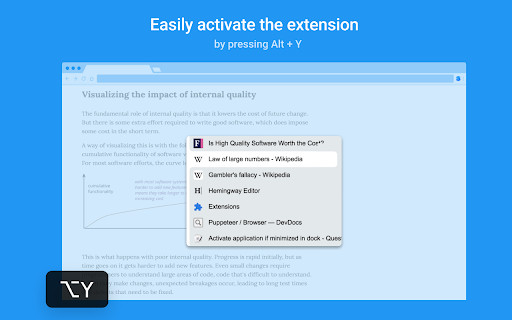

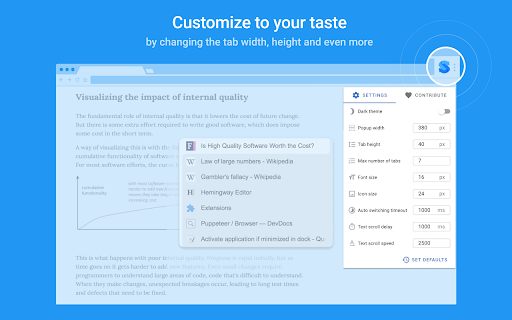

The extension shows you a popup with last active tabs when you press its shortcut (Alt + Y by default). You cycle through them by holding Alt and pressing Y. By releasing the Alt key you switch to the chosen tab. This is like switching between apps in Windows (Alt + Tab) and in macOS (Cmd + Tab). Also, when you close an active tab, you will be placed to the previously active one. It is more helpful than the default Chrome's behaviour, which activates the nearest tab. You can delegate default switching between tabs by pressing Ctrl + Tab to the extension, see how https://github.com/dvdvdmt/popup-tab-switcher#replace-default-tab-switching-behaviour NOTE: The extension tries to render its popup on the page wherever it is possible, but there are cases where it can't do that: * Chrome's web store pages. The extension doesn't work here. * Special Chrome tabs such as Settings, New tab, History, etc. In this case the extension tries to switch a user from a special tab to a previous tab without showing a popup. * The page has no focus (a user searches on the page, focused on address bar, etc.). In this case the extension shows its popup and starts a timer by the end of which it will switch a user to the selected tab. * Files pages (URL starts with file:///). The extension can't work on such pages without a special permission which you can turn on in Extensions > Popup Tab Switcher (Details) > Allow access to file URLs.

Ultra Button
A button for everything. You can now access most of chrome features in one Ultra Button. Functions Including: Bookmarks, Extensions, Downloads, History and Tabs. Mouse Middle Button Behaviors Bookmarks: Open bookmark in background Extensions: Remove extension Downloads: Remove download record History: Open history in background Tabs: Close tab or window ~~~~~~~~~~~~~~~~~~~~~~~~~~~~~~~~~ The icons in this extension were downloaded from Noun Project. https://thenounproject.com/ v 0.9.0 add download notification You can enable it in the options v 0.4.1 add session control You can now restore closed tab or windows

ProTABS - The Tab Manager for Pros
"I got 99 problems, but a tab ain't one." An intelligent tab manager for the everyday user. ProTABS is an intelligent tab manager designed to to make your life easier. It's particularly useful when dealing with large amounts of tabs, empowering you to work and browse more efficiently. ProTABS effectively replaces many other extensions such as tree tabs, tab suspender, tab recycler, etc, and enables many powerful workflows such as: ▶ Pin your frequently used tabs (like email!) so you can refer back to them quickly and see any notifications at a glance. ▶ Create groups from your tabs and windows to categorise them by topic. ▶ See tabs grouped automatically by site and by topic. ▶ Save individual or groups of tabs for future reference. Star them, close them, then come back to them later! ▶ Quickly search for tabs by name, group, or by URL and switch back to them easily. 100% keyboard friendly, for the real Pro's! ▶ Rapidly switch back to your previous tab with a simple keyboard shortcut! ▶ Quickly find and restore tabs that you closed accidentally. ▶ Pop open a group of related tabs to a new window so you can focus on one topic at a time. ProTABS can also work in the background to help keep your browsing efficient by: ▶ "Pausing" tabs after period of disuse, freeing up memory and making your browser run faster! ▶ "Tidying-up" your tabs automatically after a period of disuse by Saving and then closing them automatically. We'll tidy-up your tabs so that you don't have to!

CLUT: Cycle Last Used Tabs
This extension tries to mimic the ALT+TAB behavior from Windows(or Command+TAB in Mac) to allow to switch between open tabs in a Most Recently Used fashion. It remembers the order in which you switched tabs (made a tab active) and it updates its records so that you can switch to the recently used ones quickly. Note: Sometimes after updating the extension the keyboard shortcut settings get reset. Hence you might want to set the desired keyboard shortcuts again in the keyboard shortcut settings in the Chrome Extensions page. Alternatively, navigate to chrome://extensions/shortcuts from your address bar to change shortcuts. Please rate and comment. The project is made open source in GitHub: https://github.com/harshayburadkar/clut-chrome-extension.git Default Keys*: ALT+W: Quick switch ALT + S: Normal switch ALT + Shift + S: Normal switch (in opposite direction) *Keys can be changed in keyboard shortcut settings on the Chrome extensions page. =Quick switch=: Use for rapid switching to last tab (by pressing once) or to the second to last used tab(by pressing rapidly twice) and so on. =Normal switch=: Use when you want to look for a tab recently used but when you would want to go in a slower pace (needing to glimpse for a bit to see if it is the page you need) Most other extensions meant to accomplish the same thing don’t work well since there are some limitations/difficulties in the Chrome API. This extension uses some basic algorithms and timers of intervals between key presses to get over these problems. That is the reason there is separate keys for quick and slower switches with different timer settings. Features: * Can cycle through ALL open tabs from all Chrome windows in a most recently used order * Extension DOES NOT need access to any of your visited website's data * Can work through tabs across different Chrome windows * Snappy and fast switches - Why are there two sets of shortcuts one for quick switch and one for a slower switch. Isn’t it possible to simplify like ALT+TAB behavior ? A: There are some restrictions in Chrome API which makes it difficult to implement this feature in the most natural way. The intention was to make this extension work as close to Alt+Tab in Windows (or Cmd+Tab for Mac). Unfortunately due to these limitations though, this extension relies on time intervals in between your key presses. That is the reason there is a concept of quick switch (faster timer) and a normal switch (slower timer). - Where can I change the shortcut key for switching tabs ? A: To change shortcut, go to the Extensions pane in your Chrome browser. Press the menu icon and find the Keyboard Shortcuts option in the list. You can change keyboard shortcuts of your installed extensions and apps here. Alternatively, you can access and change extension keyboard shortcuts by going to this special address from your browser address bar. chrome://extensions/shortcuts Note: Few shortcuts may be not allowed to be set by Chrome if Chrome itself uses that shortcut or the shortcut is needed for system level operations. Feel free to post feedback, comments and suggestions.

Tab Master 5000
The swiss army knife of tab, history, bookmark, session, and extension management. Tab Master 5K replaces your New Tab page with a full-featured tabs, history, bookmarks, apps, extensions, and sessions manager. -- Tabs - Close, pin, and mute tabs from your New Tab page. - Re-order tab tiles by dragging and dropping them. - Close all tabs from a specific website. - Close duplicate tabs, and optionally make them pulsate. - Manage tabs through icons, the right click menu, or through a table view. - Search tabs in the top search bar. - Option to sort tabs by website or alphabetical order, and apply the order to your Chrome window. - Option to view tabs across all windows. - Automatically discard tabs from memory and customize how long they have to be inactive to trigger it. -- Customization - Full control of the New Tab's appearance with a flexible theme editor. - Import any wallpaper as a background. - Adjust the size of the grid tiles. - View a screenshot of each tab in the grid. - Enable screenshots to cover the background of a New Tab page when you hover over a tab tile. You can adjust the strength of the blur and opacity of backgrounds in Preferences. -- Session Management - Session manager built in for saving and restoring your current tab sessions. - Synchronize your saved sessions, and keep them persistently updated with the current Chrome window. - Tab sessions can be exported and imported. - View, sort, and filter your session tabs as tiles in the grid view. -- Chrome Management - View, sort, and filter your bookmarks, history, apps and extensions as tiles in the grid view. You can change how apps launch, create app shortcuts, enable/disable, or uninstall them. - Quickly navigate the extension with keyboard shortcuts. - Undo tab actions by pressing CTRL+Z, or through the context menu while a New Tab page is open. - Add websites you do not want to view to a comma separated blacklist in Settings -> Preferences. Websites added to the blacklist will have their tabs closed under any circumstance. Please report any issues on this store page's Support tab. If you like this extension, or think it could be better, please rate it and leave feedback. You can also fork and pull request this extension on its public Github repository: https://github.com/jaszhix/tab-master-5000-chrome-extension
