
bmkgbgkneealfabgnjfeljaiegpginpl
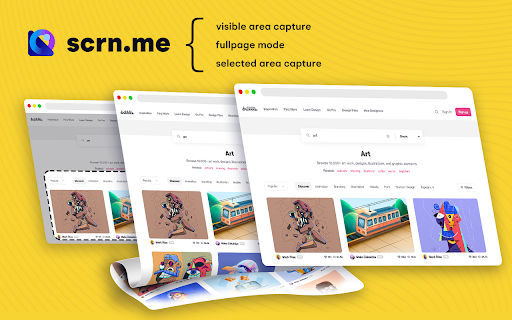

Get more out of your screen captures!The best screen recorder and screen capture & screenshot tool to record screen. Scrn.me is the most popular tool for your day to day. Whole page screenshot, sharing and much more. All the missing features of Google Chrome™ Are you looking for the fastest way to share and save screenshots? Entire page screenshot, or just the visible area? Screen Capture ▸ Capture a screenshot of the page you visit, full page, selected area or visible part ▸ Capture a screenshot of your entire screen or a specific application window ▸ Capture visible part, entire screen or app window Annotate Screenshot ▸ Resize or crop a screenshot to the size you need ▸ Annotate your screenshot with rectangles, circles, arrows, lines, etc. ▸ Add text to your screenshot with or without background color, change text font and font size ▸ Blur sensitive information on your screenshot ▸ Highlight important part on your screenshot ▸ Select a local image or paste a copied image from your clipboard to annotate This is a free extension for taking screenshots. Best for # Full page screenshot # Desktop screenshot # Screenshot editor # Crop # Highlight and paint # Save local or share online It is powerful and simple. It has more features than you can imagine in one place This extension is able to capture 100% of both the vertical and horizontal content appearing on any webpage on the Internet. It is very easy to save the captured file onto your computer or print it / or share it to any social network.

Full Page Screenshot
Full page screen capture is a simple extension that lets you capture the entire screen in one click. Get an entire page screenshot. Note: FOR THE BEST RESULT, SCROLL THROUGH THE ENTIRE PAGE BEFORE TAKING A SCREENSHOT. The Full Page Screenshot extension for Chrome is a powerful tool that allows users to capture the entire screen with a single click. With this extension, users can easily take entire page screenshots of websites, articles, documents, or any other content they come across while browsing the internet. The extension offers two convenient methods for capturing full-page screenshots. The first method captures the entire visible content of the webpage, including what's currently visible on the screen. The second method captures the entire page, scrolling down automatically to capture the hidden content that extends beyond the visible area. This ensures that users can capture every bit of information on the page without any limitations. In addition to the full page screen capture functionality, the extension provides several useful features. Users can annotate the screen by adding various figures, shapes, lines, or other elements to highlight or emphasize specific areas of interest. This makes it easy to communicate information visually or draw attention to important details within the screenshot. Once a webpage is captured and annotated, users have multiple options to save and share it. They can download the image directly to their PC, making it easily accessible for future reference. Also, users can copy the screenshot to the clipboard and paste it into a message or any other application. This feature allows for seamless sharing with colleagues, friends, or anyone else. The extension is designed to cater to users who require comprehensive screen capture capabilities. Its intuitive interface, quick one-click functionality, and convenient annotation and sharing features make it a valuable tool for both personal and professional use. Why Full Page Screenshot? 1. Comprehensive Content Capture: Full page screen capture allows users to capture an entire webpage as it appears on their screen, including all visible content such as images, text, and interactive elements. This is especially useful for saving articles, blog posts, or other online content for offline reading or reference. 2. Design and Development Evaluation Web designers and developers often use entire page screenshots to assess the overall layout and appearance of a webpage. By capturing the entire page, they can review how different elements interact, check for visual inconsistencies, and ensure the webpage renders correctly across different devices and screen sizes. 3. Documentation and Reporting Full page screenshot is valuable for documentation and reporting purposes. They enable users to create visual records of webpages, which can be shared with others for reference or analysis. This is particularly useful in fields like user experience (UX) design, where capturing the entire page context helps communicate design decisions or identify areas for improvement. 4. Comparison and Analysis By creating full page screenshots of different versions of a webpage or different webpages altogether, users can easily compare and analyze changes in design, content, or layout. This is beneficial for A/B testing, tracking design iterations, or evaluating the effectiveness of different webpage variations. 5. Sharing and Collaboration Entire page screenshots are often shared with clients, team members, or stakeholders to gather feedback or discuss specific aspects of a webpage. They provide a visual representation of the webpage's appearance, facilitating effective communication and collaboration among team members, regardless of their physical location. Overall, Full Page Screenshot offers a convenient and versatile way to capture, evaluate, and communicate webpage content and design, making them a popular choice among users.

Vizam - Screenshot & Video capture tool
Vizam - Screen Recording & Screenshot Tool The Ultimate Screen Recording & Screenshot Chrome Extension Capture, annotate, and share your visuals effortlessly with Vizam, the go-to screenshot and screen recording Chrome extension — completely FREE! Whether it’s creating engaging tutorials, recording workflows, or enhancing your presentations, Vizam simplifies every step. You can also access dashboard for previously captured images and videos. Keyboard shortcut to activate extension - Alt + Shift + X Why Choose Vizam? Vizam is designed for precision and ease, giving you everything you need to create stunning visuals: 📸 Advanced Screenshot Capture Snap full-page screenshots, scrolling captures, or select-area shots with precision. 🎥 Seamless Screen Recording Record your screen with or without a camera for engaging tutorials and walkthroughs. 🛠️ Powerful Annotation Tools Enhance your visuals with text, arrows, highlights, blurs, and freehand drawings for clear communication. 📤 Effortless Sharing Share screenshots and videos instantly via links, cloud storage, or export to formats like PNG, JPG, PDF, WEBM and MP4. 🔐 Organized Media Management Manage your captures with a centralized dashboard for quick retrieval and sharing. What Makes Vizam Special? ✔️ Free Screenshot Capture Quickly capture snapshots in various formats, from full-page screenshots to scrolling views. ✔️ Intuitive Video Capture Record your screen with crystal-clear audio and camera overlays, perfect for tutorials or presentations. ✔️ Real-Time Annotation Annotate while recording or editing for precise, professional visuals. ✔️ Easy Sharing Options Export your creations effortlessly or share them directly from the extension. ✔️ Lightweight & Fast A Chrome extension built for speed and reliability without impacting your browser performance. ✔️ Add Watermarks Secure and brand your images and videos with personalized watermarks, ensuring content ownership and consistency. ✔️ QR Code Sharing Generate unique QR codes for your images to make sharing effortless and accessible across devices. ✔️ Global Watermark Settings Configure watermark preferences globally for uniform branding across all your media. ✔️ Dynamic Video Editing Seamlessly upload and integrate additional videos into your ongoing edits, creating cohesive and engaging content. ✔️ GIF Creation Transform video clips into animated GIFs, perfect for social media or quick visual storytelling. 1️⃣ SCREENSHOT CAPTURE MODE: 📷Capture Tool📷: The capture tool allows users to take screenshots in various modes: 1. Full Page: Users can capture the entire page with a single click. This mode is useful when the user wants to capture an entire webpage. 2. Visible Area: Users can capture the visible area of the current tab. This mode is useful when the user wants to capture the visible part of the screen. 3. Select Area: Users can select a specific area of the screen to capture. This mode is useful when the user wants to capture a specific part of the screen. 4. Open Image Editor: Users can upload an image from their local storage and edit it. ✏️ Image Editing Tool ✏️ The editing tools include annotations, image upload, and sharing as a link, email attachment, or download. 1. Annotations: Users can annotate their captures with various tools such as text, arrows, shapes, and freehand drawing. This feature is useful when the user wants to highlight specific areas of the capture or add additional information. 2. Image Upload: Users can upload an image to edit or annotate. This feature is useful when the user wants to edit an existing image or add annotations to an image that was not captured using the extension. 3. Edit Image: Users can rotate, Flip, add different shapes, highlight and add Emojis. Users can also add padding, text shadows, adjust borders, and add different pre-defined gradients to the Image. 4. Sharing: Users can share their captures as a link, email attachment, or download. This feature is useful when the user wants to share their captures with others or download them for future use. User can also share Images to social media platforms. 2️⃣ SCREEN RECORDING MODE: 📽️Recorder Tool📽️: The video recording feature enables users to capture: 1. Entire Screen: Users can record their entire screen, including multiple tabs and applications. This mode is useful when the user wants to create a tutorial or record a presentation. 2. This Tab: Users can record only the current tab. This mode is useful when the user wants to create a video of a specific website or application. 3. Camera Only: Users can record only the webcam feed. This mode is useful when the user wants to create a video of themselves. 4. Select Area: Users can select a specific area of the current tab to record. This mode is useful when the user wants to create a video of a specific part of the screen. 5. Local Recording: Record and save it on your local system. ✏️ Video Editing Tool ✏️ The editing tools include annotations, video upload, and sharing as a link, email attachment, or download. 1. Open Video Editor: Users can upload a video from their local storage and edit it. 2. Edit Video: User can Add text, trim the video, Insert Images while editing, Add video clips, Create GIFs from the videos, also insert music and add voiceover to the video. 3. Sharing: User can also share Videos to social media platforms. 3️⃣ DASHBOARD INTEGRATION & SIGN-IN/SIGN-UP: ▸ Upload captures to cloud storage for easy access, organizing and sharing ▸ Dashboard integration for organizing and accessing captures ▸ Local captures can be manually uploaded to the dashboard ▸ No sign-in required for local downloads ▸ Cloud storage and dashboard access require Gmail login or social logins. ✨ Who Should Use Vizam? ✨ Vizam is perfect for professionals who need a reliable screen recording and screenshot capture tool, including: ▸ Content Creators: Develop visually appealing videos and screenshots for blogs or social media. ▸ Designers & Developers: Share detailed visuals with teams and clients. ▸ Customer Support Teams: Provide clear visual guidance with annotated recordings. ▸ Business Professionals: Enhance presentations and reports with polished visuals. 🎨 Use Cases: How can you use Vizam? 🎨 ▸ Social Media Content: Easily create and share high-quality visuals and videos for your social media channels to engage your audience. ▸ Record Tutorials or Gameplay Highlights: Capture step-by-step guides or the best moments from games to share with friends, followers, or students. ▸ Meeting Replacement: Record screens to share updates, presentations, or walkthroughs with your team, reducing the need for live meetings. And many more... 💡 Future Road map 💡 ▸ Add Frames of different Shapes and Colors to the images ▸ Social Media ready templates and ratios ▸ Premium upgrade plan ▸ URL Summary ▸ Remove Filler Words ▸ Remove Noise ▸ Text to Speech ▸ Speech to text ▸ Transcript ▸ AI integrations ▸ AI features – GenAI Whether you’re creating step-by-step instructions, capturing key moments, or annotating visuals, Vizam is the perfect screen recording and screenshot capture Chrome extension to streamline your workflow. 📧 Have feedback? Share it with us at support@vizam.ai. Transform the way you capture and share with Vizam—your ultimate tool for stunning visuals! 💼 About Quixy: Quixy is a cloud-based digital transformation platform that helps business users with no coding skills to build unlimited enterprise-grade applications & manage those effortlessly. That too, with simple drag-and-drop dynamics, which is ten times faster than the traditional software development method.

Screen capture and recorder - Screenshot Tool
Record screen and camera, screenshot, edit, and share via Google Drive Unveiling a Comprehensive Screen Capture and Screen Recorder Tool Navigating the world of screenshots and screen recordings just became simpler. This versatile tool is your one-stop solution for all your screen capture and screen recording needs, designed with a vast array of features tailored for today's digital age. ⚡SCREEN CAPTURE FEATURES⚡ ⭐ The screenshot function lets you effortlessly capture a full webpage, a designated section, or just the currently visible area. ⭐ After making a screen capture, you can immediately dive into editing, then save in formats like PDF, JPEG, and PNG. ⭐ Quick storage ensures no lag, and the offline mode offers screen capture without any data worries. ❗ Elevate your screenshots with powerful editing tools: 👉 Easy sharing to Google Drive or through a link. 👉 Copy your screen captures to your clipboard instantly. 👉 Resize, crop, and tailor your captures. 👉 Annotations with various shapes, perfect for highlighting. 👉 Insert and modify text to convey more with your screenshot. 👉 Emphasize vital points with the highlight feature. ⚡SCREEN RECORDER FEATURES⚡ ⭐ Dive into the seamless world of screen recording with this tool, allowing you to grab videos and get an immediate sharing link, making collaborations a breeze. ⭐ From product walkthroughs to feedback rounds, the screen recorder ensures you stay synced with your team, thanks to the async video feature. ❗ Screen recorder capabilities include: 👉 Recording your desktop, a particular browser tab, or your camera feed. 👉 Integrate your reactions into the screen recording by embedding your webcam. 👉 Add a personal touch with voiceovers via the microphone option. 👉 Store your recordings either locally or on Google Drive. 👉 Choice of WebM or MP4 download formats. 👉 Instant sharing links after each recording session. In sum, for those seeking a robust screenshot, and screen recorder tool, this Chrome extension is the answer, housing a myriad of options for all your capturing and recording desires.

Screen Capture and Screen Recorder
Screen capture and screen recorder tool to record screen. Get more out of your screen captures! Take screenshots for free. Introducing the Ultimate Screen Capture and Screen Recording Extension for Chrome! Are you tired of the limited screenshot and screen recording capabilities of your browser? Look no further! Our Chrome browser extension is here to revolutionize your online experience. With an array of powerful features designed to cater to all your screen capture and recording needs, this simple yet versatile extension is completely free, giving you the tools you need without breaking the bank. 📷 Capture Your Screen ✔ Whole Page Say goodbye to tedious scrolling and stitching! Our extension allows you to capture entire web pages in a single, seamless screenshot. Whether it's a lengthy article, a captivating webpage, or an extensive document, you can capture it all with ease. ✔ Visible Area Sometimes, you don't need the whole page. Our extension lets you snap a screenshot of just the visible area on your screen, saving you time and ensuring you get exactly what you need. ✔ Selected Area Precision matters. Select and capturing a specific area of your screen, is perfect for highlighting important information or showcasing a particular part of a webpage. 🎥 Record Your Screen Like a Pro ✔ Desktop Bring your screen to life! Record your entire desktop to create comprehensive tutorials, presentations, or demonstrations. ✔ Current Tab Focus on what matters most! Capture only the content within the current browser tab. Ideal for recording webinars, video conferences, or gameplay without distractions. ✔ Record Yourself Personalize your content! With the option to record yourself via your device's camera, you can add a personal touch to your screen recordings. Perfect for vlogs, video messages, or commentary. Our extension is not only feature-rich but also incredibly user-friendly. You'll be capturing screenshots and recording your screen like a pro in no time. Best of all, it's completely free, so there are no hidden costs or subscriptions to worry about. Whether you're a student, a professional, or just someone who loves to share content online, our Chrome browser extension is your go-to tool for all your screen capture and screen recording needs. Elevate your online presence, streamline your workflow, and unlock new possibilities today!
