
bljeigdihghfpmanlibhencafbaohbef
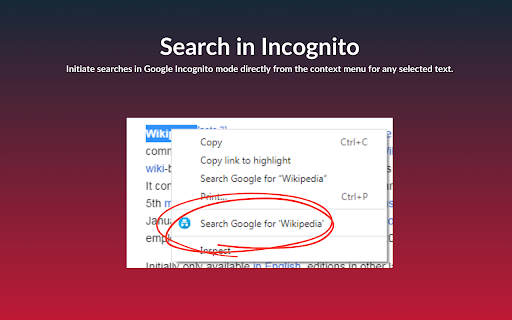
Initiate searches in Google Incognito mode directly from the context menu for any selected text. Search in Incognito offers a swift and private way to search the web directly from any webpage you’re browsing. By enabling you to instantly search for highlighted text in Google using Incognito mode, it ensures your searches remain confidential and your browsing experience seamless. Key Features: - Enhanced Privacy: Initiate searches in Google Incognito mode directly from the context menu for any selected text, keeping your search activities private. - Simple and Intuitive: Avoid the hassle of manual steps to search in privacy. With just a right-click, transform your browsing experience into one that prioritizes convenience and efficiency. - Efficient Access: Utilize the custom context menu item “Search Google for ‘%s'” to start your private searches without interrupting your browsing flow. - Minimalist and Fast: Designed to operate discreetly in the background, our extension is lightweight, ensuring that your browser’s performance remains optimal. How to Use Search in Incognito: - Install the extension from the Chrome Web Store. - Highlight text on any webpage that you wish to search. - Right-click the selected text and choose “Search Google for ‘%s'” from the context menu. - An Incognito window will instantly open with your Google search results, maintaining your privacy. Privacy is a necessity in the digital era. Whether you’re conducting sensitive research, planning a surprise, or simply prefer keeping your searches to yourself, Search in Incognito is your go-to tool for maintaining online privacy. It offers an effortless way to ensure your search queries don’t influence future search suggestions or saved history.

Incognito This Tab for Google Chrome™
Open current page in incognito Open the current page in an incognito (private mode) window by using context menu. Important! Allow extension to work in incognito windows. To open current page in incognito tab you just RightClick -> Open in Incognito

Searchin' Private Secure Browsing
Your Ultimate Extension for Safe and Convenient Web Browsing In the digital age, privacy is a paramount concern for internet users worldwide. As we navigate the vast expanse of the Web, safeguarding our personal information has become more crucial than ever. That's why we are thrilled to introduce Searchin' Private, an extension designed to enhance your online privacy while offering an array of useful features to make your web browsing experience seamless and secure. Privacy First: Search with Bing Searchin' Private understands the importance of choice when it comes to search engines. While Google remains the default option for many, it's refreshing to have alternatives at your fingertips. Not only does this diversify your search experience, but it also provides an extra layer of privacy. Bing is renowned for its commitment to user data protection, making it a reliable choice for those who value their online privacy. Incognito Mode at Your Fingertips Sometimes, you need to browse the web discreetly, without leaving any traces behind. Searchin' Private simplifies this process with a one-click "Incognito Mode" feature. No need to fumble through menus or keyboard shortcuts – just tap the incognito button, and you're instantly browsing privately. Your search queries and browsing history won't be saved, ensuring that your online activities remain confidential. Clear Browser History with Ease We all have moments when we want to clear our browser history quickly, whether to free up some disk space or maintain our privacy. Searchin' Private streamlines this task with a conveniently located "Clear History" link. Say goodbye to digging through settings and menus; a single click is all it takes to erase your browsing history, cookies, and cached data. Bing Search Integration: Search the web using Bing for added privacy and diversified search results. Incognito Mode: Access incognito browsing mode with a simple click for a private and untracked online experience. Clear History Link: Quickly clear your browsing history, without navigating through complex settings. User-Friendly Interface: Searchin' Private boasts an intuitive and user-friendly interface, ensuring that anyone can use it with ease. Privacy-First Design: We prioritize your privacy above all else, and our extension is designed to minimize data collection and enhance your online security. Take control of your online privacy and simplify your web browsing experience with Searchin' Private. Say goodbye to privacy concerns and hello to a safer, more enjoyable online world.

Right Click Search Incognito
This extension will add a new option in the right-click menu for you to search that specific text in Incognito mode.

Anonymous Search
Keep your search history safe and secured!! Easily search the web for FREE and keep your data safe from other users. Delete your history with one click!! Just click on the extension icon and start browsing the web in incognito mode. By installing this extension, Anonymous-Search will change your Chrome Default Search. You can search music artists, songs, albums, images, videos and more while keeping your search history hidden. Anonymous-Search will: • Help you protect your privacy. • Keep your searches private. • Prevent Chrome from keeping cookies and site data. Please read carefully: By clicking the “ADD TO CHROME” button in the top right hand corner and installing the AnonymousSearch Tab extension, you accept and agree to installing this AnonymousSearch Tab Chrome extension and setting Chrome™ New Tab to that provided by the service, and you agree to the End User License Agreement and the Privacy Policy and to receiving any future updates and upgrades. You can uninstall the extension at any time. Privacy Policy https://www.anonymoussearch.net/privacy How to remove our extension from Chrome browser: 1) Click on the three horizontal lines icon in the upper right-hand corner of your Chrome browser. 2) Go to "Settings". 3) In the menu that appears click on "Extensions". 4) From the list of installed Extensions, find the name of the extension you wish to uninstall. 5) Click on the trash can icon to the right of "Enable" (for the extension you wish to uninstall). 6) Our extension should be removed from your Chrome browser.
