
bfhaienophdigbdknjamfcbhinmmnbha
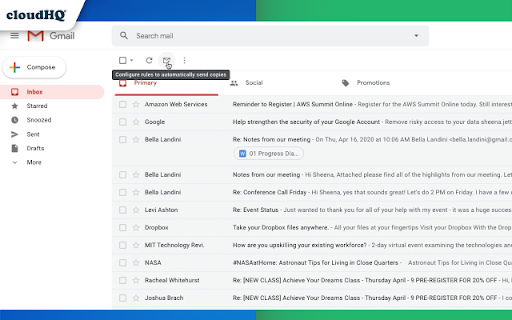

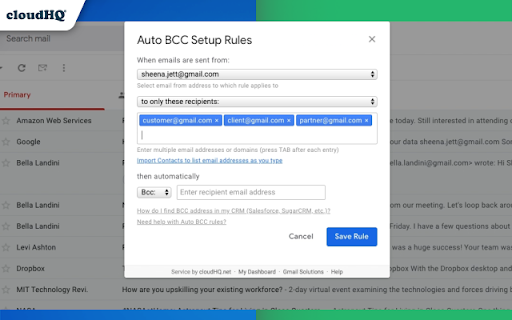

Setup automatic blind copies to your CRM or any other email address With the Auto BCC for Gmail by cloudHQ Chrome extension, you can automatically blind copy (or copy) specific people on specific emails so that you can rest assured that whoever should have a copy of your email, automatically does. ✅ Automatically CC or BCC another email address (like another one of your email addresses, your boss, your assistant, etc). ✅ Multiple rules based on your "from" email address: —Only email messages that you send from your professional email address will be CC or BCC'ed to an email address of your choice. ✅ Multiple rules based on your receiver's email address or domain: — Emails sent to certain contacts (for example, important clients) automatically have a CC or BCC included in your emails. ✅ Exclusion rules based on your receiver's email address or domain: — Emails that you send to your private contacts or internal company contacts do not get CC'ed or BCC'ed to anyone. ✅ Full support for Salesforce CRM, HubSpot CRM, and other major CRMs. Website: https://www.auto-bcc.com/ Pricing: https://www.auto-bcc.com//pricing Support page: https://support.cloudhq.net/category/browser-extensions/auto-bcc-for-gmail/ Blog: https://blog.cloudhq.net X: https://x.com/cloudhq Facebook: https://www.facebook.com/cloudHQ

Auto Follow Up for Gmail™ by cloudHQ
Automated follow up emails and mail merge Auto Follow Up for Gmail™ is a Google Chrome Extension that helps you follow up on your email emails. Just set up a sequence of emails to send to your recipients over time from your Gmail™. Let’s say you meet a lot of people at a networking event. You want to email all of them to explore opportunities, but it’s hard to follow up with so many people. Auto Follow Up for Gmail™ makes it easy to reach your clients. It automates the process for you with personalized emails to multiple contacts with just a few clicks. Auto Follow Up for Gmail™ has two methods to create auto follow-ups: ***Auto Follow Up on Your Emails*** Send an email as usual, then activate follow-up either during the sending (click on Gmail Auto Follow-Up under the send button) or after it’s sent by selecting the email in your Sent label and activating a follow-up template for this email. Follow-up templates specify intervals, email content, and whether to track clicks and opens. In other words, Follow-up templates define criteria and conditions under which additional emails will be sent and emails which will be sent. Example: You email an employee about a deal status. To ensure the email isn’t overlooked, activate a follow-up so if there’s no reply in two days, a follow-up email is automatically sent. This feature is great for managers, sales call follow-up, effective client communication, and more. ✅ Managers: Ensures timely communication by sending automatic reminders, like if there's no reply on a project status within a set timeframe. ✅ Sales Call Follow-Up: Increases conversion rates by maintaining persistent contact, such as resending proposal details to a client who hasn't responded after the initial sales call. ✅ Client Communication: ensure that important information requests are addressed promptly and not forgotten (e.g., reminding a client to send required documents). ***Auto Follow Up Campaigns*** Start the cloudHQ wizard, upload your recipient list, and set your follow-up rules and sequences. Follow-up rules determine the criteria and conditions under which additional emails will be sent. These rules can be based on various triggers, such as a recipient opening the initial email, clicking a link within the email, or not responding within a specified time frame. In addition, you need to establish your follow-up sequences, which are the series of messages that will be sent to recipients over a period of time. Example: You send an email campaign to 100 warm leads from a trade show offering to set up a demo of your product. When you send that campaign, you set it so that two days later, a follow-up email (a reminder) is sent to anyone who hasn’t replied. Three days after that, another reminder is sent, and a few days after that, a final email is sent asking for a reply. This approach is perfect for sales outreach for large number of recipient: ✅ Take advantage of all your opportunities and close more business. ✅ Save time and get more done with automated outreach emails to prospects. ✅ Always be visible to your clients in their inbox. 👉 Mail merge so that you can send out bulk email messages that look personalized. You can import recipient list and merge tags from Google Sheets, CSV or Google Contacts. 👉 Simple-to-set-up, automated email responses. 👉 Email tracking so that you know who read your emails, and when. 👉 Gmail email templates so that your emails can either be beautiful html-based templates, or just simple text-based templates. The choice is yours! 👉 Video email so that you can record yourself in an email via video so that you can "speak" to your audience. 👉 Screencasting so that you can demonstrate something on your screen. 👉 The ability to link back to your CRM, like Salesforce. All this, right from your Gmail™ account! There's no 3rd party website you'll need to learn or visit. Whether you're a: 👨🏾💼A busy professional, and you want to follow up with 40 new potential clients whose cards you just picked up at a convention last week. 👩🏫An overworked teacher that needs to schedule 75 parent/teacher conferences. 👨🏿⚖️A lawyer who needs to constantly remind his clients that they need to send their emails for discovery. 👩🏽💼A realtor who wants to send out her latest listing to your clients. 👨🏼🎓A job seeker who wants to make sure that they're automatically following up with recruiters. 👰🏻🤵🏽Or maybe you’re getting married and you need to remind 150 of your friends to RSVP. cloudHQ. Helping your productivity, 1 click at a time. cloudHQ website: https://www.cloudhq.net/ App website: https://www.gmail-auto-follow-up.com/ Pricing: https://www.gmail-auto-follow-up.com/pricing Support page: https://support.cloudhq.net/category/browser-extensions/gmail-auto-follow-up/ Blog: https://blog.cloudhq.net Demo: https://www.cloudhq.net/demo Google Workspace, Google Contacts, Google Sheets, Google Drive, Google Alerts and Gmail are trademarks of Google LLC. Use of this trademark is subject to Google Permissions.

Salesforce
Work with Salesforce records directly in your browser. Sales Cloud Everywhere lets you work on your to-dos, see engagement alerts, create records, and update multiple records. You can use it in your Gmail inbox, or in a standalone window alongside any web page. - Sell where you work: Move deals forward as you move around the web. - Access data anywhere: Bring context to every conversation. - Accelerate deals with real-time buyer data: Engage with people who want to engage with you. What you can do with Sales Cloud Everywhere: - Work with Salesforce directly in Gmail. - View, sort, and complete tasks like sending emails, reaching out on LinkedIn, and updating records, without returning to Salesforce.com. - Connect Salesforce to your Calendar and send calendar links, set availability, and more. - Get real time notifications of recent engagements as you browse the web. - Create and update records from within your Chrome web browser without leaving the current page. - Access and quickly update CRM records like leads, opportunities, and contacts. If you can’t access Salesforce via the extension, ask your Salesforce admin for help. Review the app’s terms of service: https://c1.sfdcstatic.com/content/dam/web/en_us/www/documents/legal/Agreements/software-order-form-supplements/gmail-integration-order-form-supplement.pdf

Sort Gmail Inbox by cloudHQ
Find an email in seconds with free preset filters Find an email in seconds with these free preset filters We know how much you hate having to spend time searching for email. We hate it too! No more searching for the emails you need to find quickly—have the most popular filters set up in your Gmail label area so that you can easily find what you need in seconds. With this free Chrome extension, you'll be able to sort your Gmail inbox by: ✅ Unread emails ✅ Contacts who you need to respond back to ✅ Contacts who need to respond back to you ✅ Received Date organized by year, month, or exact date ✅ A specific person ✅ A specific company, like anyone with emails that have the domain "@youtube.com" ✅ Attachment size, and attachment type, too (no more searching for your presentation when you're about to present!) You'll also be able to: ✅ Save your contacts' emails to a PDF doc for backing them up for safekeeping ✅ Save your contacts' emails in a Google Spreadsheet to view them easily as a report ✅ Set up SMS text alerts for when important contacts email you If you're looking for a way to methodically work through your emails, this is the most effective way to get through them in an organized way that will help you get your work done, lightening bolt fast. cloudHQ. Helping your productivity, 1 click at a time. cloudHQ website: https://www.cloudhq.net/ App website: https://www.sort-gmail-inbox.com/ Pricing: https://www.sort-gmail-inbox.com/pricing Support page: https://support.cloudhq.net/category/browser-extensions/sort-gmail-inbox/ Blog: https://blog.cloudhq.net Demo: https://www.cloudhq.net/demo Google Workspace, Google Sheets, Google Drive, Google Alerts and Gmail are trademarks of Google LLC. Use of this trademark is subject to Google Permissions.

Gmail Message Preview by cloudHQ
Do you want to be able to see your emails quickly, without having to actually open them? Now, instead of just reading the subject headline of your emails, Gmail Message Preview lets you preview your emails in 4 different ways. You can preview your inbox emails without actually opening them with the following choice of views: ✔️ 1st line of your email ✔️ First 2 lines of your email ✔️ First 3 lines of your email ✔️ Entirety of your email This lets you quickly scan your emails without ever even clicking on them. And Gmail Message Preview by cloudHQ will never trigger "tracking pixels" - we will block *ALL* tracking attempt during previewing an email. cloudHQ. Helping your productivity, 1 click at a time. cloudHQ website: https://www.cloudhq.net/ App website: https://www.gmail-message-preview.com/ Pricing: https://www.gmail-message-preview.com/pricing Support page: https://support.cloudhq.net/category/browser-extensions/gmail-message-preview/ Blog: https://blog.cloudhq.net Gmail and Google Workspace are trademarks of Google LLC. Use of these trademarks is subject to Google Permissions.
