
bcikapbfiaeidokloagofmknmaolfpjp

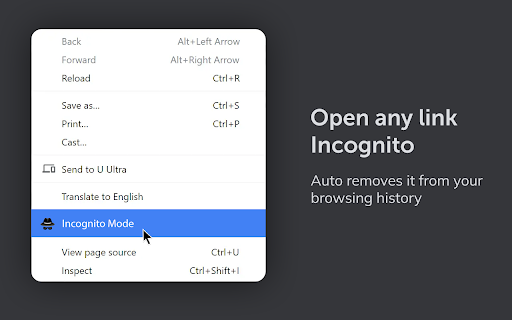
Incognito mode for Chrome extension opens current tab in an incognito mode Incognito mode for Chrome browser extension will help you to open the current tab in an incognito mode and remove it from your browsing history. The Incognito Mode for Chrome browser extension offers several useful benefits: - Privacy and Anonymity: When you open a tab in incognito mode using the extension, your browsing activity in that tab is not recorded in your browsing history, and cookies and site data from that session are deleted after you close the tab. This ensures a higher level of privacy and anonymity as your browsing habits and sensitive information won't be stored on your device. - Temporary Sessions: Incognito mode allows you to create temporary browsing sessions separate from your regular browsing. This can be helpful when you want to access a website without leaving any traces, especially if you are using a public or shared computer. - Avoiding Autofill Conflicts: Incognito mode prevents the browser from using your stored autofill data, such as passwords and usernames. This is useful when you want to log in to a different account on a website without encountering conflicts with the data saved for your regular browsing session. - Testing and Debugging: Web developers often find incognito mode useful for testing websites without any cached data interfering. It ensures that they are viewing the most up-to-date version of a webpage and helps them identify potential issues that may arise for new or first-time users. - Research and Sensitive Topics: When conducting research on sensitive or personal topics, using incognito mode can help avoid personalized search results and suggestions. It reduces the risk of biased or targeted information being displayed based on your previous browsing habits. - Preventing Tracking: Incognito mode can be effective in reducing the extent to which websites and advertisers can track your online behavior. While it doesn't provide complete anonymity or protection from all tracking methods, it does limit the amount of data collected during that specific browsing session. - Guest Browsing: If you're sharing your device with someone else, using the Incognito Mode extension allows them to browse without accessing your bookmarks, passwords, and other saved data. Once the incognito tab is closed, all browsing activity in that session is discarded.

Incognito This Tab For Chrome
Open current tab in an Chrome incognito Mode. Press Alt+O Chrome hidden mode Do you want to use the Internet privately? To make sure Google Chrome doesn't save your browsing history, use incognito mode. Do you want to use the Internet privately? To make sure Google Chrome doesn't save your browsing history, use incognito mode. Start utilizing the incognito mode on Google Chrome right now. To safeguard your privacy when using Google Chrome to browse the Internet, install Incognito This Tab For Chrome. To make sure your browser history isn't saved on the machine, use Google Chrome incognito. It is simple to use; all you have to do is click the program icon to open the webpage in incognito mode. This guarantees that the webpage you are on will not appear in a list of websites you have visited. To start Chrome incognito, use our app. This ensures your privacy is protected and lets you browse privately with Chrome.

Incognito Launcher
Open your current tab or highlighted tabs in an incognito or normal window in Just-One-Click. Incognito Launcher is an easy to use extension that opens your current tab in an incognito (private browsing). It's simple! - To open your normal tab in an incognito window: Click on the extension icon in a regular window and your current tab is opened in an incognito window. - To revert back to your normal tab: Repeat the above process in an incognito window and it is opened into a regular window. Short cut: "Ctrl + Shift + Right" for window and "Command + Shift + Right" for mac. To enable this extension on Incognito window, Follow this steps here: https://www.thewindowsclub.com/enable-extensions-in-incognito-mode-on-google-chrome

Search in Incognito
Initiate searches in Google Incognito mode directly from the context menu for any selected text. Search in Incognito offers a swift and private way to search the web directly from any webpage you’re browsing. By enabling you to instantly search for highlighted text in Google using Incognito mode, it ensures your searches remain confidential and your browsing experience seamless. Key Features: - Enhanced Privacy: Initiate searches in Google Incognito mode directly from the context menu for any selected text, keeping your search activities private. - Simple and Intuitive: Avoid the hassle of manual steps to search in privacy. With just a right-click, transform your browsing experience into one that prioritizes convenience and efficiency. - Efficient Access: Utilize the custom context menu item “Search Google for ‘%s'” to start your private searches without interrupting your browsing flow. - Minimalist and Fast: Designed to operate discreetly in the background, our extension is lightweight, ensuring that your browser’s performance remains optimal. How to Use Search in Incognito: - Install the extension from the Chrome Web Store. - Highlight text on any webpage that you wish to search. - Right-click the selected text and choose “Search Google for ‘%s'” from the context menu. - An Incognito window will instantly open with your Google search results, maintaining your privacy. Privacy is a necessity in the digital era. Whether you’re conducting sensitive research, planning a surprise, or simply prefer keeping your searches to yourself, Search in Incognito is your go-to tool for maintaining online privacy. It offers an effortless way to ensure your search queries don’t influence future search suggestions or saved history.

Open Tab in Incognito
Shortcut to open an incognito tab when you click the extension icon or right click on page 🕵️♂️ Take Control of Your Browsing Privacy with Ease "Incognitab" extension allows you to open any webpage in incognito mode, keeping your activity private and deleting URLs from history with a single click. Whether you need to open a tab in incognito or open an incognito window, this extension makes it effortless to browse without leaving any traces such as cookies, cached files, or browsing history. Perfect for situations where privacy is essential or when you’re troubleshooting web issues caused by stored data or cookies. 🔑 Key Features: 🖱️ Right-Click to Open in Incognito: Quickly right-click anywhere on a webpage and select "Open in Incognito Mode" to open the current tab in an incognito window. This ensures no old data or cookies interfere with your browsing, and your history is automatically cleared. 🖲️ Toolbar Icon for Fast Access: Need to switch to incognito quickly? Click the toolbar icon, and instantly open the active tab in incognito mode without any extra steps. No need to navigate settings—just one click for incognito browsing. 💾 Delete URL from History: When you open a window in incognito using this extension, the regular browsing history is automatically cleared for that URL. Your online footprint is minimized, offering enhanced privacy. 🌟 Why Use This Extension: - Privacy: Use this extension to open incognito tabs for private browsing when dealing with sensitive information or browsing personal accounts. - Troubleshooting: IT experts recommend incognito mode to bypass web issues like outdated cookies or cached files. Use the extension to get a fresh, clean version of any website. - No History Left Behind: This extension doesn’t just open tabs in incognito mode - it also ensures that the URL is immediately removed from your regular browsing history, ensuring that no trace is left behind. 🛠️ How to Use It: 1️⃣ Install the extension from the Chrome Web Store. 2️⃣ Right-click on any webpage and select "Open in Incognito Mode" to instantly open the page in a private window. 3️⃣ Alternatively, click the toolbar icon to open the active tab in incognito mode, ensuring no history or data is saved. 4️⃣ Delete URL from History: The extension automatically removes the URL from your regular browsing history when you open the page in incognito, making sure your private browsing remains truly private. 🤔 Frequently Asked Questions (FAQ) Q: How do I open a tab in incognito mode using this extension? A: You can either right-click on any webpage and select "Open in Incognito Mode" or click the extension's toolbar icon to instantly open the active tab in an incognito window. Q: Does this extension delete URLs from my browsing history? A: Yes, when you open a window in incognito mode using this extension, the URL is automatically deleted from your regular browsing history, ensuring maximum privacy. Q: Why should I use this extension instead of the standard incognito mode? A: This extension simplifies the process by allowing you to quickly open incognito tabs directly from the page you’re on, without navigating through menus. It also has the added benefit of deleting URLs from your history automatically. Q: Can I use this extension to open internal browser pages like settings in incognito? A: No, internal pages like chrome:// or about:// cannot be opened in incognito mode for security reasons. When an internal page is detected, the extension will redirect to google.com in incognito. Q: Is there a keyboard shortcut for opening a tab in incognito mode? A: Currently, this extension supports right-click and toolbar icon clicks for quickly opening incognito windows. Keyboard shortcuts are not yet implemented. Q: Can I customize the behavior of the extension? A: At present, the extension automatically deletes URLs from history and opens incognito windows as described. Additional customization options are planned for future updates.
