
bbjmhdblcdjldehbejghglfepbjcmeia
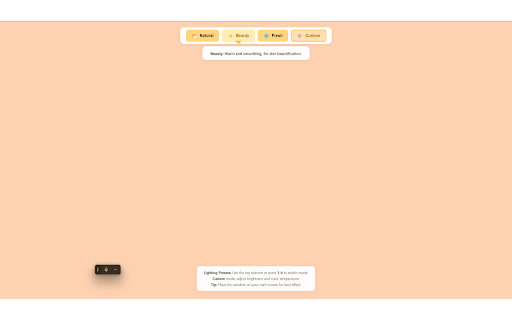


A floating, adjustable screen lighting window for webcam enhancement during video calls and live streaming. Screen Lighting for Webcam is a Chrome extension that provides a virtual fill light for your webcam. Features: - Multiple lighting presets: Natural, Beauty, Fresh, and Custom. - Adjustable brightness and color temperature in Custom mode. - One-click full screen lighting for video calls, streaming, and selfies. - Keyboard shortcuts for quick mode switching. - No user data collection, no ads. How to use: 1. Click the extension icon to open the lighting window. 2. Choose a preset or customize your lighting. 3. Place the window on your main screen for best effect. Tip: Use the Custom mode to fine-tune brightness and color temperature for your environment.

Screenshot & Screen Video Recorder
An effective screenshot and screen recording tool to quickly share screens and capture entire pages and edit. Capture, record, annotate and instantly share screenshots and videos to communicate faster. Uploads any of your captured content as a public or private shortlink URL that makes it easy to show your team, customers, or friends what you're trying to say. 🎥 Screen Recorder ᐅ Desktop Recorder You can record anything you want on your desktop, such as every video you watch, every game you play, every software you operate, or every courseware you make can be recorded and saved in HD. ᐅ Browser tab page Recorder It can accurately capture the specified window in the browser, does not affect your browsing other pages or work, to provide you with more accurate screen recording experience. ᐅ Camera Recorder It can not only record the camera alone, but also enable the camera when recording the desktop/browser window to achieve a "picture in picture" recording effect, making your video more colorful. ᐅ Voice Recorder Supports recording system sound, microphone sound, or both. You can choose freely. ᐅ Annotation video A variety of graphic annotation tools are provided to mark and annotate the recorded video at any time. ᐅ Capture Full Page No matter how long the page is, you can turn the page into a picture for easy editing and sharing. ᐅ Capture Visual Area Quickly capture the viewable area of the current browser page. ᐅ Capture Selected Area Drag and drop to capture anything you want. ᐅ Edit the screenshots Powerful annotation tools to annotate captured images, such as boxes, circles, arrows, free brushes, highlights, paint, etc. ᐅ Save screen capture Multiple save options, you can save screenshots as PDF, PNG and JPEG, or copy screenshots to clipboard Use the our extension to better and faster express your thoughts to friends and colleagues. To reduce browser load and conserve resources, the extension uses chrome.tabs.update to avoid creating new tabs every time the extension needs to open a page. Furthermore, chrome.tabs.update allows the user tab to be updated after changes to the extension—for example, when the interface needs to be refreshed or the latest data needs to be displayed. Help us make this product better - inform detailed bugs and feature requests in the Support section or email.

Edge Light for Chrome
Add a clean, adjustable Edge Light around any tab to brighten your face on camera. Perfect for calls, webinars, and recordings. Edge Light adds a soft, adjustable light frame around your browser tab. It works like a lightweight “screen ring light”: by increasing the light coming from your display, it helps your webcam capture a brighter, cleaner image—especially in dim rooms. ✅ No additional hardware required — no ring lights, lamps, or desk setups. Just enable Edge Light and tune it to your environment. Why low light makes webcams look worse (and why Edge Light helps) Most laptop and webcam sensors struggle in low light. When there isn’t enough light, the camera has only a few options—and all of them reduce quality: - Longer exposure time (slower shutter): the camera keeps each frame “open” longer to gather light. Result: motion blur and smearing when you move or talk. - Higher gain / ISO (digital amplification): the camera boosts the signal to make the image brighter. Result: more grain/noise, color banding, and “muddy” details. - Lower frame rate (FPS) in auto mode: many webcam pipelines reduce FPS in low light to allow longer exposures. Result: choppy video, laggy motion, and worse perceived quality in calls. Edge Light increases the amount of light hitting your face before the camera captures the frame. That means your webcam can keep: - shorter exposure (less blur), - lower gain (less noise), - higher FPS (smoother video), resulting in a more natural and professional image. Key features - Edge Light overlay for any tab — adds a bright frame around your active page - Adjustable brightness & width — from subtle fill light to stronger illumination - Color temperature control — warm / neutral / cool tones to match your room lighting - One-click toggle — enable/disable instantly from the toolbar - Lightweight & distraction-free — stays at the edges so it doesn’t block your content - Privacy-friendly — no accounts, no recording, no tracking Best for - Low-light meetings (evening calls, dark rooms) - Interviews and sales demos - Online teaching & tutoring - Webinars and remote workshops - Quick recordings without setting up lights When enabled, the extension renders a border overlay around the current tab using browser UI elements. This increases the screen’s luminance near your face, effectively acting as a constant light source during the call. Because it’s a display-based light source: - it works with any in-browser meeting platform, and - it improves quality regardless of the video app you use, since the improvement happens in the real world (more light reaching the camera sensor). Tips for best results - Set your monitor to a comfortable higher brightness. - Use neutral or warm color temperature for natural skin tones. - Keep the frame width moderate—enough to brighten your face without being distracting. - For the strongest effect, sit closer to the screen and face it directly. Notes Edge Light is designed to improve lighting conditions, but results vary depending on your screen brightness, webcam quality, and room setup. It does not access or modify your camera stream—its goal is to improve the lighting your camera sees.

Live Screen Recorder
Effortlessly Record Your Screen with the Live Screen Recorder Browser Extension Are you looking for an easy way to record your screen and create engaging videos? Look no further than the Live Screen Recorder browser extension! With the Live Screen Recorder, you can easily record your desktop screen or a single tab in your browser. You can also add your webcam video and microphone audio to your recordings, making them more personalized and engaging. And if you only need to record your webcam and microphone, the Live Screen Recorder has got you covered! We support both mp4 and webm formats, making it easy for you to share your recordings with others. And the best part? The Live Screen Recorder is available for free, so you can start using it right away without any hassle. Features: * Record a desktop screen or a single tab * Add webcam video and microphone audio * Record just webcam and microphone * Supports mp4 and webm formats * (Beta) Blur sensitive fields while recording For whom: * Teachers: Can easily record online lectures, tutorials, and presentations with the Live Screen Recorder, making it easier to connect with students and provide more engaging learning experiences. * Developers: Can record their screen to create tutorials and share their expertise with other developers, helping to improve the quality of their work and facilitate collaboration with others. * Designers: Can record their screen to showcase their design process and share their ideas with others, making it easier to collaborate with clients and colleagues. * Video professionals: Can use the Live Screen Recorder to create high-quality videos with screen recordings, webcam video, and microphone audio, helping to improve the production value of their work. So why wait? Try the Live Screen Recorder browser extension today and take your content creation to the next level!

Screen & Webcam recorder - Flonnect
Allows Screen Recording from your Webcam and Desktop Record your screen or camera along with your audio. This extension supports all types of screen recordings for free with unlimited usage. ✅Free to Use ✅No Watermark ✅No Lag screen recording ✅Unlimited Usage ✅Includes audio recording with Webcam ✅Easy to share the video link with teammate ✅Annotate video while recording Note: Please update your browser to the latest version and grant the permissions to record your screen and audio. Install the Screen recorder chrome extension to capture screen video. It offers multi features such as >>Simple Screen Recorder >>Reaction camera or webcam recorder >>Screen & Webcam recorder (With Picture in Picture Display) Here is how to use Screen Recorder Extension: >> Click on the Extension icon >> Then select one of the 3 options of screen recording >> You can choose to record audio or disable it >> Grant the permission to record your screen and mic options >> Tap on the record button and it will start the recording >> Later download the file or view the recording it in the active tab Supported Screen Recorder types: ✅Entire Full Screen of Desktop ✅ Single Tab ✅ Active browser Special gratitude to roOt_d3viL for continuous testing the product. The Screen Recorder Extension is ideal for professionals, educators, and anyone needing a reliable tool for capturing screen content. With added benefits like quality control settings, multi-part uploads for faster video handling, and features like trimming and transcription, your screen recording experience is elevated to new heights. Perfect for tutorials, presentations, or just sharing ideas, the Screen Recorder Extension is your go-to tool for all screen capture needs. Install now to revolutionize the way you record and share content! What’s New in the Latest Versions: • Version 7.5.1-7.6.0: Added backup option for offline users. • Version 7.4.0-7.5.1: Added a dev mode for easy bug reporting and integration with tools like jira. • Version 7.3.11-7.4.0: Black friday integration • Version 7.3.11-7.3.12: Camera integration with presentation mode. • Version 7.3.8-7.3.11: Seo optimized sharing link • Version 7.3.7-7.3.8: Added one click integration with github pull request page. • Version 7.3.5-7.3.7: Added one click integration with gmail and gmeet. • Version 7.3.0-7.3.5: Increase performance of video uploading api. • Version 7.2.2: UI/UX enhancements for a more intuitive experience. • Version 7.2.1: Resolved bugs for a smoother operation. • Version 7.2.0: Introduction of the VP9 codec, ensuring high-quality 1080p video recordings. • Version 7.1.3 - 7.1.1: Fixes for downloading and uploading issues, along with video compression for smaller file sizes and Mac-specific bug resolutions. • Version 7.1.0: Major UI/UX overhaul, workspace features, and collaborative functions. • Version 7.0.0 - 7.0.4: From movable camera features to annotation tools and bug fixes – a series of updates to refine your recording experience. • Version 6.0.0: Auto-upload and video redirection enhancements for a more efficient workflow. • Version 5.2.0 - 5.1.1: Offline storage for recent videos, multi-part uploads for increased speed, and auto-generated thumbnails for a better library overview. • Version 4.1.0 - 4.1.3: Crucial bug fixes in screen recorder functionality and multiple video uploads. • Version 3.1.1 - 3.0.0: Quality control options and link generation for easy video sharing. • Version 2.0.1 - 2.0.3: UI/UX improvements and chrome tab audio capture options. • Version 1.0.2 - 0.0.1: Foundational features including webcam recording, improved UX, multi-language support, and initial bug fixes. Make your virtual communication as efficient and effective as possible. Get the Screen Recorder Extension today and transform your screen captures into powerful tools of engagement.
