
babblknbggnkbadcnoeoendifjkbkflj

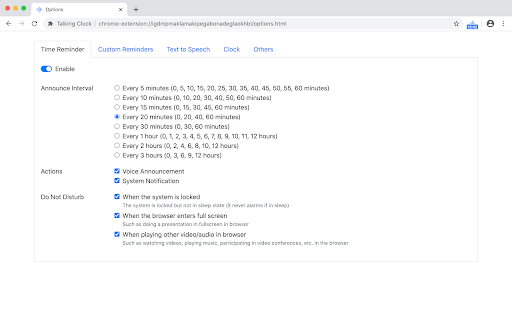


Announce the time periodically, set custom recurring reminders and display time. Talking clock provides time reminder and custom reminder functions, suitable for time and periodic task reminders in daily work and life. It can also display date and time. Reminder methods include voice announcement and system notifications. This extension is especially suitable for people who often work for a long time with desktop computer, such as writers, programmers, and people who work remotely or indoors. • Time reminder helps to manage the time while focusing on the work. • Custom reminders are suitable for periodic daily affairs, such as "Remind me to have lunch at 11:30 every day". 1. Time Reminder It announces the time periodically by voice engine and/or system notification. The time interval can be set in the options of the extension: 5 minutes / 10 minutes / 15 minutes / 20 minutes / 30 minutes / 1 hour / 2 hours / 3 hours. In addition, there are several DnD(do not disturb) settings which enabled by default, such as don't remind me time if the browser is in full screen or playing video. 2. Custom Reminder Users can add custom reminders. Supported reminder types include: • Only once: only reminds on a specific date. • Daily reminder: reminder at one or more time every day. • Weekly reminder: choose one or more days from Monday to Sunday. • Monthly reminder: choose one or more days from the 1st day to the last day every month. • Annual reminder: choose one or more days every year, such as "Birthday reminder". All types can set one or more reminder time on the reminder day. In this way, on the one hand, it can meet the needs of multiple reminders in one day for one thing. For example, "Remind me to take medicine three times (in the morning, noon and evening) every day", just create a daily reminder, which sets three reminder time. On the other hand, multiple reminder time can be set for important things to avoid missing it. 3. Clock The popup page displays current time and date by clicking the extension icon. In addition, the extension icon itself can also display the time (not enabled by default). In the options for clock settings, you can set: • Display analog clock or digital clock. • Whether to display seconds. • Whether to display the date. • Whether to display the time on the extension icon. 4. Other In the extensions keyboard shortcuts settings(chrome://extensions/shortcuts), you can set shortcuts for displaying the time and announcing the time. About Reminder Methods You can use one or both of two reminder methods: • Voice announcement: announce the time or custom content by Text-to-Speech engine. • System notification: send a desktop notification. The voice announcement will make a sound, so it may not be suitable for everyone. In addition, if you forget to turn on the speaker or the volume is too low, you will not hear it. System notification may also be missed if it disappears automatically. So: • System notification for time reminder will automatically disappear after a few seconds, because it's not very important. • Custom reminders are more important than time reminder. So to prevent missing it, system notification for custom reminders will disappear automatically after one minute by default, not a few seconds. You can set this behavior for each custom reminder separately. In summary, voice announcements and system notifications can complement each other to avoid missing reminder. About Text-to-Speech (TTS) TTS includes the TTS provided by the operating system and the remote TTS provided by the browser. The former can be adjusted in the operating system settings, while the latter depends on the network connection. The operating system comes with a general voice effect, it is available offline; the voice provided by the browser is usually better, but it requires network connection. TTS is used by time reminder and custom reminders. In the extension options, you can set TTS voice. Each voice usually only supports text in one language, and may not read text correctly in other languages. How to open extension options? • Right-click the extension icon, then click Options. • Click the extension icon, move the mouse to the popup page, then click the setting icon in the upper right corner. This extension is not an alarm clock It is suitable for daily affairs, but it is not an alarm clock. For example, if you want to catch a plane or get up early, please do not rely on this extension. Because the extension cannot issue a reminder when you exit the browser or when the computer goes into sleep. So it is not suitable for very important things. Note: due to a browser restriction, reminders/notifications may be delayed for a little time (less than 1 minute).

Just a Clock - the Hours
A simple digital clock for the toolbar. This is JUST THE HOURS. Pair with the minutes for an awesome readable clock in your toolbar! Just a clock, in your Chrome toolbar; Nice and big and simple. There are 2 extensions, one for the Hours and one for the Minutes. I built this because I usually have a full screen app/game/video going on my main monitor and can't see the clock. My browser is usually on my 2nd monitor and now I can always see the time at a glance! This is JUST THE HOURS (12 or 24 hour modes available) and meant to be paired with the "Just a Clock - The Minutes" extension in your toolbar and positioned to its LEFT. Remember to also install the MINUTES: https://chrome.google.com/webstore/detail/pgmgkfgcnigcopcjhilfabbdgmjmkogj -- Now with 24 hour support because you asked for it! -- And Desktop Notifications upon the hour can be turned on in Options -- Also, white numbers for dark themes are available in Options If you like it please let me know in the comments. If you have any suggestions or requests please also let me know.

Talking Calendar Reminder
Talking Calendar Reminder is an A.I based Chrome Extension that utilizes voice to remind you of upcoming meetings, events and to do lists. • It reads relevant information directly from both Google Calendars and Microsoft Outlook Calendars without any additional configuration steps from you. • Once the Talking Calendar Reminder extension is installed and open, it will speak out loud the reminders 15, 10, 5 minutes before event starts and speak out when time comes. • It is ideally suited for busy professionals who work in office and with computers and who never want to miss any important meetings ever again. • Instead of hearing those simple and boring doorbell sound, now you can enjoy listening to a personal voice that speaks to you in a meaningful way. We are Microsoft Partner and verified by Google. For more information and how-to videos, please visit us at https://talkingcalendarreminder.com. Thank you and hope this extension will be helpful to your life.

Just a Clock - the Minutes
A simple digital clock for the toolbar. This is JUST THE MINUTES. Pair with the hours for an awesome readable clock in your toolbar! Just a clock, in your Chrome toolbar; Nice and big and simple. There are 2 extensions, one for the Hours and one for the Minutes. I built this because I usually have a full screen app/game/video going on my main monitor and can't see the clock. My browser is usually on my 2nd monitor and now I can always see the time at a glance! This is JUST THE MINUTES and meant to be paired with the "Just a Clock - The Hours" extension in your toolbar and positioned to its RIGHT. Remember to also install the HOURS: https://chrome.google.com/webstore/detail/agglgohcegmeeaccikjfmehncfomccpg -- Now with High Res images! -- White numbers for dark themes are available in Options If you like it please let me know in the comments. If you have any suggestions or requests please also let me know.

Toolbar Clock
Stylish analog clock in your browser toolbar. Toolbar Clock is a browser add-on that renders a stylish analog clock in the toolbar popup and also a simple analog clock as the toolbar icon. To see the clock, please click on the toolbar icon to open the popup. There are few settings at the bottom of the UI to adjust the clock. There is also a reload button to refresh the clock UI in case an unexpected error happens. Please note that this add-on does not have any options or settings to adjust. All you need is available in toolbar popup UI. If you want to report a bug or have a feature request, please fill the bug report form in the add-on's homepage (https://mybrowseraddon.com/toolbar-clock.html).
