
aopalbcoagealahnbgbbjoojblffdpgi
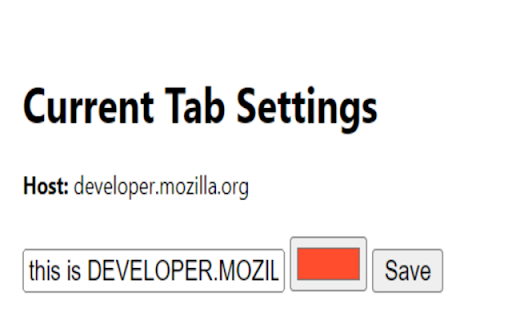
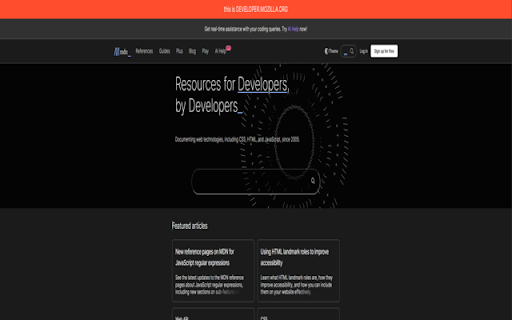
This Chrome extension displays a custom message and color bar at the top of the screen based on the host of the open web page.… This Chrome extension displays a custom message and color bar at the top of the screen based on the host of the open web page. Users can set messages and colors for specific hosts, and these settings are automatically applied. If no message is set for a host, the bar will not be displayed. This extension is a useful tool for easy management and identification of web pages.

Tab Colorizer Pro
Tab Icon colorization with persistence, domain-specific colors, and overlay modes. Pro subscription required. Color-code similar tabs so you can tell them apart instantly. If you work with multiple tabs that all look the same — docs, dashboards, tickets, or reports — finding the right one shouldn’t slow you down. Tab Colorizer Pro lets you assign bright, customizable colors to an individual tab's icon so you can recognize them at a glance. No more clicking through identical tabs with identical icons. Just look for the color and keep moving. ✨ What it does • Color individual tab icons in one keyboard shortcut • Keep colors persistent across sessions • Use URL pattern-based coloring for consistency • Highlight important tabs with overlay modes • Lightweight, fast, and privacy-first 📌 Especially helpful if you work with: • Google Docs or Sheets • Jira tickets or project boards • Dashboards or internal tools • Research papers or reports • Multiple environments or accounts Make your browser easier to scan, easier to think in, and easier to work with.

Multi Color New Tab
A Multi Color Palette With Every New Tab. Multi Color New Tab fills your new tabs with amazing color palette backgrounds, randomly selecting a palette each time you open a new tab. Spice up your new tabs with this simple extension. By clicking "add to Chrome", I accept and agree to installing the Multi Color New Tab extension and setting Chrome New Tab search provider to Microsoft Bing as described by the service in the Terms of Use and Privacy Policy. ToS: https://color-newtab.com/terms-and-conditions PP: https://color-newtab.com/privacy-policy The extension replaces your New Tab search engine and provides a new search experience with search results by Microsoft Bing.

Tab Domain Highlighter
Activate this extension to automatically highlight domains with colors across your open tabs with just one click. Lost your place in the middle of a bunch of opened tabs? Presenting Tab Domain Highlighter – a browser extension to help improve the way you work with tabs and your overall browsing experience. With this extension, you can color each domain in the open tabs with a different hue just by a single click. This separation of the visual interface renders it rather easy to distinguish and differentiate between various websites, without consuming unnecessary time and energy. Instant Highlighting: In a rather simple and natural manner, you can easily highlight domains in your tabs. Color Coding: The color code is used where each domain is given a different color that makes it different from other domains. One-Click Activation: Intuitive design of the program and the options enables the quick start. Improved Organization: Stay organized and minimize the number of your tabs opened to make it easy to navigate. 1: Install the Extension •Go to the browser’s extension section and download “Tab Domain Highlighter” from the list by clicking on the install button •However, to support the claims presented in this paper, the Extension needs to be activated. •After the installation process is complete, you will be able to see the icon of Tab Domain Highlighter in the upper part of the page of your browser, so you need to click on it to run the extension. •Once you have the extension activated, click on the Tab Domain Highlighter again to highlight the domain names of the tabs currently open. In this project, each domain is going to have its own color differentiation. 3. Manage your Tabs •Most of the time, I am using multiple tabs to browse through different sites, thus the need to learn how to manage tabs. •This is because with color-coded tabs, the user can easily identify and manage his tabs in relation to the domain names they belong to and enhance the efficiency of his browsing. Who Can Find Useful Information? Tab Domain Highlighter is a tool that can benefit any user who works with tabs on a regular basis. From a student perspective, they will be able to organize educational resources that they may need in their studies, working professional will be able to organize work-related tabs, developers can easily organize different environments they may be working on a general web browsers users will also be able to organize the tabs in a much better way. The Tab Domain Highlighter organizes the tabs by color-code to make it easier to know which domains are included. It increases productivity since there will be less time spent looking for the tabs we have opened. It means that the given colours are distinguishing and help to avoid confusion while adding pleasure to the process of browsing. In this manner, with a single click, you can successfully enhance your browsing routine and sort the information received. 1.What is the process I need to follow to install Tab Domain Highlighter? These include Go to your browser’s extension list and look for “Tab Domain Highlighter” then click install. 2.Can you tell me how to enable this extension? Once installed, in the browser's toolbar, click on the Tab Domain Highlighter icon to start using the application. 3. Is it possible to change the color for every domain? This is the current state of the extension; it uses default colors for each domain and does not allow for individual configuration. 4. I am asking this because I want to know if Tab Domain Highlighter will affect the speed of my browser in any way. No, Tab Domain Highlighter is a very light add-on and should not slow down your browser in any way. 5. What should I do when the extension is not working? It may be helpful to try to clear your cache and cookies, or to close and open your browser again, and to reinstall the extension. If problems still exist, look up the extension’s support page for ways to solve them.

Mark tab manager
Mark is a minimalist tab manager that organizes tabs as you browse. With Mark, tabs are automatically grouped by domain and sorted alphabetically so you can easily find them later. Mark uses the native tab groups feature of Chrome, meaning there’s no learning curve to get started. Simply install Mark and any open and newly created tabs will be grouped and sorted. Mark can be configured to only group tabs or only sort tabs depending on how you like to browse. Additionally, you can enable Mark to consolidate tabs across windows - meaning you won’t lose a tab because it’s hiding in its own window. You can pin the extension to your browser toolbar by clicking the puzzle looking icon located in the top right of your toolbar, scrolling down to Mark, and clicking the “Pin” icon. Pinning the icon makes it easily accessible for clicking to manually organize tabs in cleanup mode, which will collapse any open groups. Change one of the configuration settings by right clicking on the Mark extension icon, navigating to the “Settings” menu, and toggling one of the settings. Depending on the way you would like to browse, customizing some things could make for an even better experience. If you find yourself more curious about how Mark works or what other options and functionality are available, visit the “Resources” menu at any time by right clicking the Mark extension icon.
