
alkcnclapbnefkodhbkpifdkceldogka
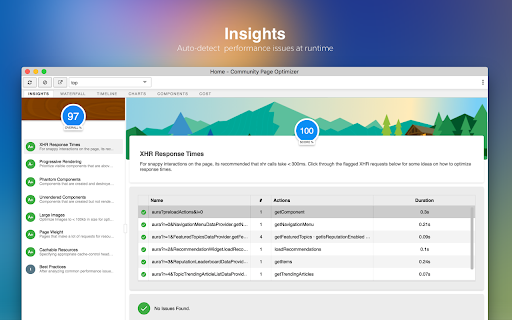


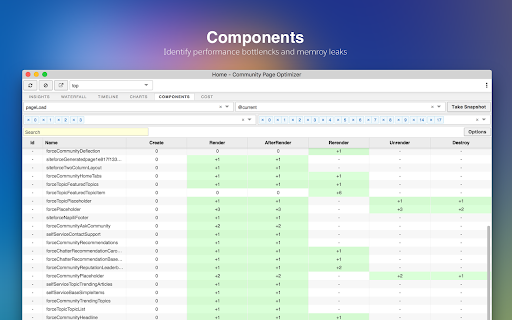
Analyze, debug, and improve the performance of your Lightning application (Developer Preview) The Salesforce Page Optimizer (Developer Preview) analyzes your lightning based community/apps and identifies performance optimization opportunites. Use the information to refine your design and improve performance for your members. Installation and usage of this extension is covered by the EULA: https://secure2.sfdcstatic.com/assets/pdf/misc/salesforce-community-eula-ofs-page-optimizer.pdf Check out the Settings > Privacy page for more information on what data is gathered/used by this extension.

Boostr for Salesforce
Boost your admin and developer productivity on Salesforce.com with Boostr! Boost your admin and developer productivity on Salesforce.com with Boostr! Current features include: - Ability to search when adding items to a change set - Filtering by type when adding to a change set - Showing all items of a given type on one page when adding to a change set - Adding checkbox to table header in admin area to check and uncheck all items in that column - Displaying the API Name next to field names when editing a field set - Using Pascal Case for the API Name when creating new objects and fields - Preventing the placeholder text from filling in the setup area sidebar - Display number of selected fields on field history tracking page - Ability to uncheck all page layouts by default when creating a new field. - Convert Salesforce Id's from the app's popup menu. - See additional system overview stats. - Select Failed Tests to re-run in the Apex Test Execution page with the click of a button! If you have a feature request or any feedback, tweet me @mattsimonis

Lightning Studio
Build Salesforce LWC development easy and fastest. 💻 𝑯𝒐𝒘 𝒕𝒐 𝑼𝒔𝒆 𝑳𝒊𝒈𝒉𝒕𝒏𝒊𝒏𝒈 𝑺𝒕𝒖𝒅𝒊𝒐: ● Log in to Salesforce and click the Lightning Studio icon located in the browser’s top-right corner (Standard Chrome extension toolbar). ● Wait for the icon to turn blue, indicating it’s ready to use. ● For first-time installations, refresh the page before accessing the extension. 🔎𝑭𝒆𝒂𝒕𝒖𝒓𝒆𝒔:───────────────────────────────────────────────────── ✔ 𝐑𝐚𝐩𝐢𝐝 𝐃𝐞𝐯𝐞𝐥𝐨𝐩𝐦𝐞𝐧𝐭: Build and manage Lightning Web Components (LWC), Aura Components, Apex Classes, Lightning Message Service (LMS), and Lightning Types from a single interface. ✔ 𝐅𝐢𝐥𝐞 𝐌𝐚𝐧𝐚𝐠𝐞𝐦𝐞𝐧𝐭: Create and maintain individual files for LWC, Aura, and Lightning Type components with ease. ✔ 𝐃𝐞𝐩𝐥𝐨𝐲𝐦𝐞𝐧𝐭 ⁽ᵇᵉᵗᵃ⁾: Deploy Salesforce metadata using package ZIP files for controlled and reliable deployments. ✔ 𝐁𝐚𝐜𝐤𝐮𝐩: Download selected components, folders, or full metadata backups as ZIP files. deployments. ✔ 𝐂𝐨𝐝𝐞 𝐅𝐢𝐧𝐝𝐞𝐫: Search across LWC, Apex, and Aura code from one place. ✔ 𝐆𝐫𝐚𝐩𝐡𝐐𝐋 𝐄𝐱𝐩𝐥𝐨𝐫𝐞𝐫: Execute and test GraphQL queries directly within Salesforce. ✔ 𝐑𝐄𝐒𝐓 𝐀𝐏𝐈 𝐄𝐱𝐩𝐥𝐨𝐫𝐞𝐫 ⁽ᵇᵉᵗᵃ⁾: Test and run Salesforce REST APIs through an intuitive interface. ✔ 𝐀𝐧𝐨𝐧𝐲𝐦𝐨𝐮𝐬 𝐀𝐩𝐞𝐱 ⁽ᵇᵉᵗᵃ⁾: Run Apex code anonymously and review execution results with detailed debug logs. ✔ 𝐒𝐎𝐐𝐋 𝐭𝐨 𝐆𝐫𝐚𝐩𝐡𝐐𝐋: Seamlessly convert SOQL queries into GraphQL format. ִ✔ 𝐂𝐨𝐝𝐞 𝐂𝐨𝐦𝐩𝐚𝐫𝐢𝐬𝐨𝐧: Quickly identify code changes using an integrated diff checker. ✔ 𝐉𝐒𝐎𝐍 𝐭𝐨 𝐀𝐩𝐞𝐱 ⁽ᵇᵉᵗᵃ⁾: Convert JSON payloads into Apex wrapper classes for faster API integration and development. ✔ 𝐁𝐞𝐚𝐮𝐭𝐢𝐟𝐢𝐞𝐫 ⁽ᵇᵉᵗᵃ⁾: Format and beautify JSON and XML for improved readability and debugging. 📝 𝑬𝒅𝒊𝒕𝒐𝒓 𝑬𝒙𝒑𝒆𝒓𝒊𝒆𝒏𝒄𝒆: ────────────────────────────────────────────── ● 𝐐𝐮𝐢𝐜𝐤 𝐃𝐞𝐩𝐥𝐨𝐲𝐦𝐞𝐧𝐭: Save and deploy changes instantly with 𝗖𝗧𝗥𝗟+𝗦 (Window) or ⌘+𝗦 (Mac). ● 𝐋𝐖𝐂 𝐒𝐧𝐢𝐩𝐩𝐞𝐭𝐬: Access a full library of 𝘀𝗵𝗼𝗿𝘁𝗰𝘂𝘁 𝗸𝗲𝘆𝘀 for faster LWC development. ● 𝐓𝐡𝐞𝐦𝐞 𝐌𝐨𝐝𝐞𝐬: Switch between 𝗗𝗮𝗿𝗸 𝗠𝗼𝗱𝗲 and 𝗟𝗶𝗴𝗵𝘁 𝗠𝗼𝗱𝗲 for a personalized coding experience. ───────────────────────────────────────────────────────────── 🌐𝐃𝐨𝐜𝐮𝐦𝐞𝐧𝐭𝐚𝐭𝐢𝐨𝐧: https://nisar-99.github.io/lightning-studio ───────────────────────────────────────────────────────────── 🛡️𝐒𝐞𝐜𝐮𝐫𝐢𝐭𝐲 ★ 𝘓𝘰𝘤𝘢𝘭 𝘋𝘢𝘵𝘢 𝘖𝘯𝘭𝘺: 𝘈𝘭𝘭 𝘥𝘢𝘵𝘢 𝘴𝘵𝘢𝘺𝘴 𝘰𝘯 𝘺𝘰𝘶𝘳 𝘥𝘦𝘷𝘪𝘤𝘦; 𝘯𝘰𝘵𝘩𝘪𝘯𝘨 𝘪𝘴 𝘴𝘦𝘯𝘵 𝘵𝘰 𝘦𝘹𝘵𝘦𝘳𝘯𝘢𝘭 𝘴𝘦𝘳𝘷𝘦𝘳𝘴. ★ 𝘕𝘰 𝘛𝘩𝘪𝘳𝘥-𝘗𝘢𝘳𝘵𝘺 𝘚𝘩𝘢𝘳𝘪𝘯𝘨: 𝘞𝘦 𝘥𝘰𝘯’𝘵 𝘴𝘩𝘢𝘳𝘦 𝘥𝘢𝘵𝘢 𝘸𝘪𝘵𝘩 𝘢𝘯𝘺 𝘵𝘩𝘪𝘳𝘥-𝘱𝘢𝘳𝘵𝘺 𝘴𝘦𝘳𝘷𝘪𝘤𝘦𝘴. ★ 𝘕𝘰 𝘓𝘦𝘨𝘢𝘭 𝘋𝘪𝘴𝘤𝘭𝘰𝘴𝘶𝘳𝘦𝘴: 𝘕𝘰 𝘱𝘦𝘳𝘴𝘰𝘯𝘢𝘭 𝘥𝘢𝘵𝘢 𝘪𝘴 𝘴𝘩𝘢𝘳𝘦𝘥 𝘧𝘰𝘳 𝘭𝘦𝘨𝘢𝘭 𝘰𝘳 𝘰𝘵𝘩𝘦𝘳 𝘱𝘶𝘳𝘱𝘰𝘴𝘦𝘴. ★ 𝘕𝘰 𝘋𝘢𝘵𝘢 𝘊𝘰𝘭𝘭𝘦𝘤𝘵𝘪𝘰𝘯: 𝘞𝘦 𝘥𝘰𝘯’𝘵 𝘤𝘰𝘭𝘭𝘦𝘤𝘵, 𝘴𝘦𝘭𝘭, 𝘰𝘳 𝘶𝘴𝘦 𝘱𝘦𝘳𝘴𝘰𝘯𝘢𝘭 𝘪𝘯𝘧𝘰𝘳𝘮𝘢𝘵𝘪𝘰𝘯. ★ 𝘗𝘳𝘪𝘷𝘢𝘤𝘺 𝘣𝘺 𝘋𝘦𝘴𝘪𝘨𝘯: 𝘌𝘹𝘵𝘦𝘯𝘴𝘪𝘰𝘯 𝘧𝘶𝘯𝘤𝘵𝘪𝘰𝘯𝘴 𝘴𝘦𝘤𝘶𝘳𝘦𝘭𝘺 𝘸𝘪𝘵𝘩 𝘮𝘪𝘯𝘪𝘮𝘢𝘭 𝘥𝘢𝘵𝘢 𝘶𝘴𝘦. ───────────────────────────────────────────────────────────── 💡𝐖𝐞 𝐕𝐚𝐥𝐮𝐞 𝐘𝐨𝐮𝐫 𝐅𝐞𝐞𝐝𝐛𝐚𝐜𝐤 Your suggestions help us improve! Feel free to share any feedback or ideas to make the app even better.

Workbench Tools for Google Chrome™
Google Chrome™ extension for logging into Workbench from an active Salesforce session. Extension to log you into the Salesforce Workbench in one click from Google Chrome or Brave. This is *NOT* the Workbench itself. For information on how to install the Workbench, please refer to the Github repository (which is now in maintenance only mode) https://github.com/forceworkbench/forceworkbench Once you have installed the Workbench locally, for the extension to work, you have to set the base URL of the Workbench by clicking on "options" like shown on the Screenshot. If you want to browse the source code, or log issues, or simply star the repository, please come here https://github.com/Krisa/Salesforce-Workbench

Record and Metadata Comparator for Salesforce
Compare Record data values and object metadata in Salesforce Compare Object Metadata and it's record values in Salesforce (now supports Lightning!) and see all differences in just four clicks! Credits: 1. sorenkrabbe for his extension "salesforce-inspector" available @ https://chrome.google.com/webstore/detail/salesforce-inspector/aodjmnfhjibkcdimpodiifdjnnncaafh I have used the code shared by him to improvise and develop this extension. I would share the code of this extension on github soon. 2. Maninder Singh for enabling the extension to work in Lightning -https://www.linkedin.com/in/mansinghinder/ This extension compares any two objects or its records (could be from same org or different orgs) and highlights all the differences found. It can show you the following Please watch the video tutorial available @ http://youtu.be/mkarbbYWveY to understand the exact functionality and its uses. 1. Open up the custom object definition or it's list view or any of it's record in salesforce. This is your source record. Click on the extension icon and then click on the "Select Source Record" button. 2. After that, open up the custom definition of the same object or it's list view or the record (could be from same org or different org). This is your target record. Click on the extension icon and then click on the "Select Target record" button. 3. The extension would create a popup and in that show you all the differences that were found. Steps to compare Record Values: 1. open any record from a standard/custom object in one org. This is your source record. Click on the extension icon and then click on the "Select Source Record" button. 2. After that, open up any other record for the same object (could be from same org or different org). This is your target record. Click on the extension icon and then click on the "Select Target record" button. 3. The extension would create a popup and in that show you all the differences that were found. Do recommend the extension with you friends and colleagues if you like it. Also, if you like the extension, please don't forget to Rate it on the Chrome Extension Webstore. Thanks again and I hope this extension saves your time and makes you more productive! For any queries: rajivashokbhatt+metadatacomparator@gmail.com
