
akgpcdalpfphjmfifkmfbpdmgdmeeaeo

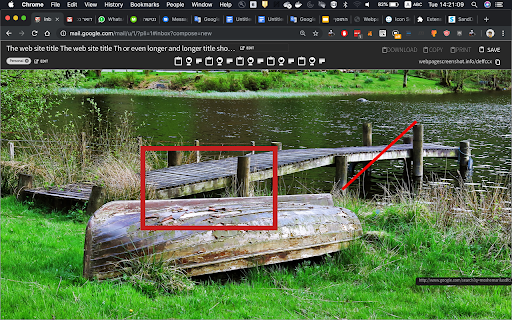
Since 2015 The most popular tool for your day to day. Whole page screenshot, sharing and much more. Overview Transform how you capture, save, and share web content with our powerful screenshot extension. Built for speed and simplicity, while respecting your privacy. Key Features Full-page screenshots: Capture entire webpages, including both horizontal and vertical content Flexible capture options: Choose between full-page or visible area screenshots One-click sharing: Instantly share to social networks or save locally Free unlimited storage: Host and share as many images as you need, forever 100% open source: Transparent, community-driven development Privacy First We take your privacy seriously: Image privacy: Your screenshots remain private unless you choose to share them Minimal storage: When you click "Share," we only store the image data needed to generate a sharing URL FAQ How is shared image data used? Solely to generate and display your sharing URL. No other processing or analysis is performed. Is my data shared with third parties? No. Your screenshots and any associated data remain strictly private unless you choose to share them.

Screenshot Entire Webpage
Capture a full page screenshot easily with the Screenshot Entire Webpage extension. Perfect for whole page screen capture. 📸 Introducing Your Ultimate Full Page Screen Capture Chrome Extension! Have you ever wondered how to take a picture of an entire webpage, including those parts hidden behind the edge of the browser window? With this Chrome extension, taking a whole webpage picture has never been easier! 🌟 Effortlessly Capture Screen Shots With our Chrome extension, you can: 1️⃣ Capture entire webpage picture with just one click. 2️⃣ Take a scrolling screen shot to include everything from top to bottom. 3️⃣ Save long screenshots without any hassles. 4️⃣ Share your screen shots instantly across various platforms. 5️⃣ Generate high-quality images from your captured content. 🚀 Features You Will Love Our full page screenshot app offers a variety of features: - Take full webpage picture effortlessly. - Learn how to screenshot the entire page. - Discover how to take a scrolling screen shot. - Seamlessly save and share captured images. ➤ Click on the extension icon. ➤ Select the option to take the full webpage. ➤ Wait as the extension scrolls the site content for you. ➤ Save or share your webpage picture instantly. 📈 Boost Your Productivity Wondering how to take a full page screenshot? This Chrome extension is designed to make your work easier, whether you're a student, a developer, or a designer. Here’s why you need it: ▪️ Document entire articles, tutorials, and guides. ▪️ Save full webpages for offline reading. ▪️ Share comprehensive reviews and feedback. ▪️ Capture everything from detailed analytics to creative content. 💻 Perfect for Professionals Learn how to screenshot an entire webpage for your professional needs. Our extension is ideal for: 1. Developers needing to debug entire web designs. 2. Marketers capturing promotional pages. 3. Writers archiving online content. 4. Designers documenting their layouts. 5. Educational purposes where you need to capture long articles. - User-friendly interface. - Hassle-free full page screen capture. - High-quality output every time. - Regular updates to improve user experience. 🔍 Optimize Your Workflow Tired of missing important parts of content while making screen pictures? Learn how to take a long screenshot that captures every detail. This application makes taking an entire webpage screen capture a breeze. 🚧 Reliable and Efficient 🔖 How to Use the Extension ◽ Install the extension from the Chrome Web Store. ◽ Open the webpage you want to screencapture. ◽ Click the extension icon. ◽ Select full page screen shot. ◽ Save the generated long screenshot. Our users love the ease and efficiency of our app. Whether you need to capture full webpage screenshots or understand how to take a long screen shot, our tool is highly recommended by professionals and everyday users alike. If you're wondering how to take a scrolling screenshot or how to take a full page screen shot, look no further. This Chrome extension is the solution to make entire web page picture efficiently. Discover how to screen shot an entire webpage easily and make your life simpler. Don’t waste any more time! Install our extension today and learn how to take a long screen shot effortlessly. Capture full webpage screenshot and enjoy the convenience of having every detail in one comprehensive image! 📜 Capture the Entire Page with Ease Whether you're capturing a detailed blog post, a lengthy research paper, or any other extensive content, our extension ensures you get a full website screencapture without missing a thing. Learn how to screenshot a whole page and make sure you always have the complete picture! ✨ In summary, if you’ve ever wondered how to screenshot an entire webpage, our Chrome extension is the answer. We regularly update the extension to include new features and improvements. Stay tuned for future updates that will enhance your full page screen capture experience even further. Don't miss out on the best way to screen capture whole page content. Download our Chrome extension today and experience the ease of full page screenshots. Whether you need it for work, study, or personal use, this tool will exceed your expectations.

Explain and Send Screenshots
Capture or record a video of your screen, write text or arrows and share it. The safest extension with NO crazy permissions! ✨ A Secure Screen Capture & Annotation Tool to Capture, record, annotate, and share your screen— all with unmatched privacy and speed. 🛡️ Why The Extension is the Safest Choice Stop compromising your security for basic screen tools. As an experienced developer, I built this extension to delivers the same robust features without requesting invasive "read and change all your data" permissions found in every other popular screenshot extension. Screen Recording: Record a video of your screen and include audio narration via your microphone. Intuitive Editor: Use the built-in, clean editor to: Annotate: Draw arrows, circles, and lines to highlight key information. AI Background Removal: Remove and substitute image backgrounds right on your device (done locally with AI). 📤 Seamless Sharing & Workflow Sharing your annotated image or video is simple and flexible: Direct Link Sharing: Get a direct cloud link for instant sharing on social media (Facebook, X/Twitter) or in chat apps. Quick Copy/Paste: Copy the image to the clipboard to easily paste it directly into emails (Gmail, Outlook, etc.) or documents. Local Download: Download the image directly to your desktop. ⚙️ Power User Accessibility Customize your experience for maximum efficiency: Assign Shortcut Keys for lightning-fast captures. Use the Right-click Context Menu for quick screen capture options. Extra features are unlocked for contributors who support my safe development philosophy. Give it a try and see the difference a secure, powerful tool makes!

Easy Screenshot - a Web Clipper
all-in-on capturing tool for the visual part, the entire page, or a selective area with auto-scrolling and editing support You can capture screenshots from the active tab with just two clicks. It provides multiple options for capturing specific portions of the page, the visual viewport, or even the entire page if it extends beyond the screen with both vertical and horizontal scroll bars. The captured image can be saved to the default download directory, copied to the clipboard, or opened in an online paint editor. The extension currently integrates JSPaint, a web-based replica of MS Paint, which offers offline functionality, allowing you to edit your images without an internet connection. The extension adds a toolbar button to the browser's action area. Clicking on this button opens a popup window with three options: 1. Capture the Entire Screen (3 methods. Works even if the page contains fixed-position elements) 2. Capture Visual Part 3. Capture a Portion Supported formats: PNG, JPEG, Avif, and WebP These options are also accessible via the right-click context menu on any page, providing easy access to the screenshot functionality. Here are some additional notes about the extension: 1. When selecting the "Capture Entire Screen" option, and the page size exceeds the window size, the extension will automatically scroll through the entire page to capture different sections and merge them into a single image. This process may take a few seconds to complete. 2. The resolution of the captured image depends on the screen resolution. For instance, if you have a 4K display, such as a Retina display, the image resolution will be at least four times higher than a regular display. 3. To ensure compatibility across various devices, the extension saves all captured screenshots in the widely supported PNG format, which offers high-quality lossless images. 4. The extension does NOT add watermarks to the captured images. 5. If you prefer to customize the format of the filenames for downloaded images, you can visit the options page and utilize the "filename mask" option to make the desired changes.

Screenshot Tool - Screen Capture & Editor
Innovative screenshot tool lets users screen capture and edit screenshot. Full page screen capture. Take stunning screenshots of entire websites and capture page elements. Offline. No registration. Screenshot tool - captures entire websites and user areas. Ready-made screenshots can be quickly edited (crop, paint over, add arrows, captions or text). Screen Capture tool for making a full page or partial capture with further editing, download, or text adding. Make a full webpage screen capture or just any part of it with an opportunity to edit, save and download screen capture to your PC. The app is launched from a browser that totally saves your time. Simply click the extension icon to choose from options whole page capture or a selected part. You will not see any additional windows with websites here. Why waste time if you just want a screenshot? Want to share your screen for cases like reporting technical issues, making product demos or how-to tutorials? Here are reasons to choose Screenshot and Screen Capture: ✔️ Screenshot of the full page, not just the visible area or selected area; ✔️ Screenshot on One-Click; ✔️ Storage and processing without a server; ✔️ Save PNG files or Copy it to the clipboard with One-Click; ✔️ No login or registration required; ✔️ There are no restrictions on the size or size of the file; ✔️ Edit and discard changes your screenshot; ✔️ Add graphic and text elements such as pointer, arrow, square and other shapes; Click on the extension icon (in the upper right corner of the browser) then choose one of the options capture and watch the Screenshot Tool capture each part of the page and then transfer the finished screenshot to a new tab, where you can edit the image and upload it as a file to your PC. Notes Remember to reload the page after you install extension before trying to take a screenshot of it (Chrome should initialize the extension for each page). The extension Screenshot tool is completely free and easy to manage for users. If our extension is useful to you, please give us 5 stars!
