
ahmpjcflkgiildlgicmcieglgoilbfdp
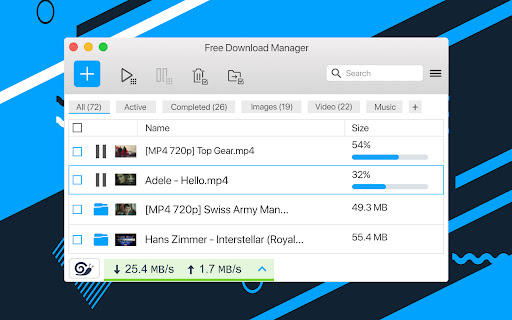
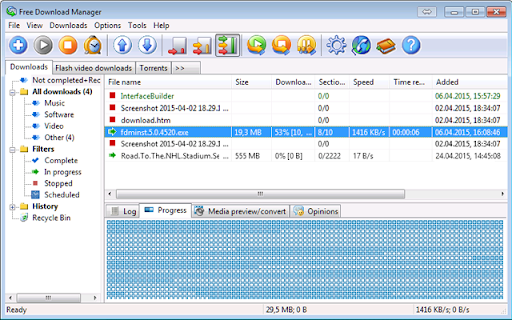
Free Download Manager integration with browser It's an official Google Chrome extension by Free Download Manager developers. The sole purpose of this extension is integration with Free Download Manager. FDM is a fast and reliable download manager and accelerator that improves your experience with downloads and helps you organize them in an easy manner. If you want to help us make Free Download Manager (or this Chrome extension) better - you are always welcome on our forum where you can post bug reports, feature suggestions, and ideas, as well as get support for any issues you stumbled upon with FDM: https://www.freedownloadmanager.org/board/ Note: Windows, Mac and Linux! Requires FDM to be installed to work properly.

Internet Download Accelerator
Intercept downloads for Internet Download Accelerator, download a file or a group of files from the context menu. Download with Internet Download Accelerator* by clicking on the any file link. Enable or disable browser integration from the extension menu, set the minimum file size from the extension options. Extension adds the ability to download using Internet Download Accelerator* specified file or group of files from the browser's context menu. After installing the plug-in a new section with items "Download link" and "Download all links with IDA" is added the context menu of Chrome. Right-clicking on the link (example link) you will see a menu with 2 new items added: - Select "Download link" if you want to download the selected file. - Select "Download ALL links with IDA" if you want to download multiple files located on this page. When entering the page with the video clip, if the video service is supported, extension button will be changed. Click on it and select “Download video”, you transfer the movie for download using Internet Download Accelerator*. * The plug-in must be installed on the PC together with Internet Download Accelerator.

Download with Download Accelerator Plus (DAP)
Send download links to the DAP download manager by interrupting the built-in download manager or using the right-click context menu This extension integrates the well-known DAP (SpeedBit's Download Accelerator Plus) download manager to your browsers at different levels. DAP Features: 1. Pause and Resume: Resume broken or interrupted downloads and resume all paused downloads at once 2. Download Security: Know if the file you downloaded is safe before you open it! 3. Mirror Sites Speed Boost: Search for the fastest download sources and switch to faster mirror sites while downloading Usage: 1. Simple use: right-click over a link, image, audio, or video element and select "Download with DAP" options. 2. Advanced usage: You can get links from the current page or a selected area. You may also pass downloading jobs to the DAP manager by interrupting the built-in download manager. In case the download URL is not supplied directly by a website, this option is handy. 3. You can enable and disable the interruption feature directly from the browser action button. Notes: 1. For the extension to work, you need to have Download Accelerator Plus (DAP) installed; http://www.speedbit.com/dap/ 2. For the extension to be able to start Download Accelerator Plus (DAP) and communicate with it, a small native client is required. This native client can be found at https://github.com/belaviyo/native-client/releases. You will get instructions on how to install this native client when the extension tries to communicate for the first time. 3. Even without the native client, this extension works if you manually start DAP once. The extension uses the DAP's HTTP server to communicate with this download manager.

NeatDownloadManager Extension
Integrates Neat Download Manager Application with Chrome browser. Sends your Download links to Neat Download Manager and helps you Download Video/Audio from many websites. Caution: For Mac and Windows and needs Neat Download Manager to be installed. Can’t download YouTube videos and encrypted media files. NeatDownloadManager does not collect or send any personal data. Holding down Delete-Key will bypass the extension.

Open With Download Manager
Open and download desired links with internet download manager. Open With Download Manager is a browser extension that enables you to open and download a desired item with the Internet Download Manager application. Important note: Open With Download Manager extension does NOT belong or relate to IDM and has NO affiliations with Internet Download Manager or IDM at all. It is an unofficial extension that is developed and maintained independently by its author. To operate with this addon you need a native-client patch to connect your browser with the native IDM application in your OS. Please read the following to get more info on how to install native-client and operate with this add-on. 1) after installing the add-on, you need to connect it with native applications (i.e. IDM) on your machine. If you do not have IDM, please head to (internetdownloadmanager.com/download.html) and install IDM on your machine. Once you have IDM, you need to make the connection between IDM and your browser. 2) to make this connection, a separate patch is provided on GitHub. Please download and install this patch from: https://github.com/alexmarcoo/open-in-native-client/releases Follow the instruction in the above GitHub repo to download and install the related patch to your system. After installing, the "Open With Download Manager" add-on, your browser can communicate with IDM on your machine (i.e. Windows OS). 3) before using the add-on, please open the option's page and make sure the path to IDM is correct based on your operating system. For example, the path to IDM in Windows 10 is: C:\Program Files (x86)\Internet Download Manager\IDMan.exe Next, please follow the below steps to open and download desired links in IDM. a. Right-click on a download link and then click on the - Download With IDM - from the context menu. b. IDM has several input arguments to enhance downloading desired files. The default argument for downloading is: /d. To get more info about other arguments please open the add-on option's page and read section arguments. Please note that you need to add parameters comma separated, for example, to automatically download a file write: "/d,/n" in the designated area. c. you can set the IDM path in your machine from the options page. To report any bug, please fill out the bug report form on the add-on's homepage (https://mybrowseraddon.com/open-with-dm.html).
