
pkdhffidhfklfcpockffiadeaelfflge
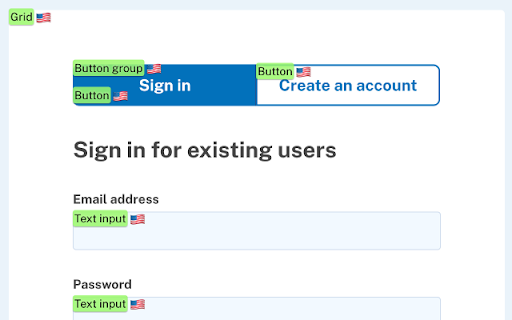
View which USWDS components are being used on a page and the active responsive breakpoints. A simple extension that helps developers and designers learn what U.S. Web Design System components are in active use on a page. From the tags it layers onto the page, users can click a tag to quickly access the component's official USWDS documentation. The active breakpoints are also displayed in the page's corner, helping developers pick which breakpoint prefix to use when building a responsive design using utility classes. Contribute to this extension, it's open source: https://github.com/sawyerh/uswds-dev-tools

JobPixel
JobPixel official extension JobPixel helps organizations to collect, manage, and publish authentic videos. A JobPixel team subscription is required to use this extension. To learn more, go to https://www.jobpixel.com/

Zucker for Facebook
Zucker is a chrome extension that blocks ads and facebook features. Zucker gives you full control over your Facebook experience by letting you hide the clutter and ads that Facebook pushes on you — so you only see what you actually came for. Block ads and sponsored content across the entire site, and use granular toggles to hide distracting feed noise like "Suggested for You", Reels, Stories, "People You May Know", and paid partnerships. Clean up the left-hand sidebar by removing links you never use — Marketplace, Gaming, Meta Quest, Fundraisers, and more. Even Meta AI can be hidden from your contacts and sidebar. If you want a faster, quieter Facebook without installing a full ad blocker, Zucker is for you.

Politica
Analyze articles for political bias ratings with one click. Using state-of-the-art Artifical Intelligence systems, Politica allows for instant bias, factuality, and trustworthiness ratings on millions of articles. * Get personalized insights based on articles' content, analyzed using world-class AI models. * Our extension works on millions of articles, accessible at the click of a button. * Reasoning for bias ratings is automatically generated by AI, giving support for its analysis.

IKiPop by IKiBlast
IKiPop by IKiBlast brings a touch of IkimerIA into your browser and let you access to all your favorite AI IKiPop is a versatile free Chrome extension designed to use ArtificiaI Intelligence while browsing. This multilingual add-on enhances your browsing by providing numerous features, whether for customers connecting to IKiBox, our private solution, or anyone wanting to tap into their preferred models like Bing, ChatGPT and Google Bard into your browser. It can be used freely by anyone looking to connect with their own public or private AI models. The plugin enables you to literally chat with your browser page content: • Pose questions and receive responses based on the webpage context. • Create concise summaries of online content to grasp key points swiftly. • Translate web pages into other languages, expanding your global reach. • Generate unique phrasing for selected text. • Extract crucial points from videos. • Clarify complex terms or concepts. • Segment extensive text into more digestible parts. • Decipher the purpose and functionality and review changes of code. These functionalities are effortlessly available through a user-friendly menu and enhance your web exploration experience. IKiPop seamlessly integrates with popular platforms, enabling direct assistance. Its floating chat boxes facilitate complex discussions, supporting multiple conversation threads with ease. A distinctive feature of the tool is the capacity to swiftly connect with various AI providers, allowing immediate access to your favorite services, with the ability to switch between them conveniently. Here's how to set up and use IKiPop: • Install the extension and pin it for immediate accessibility. • Click on it to access its settings panel and select the API mode you wish to interact with (you can add or remove model from your default list in the 'Modules' tab). • Once set, you just need to refresh the tab or open a new one to see a context menu appear when you select a piece of text, providing shortcuts to the main tools. • An immersive chat interface can be accessed via settings or right-clicking a selection. • Open settings for configuration, adjusting according to your needs, such as language or model selection. • Personalize available tools and theme in the menu and tweak the response length and its sensibility through the “Advanced” tab. If the menu doesn't appear post-installation, refresh the page or restart your browser. In case a model doesn't function as anticipated, you have the flexibility to switch. Note that we prioritize your privacy and don't collect or transmit any data beyond what you share during your conversations. Please exercise caution and avoid sharing sensitive information when using public AI services.
