
oldfdgiamapbganidcpaklaaphfehddh
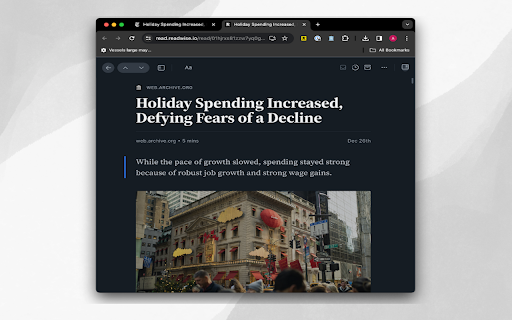
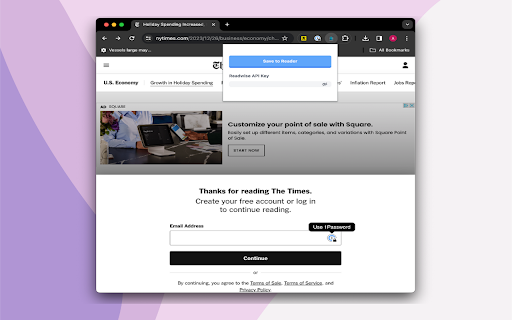
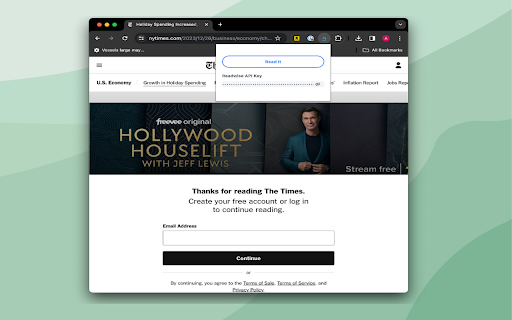
Save archived web pages to your reader

Archive Page
Archive webpage with Archive Today Adds a button to the Chrome toolbar. When clicked, it sends the URL of the current tab to Archive Today to preserve a snapshot of the page, and opens the result in a new tab. ✅ Direct action Shortcuts (with optional Tabs permission) ✅ Customizable Toolbar Button Choose your preferred action for the toolbar icon: • Dropdown Menu: Quick access to Search, Archive, and Options. • Direct Search: Instantly search the current page URL. • Direct Archive: Instantly archive the current page. Features: • Archive Today Integration: Sends the current tab URL to Archive Today to preserve a snapshot and opens the result in a new tab. • Context Menus: Includes Link context menu to Archive or Search, and a Page context menu to Search. • Customizable Behavior: Options to control if the new tab opens adjacent to the current tab, at the end of the tab strip, or replaces the current tab (archive only). • Tab Activation: Control whether new Archive or Search tabs are activated immediately. • HTTPS Security: Uses HTTPS for all archival and search transmissions. • Keyboard Shortcuts: A custom shortcut can be created to archive the current page instantly. (Archive Today is a time capsule for web pages. It takes a 'snapshot' of a webpage that will always be online even if the original page disappears. It saves a text and a graphical copy of the page for better accuracy and provides a short and reliable link to an unalterable record of the web page.) Consent: By using this extension, you consent to sharing your Archive or Search URL with Archive Today when initiated by you. This extension does not otherwise collect or share any user data. Notes: 1. If you get an error, try again later. It's NOT an extension issue—Archive Today sometimes gets overwhelmed. 2. CloudFlare DNS may not resolve Archive Today; if you experience DNS errors, try a different DNS server (e.g., Quad9). 3. For similar functionality on Android, check out Share2Archive in the Play Store. What's New in 1.6.3: * Fix rare menu race condition. * Improve Options screen. What's New in 1.6.1: * Verify limited permissions update. What's New in 1.6.0: * Restore more limited permissions! What's New in 1.5.1: * Fix Activate Option * Fix Startup Options What's New in 1.5.0: * Direct action Shortcuts (with optional Tabs permission) * Squash some small bugs. Disclaimers: • Use at your own risk. No liability is accepted for any loss or damage. • This extension is not affiliated with Archive Today. • Trademarks are the properties of their respective owners.

Note Saver
Save notes for specific webpages Version 2024.12.27: Bugfixes for bugs introduced in v2024.12.23: attempt to truncate URL on empty table; password setting prompt appearing even when no password protection requested + unlock icon functionality when note is temporarily decrypted Version 2024.12.23: MAJOR UPDATE - introduction of encrypted note feature; look and feel improvements; bug fixes Version 2024.05.14: Table body font in monospace Version 2023.4.18: Filter the table; color the row red if note exists for current page; feedback link; version number displayed; bugfix for truncateUrl(); look and feel improvements Version 2023.4.14: Clickable column headers in the table to toggle table sorting. Description: Note Saver is a simple and secure Chrome extension that allows you to quickly jot down notes directly within your browser. Whether it's a reminder, a quick thought, or important information you need to remember for a specific website, Note Saver helps you keep it organized and accessible. Key Features: Website-Specific Notes: Save notes associated with individual websites. When you visit that site again, your notes are right there for you. Easy to Use: A clean and intuitive interface makes note-taking straightforward. Just type your note into the text box and it’s saved automatically. Password Protection: Secure your notes with a password. Only those with the correct password will be able to view the note. Encrypted Storage: If you choose to password-protect a note, it is encrypted on your device using industry standard encryption. Search and Filter: Easily find your notes using the search functionality, which filters both note content and URLs. Organized History: View all saved notes in a neat table, which can be sorted by URL and Note contents. Delete Notes: Notes can be deleted from the history if they are no longer needed. How to Use: Open the Extension: Click on the "Note Saver" extension icon located in your browser’s toolbar. Consider pinning the extension to make it permanently visible. Take a Note: The extension will display a text box and URL for your current website. Type your note into the text box. It will save automatically when you click outside of the text box, or when you start working on a new page. Password Protection: If you want to password-protect your note, click the "Password Protect" checkbox before entering your note. Enter and retype your password. Your note will be encrypted. To view an encrypted note, click the area where the note would be in the table. You will be prompted to enter the password. If the password is correct, the lock icon will disappear from the note table. If you turn password protection off, this will delete your encrypted note. Please be careful when disabling password protection. View Saved Notes: Click "Show saved notes" to see all of the notes you have saved. Use the search bar to find specific notes by keyword or web address. Click on the URLs to open the corresponding pages in new tabs. Hide Saved Notes: Click "Hide saved notes" to hide the table from view Security Information: Your privacy and security are paramount. Here’s how "Note Saver" protects your information: Client-Side Encryption: If you choose to password-protect your note, all encryption happens directly within your browser. This means that your notes are never sent to any server in an unencrypted form. The extension uses the latest industry standard encryption protocols to make sure that the data is protected. Passwords and Keys are Not Saved: Critically, the password you use to protect your notes, and the keys that are used to encrypt and decrypt your notes are not saved anywhere. They are generated each time they are needed, directly within the extension. This ensures that even if your browser or computer were compromised, there would be no saved password or keys available that could be used to gain access to your encrypted notes in plaintext. Temporary Decryption: If you reveal a password-protected note, the extension keeps the note decrypted and accessible for the current session, as long as the popup is open. Once the popup is closed, the note will be re-encrypted, which is why you will need to re-enter your password if you wish to view a note in future sessions. Local Storage: All notes, encrypted and unencrypted are saved on your local device within your browser’s storage. This storage is fully controlled by your browser and is not accessible to anyone else. Important Notes: Password Recovery: Because your passwords and encryption keys are not saved, if you forget your password there is no way to recover it. The only way to access your note if you forget your password, is to turn off password protection. This will delete your encrypted note so you may wish to copy your note to another location before doing so. Please be careful when setting passwords. Browser Security: "Note Saver" relies on the security of your Chrome browser. Please be sure to keep your browser up to date with the latest versions. Feedback: We welcome your feedback! If you have any suggestions or issues with the extension, please don't hesitate to share your experience on the extension's feedback page on the Chrome Web Store. We are always working to make "Note Saver" better for you. Disclaimer: Always be careful when handling sensitive information. "Note Saver" will not be liable for any misuse of the data saved within the app.

AutoSave to Wayback Machine
Automatically saves the pages you visit to the Wayback Machine. This extension automatically archives all the pages you visit to the Wayback Machine, minimizing dead links for you and other people. It uses minimal data and bandwith, as it sends the pages to the Wayback Machine for archival rather than archiving them client-side.

Stackroom Page Saver
Saves the current web page to your Stackroom board. Page Saver for Stackroom This extension saves the current web page to your personal Stackroom board.
