
oiampkimkidkfooahegmchogjfhgelhl
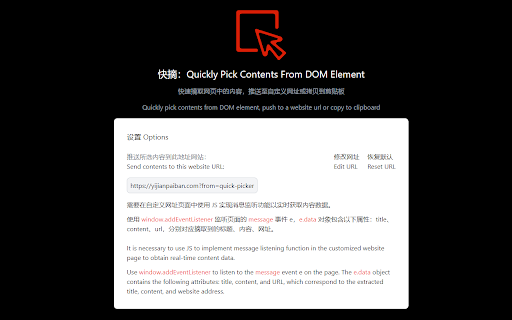

When you browse a webpage and discover a good article or a paragraph within it, you can use our Quick Content Picker to quickly select the content from the highlighted webpage elements. You can define the operation of clicking on elements: 1) Copy to the clipboard; 2) You can define a website and send the extracted content to it in the form of a message. The script in the website webpage can retrieve the extracted content from the data object of the event after receiving the message. 3) You can do both 1) and 2) at the same time. The initial purpose of this extension was to improve the efficiency of one click typesetting network tools in extracting article content. But now, it is not limited to providing services for one click typesetting, and can push content in the form of messages for any custom website.

Webutler.AI - AI powered web scraper
Webutler.AI uses AI to predict which data is most relevant on a HTML page and allows saving it to Excel. Webutler.AI is an automated data extraction tool for any website. It is based on artificial intelligence to analyze the most relevant structured data on a web page and allows it to be downloaded and saved to Excel. The tool does not require site-specific scripts, but instead uses the HTML structure to detect associated data and select the most appropriate list. Because it doesn't require complex user-defined rules, it means our crawling method works just as well for small and lesser-known sites as those of global giants like Amazon. Plus, our users don't need any coding skills! Web data collection and downloading is easy with our tool. Plus, you have data security and privacy as the collected data never leaves your browser. Some Common Use Cases: * E-commerce sellers, distributors and review analysts collect product prices and reviews * Sales staff automatically and regularly collect sales leads through professional social profiles * Freelancers automatically collect emails, addresses and phone numbers from public directories * Marketing professionals analyze social media sites * Collect ratings and comments on posts * Recruiters looking for qualified candidates * Job seekers looking for the best jobs * Data scientists collect more clean data * Students study data science and data mining ADDITIONAL INFO: Following Chrome extension permissions are required to run the Webutler.AI: activeTab: to track active tab for the creating of recipe storage: to store scraped data and configuration unlimitedStorage: to store scraped data on local for exporting later This tool refers to the automatic identification function of Instant Data Scraper and MiniRPA, which can analyze the most relevant structured data on the webpage with one click, and provide paging function. If you need more advanced and complex collection functions, you can use the MiniRPA. if you have any feedback or feature requests: webutler.ai@hotmail.com. If you have collection needs that you cannot solve by yourself, you can also send them to webutler.ai@hotmail.com, and we will use this tool or the MiniRPA to answer the questions.

TreeClip - Batch Text Selector
Powerful batch text selection tool. Use Shift+Click/Rect Select/F Key/Search to easily select multiple elements and extract text.… TreeClip is a Chrome extension that offers various flexible text selection modes (Similar Selection, Multi-point, Rectangular Select, and Text Search). Combined with hierarchy navigation, internal element selection, hierarchy binding, and custom output formats, it significantly boosts your efficiency in extracting information from the web. Core Usage: Hold the Shift key and use your mouse to click or drag over page elements to select them. Once selected, press the F key to quickly batch-select all similar elements. The selected content will be automatically copied to your clipboard. 1. Batch Selection (Similar Elements) Use Case: Ideal for copying content with identical structures, such as search results, product prices, table columns, post titles, or tags. Traditional highlighting often selects unwanted elements or breaks formatting. TreeClip identifies similar element structures (tags, CSS classes, etc.) to select them all at once. How to Use: Hold Shift and click any target element you want to select. (The tool will also prompt you automatically if you select two elements of the same type). Press the F key. The tool automatically identifies and selects all elements on the page sharing the same structure and adds their text to the clipboard. 2. Multi-point Selection Use Case: Used to copy multiple text blocks scattered in different locations or with different structures. It mimics the "Ctrl + Click" behavior in Excel for selecting non-adjacent cells. How to Use: Hold Shift. Click each element or text block you need to select. You can combine this with Shift + F for batch actions. All clicked elements are added to the selection list, and their text is added to the clipboard. 3. Rectangular (Box) Selection Use Case: Quickly select all visible and meaningful text within a specific rectangular area. How to Use: Hold Shift. Hold the left mouse button and drag to draw a rectangle over the target elements. Release the mouse; all valid elements within the box will be selected and copied. 4. Text/Pattern Search Use Case: Find specific text or patterns on the page and add the corresponding elements to your selection. How to Use: 4.1 Enter your keywords or pattern in the "Text/Pattern Search" area of the panel. 4.2 Supported Patterns: *: Matches any number of characters (e.g., Data*Analysis). ?: Matches a single character (e.g., Chapter ?). [a,b,c]: Matches any item within the brackets (e.g., Chapter [1,2,3] or [10,20]%). "...": Literal match for characters inside quotes (e.g., "*" matches an actual asterisk). 4.3 Click the "Search" button. 4.4 Matched text will be highlighted on the page. If the text is inside a currently invisible element (like a collapsed menu), its nearest visible parent will show an orange dashed outline. 4.5 Use "Prev" / "Next" buttons to jump between results; the page will auto-scroll to the location. 4.6 Click "Add to Selection" to add the nearest meaningful parent elements of all results to your list. Hierarchy Navigation & Switching When an element is selected, the panel displays its hierarchical structure. Switch Target Type: If you have multiple types selected (e.g., h3 titles and p paragraphs), click the type label (like h3.title (5)) to limit subsequent actions (like pressing F or navigating levels) to that specific type. Switch Levels: Click a level label (like div#main) in the hierarchy panel to shift your selection to that level. This is useful for moving "up" to a parent container or "down" to specific child elements. Use Case: When a selected element (e.g., a list item ) contains multiple children, and you only want to select specific ones (e.g., all links or specific tags inside those items). Detection: If the tool detects selectable children, the "Internal" button will highlight in green. How to Use: Click the green "Internal" button (or press Shift + →) to enter internal selection mode. The panel will list available child element types; click one to refine your selection to those internal elements. Press Shift + ← to return to the parent view. Use Case: When you only want to select similar elements under a specific parent structure while ignoring identical elements elsewhere on the page (e.g., select all in Block A, but not those in Block B). How to Use: 1. Select a target element first. 2. In the hierarchy panel, find the parent you want to bind to (e.g., div.block-a). 3. Hold Shift and click that level label. It will highlight in orange. 4. Now, when you perform a batch selection (pressing F), the tool will only look for similar elements that belong to that specific div.block-a. Shift + Click again to unbind. Output Format & Text Cleaning In the "Output Settings" area, you can fine-tune the content copied to your clipboard: Cleaning Options: Spaces: Remove all whitespace within each text fragment. Code: Remove common code patterns like {...}, (...), , [...]. Symbols: Remove common punctuation and mathematical symbols. EN/CN/Num: Specifically remove English, Chinese, or Numeric characters. Deduplication: Automatically remove identical duplicate entries from the copied content. Shift + Click: Select or deselect a single element. Shift + Drag: Draw a rectangle to select an area. Esc: Clear all selections and exit selection mode. F (when elements are selected): Select all elements of the same type. Ctrl + C: Copy current selection to clipboard (using your settings). Hierarchy & Internal Selection: Shift + ↑: Move up to select parent elements. Shift + ↓: Move down to select child elements. Shift + →: Enter "Internal Element" selection mode. Shift + ← (in internal mode): Return to the parent view.

Web元素捕手
一款配合UI Auto Test的元素获取插件,请注意这个插件无法单独使用,需配合UAT网页端使用。 一款配合UI Auto Test的元素获取插件,需配合UAT网页端使用。帮助web测试人员,快速获取定位元素的定位值,和元素截图。

PageCleaner – Make items disappear
Easily hide unwanted elements on any website with your own customised rules. Clean up web pages: hide ads, pop‑ups, cookie banners, distractions and any other element, site by site, with PageCleaner. Your web, your rules. PageCleaner – your web, your way Tired of intrusive ads, GDPR pop‑ups, useless sidebars or floating videos that chase you while scrolling? With PageCleaner, you finally decide what you want to see. This extension is not a traditional ad‑blocker: it is a full personalization tool that lets you hide or remove any HTML element in a few clicks, for pages that are faster, clearer and easier on your attention. ⭐️ Key features • 100 % custom cleaning – Visual selector (eyedropper) directly from the extension icon. – Expert mode: paste or type your own CSS selectors for ultra‑precise filtering (AI‑assisted). • Smart rule organization – Group your filters into categories (“Video ads”, “Cookie banners”, “Comments”, etc.). – Enable or disable a whole group or an individual site with a single click. • Fine‑grained site control – PageCleaner acts only on the domains you choose; nothing changes elsewhere. – Dynamic icon instantly shows whether rules are active on the current page. • Backup, import and share – Export all your rules to a JSON file to save or share them. – Import a ready‑made configuration to save time. • Lightweight and fast – Optimized MutationObserver with debounce: no noticeable impact on load time. – Minimal code loaded only when needed. • Full privacy protection – No personal data collected or transmitted; everything stays local or syncs via your Google account if you enable it. 🧑💻 How it works • Click the PageCleaner icon and add the current site to your list. • Select elements visually or specify them in CSS. • PageCleaner applies a CSS class on every visit and the elements vanish instantly. • Edit or disable your rules at any time from the settings panel. 🎯 Use‑case ideas • Remove Shorts and suggestions on YouTube home. • Hide the chat column on a streaming service to focus on the video. • Block newsletter sign‑up pop‑ups covering content. • Clear “Trending” or “Recommended” sidebars on forums. • Dismiss persistent cookie banners even after acceptance. 📋 Permissions The extension needs access to data on all sites solely to run your rules. PageCleaner never reads your history, analyzes your searches or sells your information. See our privacy policy for details. Take back control of your browsing today: install PageCleaner and enjoy a cleaner, faster web tailored to you. 🧹 🏷️ Keywords: hide elements, block ads, remove pop‑up, cookie banner blocker, customize web page, site cleaning, Chrome extension, remove sidebars, clean browsing experience, layout control, faster pages, content filtering
