
ogofgdciigpmncnkameolnkpnnlfhkap
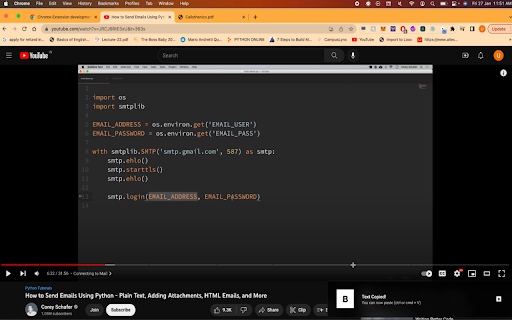
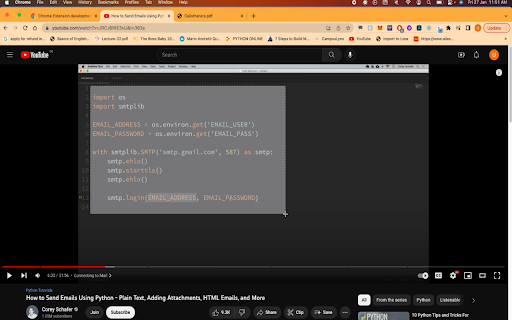

Clip AI helps you copy text from image, vidoes, pdfs and more Introducing the ultimate tool for extracting text from any type of media – the ClipAI Chrome Extension, created by Svalync! Whether you're dealing with an image, a video, or a PDF, our extension makes it easy to extract the text you need. With a simple click, you can quickly and easily select the text you want to extract and copy it to your clipboard. The extension is perfect for students and professionals alike. Students can use it to effortlessly pull quotes from research articles and PDFs, while professionals can extract text from images and videos for use in presentations and reports. The ClipAI Chrome Extension is lightweight, user-friendly, and offers lightning-fast text extraction. It’s compatible with all major browsers and works seamlessly with other apps and software. Don’t waste time manually typing out text from images, videos, and PDFs – download the ClipAI Chrome Extension now and start extracting text in seconds! Now, it supports multiple languages as well. Thank you for trying it out.

CopyText - Copy Text From Videos for FREE
Adds a button on the youtube page that lets you Easily Copy Text From Youtube Videos on user click.

PDF to Text Converter
WHAT PDF SOLUTIONS CONVERTER IS ALL ABOUT? We understand the frustrations when it come to dealing with pdf files and not having proper software to view or convert these. We at Free PDF Solutions make conversion simple to all user types and thrive on doing so. With PDF to Text Converter, there's... • No registration required • Ease of use • Links to our online conversion utilities. You can uninstall the extension at any time.

PDF to text
Convert pdf to text and copy content in a click. The easiest way to extract text from protected PDFs and summarize it with AI. ➤ Extract text from scanned PDF ➤ Copy extracted text ➤ Download PDF text in .txt format ➤ Read the text aloud ➤ Save extracted pdf text history 1️⃣ Upload a file to PDF to text convertor 2️⃣ Click the “Extract text” button 3️⃣ Get a text from a pdf in a few seconds In today's digital age, managing large volumes of information is a common challenge. PDF-documents, widely used for their consistent formatting and portability, often present obstacles when it comes to editing or extracting text. This is where a PDF to text converter becomes indispensable. It empowers users to convert static pdfs into editable text files, offering flexibility and ease of use across various applications. The Benefits of PDF to Text Conversion The advantages of converting PDF files to text extend beyond convenience. Here are some key reasons why this tool is essential in various fields: 📌 Time-Saving: documents, while secure, often require conversion for editing or analysis. 📌 Efficiency: you can quickly extract, edit, and incorporate information into other projects without hassle. 📌 Accessibility: the content becomes accessible to all, enhancing inclusivity for users with visual impairments 📌 Flexibility: Once your PDF is in text format, you have the freedom to manipulate the data as you need. 📌 Accuracy: A reliable PDF text extractor ensures that every word is captured correctly during the conversion When Do You Need a PDF to Text Converter? 💡 For Students: easier quoting and referencing without retyping the content. 💡 For Lawyers: in legal fields, contracts and court document. 💡 For Business Analysts: Extracting data from financial reports, marketing plans, or other business documents 💡 For Writers and Journalists: pull quotes or information from press releases or reports. 📍One common issue is dealing with non-selectable text, especially in scanned documents. These files are often just images of text, meaning traditional methods of copying and pasting won’t work. 📍To overcome this, you can use Optical Character Recognition (OCR) technology. OCR scans the document and extracts the text, making it editable and searchable. 📍Another issue arises with PDFs that have complex formatting, such as tables, columns, or graphics. Converting these documents into text can sometimes lead to formatting issues. 📍However, high-quality PDF to text converters are designed to handle such challenges by preserving as much of the original structure as possible. 1. What is PDF to Text conversion? It is the process of extracting editable text from documents. It allows users to copy, edit, and repurpose text from static files. 2. How do I extract text from a pdf? Upload the document, click "Extract Text," and get the content in seconds. 3. Can I extract text from scanned PDFs? Yes, the tool uses OCR technology to extract text from scanned or image-based docs. 4. Is the extracted text editable? Absolutely! Once extracted, the text is fully editable and can be saved as a .txt file. 6. What else can I do with extracted text? You can read it allowed and summarize with AI 7. Is pdf to text free? Our app is in beta-testing and it’s absolutely free now. We plan to make a subscription in the future because OCR technology is paid. Conclusion: Empowering Your Workflow with PDF to Text Conversion. At its core, transformative writing is about making information more accessible and easier to work with. As the digital world continues to grow, the demand for quick and efficient access to content will only increase. Transformative writing allows you to unlock the potential of your documents by turning static content into dynamic, editable text that can be easily reused, analyzed, or repurposed. In the future, as more industries continue to embrace digital workflows, PDF to text converters will remain an invaluable tool for anyone who works with documents. Whether you're handling contracts, research papers, reports, or personal documents, the ability to quickly extract and edit text will improve your productivity and enhance the way you interact with digital content. Unlock the full potential of your documents today with a reliable PDF to text converter!

Copyfish 🐟 Free OCR Software
Copy, paste and translate text from any image, video or PDF. Do you need to extract text from images, videos or PDF? If yes, then the Copyfish Screenshot Reader/Text Extractor is for you. Copyfish turns text within any image captured from your screen into an editable format without retyping – making it easy to reuse in digital documents, emails or reports. Common reasons to extract text from images are to google it, store it, email it or translate it. Until now, your only option was to retype the text. Copyfish is soooo much faster and more fun. “Images” come in many forms: photographs, charts, diagrams, screenshots, PDF documents, comics, error messages, memes, Flash – and Youtube movies. You can verify the results in one glance with the extracted text overlay. Do you need to switch between OCR languages often? You can define "Quick Switch" buttons for up to three languages on the settings page. For language learners: There are many translator addons available, but they only work with plain website text. Text inside images, in tricky Javascript/AJAX or, especially, in movie subtitles on Youtube or Youku is unreachable for them. But not for Copyfish. And if you want, Copyfish also translates the text for you. Especially for the subtitle translation use case, Copyfish has a repeat feature. Mark the area of the subtitle once and then use the "Do OCR" button to grab the latest text from the movie screen. For extension gurus: You might have heard of Project Naptha, a great addon that applies state-of-the-art computer vision algorithms on every image you see while browsing the web. Copyfish solves the same problem, but it takes a different user interface approach. It does not try to alter the website. Instead, it lets you mark the text in the image you want to extract. As a result Copyfish works with every website, even videos and PDF documents. For developers: Copyfish is published under the GPL open-source license. Full source code is available at https://github.com/A9T9/Copyfish As OCR software, it uses the free OCR API from https://ocr.space/ .
