
oeiokhhfnleodojlgieagmmcfglamnaa
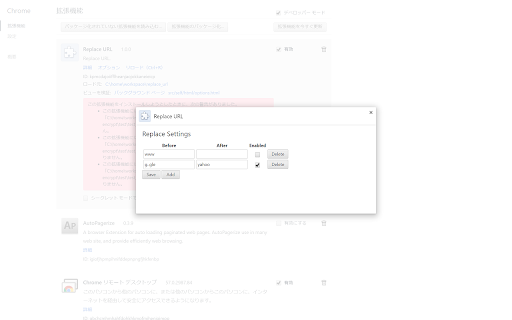
Replace URL in the address bar. Replace URL replace the specified words with new words in the address bar. 1. Please specify old words(or regular expressions) and new words on option page. 2. Click this extension's icon. And automatically move to the new URL.

Redirect Link
You can redirect links and the current page. Current page can be redirected by clicking the right mouse button on the page, not on any kind of media or other elements, but basically the background. Left mouse click redirects in the current tab and the middle and the right one to a new tab when using the toolbar popup. The URL field denotes where the page or the link is redirected to. It must start with a scheme, e.g. https://. It can contain formats, which are replaced by the component parts of the link's or page's URL. If the URL doesn't contain any formats, the link's or page's URL is appended to this URL. Formats %u - entire URL %s - scheme %h - hostname %p - whole path without the leading slash, or %p[N], where N is index of the path part. e.g. in http://example.com/a/b/c?param=1, %p[0] is a, %p[1] is b and %p[2] is c %q - all query parameters, or %q[KEY], where KEY is the name of the query parameter. e.g. in http://example.com/?a=1&b=2, %q[a] is 1 and %q[b] is 2 %f - fragment %r[REGEX] - the regular expression is replaced with the match, or if capture groups are used, their matches are concatenated or empty string if there's no match. Right square brackets must be escaped in the regex. E.g. https://%r[[a-z.\]+] %g[N] - Capturing group from EnableURL field, where N is the index of captured group. %e[/REGEX/REPLACEMENT/FLAGS] - Replace REGEX with REPLACEMENT and optionally use FLAGS (i, g, etc.) using link/page URL as input. If you put some format before this format, it is used as input for this format. Example: http://a.com/%p[1]%e[/a|b|c/x/g] - %p[1] is used for input for %e and it changes all occurances of a, b and c to x from %p[1] There are examples in the other screenshot. To enable a redirection everywhere, leave Enable URL field empty. If you want to enable it only on certain URLs, add the URL or part of it and you can use a regular expression also. This doesn't work in the context menu in Chrome, but does in the toolbar popup. Open in a Container option doesn't do anything, unless containers are enabled in the browser. You can reorder redirections by dragging and dropping redirection rows. Remember to save if you changed options! More redirections and you can propose or share new redirections at GitHub in this issue: https://github.com/fluks/redirect-link/issues/7. All the proposed redirections in a file you can import: https://github.com/fluks/redirect-link/raw/master/redirect-link_settings.json --- * Read your browsing history - Get the URL of the current page. * Notifications - Show a notification about Manifest V3 change. Latest changes * Fix replace format bug. * Add resize columns on options page. * Add link to help page. * Add %e replace format. * Add capturing groups in URL and EnableURL fields. * Sort redirects from headers. * Validate EnableURL if always used. * Show a notification about MV3 change. * Convert to use Manifest V3. * Minor UI changes. * Fix context menu not showing bug. * Add favicon feature. * Add redirect always option. * Add preferences button. * Open to new tab only when the option is on. Previously middle click worked in toolbar popup. * Removed notifications permission. * Fix popup ellipsis bug. * Remove max width for popup. * Redirect in current tab or to another depending on click. Left click opens in current tab and right one opens to a new tab when using toolbar popup. * Add import and export options. * Use Drag and Drop API to order redirects. * Add regular expression format. * Fix replace format bug. * Small UI changes on options page. * Try to fix toolbar popup not loading content. * Fix toolbar popup order bug. * Reorder redirections. * Add toolbar button to redirect the current page. * Add a setting to enable redirection only on certain URLs. This works only with the toolbar popup on Chrome. * Add formats for more detailed path and query parameters. * Remove the leading slash from path substitution. This can break previous path formats. * Open options to a tab. * Add shortcuts to options page.

The Switcher[Change Domains]
Partially replace the URL of the currently open web page and open it in another tab. Please use it for switching domains. etc... One-click domain switcher for Production, Staging, and Development (Local) environments. This Chrome extension allows you to switch between environments with a single click while preserving the current page's URL path and query parameters. By clicking the icon (or pressing Ctrl+Shift+↑), all registered environment URLs are listed, allowing you to move between them without copying and pasting. Perfect for situations like: Opening a page you're viewing in production directly in your local or staging environment. Eliminating the manual task of retyping URLs for different environments. Quickly comparing the same page (product details, articles, etc.) across multiple domains. Simply register your project name and domains in the options screen. It supports multi-domain and multi-project setups. Highly recommended for web coders, frontend engineers, web directors, and anyone frequently jumping between environments. 2024-06-12: Enabled the option to always open in the same tab on the options screen (only applicable for 2 domains). 2024-05-01: Modified so that a new tab opens right next to the active tab when there are two registered URLs. 2024-05-01: Modified so that a new tab opens right next to the active tab when there are two registered URLs. 2024-04-09: Added a link to open in the same tab within the popup. 2023-12-15: Added support for French, Korean, Russian, Thai, Turkish, Ukrainian, and Chinese languages. 2023-11-17: Modification for security protection and name change. 2023-11-15: Fixed a bug where pressing the 'add project' button while adding a project in the settings screen caused the data being entered to disappear. Fixed to not use remote source code. 2023-03-04: Now launches with the shortcut "Ctrl + Shift + Up". (ver.1.30.0.0) 2023-03-01: Multilingual support started. English and Japanese are currently available. It depends on Chrome's own language settings. 2023-02-27: Changed the data storage destination from localstorage to chrome.storage in v1.20 (to get it in the background) *If you are using the previous version, please set it again on the option screen. Also, you can now switch URLs from the context menu displayed by right-clicking within the open page. Please take advantage of it. 2023-02-17: v1.10 When there are two URLs in the project, the URLs that are switched are automatically opened at the same time when the icon of The Switer is pressed. If there are 1, 3 or more, the pop-up will be displayed as before. We also made some minor adjustments to the layout of the options page. If there are 1, 3 or more, the pop-up will be displayed as before. We also made some minor adjustments to the layout of the options page.

Odoo Utility
Simple shortcuts and tools to save time - Bookmark of daily used links. - Quick login buttons on login page. - Jump straight to Odoo.sh projects. - Light/Dark theme.

Odoo Toolbox
Enhances the experience of Odoo developers and Odoo.SH users by adding a variety of tools and features. This extension aims to enhance the experience of Odoo developers and Odoo.SH users by adding a variety of tools and features. Functionalities: - Advanced DevTools panel for Odoo RPC testing and data exploration - Technical sidebar with field inspection and database context information - Star project on odoo SH, order the favorites list and ability to rename them - Enable/disable debug mode by default on Odoo websites - Toggle debug mode from the extension's popup - Show technical printing options (PDF/HTML) - avoids the need to download pdf files - Show technical model name on record from Odoo v17.2 and above - Rename tab's title of Odoo.sh project to includes current project's name ... and more !
