
ocohigleddhodphhgellbepbjbmakmpk


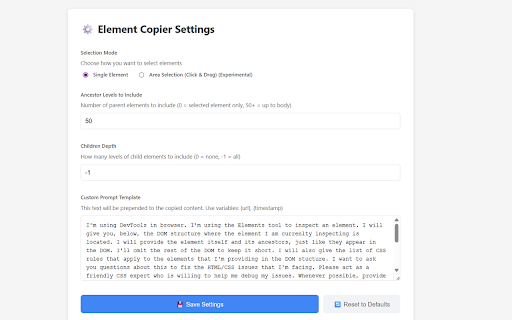
Select elements or areas and copy their DOM structure and CSS to ask AI models for help. DOM Extractor makes debugging and redesigning web elements dramatically easier by letting you select any element or region on a page and instantly copy its complete DOM structure and CSS styles in a format ready to share with AI assistants like Claude, ChatGPT, or Gemini. The extension captures not just the element you click, but intelligently includes its ancestor DOM elements to preserve the full context that affects rendering. This means when you're troubleshooting why a button won't center or a dropdown menu breaks on mobile, you're sharing the complete picture rather than an isolated fragment that lacks critical inherited styles or positioning context. You get automatic extraction of computed styles as they actually appear in the browser, not just the CSS rules written in your stylesheet. This distinction matters because cascade, inheritance, and browser defaults all influence final rendering. The extension also offers customization options to control extraction depth and which properties to include, so you can keep the output focused rather than drowning your AI assistant in thousands of lines of auto-generated framework styles. Install DOM Extractor if you regularly ask AI for help fixing layouts, understanding why styles aren't applying, recreating components from existing sites, or explaining complex DOM structures. Instead of manually inspecting elements, copying CSS rules one property at a time, and typing out HTML structure, you get everything in one click. This transforms a tedious five-minute process into something instantaneous, and the structured output makes it trivially easy for AI models to understand exactly what you're working with and provide actionable solutions.

DOM Extractor for LLMs
Extract structured DOM context from web pages, optimized for AI agents and LLMs DOM Extractor for LLMs is a developer tool that captures structured DOM context from any web page, formatted specifically for Claude Code or other AI development tools. Drag Mode (Cmd+Shift+. / Ctrl+Shift+.) • Draw a rectangle to select multiple elements • Perfect for capturing sections of a page • Outputs all elements with hierarchy and relationships Precision Mode (Cmd+Shift+, / Ctrl+Shift+,) • Hover to inspect individual elements in real-time • See live preview of selectors, dimensions, and predicted actions • Click to capture detailed element information

DOMTree Explorer+
Explore, inspect, and annotate the DOM tree of any web page. DOMTree Explorer+ is a powerful Chrome extension that helps you visualize, inspect, and interact with the DOM tree of any web page in a clean, modern interface. Perfect for both developers and non-developers, it combines intuitive design with advanced features like search, element highlighting, breadcrumbs, accessibility checks, and more — all in a lightweight popup that doesn't cover your page. 🔍 Key Features: DOM Tree Visualization: Clean, expandable tree view of the page’s HTML structure. Element Highlighting: Click any node to highlight the matching element on the page. Details Panel: View tag, ID, class, selector, and children count. Copy unique selectors with one click. Jump to Element: Instantly scroll to any selected element on the page. Breadcrumb Navigation: Easily navigate from the root to any selected element. Dark Mode: Toggle between light and dark themes, with your preference saved. Accessibility Checks: Instantly detect missing alt text, labels, and contrast issues. User-Friendly for Everyone: Tooltips, inline guides, and clean design make it easy to use — no DevTools knowledge required. 🧩 Why use DOMTree Explorer+ instead of Chrome DevTools? Accessible as a popup — doesn’t obstruct your view. Friendly for QA testers, designers, teachers, and non-tech users. Custom features like breadcrumbs, accessibility insights, and instant selector copy. Great for debugging, documentation, tutorials, and UI testing. Get a clearer view of your HTML. Inspect with ease. Install DOMTree Explorer+ and explore the DOM like never before!

Quick Copy DOM
Visually select any element on the page and instantly copy its HTML to clipboard. Like DevTools element inspector, but faster. Quick Copy DOM - The fastest way to copy HTML elements Stop wasting time with DevTools! Quick Copy DOM lets you visually select any element on a webpage and instantly copy its HTML to your clipboard with a single click. 🎯 HOW IT WORKS 1. Click the extension icon or press Ctrl+Shift+E (Cmd+Shift+E on Mac) 2. Hover over any element - it highlights just like DevTools inspector 3. Click to copy the element's complete HTML code 4. Done! The HTML is now in your clipboard ✨ KEY FEATURES • Visual Element Selection - See exactly what you're selecting with real-time highlighting • Element Info Tooltip - Shows tag name, classes, and dimensions while hovering • One-Click Copy - Instantly copies outerHTML to clipboard • Keyboard Shortcut - Quick access with Ctrl+Shift+E (Cmd+Shift+E on Mac) • ESC to Cancel - Press Escape to exit selection mode anytime • Lightweight - No bloat, no unnecessary permissions • Privacy First - Works entirely locally, no data collection 🔧 PERFECT FOR • Web Developers copying components and code snippets • Designers extracting HTML structure from any website • Students learning HTML by examining real-world examples • Content creators grabbing embed codes • Anyone who needs to quickly copy HTML without opening DevTools ⚡ WHY QUICK COPY DOM? • Faster than DevTools - No need to open inspector, find element, right-click, navigate menus • Cleaner workflow - Stay focused on your task without context switching • Works everywhere - Compatible with virtually any website 📋 PERMISSIONS EXPLAINED • activeTab - To highlight and copy elements on the current page • scripting - To inject the selection functionality This extension does NOT collect any data. All operations happen locally in your browser. --- Made with ❤️ for developers who value their time.

HTML/CSS Extractor
Extract HTML & CSS from any element with live preview, smart selector simplification, and syntax-highlighted editor A powerful DevTools extension for web developers and designers to extract clean, production-ready HTML and CSS from any DOM element. Features include: • Live preview with responsive breakpoints • Smart CSS selector simplification • Syntax-highlighted code editor • @font-face rule extraction • One-click copy to clipboard • Customizable extraction settings Perfect for copying component styles, debugging layouts, and rapid prototyping. 2. Navigate to HTML/CSS Tab First, make sure you're on the Elements tab in DevTools. Then, look for the "HTML/CSS" tab in the DevTools panel. It may be in the overflow menu (») if you have many extensions installed. 3. Select an Element You can select elements in several ways: - Method 1 - Direct Selection: In the Elements tab, click on any HTML element in the DOM tree to select it, then switch to the HTML/CSS tab to view the extracted code - Method 2 - Element Picker: Click the element picker icon (cursor with square) in the top-left corner of DevTools, then click on any visible element on the webpage. This will automatically select it in the Elements tab - Method 3 - Right-click Inspect: Right-click on any element on the webpage and select "Inspect" from the context menu. This will open DevTools with that element already selected Tip: After selecting an element using any method, make sure to switch to the "HTML/CSS" tab to see the extracted code and live preview. 4. View Extracted Code The extension will automatically extract and display the HTML and CSS for your selected element, along with a live preview. 5. Copy or Edit Edit the code in the syntax-highlighted editor, then click the copy button to copy it to your clipboard.
