
obljmfemfmmhlcodmcenihjoahemllnl
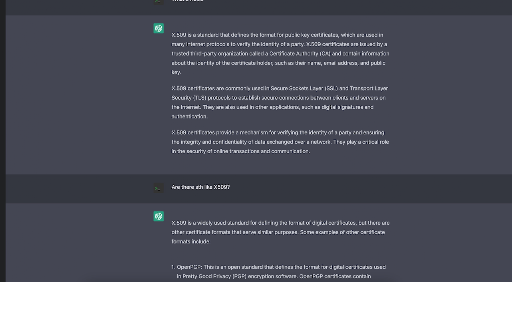

For exporting ChatGPT conversation into a HTML or TXT file. ChatGPT Exporter is a lightweight Chrome extension that enables users… For exporting ChatGPT conversation into a HTML or TXT file. ChatGPT Exporter is a lightweight Chrome extension that enables users to quickly and easily export their ChatGPT conversation sessions in a clean, formatted HTML file. The extension preserves the original structure, including highlights, code blocks, and other style elements, making it perfect for sharing, archiving, or reviewing your conversations with ChatGPT. Install ChatGPT Exporter today to effortlessly save and manage your ChatGPT sessions.

AI Chat Exporter: Gemini to PDF, MD and more
Export Gemini chats to PDF, Markdown, Text, CSV... Free and fully customizable. AI Chat Exporter: Gemini to PDF, MD and more lets you save your conversations with Gemini AI to your computer. Export Gemini to PDF, Markdown, Text, CSV, or JSON files with just a couple of clicks. Looking for an easy way to save Gemini conversations as PDF? With AI Chat Exporter, you can export Gemini chats and refer back to them whenever you need! ## Main Features 💼 ### Multiple File Formats 📋 Choose the format that works best for you: - PDF - Convert Gemini to PDF, perfect for printing or sharing with others - Markdown - Great for editing in note-taking apps - Text - Simple and works everywhere - CSV - Useful for data analysis - JSON - Ideal for developers or data processing ### Customization Options ⚙️ Make your exports look exactly how you want: - Choose which messages to export - Include or exclude timestamps(created, updated, exported) - Adjust Date & Time format - More settings for PDF: - File name & Content title - Light or dark theme - Page format (A4, Letter, etc. Portrait or Landscape) - Page margin - Font size - Table of content - User info (name & email) - Include page numbers - Customize footer (page number) - Include Thinking process - Page break for each conversation turn ### Complete Content Support 🧩 AI Chat Exporter captures everything in your conversations: - Regular text messages - Code blocks with proper formatting - Math formulas - Tables and charts - Thinking Process displays ### Easy to Use 👍 Save Gemini to PDF in just 2 clicks! No complicated settings or steps required unless you want to customize. ## How to Export Gemini to PDF & More 🔍 1. Install the extension from the Chrome Web Store 2. Visit Gemini's website and have a conversation 3. The export button displays next to your input field 3. Click "Select" and choose which parts of the conversation you want to export 4. Choose your export format (PDF, Markdown, Text, CSV, or JSON) 5. Click "Export" and your file will download automatically That's it! Your Gemini conversation is now saved as a PDF or any format you chose. ## Privacy First Approach 🔒 We take your privacy seriously. AI Chat Exporter: - Doesn't access your data for any purpose other than exporting - Never save, share or analyze your conversation data Your conversations stay between you and your computer - exactly how it should be! ## Pricing and Free Usage 💰 AI Chat Exporter offers generous free usage: - **PDF Exports**: 3 free exports per day - **All Other Formats** (Markdown, Text, CSV, JSON): Unlimited and permanently free! We offer PRO plans for users who need more PDF exports. All other export formats remain free forever, no subscription required. ## Frequently Asked Questions ❓ ### Is AI Chat Exporter free? Yes! AI Chat Exporter offers free usage for all export formats. PDF exports are free 3 times per day, while Markdown, Text, CSV, and JSON exports are completely free with no limits. We offer PRO plans for users who need more PDF exports. ### Do I need an account to start using AI Chat Exporter? No account needed! Just install the extension and start exporting. ### Will AI Chat Exporter work with other AI chat tools? Currently, AI Chat Exporter works specifically with Gemini AI. Support for other platforms may be added in the future. ### Will my formatting be preserved when I export Gemini to PDF? Yes! We work hard to maintain formatting, including code blocks, tables, and special outputs. ### Is there a limit to how long a conversation I can export? There's no set limit, but very long conversations may take longer to process, especially for PDF exports. ### Can I customize how my exports look? Absolutely! Check out the Customization Options section for details. ### Does AI Chat Exporter work with the latest version of Gemini? Yes! We regularly update the extension to ensure compatibility with the latest Gemini features. ## Support and Contact 📞 Have questions, suggestions, or found a bug? We'd love to hear from you! - Email: support@ai-chat-exporter.com

ChatGPT Exporter
Export ChatGPT conversations to clean Markdown (.md) with live preview. Free downloads; Pro adds PDF/TXT/JSON/CSV + Google Drive. Export ChatGPT conversations to clean Markdown (.md) for docs, notes, and archives. Preview the final output before saving. Formatting is preserved (code blocks, headings, lists, links). Free: Markdown download. Pro: PDF/TXT/JSON/CSV + Google Drive folders. ChatGPT Exporter helps you turn useful chats into reusable files for: • Developer docs, READMEs, and internal knowledge bases • Debugging notes, incident writeups, and decision logs • Study notes, meeting summaries, and personal archives Works on: chatgpt.com and chat.openai.com Free features • Export the current ChatGPT conversation to Markdown (.md) • Live preview (rendered Markdown) + raw Markdown view • Clean formatting (keeps code blocks and structure) • One-click extract → download locally Pro features • Save exports directly to Google Drive • Choose/create folders to keep exports organized • Remembers your folder preference • Export additional formats: PDF, TXT, JSON, CSV How it works 1. Open a ChatGPT conversation 2. Click the extension icon 3. Click Extract 4. Preview or view raw Markdown 5. Download (Free) or save to Google Drive (Pro) Privacy: • Export conversion happens locally in your browser. • If you use Google Drive export (Pro), the selected export file is uploaded to your Drive via Google OAuth. Notes / common questions • This extension exports the conversation you have open (not a bulk export of your entire ChatGPT history). • If a long chat is missing older messages, scroll up in ChatGPT to load more content, then click Extract again. Not affiliated with OpenAI. Use the Support section on this listing for help and troubleshooting.

Export ChatGPT Conversations (MarkDown and Plain Text)
Export your ChatGPT conversations into a well-formatted markdown, ready for Notion, Google Docs, or your preferred note-taking app. A Chrome extension that effortlessly exports your ChatGPT conversations into well-formatted markdown, ready for Notion, Google Docs, or your preferred note-taking app. My extension supports code and mathematical symbol formatting, making it a perfect tool for developers, and researchers. Not only this is useful in documentation but also in re-prompting and prompt engineering.

ChatGPT Exporter — Export Chat to PDF, Markdown, JSON & CSV
Export ChatGPT conversations to PDF, Markdown, Text, CSV, JSON. Download and save any chat. Free, open-source, 100% local. Export ChatGPT conversations to PDF, Markdown, and 4 more formats — completely free, open-source, and 100% local. ChatGPT Exporter is a Chrome extension that lets you export, download, and save any ChatGPT conversation in one click. No subscriptions, no external servers, no data collection. HOW TO EXPORT CHATGPT CHAT TO PDF: 1. Install the extension 2. Open any ChatGPT conversation on chatgpt.com 3. Click the export button in the conversation header 4. Select "PDF" — a clean, professional PDF opens in the browser print dialog 5. Save as PDF — done EXPORT FORMATS: • PDF — professional print-ready document, clean typography, perfect for sharing • Markdown (.md) — ideal for notes, Notion, Obsidian, and documentation • Plain Text (.txt) — simple, universal text file • JSON (.json) — full structured data with roles, timestamps, and metadata • CSV (.csv) — spreadsheet-ready, opens in Excel and Google Sheets • ZIP (.zip) — batch export multiple conversations from a ChatGPT project KEY FEATURES: • Export entire conversation — one click, instant download • Select specific messages — pick individual messages with checkboxes, export only what you need • Export ChatGPT project — select conversations within a project, download as a single ZIP archive • Deep Research support — captures search queries, web results, and synthesis • Canvas & Text Docs — includes attached documents and canvas content • ChatGPT data export — alternative to the official export, per-conversation WORKS WITH: • chatgpt.com (new domain) • chat.openai.com (legacy domain) • All ChatGPT plans: Free, Plus, Team, Enterprise • ChatGPT Deep Research conversations • ChatGPT Projects with multiple conversations PRIVACY & SECURITY: • 100% local processing — nothing leaves your browser • Zero data collection — no analytics, no telemetry, no tracking • Open-source — full code on GitHub, verify everything yourself • No API keys needed — uses your existing ChatGPT session Q: How do I export ChatGPT conversations? A: Install ChatGPT Exporter, open any conversation, click the export button in the header, choose your format. The file downloads instantly. Q: Can I export ChatGPT chat to PDF? A: Yes. Select "PDF" from the export menu. A beautifully formatted document opens in your browser's print dialog. Choose "Save as PDF" to download. Q: Can I export specific messages from a conversation? A: Yes. Click "Select messages" to enter selection mode. Check the messages you want, then choose your export format from the toolbar. Q: How do I download all conversations from a ChatGPT project? A: Navigate to the project page, click the export button, select "Select conversations…", pick which ones to include, and download as ZIP. Q: Is ChatGPT Exporter free? A: Completely free and open-source. No subscription, no hidden fees, no premium tier. Q: Is my data safe? A: Everything is processed locally in your browser. No data is ever sent to external servers. You can review the source code on GitHub.
