
oamembonjndgangicfphlckkdmagpjlg
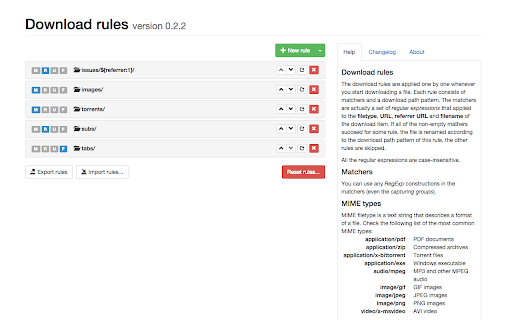


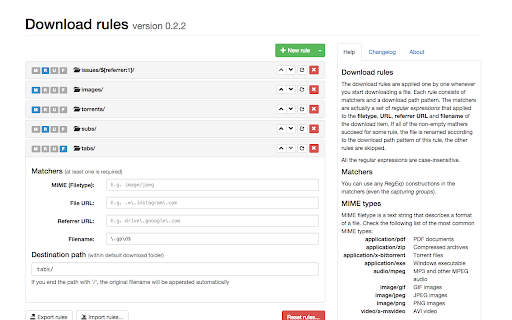
Forget about the mess in your Downloads folder! This extension allows you to set custom download locations with a flexible and strong RegExp-based rules. You can literally use all the power of regular expressions in your rules and handle even the most complex cases with this extension. The download rules can be based on filetype, filename, file and referrer(a page where the download was started from) URLs. You can even substitute some part of the result download location with parts of your matching rules via capturing groups! You can reach the Options page from chrome://extensions

ContextSearch web-ext
Add search engines easily and search from the context menu and convenient popup The most powerful, most complete search enhancement for Firefox comes to Chrome This Add-on was written as a Firefox 57+ web-extensions compatible replacement for Ben Basson's popular Context Search Add-on but has grown into much more. * Access search engines from the Context Menu * Manage search engines using subfolders and separators * Access search engines from a popup menu (QuickMenu) * Compatible with all search engines using POST or GET requests * International character-set support * Reverse-image search * Site search compatible * Add new search engines simply with a right-click * Edit search engine parameters and icons * Access bookmarklets from the context menu * Toolbar Search * Set hotkeys for each search engine * and much more

Bookmarks Commander
A dual-pane Norton Commander liked bookmarks manager that supports sorting, dark theme, search, and duplicate detection This is a two-panel bookmarks manager for your browser. It works similar to the famous Total Commander. You can move items between the panels or view two different directories simultaneously. Instruction: Click on the toolbar button once to open the commander in a new browser tab. By default the left panel has focus. Use arrow up and arrow down keys to navigate. Use Enter to move to a directory. To move the other panel simply press The left or right arrow key. Shortcuts: [open links]: Press Enter key to open on the same tab. Press Ctrl + Enter or Command + Enter to open in a background tab or use double-click to open on the same tab. Press Ctrl/Command while double-clicking to open in a background tab. [select multiple bookmarks]: Ctrl/Command with left-click to select more items. [copy links to the clipboard]: Ctrl + C or Command + C to copy selected links to the clipboard. [copy titles to the clipboard]: Ctrl + X or Command + X to copy selected titles to the clipboard. [directly navigate to a bookmark]: Press the first character of the title multiple times to navigate between items starting with this particular character [move one step up]: Use backspace to navigate to the parent directory [move between left and right panels]: use Tab key to toggle between panels. Use Ctrl + 1 or Command + 1 to move to the left tab. Use Ctrl + 2 or Command + 2 to move to the right tab. You can alternatively use arrow-left and right to move between panels. [move selected bookmarks and folders to the other panel]: Use Ctrl/Command + right arrow key to move selected items to the right panel when the left panel is focused. Use Ctrl/Command + left arrow key to move selected items to the left panel when the right panel is focused. [sort items]: Ctrl/Command + J for A-Z and Ctrl/Command + Shift + J for Z-A [find duplicated bookmarks]: Ctrl/Command + Shift + F; use the "duplicates" keyword on the search bar to find all duplicated bookmarks in the current directory and subdirectories. [move bookmarks between different browsers]: Ctrl/Command + Y to export selected bookmarks to the clipboard, then use Ctrl/Command + P to import them to the new machine. This way you can transfer bookmarks between two browsers. [configurations]: Use Ctrl/Command + S to access configuration panel. You can change the font size and font family of the interface or change the color scheme (theme) of the interface (dark, light, or based on your OS color scheme) or toolbar icon's color. It is also possible to use the new "VIM" mode to support VIM-compatible navigation (still in progress). Notes: 1. When an operation is not allowed, the button is disabled. 2. You can see all the shortcuts by placing your mouse over the buttons. 3. You can drag and drop bookmarks between panes 4. You can use right-click context menu to open links in new windows

Downloads Overwrite Already Existing Files
- Very similar to the original "Downloads Overwrite Existing Files". This one includes a bug fix so it will remember your previous download folder, rather than default back to your default download folder. - Microsoft Edge Addon: https://microsoftedge.microsoft.com/addons/detail/dfnblaebmpjlokbkadgeaghajajidojj - See source code here: https://github.com/zach-adams/downloads-overwrite-already-existing-files - I am not responsible for lost/overwritten data. This does not compare the contents of files or the file modification time before overwriting, it only compares filenames.

ExtManager
Manage the chrome extensions. One click to enable or disable extension. Group extensions and drag it. Sort extensions by drag it. You can easily enable, disable, and uninstall your extensions,applications and themes by "ExtManager". No need to enter the chrome own extensions page every time. Features: 1. Display enabled extensions on top. 2. Display enabled/group/all extensions simply. 3. Enable/disable extension by one click. 4. Group extensions and drag it into the group. 5. Sort extensions by drag it. 6. Uninstall extension simply when you confirm. Support text list, large icon list and small icon list of a variety of permutations, suitable for different expansion of the number of people. You can easily open the system pages, such as the download page, history page, page extensions, plug-ins page, chrome settings page, the search engine settings page, clear the browser cache pages, page content settings, font and encoding settings, language settings, reset the browser settings page and so on.
